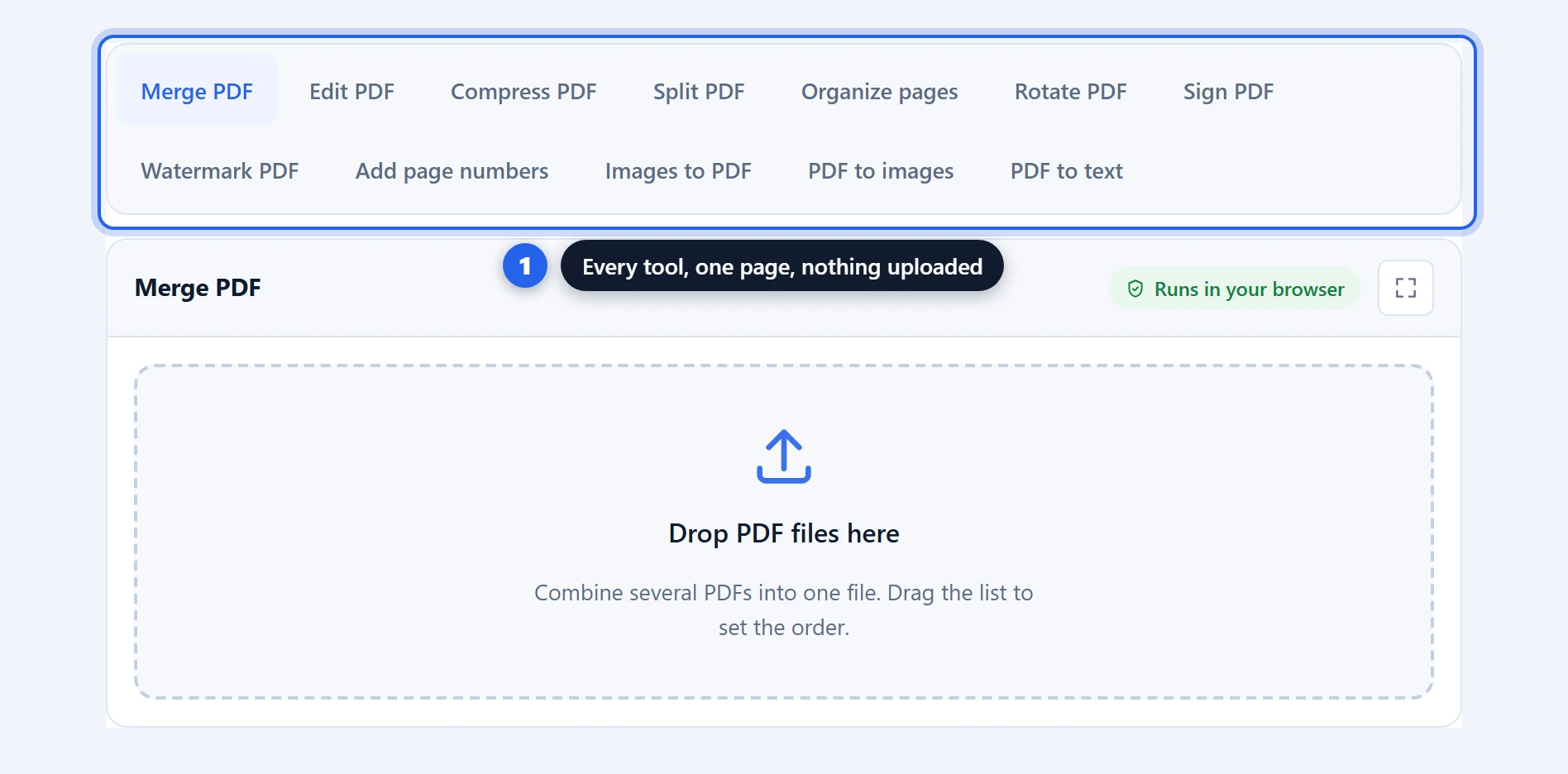
Merge PDF files right here in your browser, free, with no upload and no account. Most online mergers send your documents to a server, hold them for a while, and cap you at a few tasks per hour unless you pay. This tool works the other way around: the merging happens on your own device, using your browser’s own processing power. Your files never travel anywhere, there is no queue, and there is no page limit. Drop in two PDFs or twenty, drag them into the right order, and save the combined file.
Merge PDF Files Free: 3 Easy Steps, No Upload
How to merge PDF files in 3 steps
Step 1 — add your files. Drag your PDFs onto the drop zone, or click it to browse. You can add as many as you like, and you can keep adding more with the “Add files” button after the first batch. Each file shows a small preview of its first page, its page count, and its size, so you can confirm you grabbed the right documents before doing anything else.
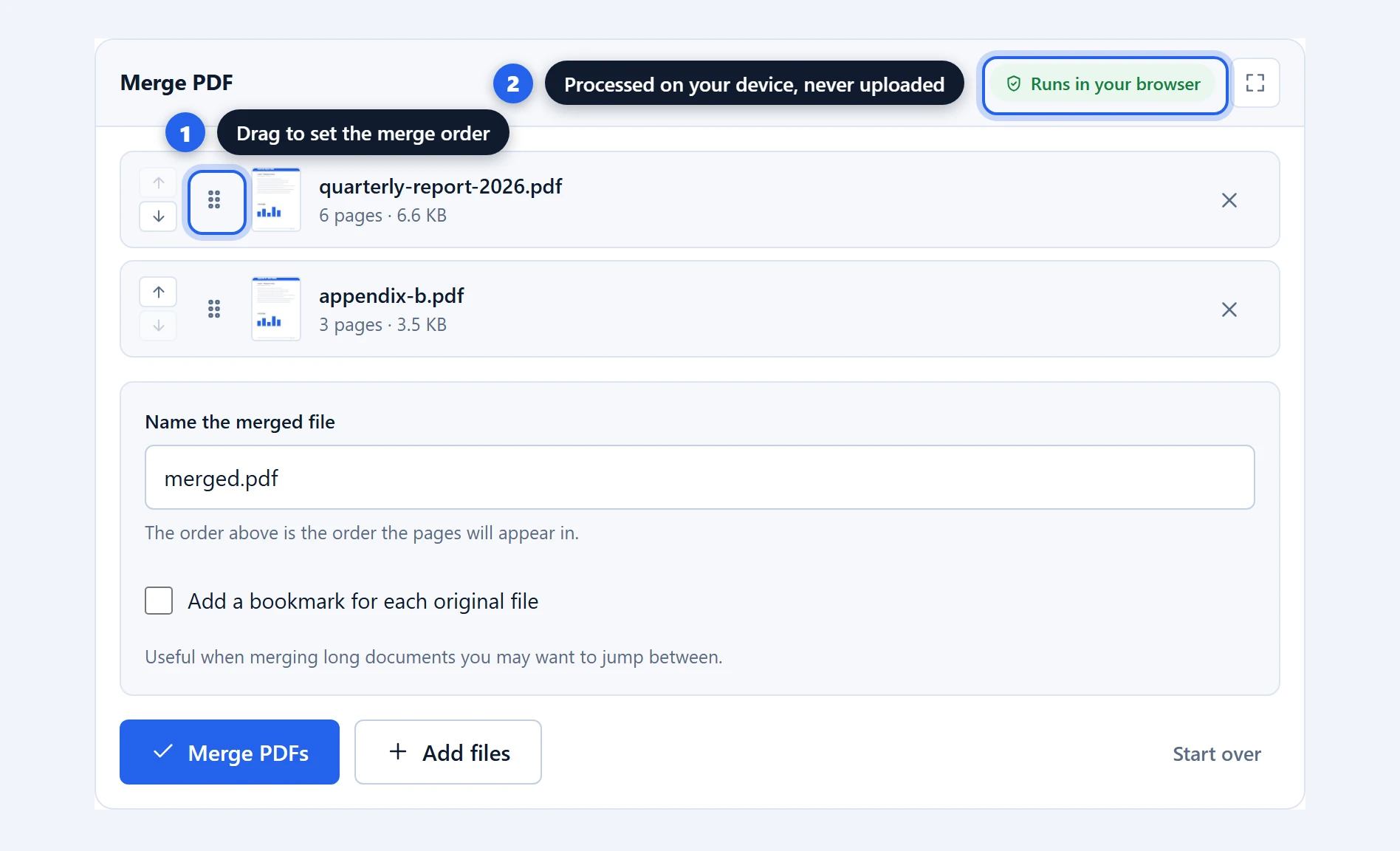
Step 2 — set the order. The list order is the merge order. Grab the handle on the left of any file and drag it up or down. If you merge a report and its appendix, the appendix goes second; if you got it backwards, one drag fixes it. You can also name the output file here, and optionally record where each original document starts inside the merged file.
Step 3 — merge and save. Click “Merge PDFs”. A progress bar tracks each file as it is added, and the finished PDF appears with its final size and page count. On Chrome and Edge you pick exactly where to save it. On Firefox and Safari it lands in your downloads folder, because those browsers do not yet let web pages write files anywhere else.
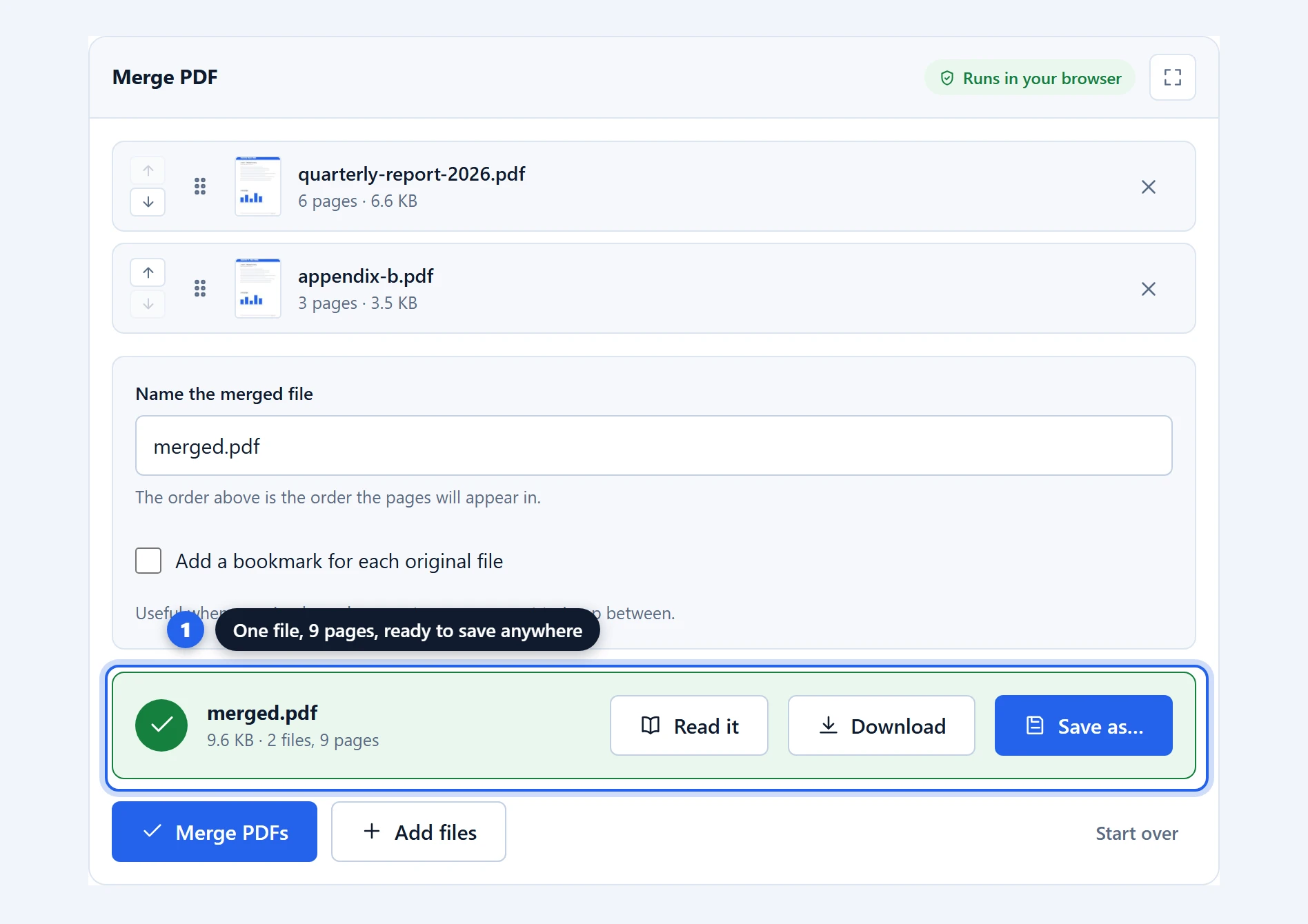
That is genuinely all there is to it. No sign-up screen between step 2 and step 3, no watermark stamped on the output, and no “you have used your free merges for today”.
Why this merge PDF tool never uploads your files
The short version: it does not need to. Merging a PDF is not heavy work by modern standards. The laptop or phone you are reading this on is easily powerful enough to do it, so sending your files across the internet to a server farm, merging them there, and sending the result back is a detour that mostly benefits the people running the server.
The tool is built on two open-source engines that run inside your browser. pdf-lib reads your PDFs and writes the combined file, and PDF.js, the same engine Firefox uses for its built-in viewer, draws the page previews. Both run as JavaScript in the tab you already have open.
This matters more for some documents than others. A recipe collection is not sensitive. A signed contract, a medical report, a payslip, or a set of bank statements is a different story. When a server-based tool says files are “automatically deleted after 2 hours”, you are trusting that the deletion happens, that no backup copy exists, and that nobody looked in the meantime. Those are probably safe assumptions at reputable companies. But an assumption you do not have to make is better than one you do.
There is one honest nuance. The first time you use the tool, your browser downloads the merging engine itself, the same way it downloads images and styles on any page. That is code coming down to you. Your PDF still never goes up. After that first visit the engine is cached, and the tool keeps working even with no connection at all.
How to check the no-upload claim yourself
You do not have to take our word for any of this. Two checks take under a minute, and we would encourage them on any tool that handles your documents, including this one.
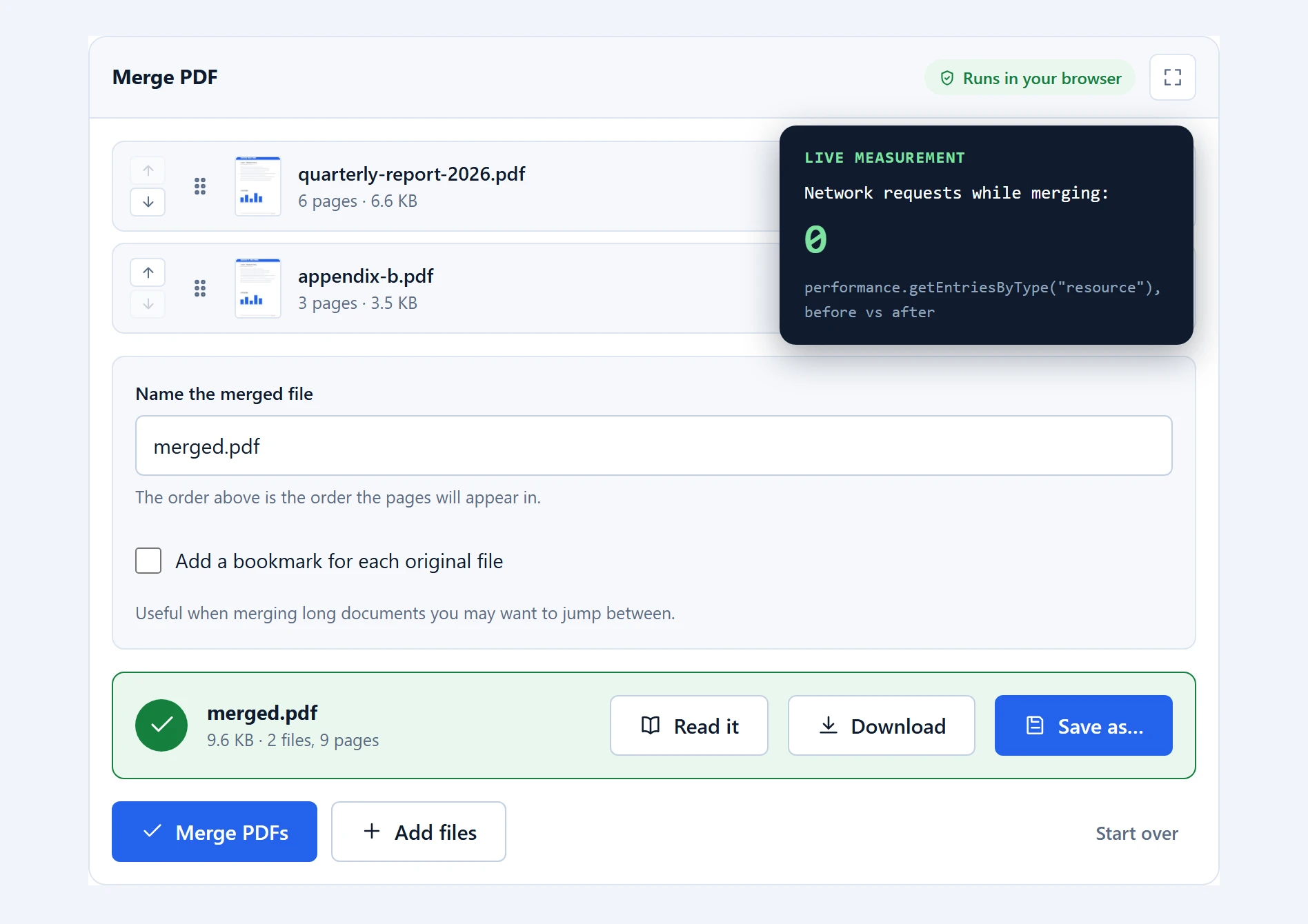
The network tab. Press F12 to open your browser’s developer tools and switch to the Network tab. Now merge some PDFs and watch the list. You will see the page load its own scripts, and then nothing when you add your files and nothing when you merge. No request carries your document, because no request is made.
Airplane mode. Load this page, then disconnect from the internet entirely. Merge your files. It works, because there is nothing left for the network to do. A tool that uploads your files cannot pass this test.
Every merge option, explained
File order. The merged document follows the list from top to bottom. This sounds obvious until you merge twelve scanned chapters all named something like scan_final_v2 (3).pdf, which is exactly why the first-page previews are there. They save you from opening each file to work out which is which.
Output filename. Defaults to merged.pdf. Give it a real name before saving; your future self, searching for the file in six months, will thank you.
“Add a bookmark for each original file.” When this is on, the tool records where each source document begins inside the merged file’s metadata, for example “appendix.pdf — page 7”. It is a plain text record rather than a clickable outline, which is a limitation of the engine we use, and we would rather tell you that here than let you discover it later in your PDF reader.
Adding more files mid-way. The “Add files” button appends to the existing list rather than replacing it, so you can build a merge in stages. “Start over” clears everything without touching your originals.
Where merging works best, and where it does not
Merging is at its best with everyday documents: reports and their appendices, scanned chapters, invoices for one claim, lecture notes. Anything up to a few hundred pages combines in seconds on an ordinary laptop.
Password-protected files are refused, deliberately. If one of your PDFs is encrypted, the tool stops and says so rather than producing a broken file. Unlock it with the password in your usual PDF reader first, then merge.
Interactive forms can lose their interactivity. A PDF form is two things stitched together: the visible page and a data layer describing the fields. Merging documents from different sources can separate the two, leaving fields visible but no longer fillable. If a fillable form must stay fillable after merging, test the output before you rely on it.
Phones have memory ceilings. Merging a handful of normal PDFs on a phone is fine. Merging 300 MB of high-resolution scans is asking a phone browser for more memory than it is allowed to give, and the tab may simply close. The tool warns you before starting when your files look too big for the device. On a desktop the same job just takes a moment longer.
How this compares with upload-based PDF mergers
The well-known PDF sites are competent tools, and this comparison is not about calling them bad. It is about what the free tiers actually permit, and where your file spends its time.
| This tool | Typical upload-based merger | |
|---|---|---|
| Where merging happens | On your device | On their servers |
| File uploaded | Never | Always |
| Free tasks per hour | Unlimited | Often 2–3 |
| File size limit | Your device’s memory | Commonly 50–100 MB free |
| Account needed | No | Often, past the first task |
| Works offline | Yes, after first load | No |
| Watermark on output | Never | Sometimes, on free tiers |
The honest trade-off runs the other way too. A server can offer things a browser cannot do well, like converting a PDF into an editable Word document. We do not offer that conversion at all, precisely because doing it badly in a browser would waste your time. For merging, though, there is no quality gap: the combined PDF is as good as any server would produce, and the pages themselves are untouched originals.
Troubleshooting
“This PDF is password-protected.” The file is encrypted. Open it in any PDF reader with the password, save an unlocked copy, and merge that. We do not bypass passwords, on principle and by design.
“This file could not be read as a PDF.” Either the file is damaged or it is not really a PDF, whatever its name says. A file renamed from .docx to .pdf is still a Word document. Re-export or re-download the original and try again.
The pages came out in the wrong order. The merge follows the list order at the moment you clicked the button. Click “Start over”, add the files again, drag them into the order you want, and re-merge. Nothing was harmed; your originals are never modified.
It is slow, or the tab crashed. Almost always a very large scan on a device without much memory. Close other tabs and retry, or use a desktop browser for that one job.
The save dialog never appeared. On Firefox and Safari there is no save dialog; the merged file goes straight to your downloads folder. Check there first.
Frequently asked questions
Is this merge PDF tool really free?
Yes, completely. No task limits, no page limits, no premium tier, no watermark. Because your device does the processing, serving this page costs us almost nothing, so there is nothing to meter and charge for.
Are my PDF files uploaded to a server?
No. The files are read directly by your browser and merged on your device. You can verify this yourself: open the browser’s network tab while merging, or switch to airplane mode after the page loads and merge offline. Both checks are described above.
Is there a limit on file size or number of files?
No fixed limit. The practical ceiling is your device’s memory. A desktop handles hundreds of pages without complaint; a phone will warn you before attempting something too large for it.
Can I change the page order of the merged PDF?
You control the file order by dragging the list before merging. To rearrange, delete or rotate individual pages afterwards, use the organize PDF pages tool, which shows every page as a thumbnail you can hover to enlarge.
Does merging reduce the quality of my PDFs?
No. Merging copies the original pages unchanged into one file. Text stays sharp, images keep their resolution, and nothing is recompressed.
Can I merge password-protected PDFs?
Not directly. The tool refuses encrypted files rather than producing broken output. Remove the password in your PDF reader first, then merge the unlocked copies.
Can I merge images like JPGs together with PDFs?
Not in one step here. First turn the images into a PDF with the images to PDF tool, then merge that PDF with the others. Two steps, both on your device.
Does it work on my phone?
Yes, in any modern mobile browser, with the memory caveat covered above. On iPhones and iPads the merged file arrives through the share sheet or downloads, depending on your browser.
Why does the first visit need an internet connection?
Your browser has to download the merging engine itself once, roughly the weight of a large photo. After that it is cached, and the tool works fully offline. The engine comes down to you; your files never go up.
More PDF tools that stay on your device
Merging is one of the tools in the PDF toolbox, all built the same way. If you are cleaning up a document rather than combining several, start with split PDF to pull out a page range, or organize pages to delete and reorder on a thumbnail grid. To put your name on the finished document, sign PDF lets you draw a signature and place it with a click.