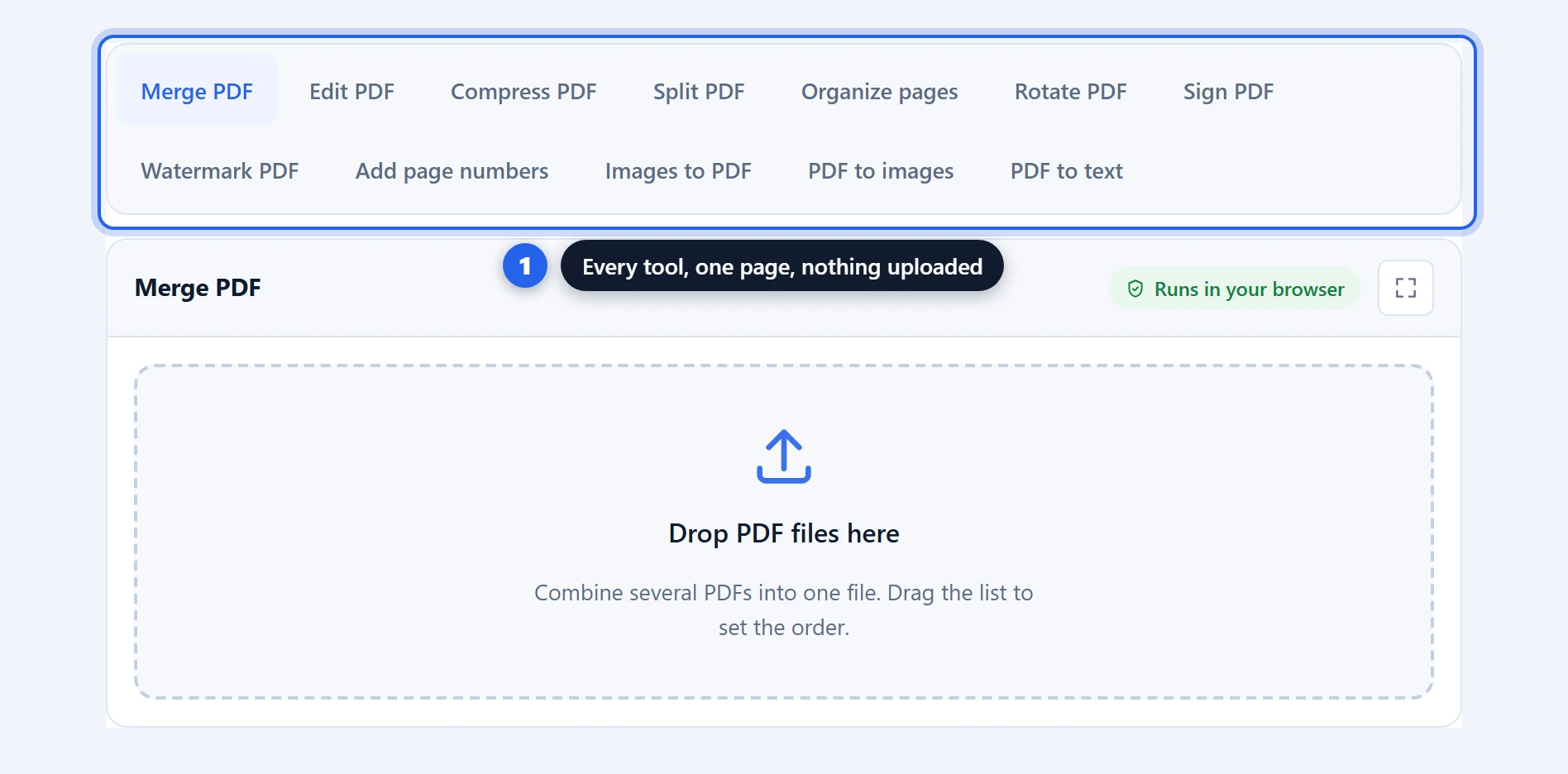
Delete pages from a PDF in your browser, free, with nothing uploaded anywhere. Every page appears as a thumbnail you can hover to enlarge, so you can read a page properly before deciding its fate. Remove the blank scans, drop the pages that were never meant to be shared, turn the ones that came in sideways, and save a clean copy. The original file on your computer is never touched.
Delete Pages From PDF Free: 1 Simple Grid, No Upload
How to delete pages from a PDF in 3 steps
Step 1 — open the document. Drop your PDF in and every page is rendered as a thumbnail. They fill in progressively, so a long document is usable before the last page finishes drawing.
Step 2 — mark what changes. Each page card has two controls: a bin to remove the page, and an arrow to rotate it a quarter turn. With a mouse they appear when you hover the card; on a phone or tablet they sit in a row under each page. Removed pages stay visible but greyed out, so you can see what you have marked and change your mind — on a greyed page the bin becomes a restore button that brings it back. And to reorder, simply drag a page to where it belongs (on a touch screen, by the grip in its corner); the card in that spot highlights, you drop, and the grid order is the page order of the saved file.
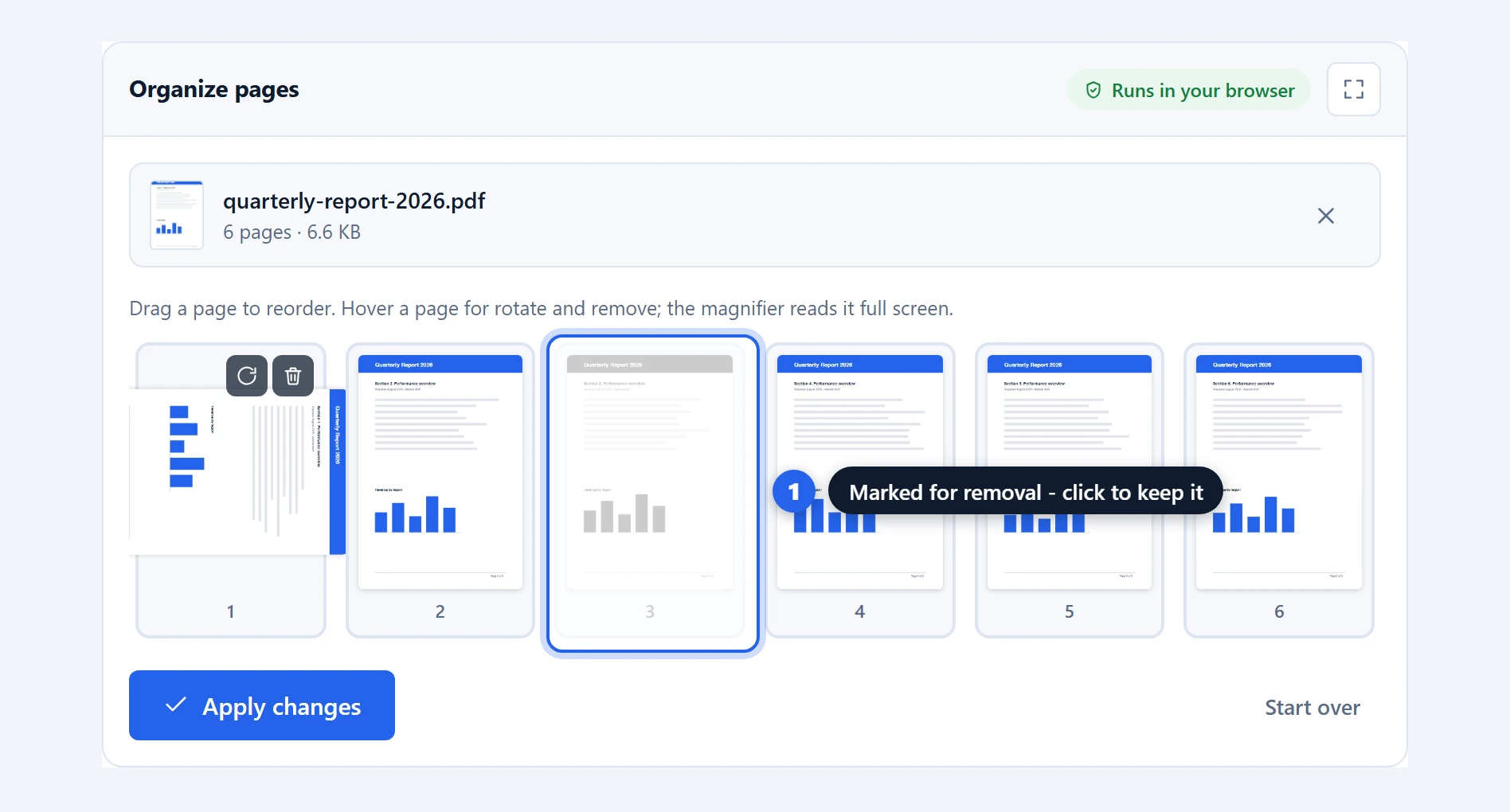
Step 3 — apply and save. Click “Apply changes”. A new PDF is built containing only the pages you kept, in the order you left them, with your rotations applied — and the summary tells you exactly what happened: “2 pages removed, 1 rotated, pages reordered”.
Hover any page to read it first
The problem with every thumbnail grid is that thumbnails are too small to read. You end up guessing, or opening the document separately to check which page is which, which defeats the point.
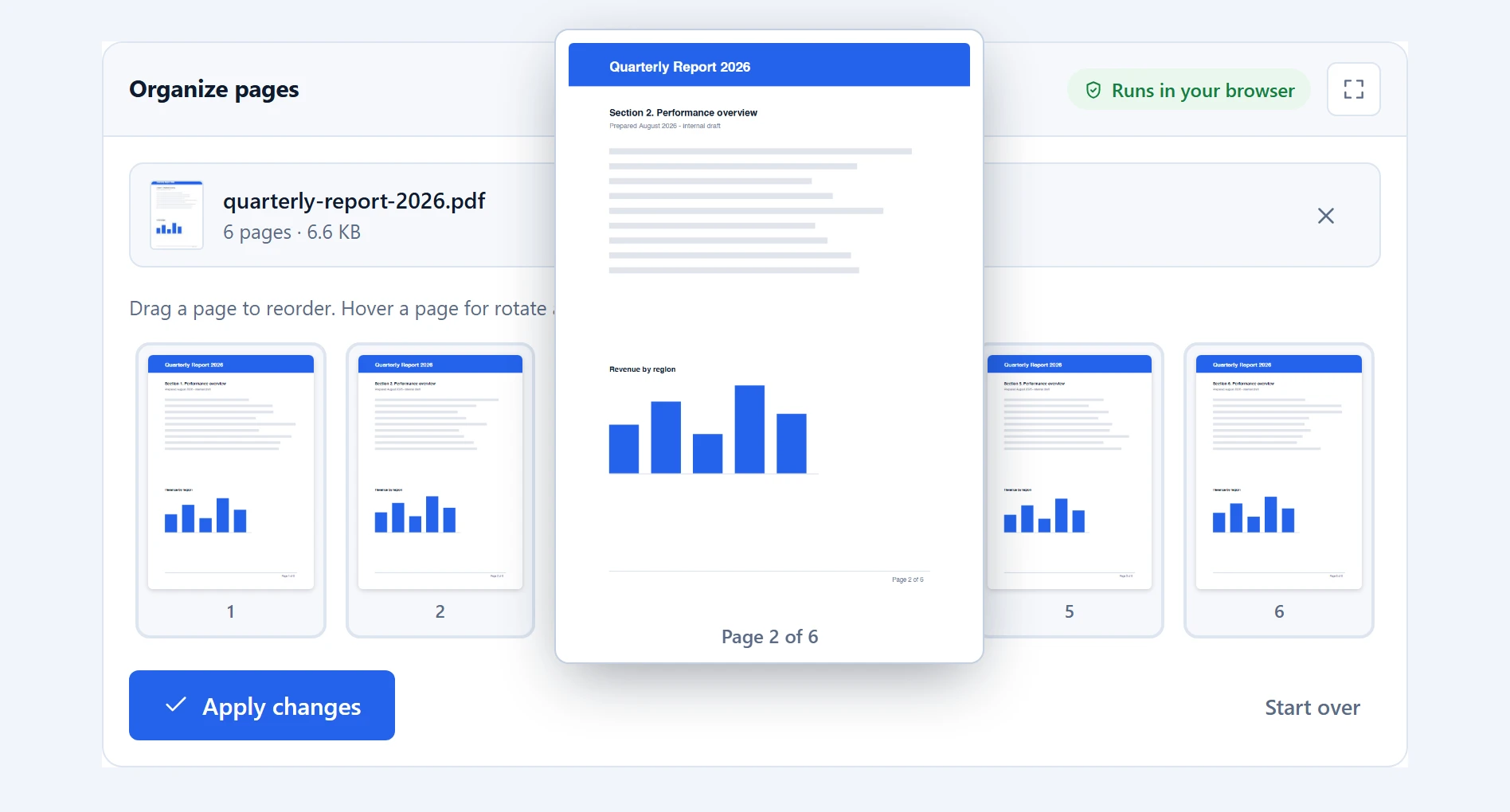
Hover any page here and it enlarges beside the grid, rendered fresh at a much higher resolution rather than blown up from the thumbnail. Headings, dates and figures are legible, which is usually all you need to tell page 14 from page 15. Keyboard users get the same thing by tabbing to a page, and the enlarged view follows your rotations, so a page you have turned appears the right way up.
Why deleting pages in your browser keeps them private
There is a particular irony in uploading a document to a server in order to delete its private pages. The page you want gone is usually the sensitive one: the salary line, the medical detail, the internal comment, the third party’s address. Sending the whole file to a stranger’s machine so it can hand back a shorter version is a strange way to protect it.
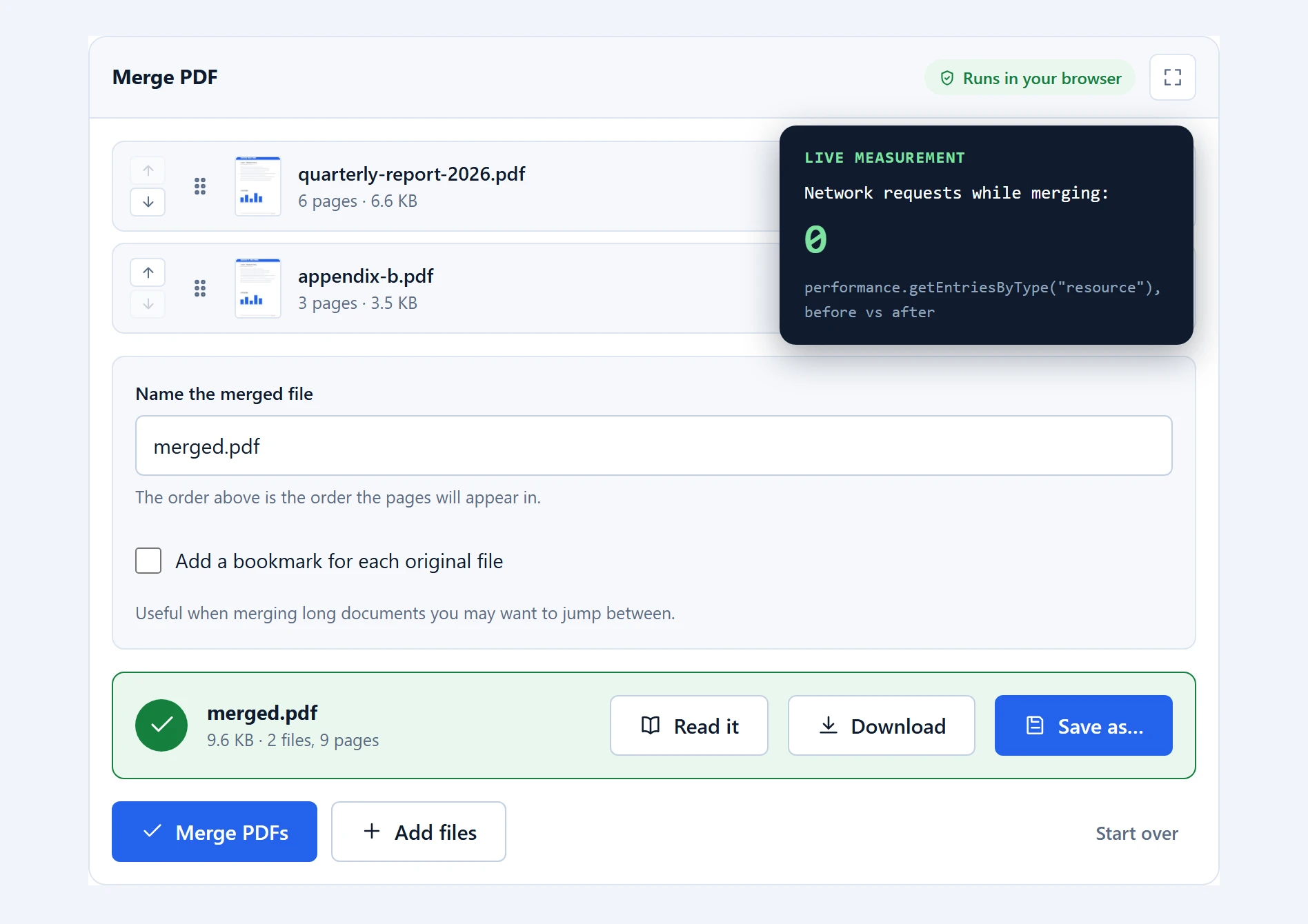
Nothing here leaves your device. PDF.js, the engine inside Firefox’s own viewer, draws the thumbnails, and pdf-lib writes the new document from the pages you kept. Both run as JavaScript in the tab you already have open, so the file never gets near a network.
One caution that applies to every tool of this kind, ours included: deleting a page removes the page, not the information about it. If page 3 was referenced by page 2, that reference stays. And if your goal is to hide text on a page you are keeping, deletion is the wrong tool — see the honest limits below.
Rotating pages that came in sideways
Scanners produce sideways pages constantly, usually when someone feeds a landscape chart into a portrait batch. The rotate control on each card turns that page 90° at a time, and clicking it four times returns it to where it started.
Rotation is added to whatever the page already had, rather than replacing it. That matters for scanned documents, where pages often carry a rotation you cannot see because the viewer is already honouring it. Turning such a page here gives you the quarter turn you asked for, not an unpredictable jump.
If every page needs the same treatment, rotate PDF does the whole document at once and is faster for that job.
Where this tool works well, and where it does not
Kept pages are exact copies. Text stays selectable, images keep their resolution, and nothing is re-compressed.
This is not redaction. Worth stating plainly, because the confusion is common and consequential. Deleting a page removes that page entirely, which is genuinely safe. But if you want to hide a paragraph on a page you are keeping, no page tool can do that: drawing a black box over text leaves the text underneath, extractable by anyone who copies and pastes. Real redaction means removing the text and rasterising the page. We do not offer it here rather than offer a version that only looks like it works.
Deleting pages may not shrink the file much. If the pages you removed shared fonts or images with the ones you kept, those resources stay. Removing half a document usually makes it smaller, but rarely by half.
Internal links can break. A contents entry pointing at a deleted page has nowhere to go afterwards. The link remains visible but stops working.
Form fields may not survive. Interactive fields depend on a data layer attached to the document. Rebuilding the document from selected pages can separate the two, leaving boxes that look fillable but are not.
Very long documents on phones. Rendering several hundred thumbnails takes real memory. The tool warns you when a file looks too big for the device rather than letting the tab close mid-way.
Troubleshooting
“Every page is marked for removal.” You have binned all of them, and a PDF cannot have zero pages. Restore at least one and the message clears.
I deleted the wrong page. Nothing is committed until you press “Apply changes”. Click the restore arrow on the greyed page to bring it back, or press “Start over” to reload the document untouched.
The thumbnails are slow to appear. Each page is being rendered individually. They fill in progressively and you can start marking pages before the last one finishes.
The controls do not appear on a page. On a desktop they show when you hover a card. On touchscreens they are always visible and sized for a fingertip.
My rotation did not save. Rotations only apply when you press “Apply changes” and save the result. The thumbnail turning on screen is a preview of what will happen.
Frequently asked questions
How do I delete a page from a PDF for free?
Drop the file into the tool above, hover the page you want gone and click the bin icon, then press “Apply changes” and save. It is free with no account, no page limit and no watermark, and the file is never uploaded.
Is my PDF uploaded to a server?
No. Thumbnails are drawn and the new document is written entirely in your browser. You can confirm it by watching the network tab, or by working offline after the page has loaded once.
Can I delete several pages at once?
Yes. Mark as many as you like before applying; each one greys out as you go, so you can review the whole selection before committing. Nothing is written until you press “Apply changes”.
Can I undo a deletion before saving?
Yes. Removed pages stay on screen greyed out, and clicking the restore arrow brings one back. “Start over” reloads the document with no changes at all.
Does deleting pages make the PDF smaller?
Usually, but not proportionally. Fonts and images shared between kept and deleted pages have to stay, so removing half a document rarely halves its size.
Can I use this to redact confidential text?
No, and this is important. Deleting a whole page removes it safely, but hiding text on a page you keep is a different job. Drawing a box over text leaves the text underneath, where it can still be copied. Proper redaction removes the text and rasterises the page; we do not offer it rather than offer something that only looks secure.
Is the original file changed?
Never. The tool builds a new document and offers it to you to save. The file on your computer stays exactly as it was unless you choose to overwrite it yourself.
Can I rotate just one page instead of the whole document?
Yes, that is what the rotate arrow on each page card does. To turn every page at once, the rotate PDF tool is faster.
Related PDF tools
To take pages out as separate files rather than tidying one document, use split PDF. To combine what is left with something else, merge PDF. If the whole document is sideways, rotate PDF handles it in one go. The full set is on the PDF tools page.