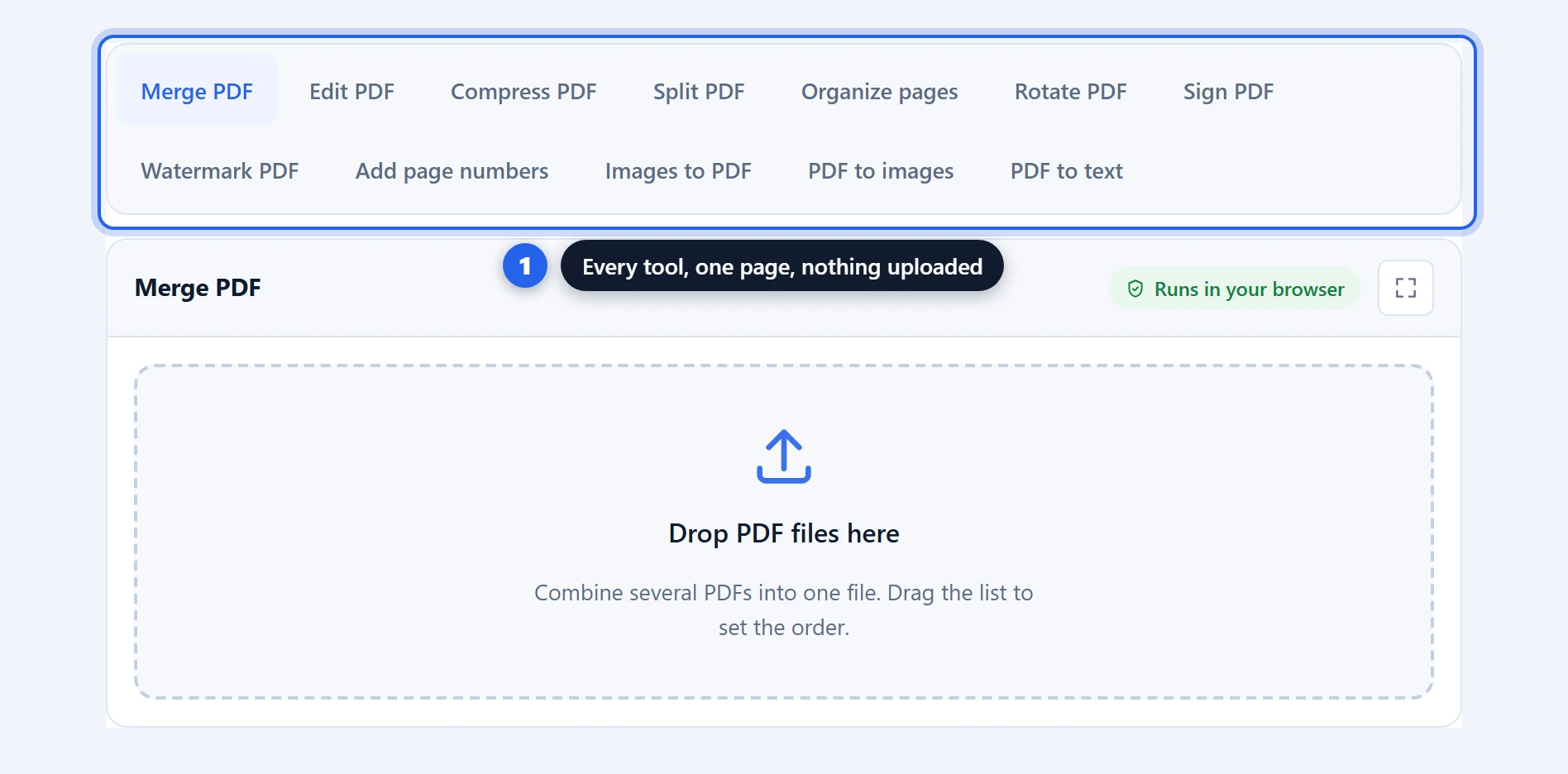
Compress PDF files free, in your browser, with no upload and no account. This tool works differently from most free compressors in one way that matters: it never turns your pages into pictures. It finds the images inside the document, recompresses only those, and leaves everything else exactly as it was — so your text stays sharp, selectable and searchable at any zoom. Scans and photo-heavy PDFs routinely come out 80–95% smaller, you see the exact quality in a live preview before committing, and if a file cannot honestly be made smaller, the tool says so instead of pretending.
Compress PDF Free: Smaller Files, Text Stays Sharp
How to compress a PDF in 3 steps
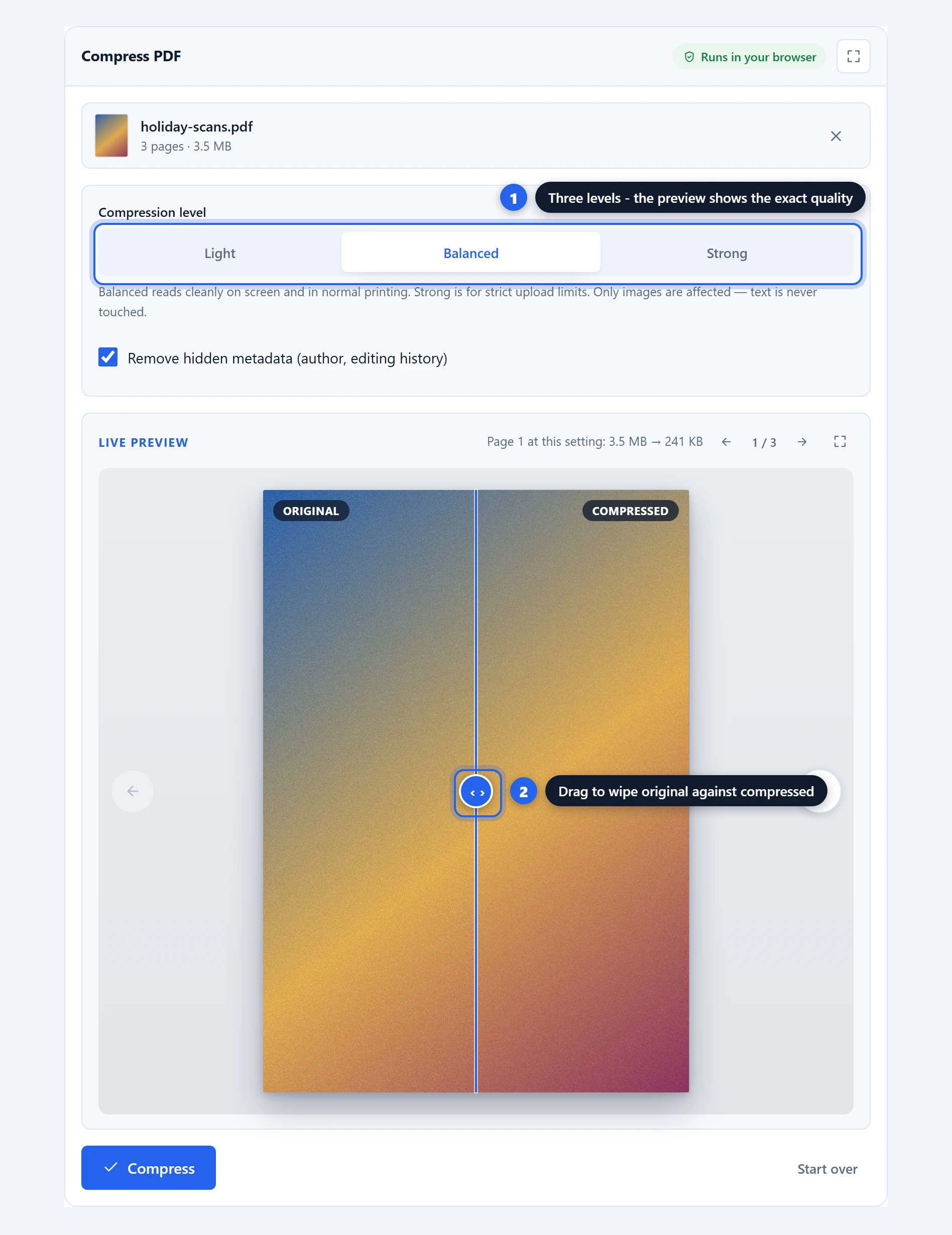
Step 1 — add your file. Drag a PDF onto the drop zone or click it to browse. The file card shows a first-page preview, the page count and the current size — the number you are about to shrink.
Step 2 — pick a level and check the preview. Three levels: Light, Balanced and Strong. The live preview beside the options (below them on a phone) renders the page at the level you chose, with the measured size next to it — not an estimate, the real result of compressing that page — and a pager flips through the whole document, so you can check the photo on page 9 as easily as page 1. It is a side-by-side you can interrogate: drag the divider to wipe the compressed version across the original, and hover anywhere to get a magnifier that shows both sides at full resolution. Flick between levels and watch the quality and the number change together.
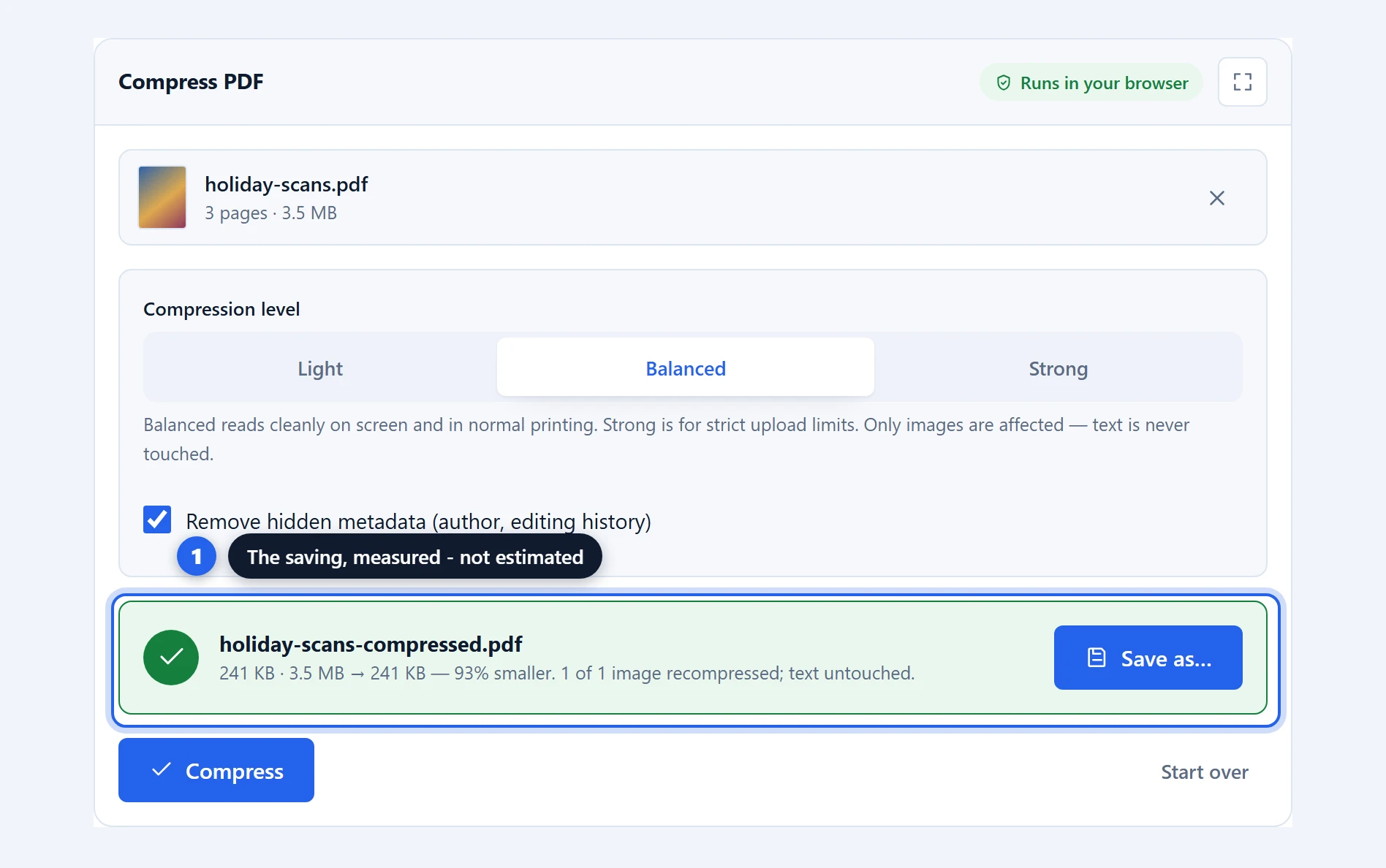
Step 3 — compress, read, save. Click “Compress”. The result card reports exactly what happened: the size before, the size after, the percentage saved, and how many images were recompressed. Click “Read it” to open the finished file in a full-screen reader — every page, scrollable and zoomable — and check the whole document before deciding to keep it. On Chrome and Edge you choose where to save; on Firefox and Safari it lands in your downloads folder. Your original file is never modified.
What actually makes a PDF file big
Understanding this explains everything else about the tool — including why some files shrink by 95% and others barely move.
The text in a PDF is astonishingly compact. A full page of it is a few kilobytes: the characters, the font name, and instructions about where each line goes. Even the embedded font that draws the characters is shared across every page that uses it. A 200-page contract with no pictures can weigh less than a single photo from your phone.
The weight is almost always in the images. A page scanned at 300 DPI is roughly an 8-megapixel photograph. A phone camera scan is bigger still. Word and PowerPoint exports routinely embed screenshots at several times the resolution anyone will ever view them at. One photo pasted into a report can outweigh the report.
That is why this tool goes after images and only images. Each one is downscaled to a sensible resolution for reading and re-encoded at an efficient quality, which is where the dramatic savings live. The text layer, the fonts and the vector graphics are copied through untouched, because there is almost nothing to win there and everything to lose.
It is also why an honest compressor cannot promise a percentage up front. A photo-heavy file has an enormous amount of removable weight; a pure text file has almost none. This tool tells you which kind you have instead of renaming your file “-compressed” either way.
Why your text stays sharp here, and goes blurry elsewhere
Many free compression sites use a shortcut: they print each page to a picture at reduced quality and build a new PDF out of the pictures. The file gets smaller, and the damage is permanent. Text you could select, copy and search becomes pixels. Zoom in and it is blurry. A screen reader finds nothing. Ctrl+F finds nothing. The document has stopped being a document.
This tool never does that, structurally — not as a quality setting, but by design. It edits the images inside the file and writes the rest back as it was. After compressing, at any level including Strong:
- Text is exactly as sharp at 400% zoom as the original, because it is the same text
- Select, copy, search and screen readers all still work
- Links, bookmarks and the page structure survive
- Vector graphics — logos, charts, diagrams — keep their crisp edges
The trade-off is honesty about scope: a tool that only touches images can only shrink files whose weight is in images. For the files people actually struggle to email or upload — scans, photographed receipts, image-heavy reports — that is precisely where the weight is.
Light, Balanced or Strong: which level to pick
Each level sets two things: the maximum resolution images are kept at, and how aggressively they are re-encoded. In every case the preview shows you the actual result on your actual document, which beats any description — but here is the intent behind each:
| Level | What it does | Use it for |
|---|---|---|
| Light | Gentle re-encode, images kept near full resolution | Documents you will print, or share with someone who might print them |
| Balanced | Images capped at comfortable screen-reading resolution | Almost everything: email attachments, archiving, uploads |
| Strong | Firm cap and assertive re-encoding | Strict portal limits — “attachments must be under 2 MB” |
Two details worth knowing. First, the tool never upscales: an image already below the level’s cap is re-encoded but not resized. Second, every image is judged individually — if recompressing a particular image would not make it meaningfully smaller, the original is kept, byte for byte. The output is never worse than the input.
“Remove hidden metadata” additionally strips the document’s editing metadata — author name, creating application, revision history stamps. It saves a little space and is usually what you want when sending a file outside your organisation; untick it if you need that provenance preserved.
Your file is never uploaded — and you can verify that
The compression runs entirely on your device, in the browser tab you are looking at. There is no server, no queue and no copy of your document anywhere but your own machine. For the documents people most need to shrink — contracts, medical records, payslips, ID scans — that is not a convenience feature, it is the point.
Under the hood it is the open-source pdf-lib engine that reads and rewrites the document’s structure, paired with your browser’s own image decoder for the recompression — both running as JavaScript in this tab, the same engines behind every tool in this toolbox.
Two checks take under a minute. Open your browser’s developer tools with F12, switch to the Network tab, and compress a file: no request carries your document, because no request is made. Or load this page, switch to airplane mode, and compress — it works, because there is nothing left for the network to do.
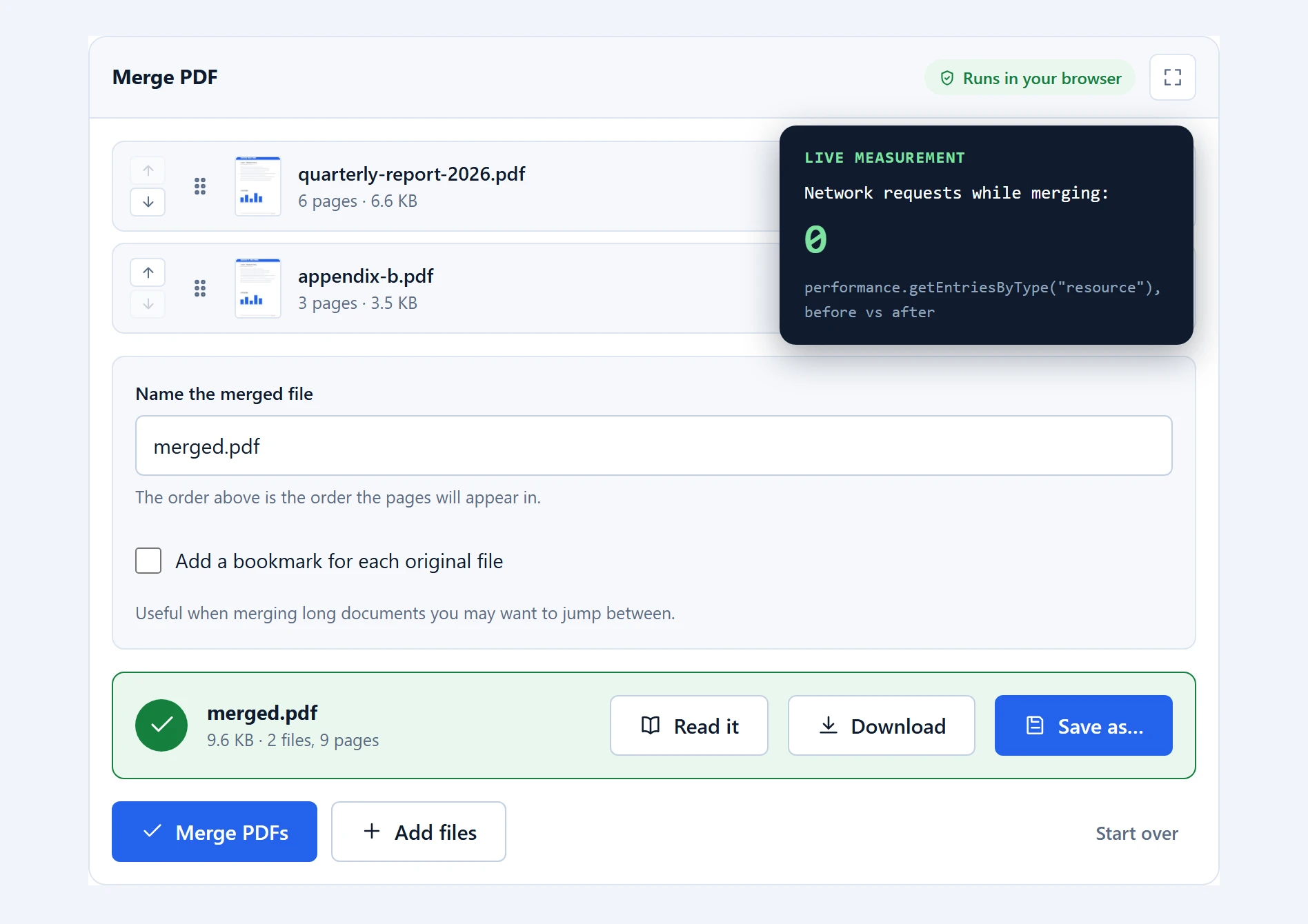
The one nuance, stated plainly: on your first visit the browser downloads the compression engine itself, the way any page downloads its scripts. Code comes down to you once and is cached. Your files never go up.
What this tool will not shrink, on purpose
An honest tools page tells you where the edges are. When the tool hands your file back unchanged with a note, it is one of these cases, and the unchanged file is the correct answer:
Text-only PDFs. Contracts, ebooks, exported spreadsheets with no images. Their text is already stored compressed, and there is no safe way to shrink it further without the rasterizing trick this tool refuses to use.
Already-optimised files. A PDF that has been through a competent compressor once has little left to give. Recompressing an efficient JPEG usually makes it larger, so the tool measures and declines rather than inflating your file.
Black-and-white fax-style scans. Some scanners store pages in a 1-bit format that is already extraordinarily compact. Converting those to photographs would balloon them, so they are left untouched.
Print-production files. CMYK images for professional printing are left alone deliberately — converting them to screen colours would damage the file’s purpose to win a few percent.
Password-protected files. Encrypted PDFs are refused with a clear message rather than mangled. Unlock the file with its password in your PDF reader, save an unlocked copy, and compress that.
In every one of these cases the rule is the same: any image the tool cannot improve safely is copied through exactly as it was. The worst possible outcome is a file the same size as before — never a broken one.
How this compares with upload-based compressors
The well-known sites compress competently. The differences are in what the free tiers permit, what happens to your text, and where your file spends its time.
| This tool | Typical upload-based compressor | |
|---|---|---|
| Where compression happens | On your device | On their servers |
| File uploaded | Never | Always |
| Text after compression | Untouched — still sharp and selectable | Varies; often rasterized on stronger settings |
| Quality preview before committing | Yes, measured on your file | Rarely |
| Free tasks per day | Unlimited | Often 1–2 |
| File size limit | Your device’s memory | Commonly 50–100 MB free |
| Account needed | No | Often, past the first task |
| Works offline | Yes, after first load | No |
The honest trade-off: a server running professional tooling can apply a few tricks a browser cannot, like rebuilding fonts or converting colour spaces, which occasionally wins a further few percent on unusual files. For the everyday case — a scan or photo-heavy document that needs to get under an upload limit — there is no meaningful gap, and this tool’s text guarantee is one the rasterizing sites cannot make.
Troubleshooting
“This PDF is already compact.” Not an error — a finding. The tool measured your file and could not make it meaningfully smaller without damage. The section above on what it will not shrink explains the usual reasons. If you absolutely must hit a size target with a text-heavy file, no image-based compressor will get you there; splitting the document is usually the better move.
“This PDF is password-protected.” Open the file in any PDF reader with its password, save an unlocked copy, and compress that. We do not bypass encryption, on principle and by design.
The output looks too soft at Strong. That is what the preview is for — Strong trades visible image quality for size. Re-run at Balanced or Light. Your original is untouched, so experimenting costs nothing.
It is slow, or the tab crashed. Almost always a very large scan on a device without much memory — decompressing a 300-page scan needs room to work in. Close other tabs, or run that one job on a desktop browser.
The save dialog never appeared. On Firefox and Safari there is no dialog; the compressed file goes straight to your downloads folder. Check there first.
Frequently asked questions
Is this compress PDF tool really free?
Yes, completely. No task limits, no file size tiers, no premium quality setting held back, no watermark. Your device does the processing, so there is nothing for us to meter and charge for.
Are my PDF files uploaded to a server?
No. The file is read and compressed entirely in your browser. You can verify it: watch the network tab while compressing, or go into airplane mode after the page loads and compress offline. Both checks are described above.
How much smaller will my PDF get?
It depends entirely on what is inside it. Scans and photo-heavy documents routinely shrink 80–95%. Mixed documents commonly shrink 40–70%. Pure text PDFs barely shrink at all, and the tool will tell you so rather than pretending. The live preview shows the measured result on your file before you commit.
Will my text get blurry or stop being selectable?
No, at any level. This tool never converts pages to images — it recompresses the pictures inside the document and leaves the text layer untouched. Selection, search, copying and screen readers all work identically afterwards.
Why did my file come back unchanged?
Because making it smaller would have required damaging it. Text-only PDFs, already-optimised files and compact black-and-white scans have no safe weight to remove. The tool measures first and only keeps a change when it is a real improvement.
Can I compress a scanned PDF?
Yes — scans are where this tool shines, because a scanned page is one large photograph and photographs are exactly what it recompresses. A phone-camera scan at Balanced typically drops to a fraction of its size while staying perfectly readable.
Does compressing change my original file?
Never. The tool writes a new file and leaves your original exactly as it was. If you dislike the result, nothing has been lost — pick a different level and run it again.
Can I compress a password-protected PDF?
Not directly. The tool refuses encrypted files rather than producing broken output. Remove the password in your PDF reader first, then compress the unlocked copy.
Does it work on my phone?
Yes, in any modern mobile browser. Very large scans can exceed a phone browser’s memory allowance, and the tool warns you before starting when a file looks too big for the device; a desktop handles the same file comfortably.
More PDF tools that stay on your device
Compression is one of the tools in the PDF toolbox, all built the same way. If the file is big because it contains pages you do not need, organize pages lets you delete them on a thumbnail grid — often a bigger saving than any compression. To send only part of a document, split PDF extracts the range you need. And if what you actually want is the pictures out of the PDF, PDF to images exports them at the resolution you choose.