Sign a PDF in your browser, free, without uploading the document or your signature anywhere. The signing view shows every page of the document at full size: draw your name with a mouse, trackpad or finger, type it, or place a photo of a signature you already have, then drop it exactly where it belongs and drag it until it sits right. The signature is flattened into the document itself, so it cannot be dragged around or deleted in someone else’s PDF reader. Contracts, consent forms and letters never leave your device.
Sign PDF Free: Draw Your Signature in 3 Steps
How to sign a PDF in 3 steps
Step 1 — open the signing view. Drop the PDF in and press “Open the signing view”. Every page appears at full size in one scrolling column, the same full-page editor our Edit PDF tool uses, cut down to just what signing needs: your signature, ink, text and images.
Step 2 — create the signature and place it. Press Sign. The pad has three tabs: Draw your name with a finger, stylus or mouse; Type it and pick one of eight handwriting fonts; or bring an Image of a signature you already have, and the paper behind it turns transparent. Then click the page exactly where the signature belongs. Drag it to adjust, pull the corner grip to resize, and use the arrow keys for the last millimetre. Need a date or a printed name beside it? Add it with Text.
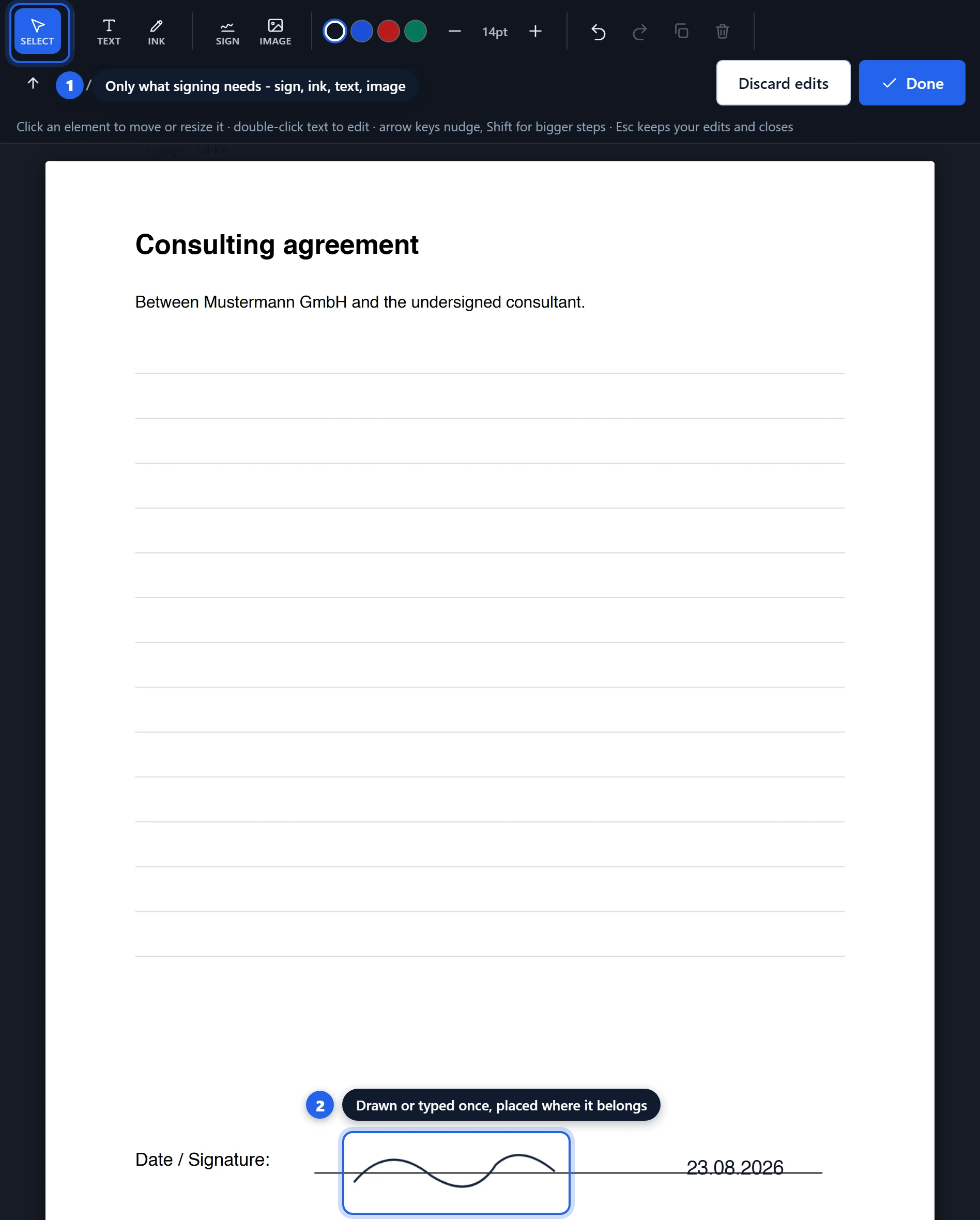
Step 3 — sign and save. Press “Done”, then “Sign document”. The signature is flattened into the page content and the signed PDF is ready immediately — readable in full before you save it anywhere.
Why your signature should never be uploaded
A signature image is unusually sensitive. Unlike a password, you cannot change it if it leaks, and a clean transparent PNG of someone’s signature is exactly what a forger would want. It is worth being careful about where that image goes.
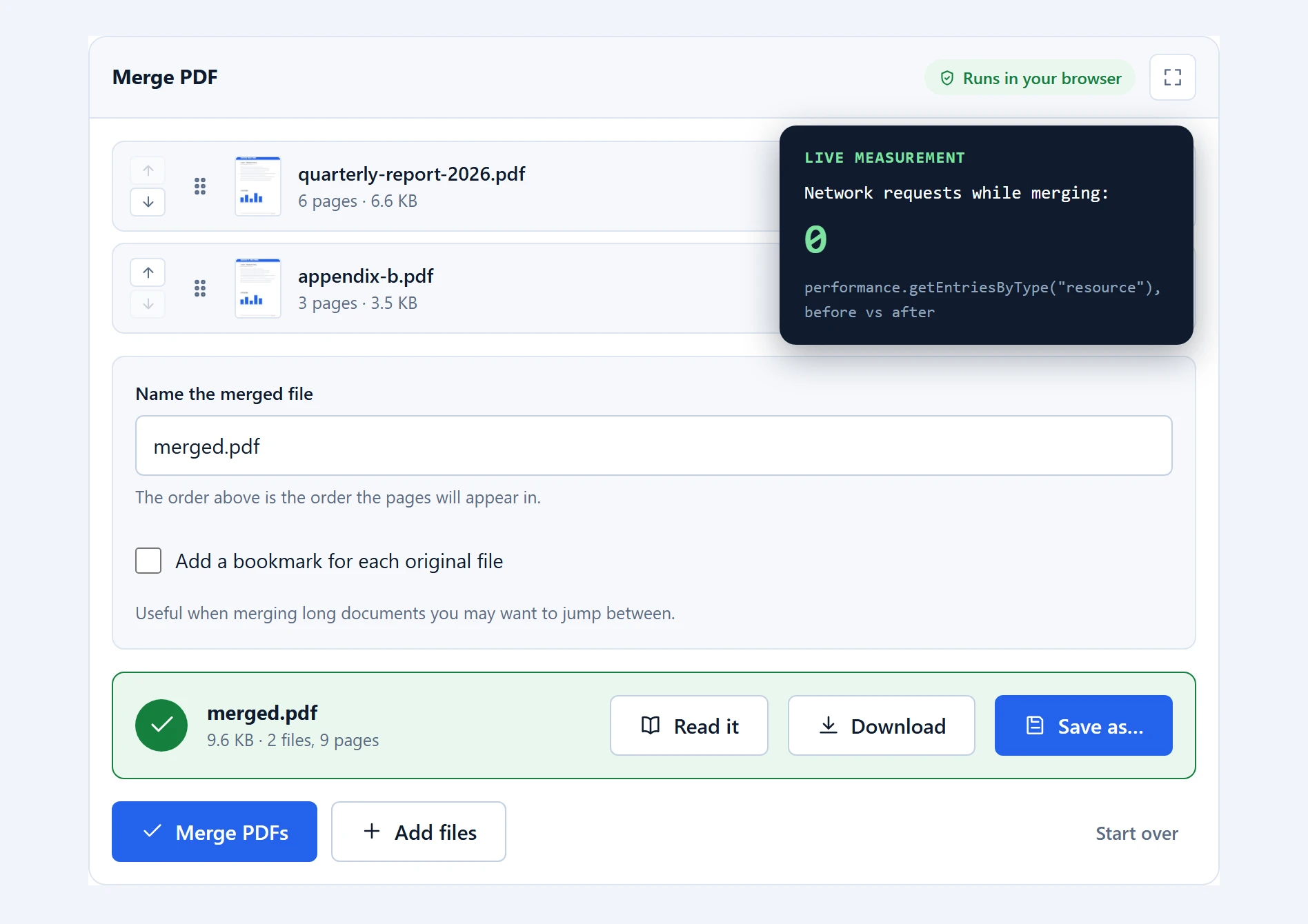
Here it goes nowhere. The pad you draw on is an ordinary canvas in the page; the strokes become an image in your browser’s memory and are handed straight to pdf-lib, the open-source engine that writes the PDF, which also runs in your browser. The signature is never transmitted, never stored, and is gone the moment you close the tab. The same is true of the document you are signing, which is often a contract you would rather not hand to a third party either.
You can check this the same way as any other tool here: open the network tab with F12 while signing, or disconnect from the internet after the page loads and sign offline. Neither the document nor the signature is ever sent. The one download you may see is a handwriting font, fetched from jsDelivr the first time you open the Type tab; that request names the font, never your name. Offline, the Type tab falls back to your browser’s own script font, and drawing and images work as usual.
Flattened, not annotated — and why that matters
There are two ways to put a signature onto a PDF page, and most free tools quietly choose the wrong one.
The easy way adds it as an annotation: a separate object floating above the page, like a sticky note. It looks correct on screen. But annotations are designed to be edited, so anyone who opens the document in Acrobat or Preview can select the signature, drag it somewhere else, or delete it entirely. For a note that is a feature. For a signature it is a problem.
This tool takes the other route and flattens the signature into the page’s own content. Once saved, it is part of the page in the same way the printed text is. It cannot be selected as a separate object, moved, or removed without editing the page itself. That is what people expect when they sign something, so it is what happens by default and there is no option to do it the other way.
Every signing option, explained
Draw. The pad is white like paper and has a line to sign above. It records every point of the stroke and joins them with smooth curves, so a quick signature does not turn into a chain of straight segments. There are three pens. The fountain pen thins the line as your hand speeds up, the way a nib does, and on a stylus that reports pressure it follows the pressure instead. The ballpoint draws an even line, and the marker a broad one. Thickness has its own slider; the ink is black, blue or any colour you pick. Because the pen is applied when the signature is drawn on screen, you can try another pen or colour after signing without signing again. “Undo stroke” takes back the last line, “Clear” the whole pad.
Type. Type your name and choose from eight handwriting fonts, each shown with your name in it. All eight are free, openly licensed fonts. Worth being straight about this: a typed signature looks typed. It is fine for internal forms and acknowledgements, and less convincing where a genuine hand signature is expected.
Image. If your signature exists as a scan or a photo, choose it in the pad’s Image tab. The tool reads the paper colour from the edges of the picture and makes everything close to it transparent, so only the ink lands on the page, whether the paper was white, grey or in shadow. A slider sets how strict the clean-up is, and the ink can keep its own colour or become black or blue. A signature written in white on a dark background is turned dark automatically, or it would vanish on paper. “Crop or rotate” cuts away anything else in the photo, such as the edge of a table or a printed line.
Whichever way it was made, the signature is remembered for the rest of the session, so signing in several places never means signing twice; the pad offers “Use previous”. The toolbar’s own Image button places a picture exactly as it is, which suits a stamp or a logo better than a signature.
Ink — sign directly on the page. The Ink tool draws straight onto the page, so on a tablet you can skip the pad entirely and sign the line itself, exactly as you would on paper. Its Stroke button sets the thickness and how see-through the line is.
Text — the date and the printed name. Forms usually want a date beside the signature, and sometimes a printed name under it. The Text tool places either, in the size and colour you choose.
Placing and adjusting. Everything placed can be dragged, resized by its corner grip, nudged with the arrow keys, duplicated, or deleted. Signing several pages means placing the signature on each — “Use previous” makes that a click per page, and each copy can sit wherever that page needs it, which suits initialling much better than one fixed position stamped everywhere.
Is a signature added this way legally valid?
This deserves a careful answer rather than a confident one, and anyone who gives you a confident one is overselling.
What this tool produces is an electronic signature: an image of your signature placed into a document. In many countries, including under the EU’s eIDAS regulation and the US ESIGN Act, electronic signatures of this kind are widely accepted for everyday agreements, and a great many contracts are concluded this way.
What it is not is a digital signature in the cryptographic sense. That is a different thing: it uses a certificate issued to you by a trusted authority, mathematically binds the signature to the document’s contents, and lets any reader verify both who signed and that nothing has changed since. Those are required for certain regulated filings, some property and court documents, and anything demanding a qualified or advanced signature.
So: fine for the ordinary run of consent forms, letters, internal approvals and everyday agreements. Not a substitute for a certificate-based signature where one is specifically required. If a document tells you it needs a qualified electronic signature, or if the stakes are high, use a service that issues certificates, and take actual legal advice rather than ours.
Where it works well, and where it does not
Password-protected files are refused. Encrypted PDFs stop the tool rather than producing damaged output. Unlock the file in your reader first.
The signature goes on top of whatever is already there. If you place it over existing text, it covers that text. The signing view shows the real page at full size, so what you see while placing is exactly what saves.
Drawing with a mouse is harder than with a finger. The pad smooths every stroke, which helps, but a mouse signature still tends to look stiffer than one drawn with a finger or stylus. If the result matters and you only have a mouse, sign a sheet of paper, photograph it and use the Image tab.
Existing signature fields are not filled. If a PDF contains a proper interactive signature field, this tool does not populate it; it draws an image at the position you click. Visually the result is what most people want, but a system expecting that specific field to be filled will not see it.
Troubleshooting
“Nothing is placed yet.” The signing view was opened but nothing was put on a page, or the edits were discarded. Open it again, place the signature, press “Done”, then sign.
My signature has a white box around it. It was placed with the toolbar’s Image button, which keeps a picture exactly as it is. Delete it and use Sign, then the Image tab: it makes the paper transparent. Drawn and typed signatures are transparent from the start.
The clean-up removed part of the ink, or left grey patches. Move the clean-up slider: to the left keeps faint strokes, to the right removes shadows and grain. A sharp photo of the signature on plain paper in even light cleans up best.
It landed in the wrong place. Drag it. Anything placed can be moved, resized by its corner grip, or nudged with the arrow keys until it sits exactly on the line. Nothing is committed until you press “Sign document”.
It is too big or too small. Select it and pull the corner grip. The page under it is the real page at real proportions, so the size you see is the size you get.
I closed the view — are my edits gone? No. “Done” and even Esc keep everything placed so far; reopening the signing view continues where you left off. Only “Discard edits” throws work away, and it says so.
Frequently asked questions
Is this sign PDF tool free?
Yes, entirely. No account, no document limit, no watermark on the signed file, and no premium tier. Your device does the work, so there is nothing to meter.
Is my signature or document uploaded anywhere?
Neither is uploaded. The signature is made on a canvas in your browser and used immediately; the document is read and written on your device. Nothing of either is transmitted or stored, and both are gone when you close the tab. The Type tab downloads its handwriting fonts once from jsDelivr; that request names the font, never your name.
Can someone remove or move the signature afterwards?
Not easily. The signature is flattened into the page content rather than added as an annotation, so it is part of the page like printed text. Tools that add signatures as annotations leave them selectable, movable and deletable in any PDF reader.
Is an electronic signature legally binding?
Electronic signatures are widely accepted for everyday agreements in many jurisdictions, including under the EU eIDAS regulation and the US ESIGN Act. However, this tool produces an image-based electronic signature, not a certificate-based digital signature. Some regulated documents require the latter. When a document specifies a qualified electronic signature, or the stakes are high, use a certificate-issuing service and take legal advice.
Can I sign on my phone?
Yes, and it is the best way to draw a signature. Signing with a finger or stylus on a touchscreen looks far more natural than drawing with a mouse.
Can I sign several pages at once?
Yes. Your signature is remembered for the session, so place it on each page that needs it with a click — “Use previous” in the signing pad. Each copy can sit wherever that page needs it, which suits initialling much better than one fixed position stamped everywhere.
What image format works best for an uploaded signature?
Any of JPG, PNG or WebP, chosen in the signing pad’s Image tab. The tool makes the paper transparent, so a photo no longer brings a white box with it. A sharp photo of the signature on plain paper in even light gives the cleanest result.
Can I add the date next to my signature?
Yes. Use the Text tool in the signing view to place the date — or a printed name — exactly where the form wants it, in the size and colour you choose.
Related PDF tools
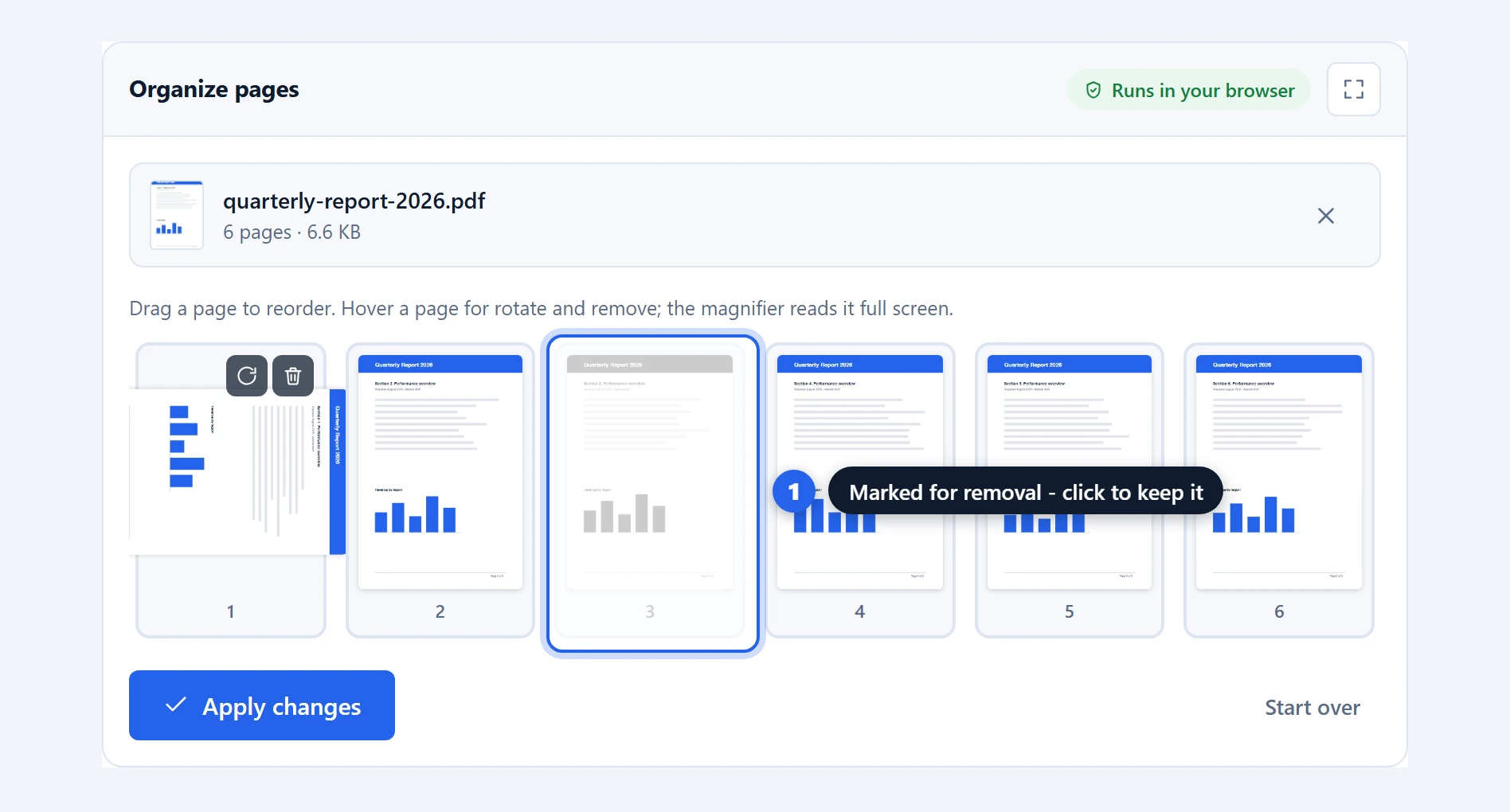
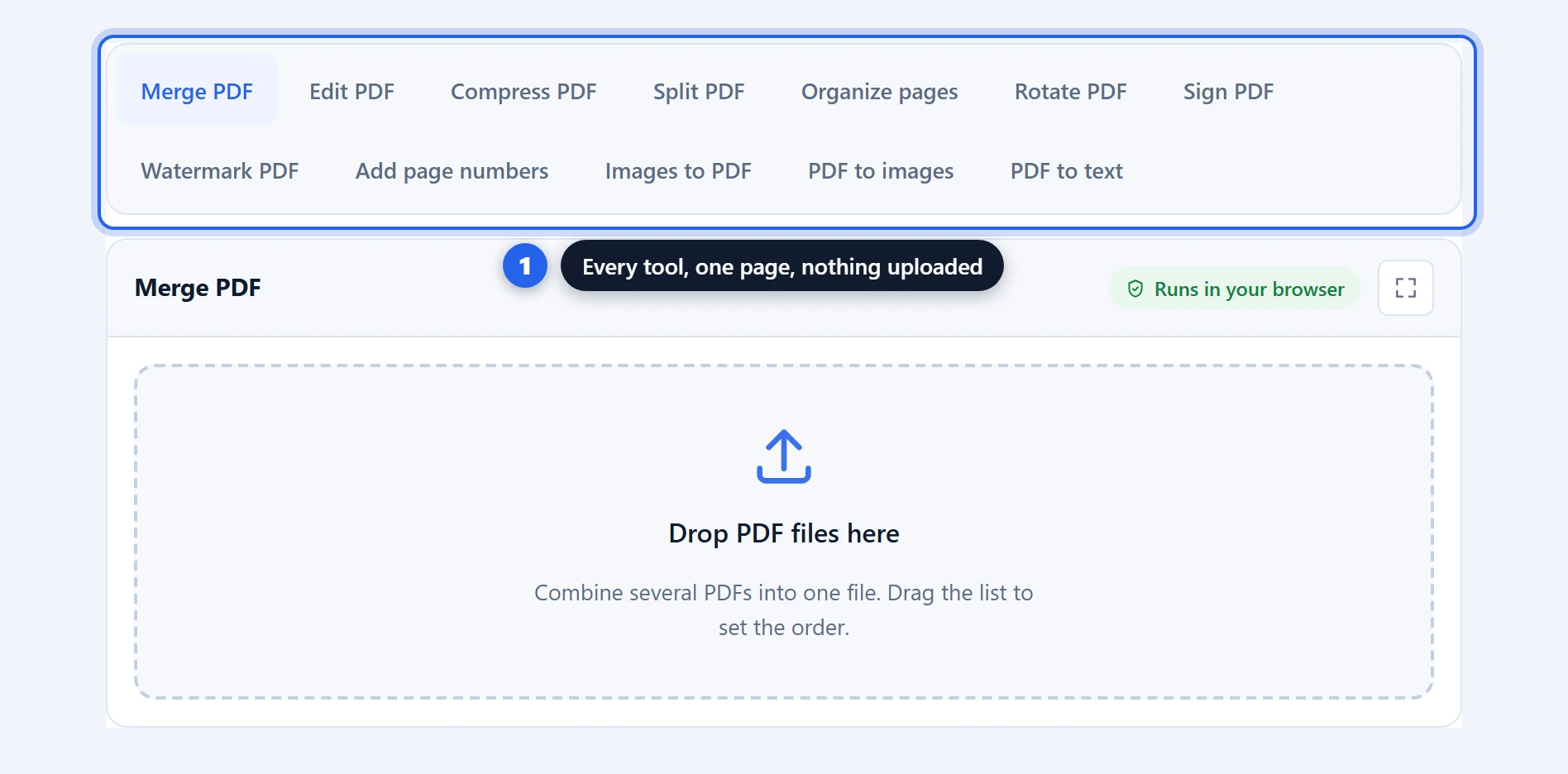
Before signing, merge PDF combines a contract with its annexes so you sign one document, and organize pages removes the pages that should not be in there. Afterwards, watermark PDF can mark a copy as a duplicate. They are all on the PDF tools page.