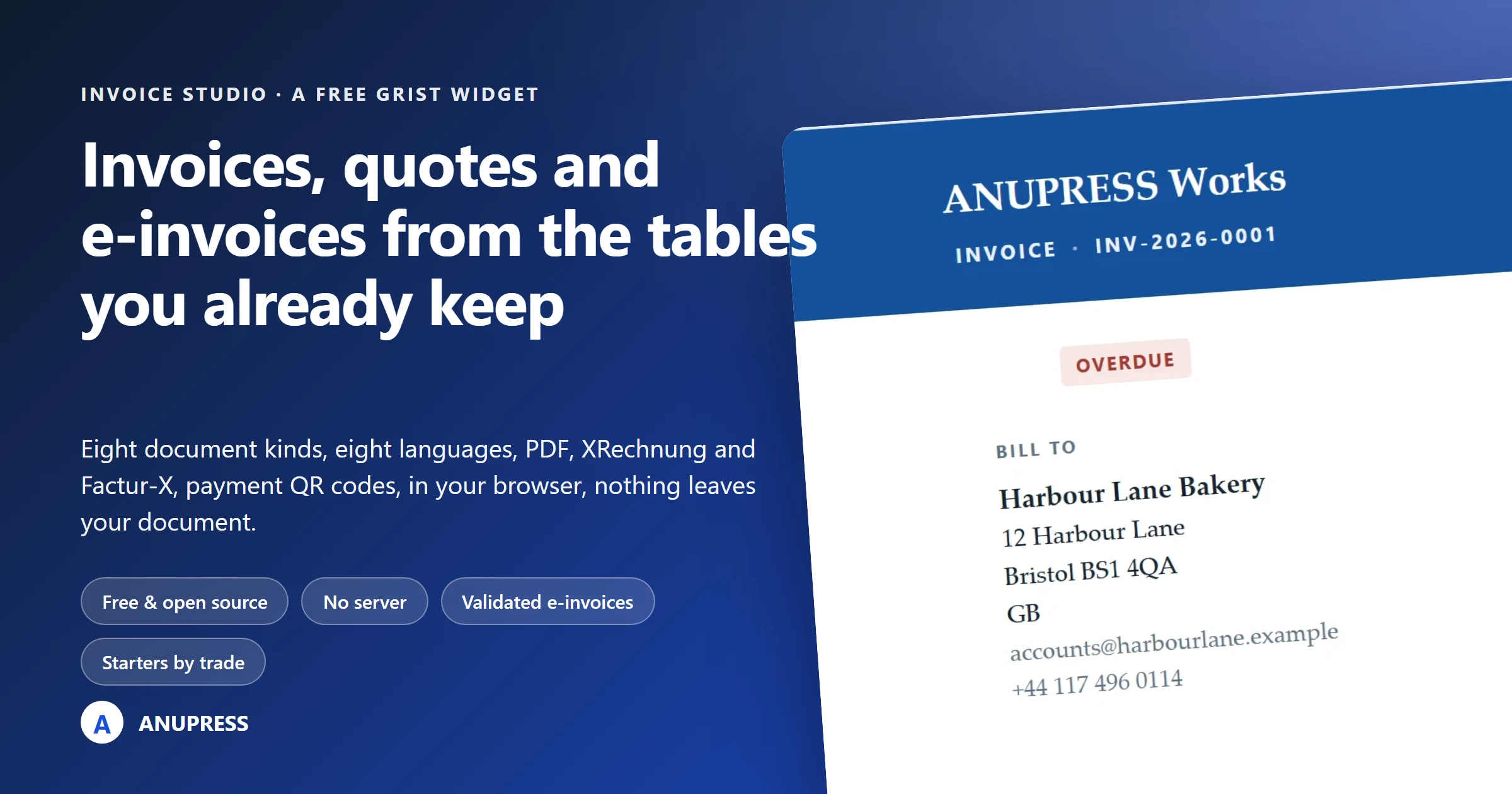
A Grist invoice widget that sends what your tables already know
You keep clients, products and jobs in a table. The invoice should come from there, not from a second app you retype it into. Invoice Studio reads the tables you have, draws the document, exports the PDF or the e-invoice file, and gets it on its way. It runs in your browser and nothing leaves your document.
This is the complete guide to the Grist invoice widget from the people who built it: why an invoice creator that lives inside your own database beats a separate invoicing app, how to install it in ten minutes even if you have never opened Grist, what every button does, and what it will not do. The demo below is the real widget on a sample business, with nothing to sign up for.
Why an invoice creator inside your database
Most invoice generators work the same way. You open a website, type the client’s address again, type the lines again, download a PDF, and the record of that invoice lives on someone else’s server behind a monthly fee. The free tier caps how many you can send, the client list is theirs, and the day you stop paying the history goes dark.
The Grist invoice widget starts from the other end. Your clients are already a table. Your products are a table. An invoice is one row plus its lines, and the widget draws the document from those rows. Everything a professional invoice creator does happens in your browser, on data that stays in a document you own and can open in a spreadsheet view at any time.
| What a professional invoice creator must do | Invoice Studio | A typical subscription invoicing app |
|---|---|---|
| Invoices, quotes, receipts, credit notes, proformas, delivery notes, statements | All of them, from one table, each drawn by its own rules | Usually invoices and quotes; the rest on a higher plan |
| Numbering you control, per kind, restarting yearly or monthly | Yes, with a prefix, padding and reset period per kind, and the client’s ledger account or your own Grist formula in the number | Often fixed |
| Your logo, colour, wording and legal line | Yes, stored in the document | Yes, on paid plans |
| Tax by country, reverse charge, small-business exemption, Indian GST split | Yes, worked out from the two addresses | Varies |
| The client’s language on the document | Per client, in English, German, French, Spanish, Italian, Dutch, Polish and Portuguese | Sometimes |
| E-invoices that public bodies accept (XRechnung, Factur-X, UBL) | Yes, accepted by the official validators | Rare, or an add-on |
| A payment QR code the client scans | SEPA, UPI or a payment link | Card links on paid plans |
| Reminders, late interest, statements of account | Yes | Yes, on higher plans |
| Repeat invoices for rent and retainers | One press raises the next period | Yes |
| Your data stays yours | In your Grist document; the widget has no server | On the vendor’s server |
| Price | Free, open source, no account | Monthly fee per user, or a capped free tier |
Two honest gaps: the widget cannot send email on its own, because a web page has no mail server, and it takes no card payments, because that needs a server too. Both are covered below with the routes that do work.
Live demo of the Grist invoice widget
This is the real widget on a construction firm’s sample business, the same starter you would get on first load. Click an invoice on the left, switch the layout in the top bar, press Edit to open the composer, or Send to see the message it writes. Nothing here is saved anywhere.
Watch it built: invoicing for a made-up business, start to finish
Reading about buttons is one thing; watching a whole business get invoiced is another. This 42‑minute case study follows Nikolaus & Ruprecht, a gift-giving business in Nuremberg that moves its golden book into Grist and sends its first invoices with Invoice Studio. The business, its customers and every number are made up. Most of what this guide describes appears in it, at the point a real job needs it.
Chapters: jump to any part
- 0:00 Two hundred boots, one night
- 0:28 Meet Nikolaus and Ruprecht
- 1:42 The plan: nine chapters
- 2:18 Setting up: the widget, a sample business
- 6:57 The business: logo, numbers, DIN 5008
- 13:27 Clients and the catalogue, with a dated price
- 17:36 A wish list, a quote, an invoice, a receipt
- 22:10 Tax: 19 %, 7 %, reverse charge, exemptions
- 26:44 Getting paid: GiroCode, sending, Outbox
- 30:27 E-invoices: XRechnung, Factur-X, Peppol
- 35:00 The month after: repeat, interest, credit
- 38:00 Your own tables, Grist template, import
- 41:49 Recap
Along the way: a sample business to learn from, then cleared out; the logo, the legal line, numbering and the DIN 5008 sheet; clients with a language and a Peppol ID, and a catalogue with a price that changes on a date; a wish list as a quote, the quote as an invoice, a discount on one line and a receipt; tax three ways, including the reduced rate on chocolate and the EU reverse charge; a GiroCode, the Send panel and the Outbox; XRechnung, Factur‑X, UBL and CII, with a check that finds what a receiver would reject; repeating an invoice, interest on a late payment, a statement and a credit note; and the golden book kept in tables of its own, with Grist’s Invoicing template and a CSV import.
How the Grist invoice widget works
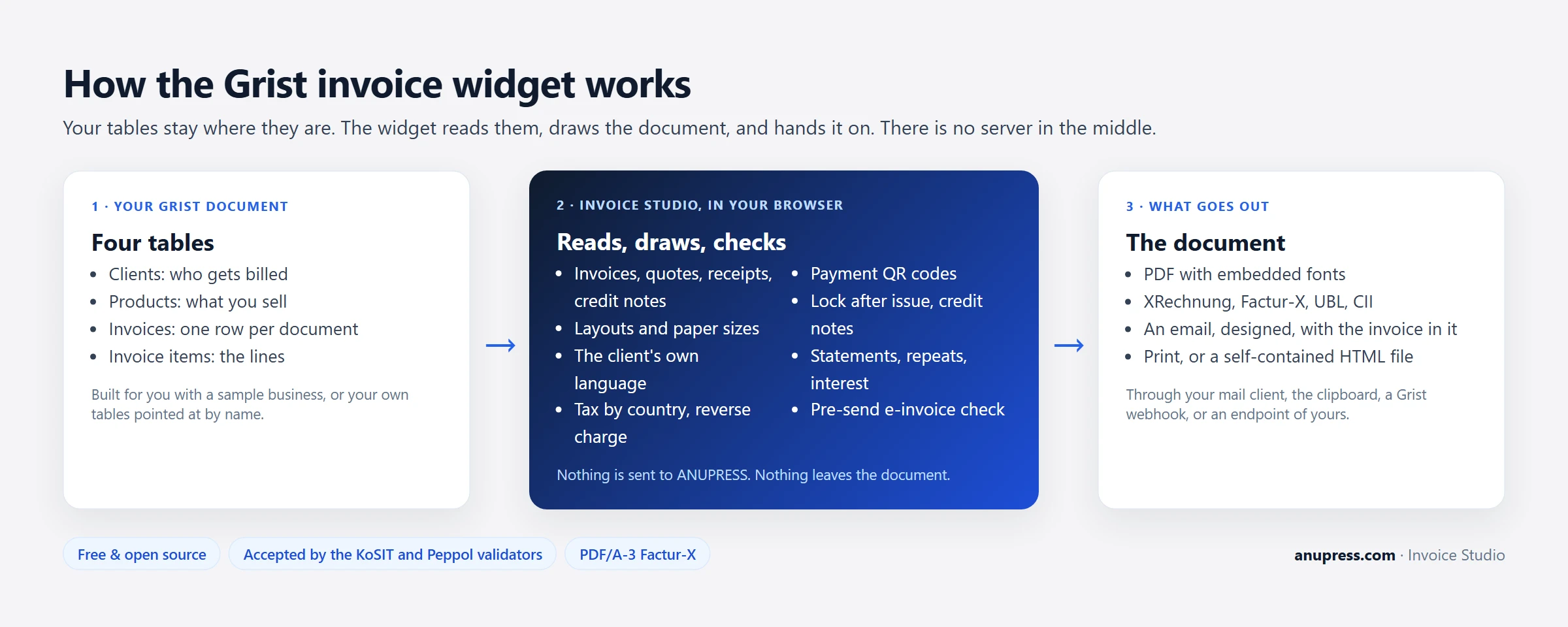
Grist shows the widget on a page like any other view. The Grist invoice widget asks for four tables, works out which is which from their column names, and draws the selected invoice. When you press Save it writes rows back through the same API. The PDF, the e-invoice XML and the email are all built in the browser. There is no ANUPRESS server in the loop, which is why there is no account, no fee and no usage limit.
New to Grist? Start here
Grist is a spreadsheet that behaves like a database. You get tables with typed columns, references between tables, formulas in Python, and pages of views you lay out yourself. It is open source, there is a hosted version with a free plan, and you can run it on your own machine or server. For invoicing that means the invoice list can be filtered, summed and charted like any other table, and exported whenever you want.
- Create a free account at getgrist.com, or install Grist on your own machine if you would rather keep it entirely local.
- Create an empty document. Give it a name like Invoicing. You do not need to add any tables: the widget builds them.
- Add the widget with the four steps in the next section. On first load the widget offers to set up a sample business for your trade, so within a minute you are looking at working invoices.
Install the Grist invoice widget
- Add a widget to a page in your document and choose Custom. Grist’s own custom widget page shows the panel.
- Paste the URL into Enter Custom URL:
https://anupress.github.io/grist-invoice-studio/ - Set Access to Full document access in the creator panel on the right.
- Set up or connect. An empty document gets the trade chooser. A document with invoice tables opens straight onto its first invoice.
If you run Grist yourself, there is a shorter route. Start Grist with GRIST_WIDGET_LIST_URL
pointing at https://anupress.github.io/grist-invoice-studio/manifest.json and both ANUPRESS
widgets appear in the Custom widget picker with nothing to paste.
Set up: a sample business, or your own tables
Point the Grist invoice widget at a document with no invoice tables and it offers to build them. Pick your trade first, because the trade decides what the sample documents are for: a builder gets labour and materials with job references, a café gets lunches and a catering account, a legal practice gets professional charges and disbursements. A line under the chooser says what the choice sets: the document it opens with, the layout, whether prices include tax, how the numbers run. The sample document below redraws as you change it.
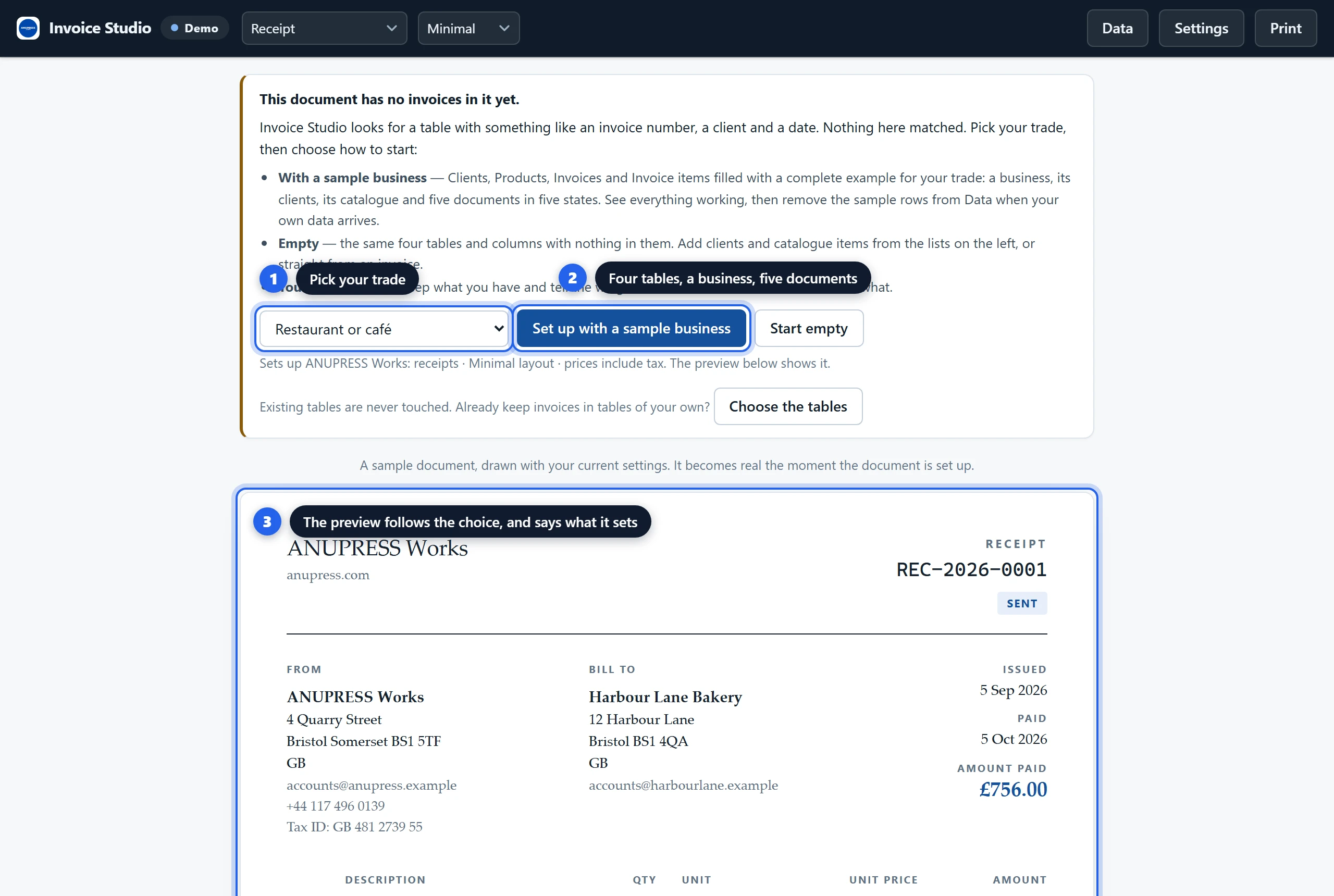
Then choose how to start:
- With a sample business. Four tables, a business with a name and address, three or four clients, a catalogue, and five documents in five states: overdue, paid, part paid, sent and draft. Everything works before you type a word.
- Empty. The same four tables with nothing in them.
- Your own tables. Keep what you have. Open Data and tell the widget which table and which
columns hold what. A table whose client column is called
Kundeand whose price isPreisworks as well as any other once it is described there.
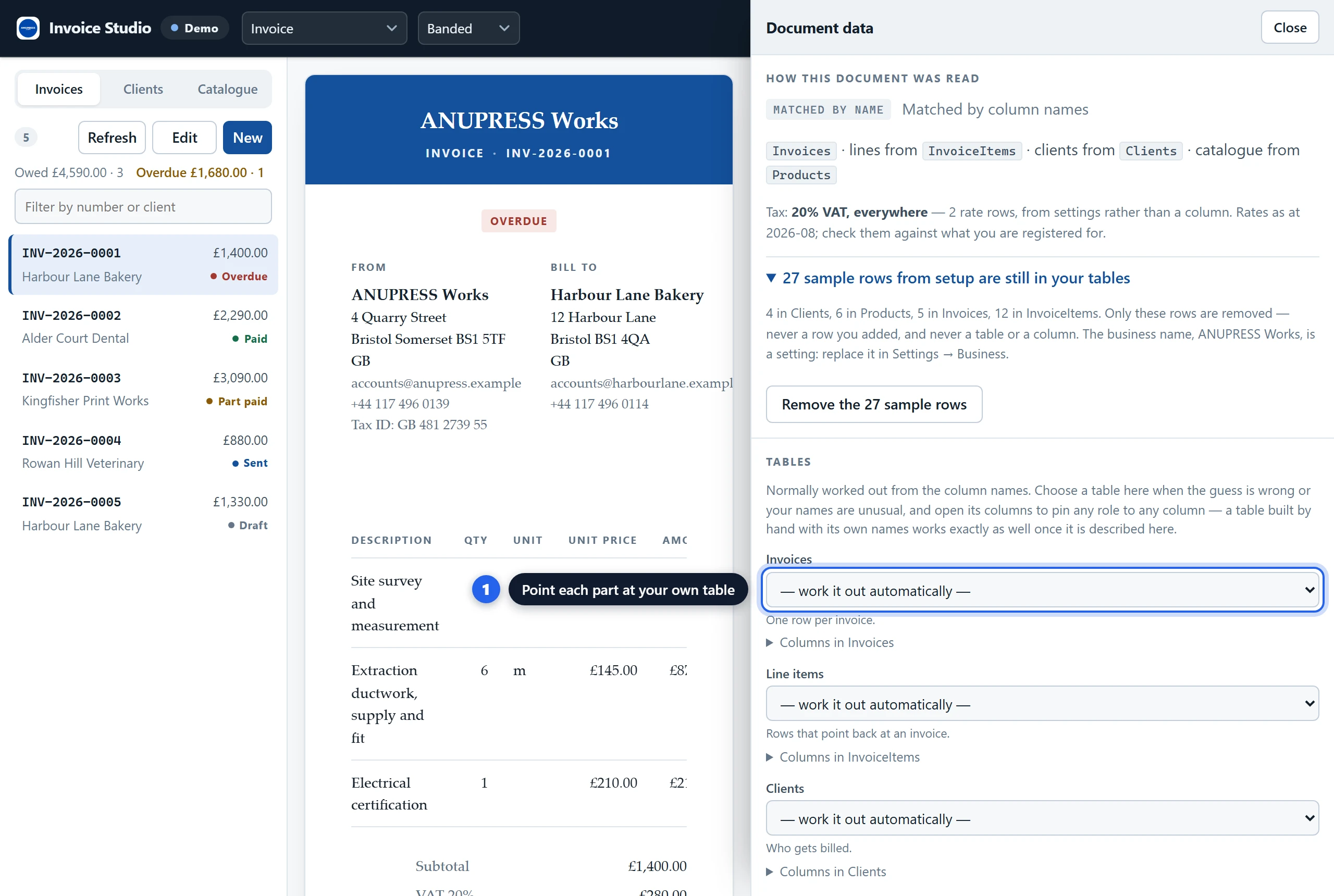
The sample business carries the ANUPRESS name so a screenshot says who made the widget. Every client, address, phone number and tax number is invented, and the widget keeps pointing at Settings until you replace the business with yours. When your own data arrives, Data → Remove the sample rows deletes exactly the rows setup created and nothing else.
The screen, part by part
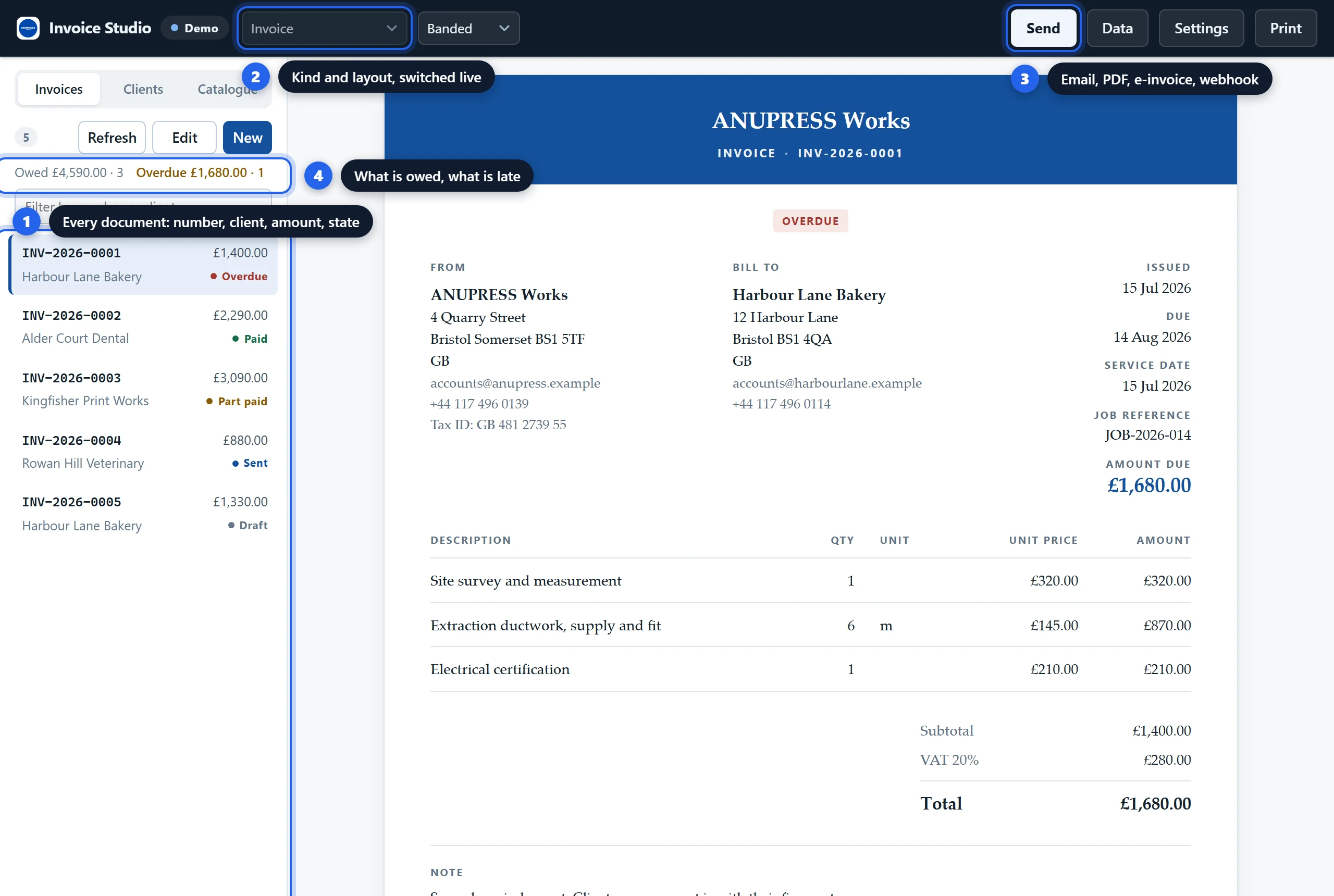
- The list. Every document with its number, client, amount and state, newest first. A filter box narrows it by number or client; under it, one chooser sets the order and two more narrow the list by status and by year. Above it, Refresh rereads the tables, Edit opens the selected document in the composer and New starts one. The tabs switch the list to Clients or Catalogue.
- Kind and layout. The kind chooser turns the current document into a quote, receipt or credit note on screen, and the kind is saved with the document. The layout chooser tries another masthead for this session; the business’s own layout lives in Settings.
- Send, Data, Settings, Print. Send opens the message panel. Data opens the drawer that says which table holds what. Settings holds everything the business decides once. Print prints the document and nothing else.
- What is owed. One line above the list totals every open document and every overdue one, so the widget answers the first question a business has before you click anything.
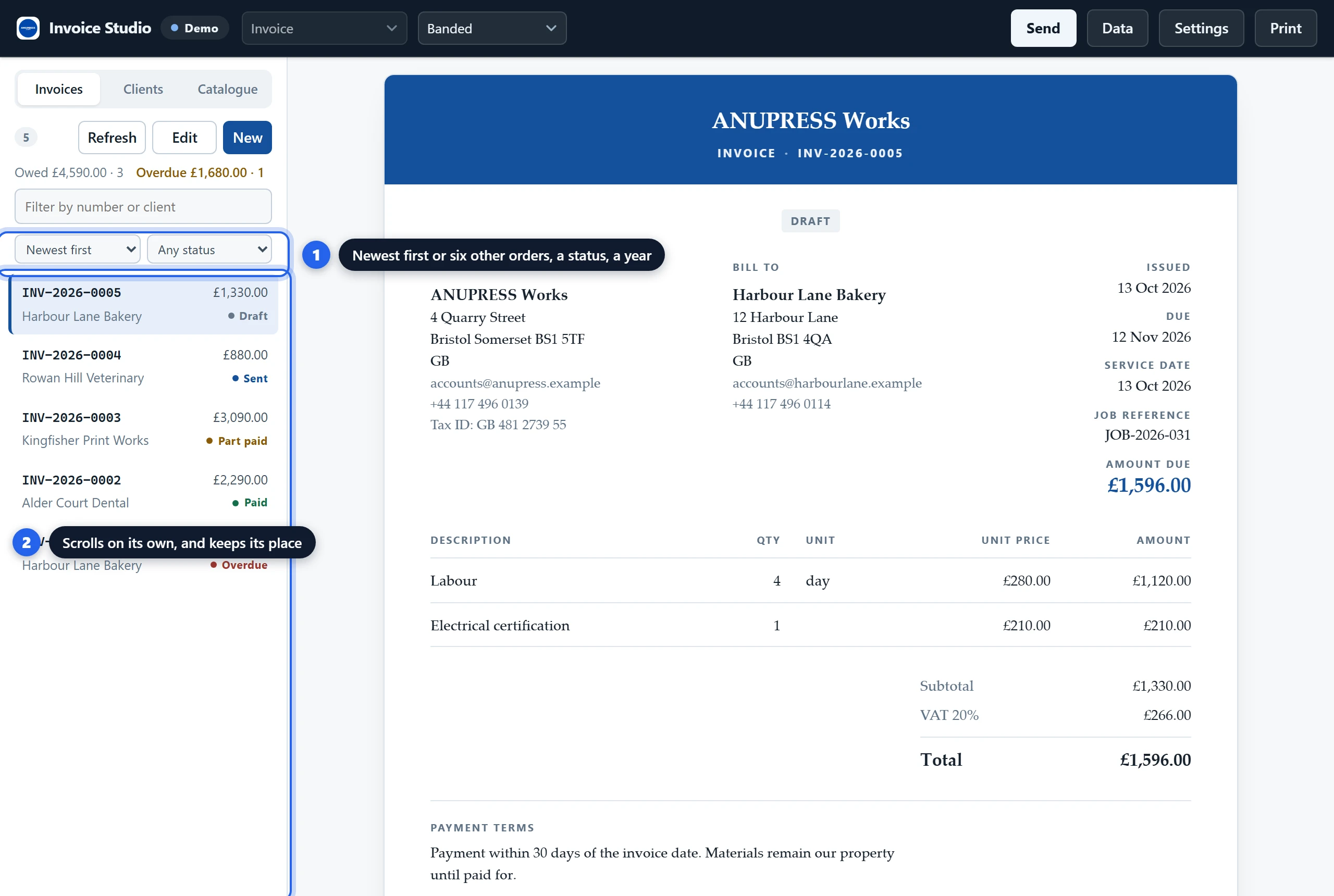
A table with years of invoices in it is read from the top. The list is newest first, and the chooser under the search offers oldest first, last created first, highest number first, client A to Z, largest amount first and the table’s own order; the widget remembers the choice in your browser. While a status or a year narrows the list, the count reads “12 of 1,243”. The list and the document scroll apart, so choosing a document at the bottom of a long list never leaves the document out of sight.
The documents it produces
One table holds every kind. A Kind column, which setup creates and the Data drawer offers to existing documents, says what each row is, so a café’s table holds till receipts beside the catering account’s invoices and each opens as itself. A saved credit note reopens as a credit note.
| Kind | What changes |
|---|---|
| Invoice, proforma | Asks for money. Shows payment details, the pay-online code and the balance. |
| Quote | Carries a valid-until date instead of a due date. Shows no bank details, so it cannot be paid by accident. |
| Receipt | Its second date is when it was paid. Its total is what was paid. No payment details. |
| Credit note | Names the invoice it reverses under Refers to. |
| Statement of account | Lists documents rather than items, oldest first, with a running balance. |
| Delivery note, packing slip | Quantities only. No prices, because the person unpacking the box is not the person who agreed the price. |
Layouts differ in the masthead and share one body: Classic, Banded, Letterhead, Minimal, Slate, Headline, Rail, Centred, Ledger, and DIN 5008 in Form B and Form A. Every layout gets every future fix. Convert turns a quote into an invoice, an invoice into a receipt or a credit note, each with its own numbering. Once a document has gone out it opens read-only, with the credit note one press away, because in most of Europe an issued invoice is a record that must not be altered. Settings can turn that off.
DIN 5008: the German business letter
A German business folds its invoice at the fold marks and puts it in a DIN lang window envelope, and the address has to show through the window, all of it and nothing else. The two DIN 5008 layouts fix every position the standard fixes: the address field 20 mm from the left edge and 45 mm from the top (27 mm on Form A), 85 by 45 mm, with the sender’s return line above it and six address lines at 12 pt; the information block at 125 mm with the number, the dates, the client’s reference and VAT number; the subject two lines below the field; text at 25 mm with a 20 mm right margin; fold marks at 105 and 210 mm and the punch mark at 148.5 mm. The PDF draws the sheet in millimetres, the screen shows it at scale, and Print and the HTML file print it at size. Lines are numbered, the totals say netto and brutto, and the sender’s registrations go to a three-column foot, as on the Ledger layout. Form B, with its 45 mm letterhead, is the usual commercial sheet; Form A gives the letterhead 27 mm.
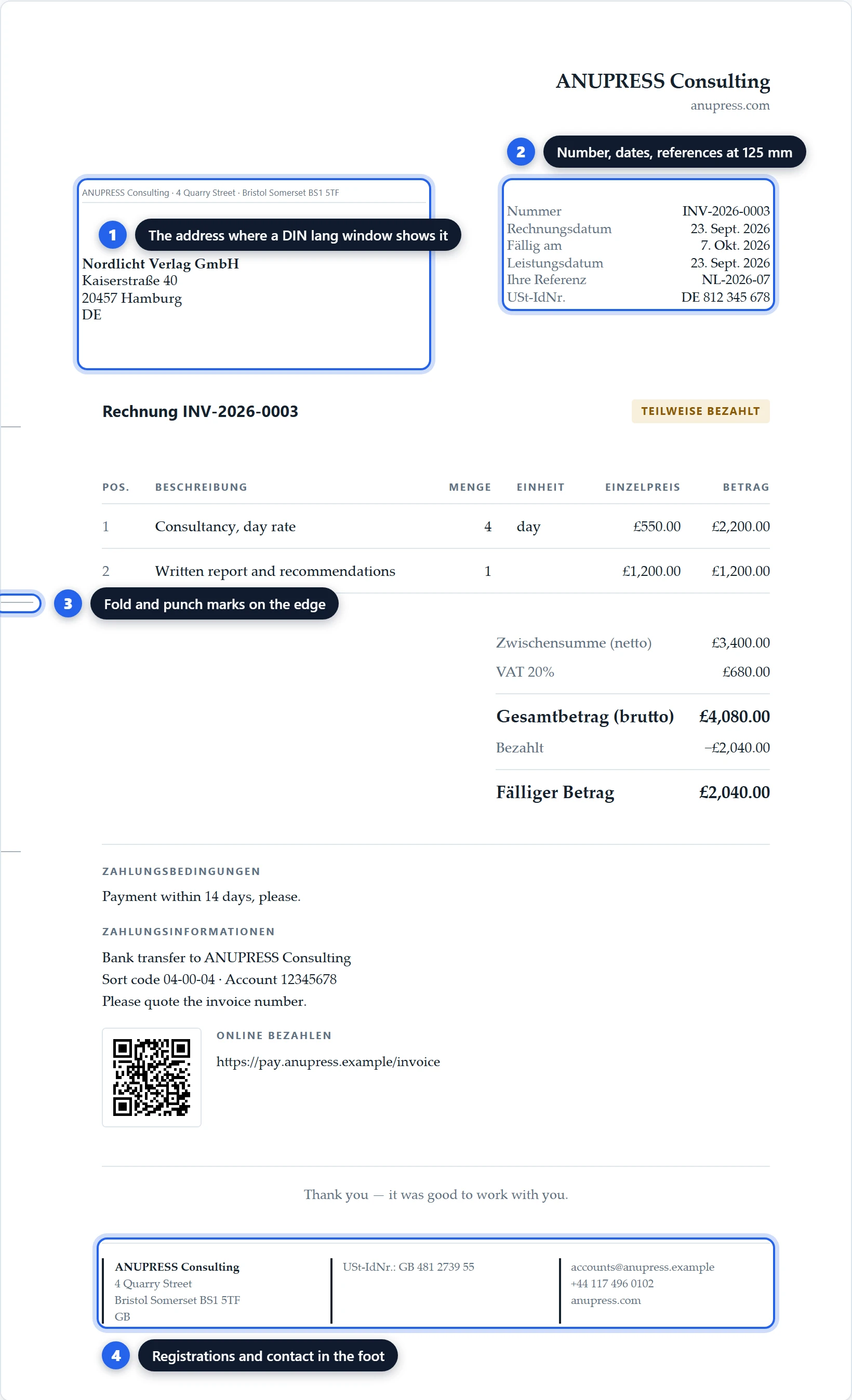
Addresses follow their country on every layout, in the PDF and in the email: “10115 Berlin” for Germany, Austria, France and most of the world, “Bristol BS1 4QA” for Britain, Ireland and the United States. The country on the record decides, and the document’s language decides when there is none.
Writing an invoice in the Grist invoice widget
Press New, or Edit on an existing document. The composer sits above the live preview, so every keystroke shows on the page it will print on.
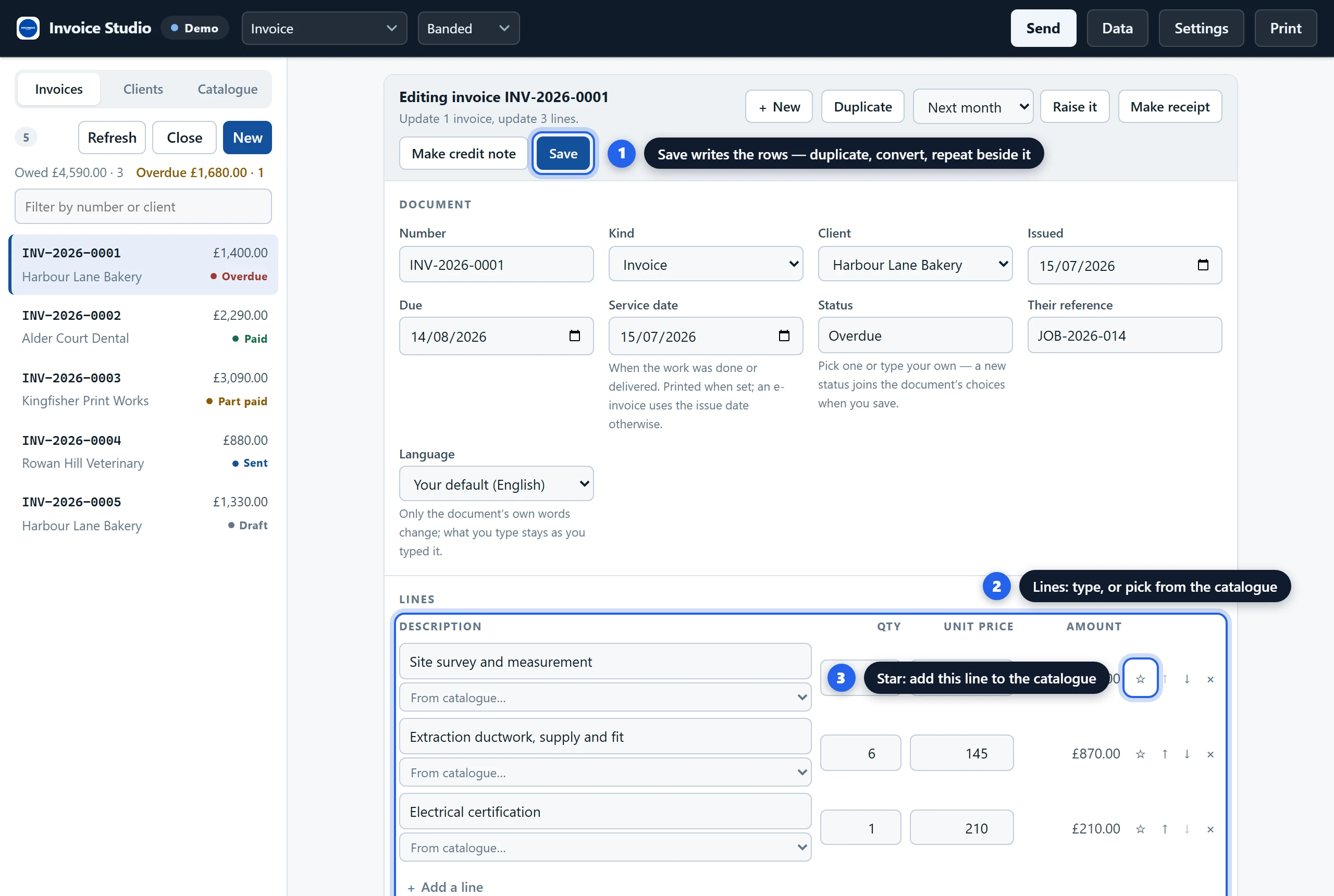
- Document. The number is assigned when you save, in the format your settings define, unless your Number column is a Grist formula, in which case the box is read-only and the formula’s number appears the moment the row lands. The kind, the client, the issue and due dates, the service date an e-invoice needs, a status you can type your own words into, the client’s reference, and a language for this document only.
- Client. A picker over your client table. It ends with + New client…, which opens the client form inline and selects the new client on save.
- Lines. Type a description, or pick from the catalogue and the price, unit and tax class fill in. Picking something already on the document adds to that line’s quantity instead of starting a second one, as long as the price agrees. Every line has a star that adds it to the catalogue, priced as typed.
- Money. A discount, shipping, an amount already paid, a currency for this document only, and a tax override for the odd one out.
- Wording. Payment terms with suggestions, a note on the document, the client’s reference.
- Also in this table. Every column of your invoice table that the widget does not use itself, such as a ledger account, a cost centre or a project code, with a control for its type. It is saved with the row, so nothing has to be typed into the table afterwards.
Save writes one invoice row and its line rows as a single Grist action, so the document’s history shows one step, not a dozen. A number is assigned at that moment and never recomputed, in the format your settings define: prefix, year, padding, and whether the sequence restarts yearly or monthly. The prefix can also carry the client’s ledger account, a column of the invoice row or the client’s reference; see Numbering under Settings below.
The month after: repeats, interest and statements
An invoice creator earns its keep after the first invoice, when the rent falls due again, a client pays late, and someone asks what they owe in total. Three controls in the Grist invoice widget cover that month.
Repeat a document
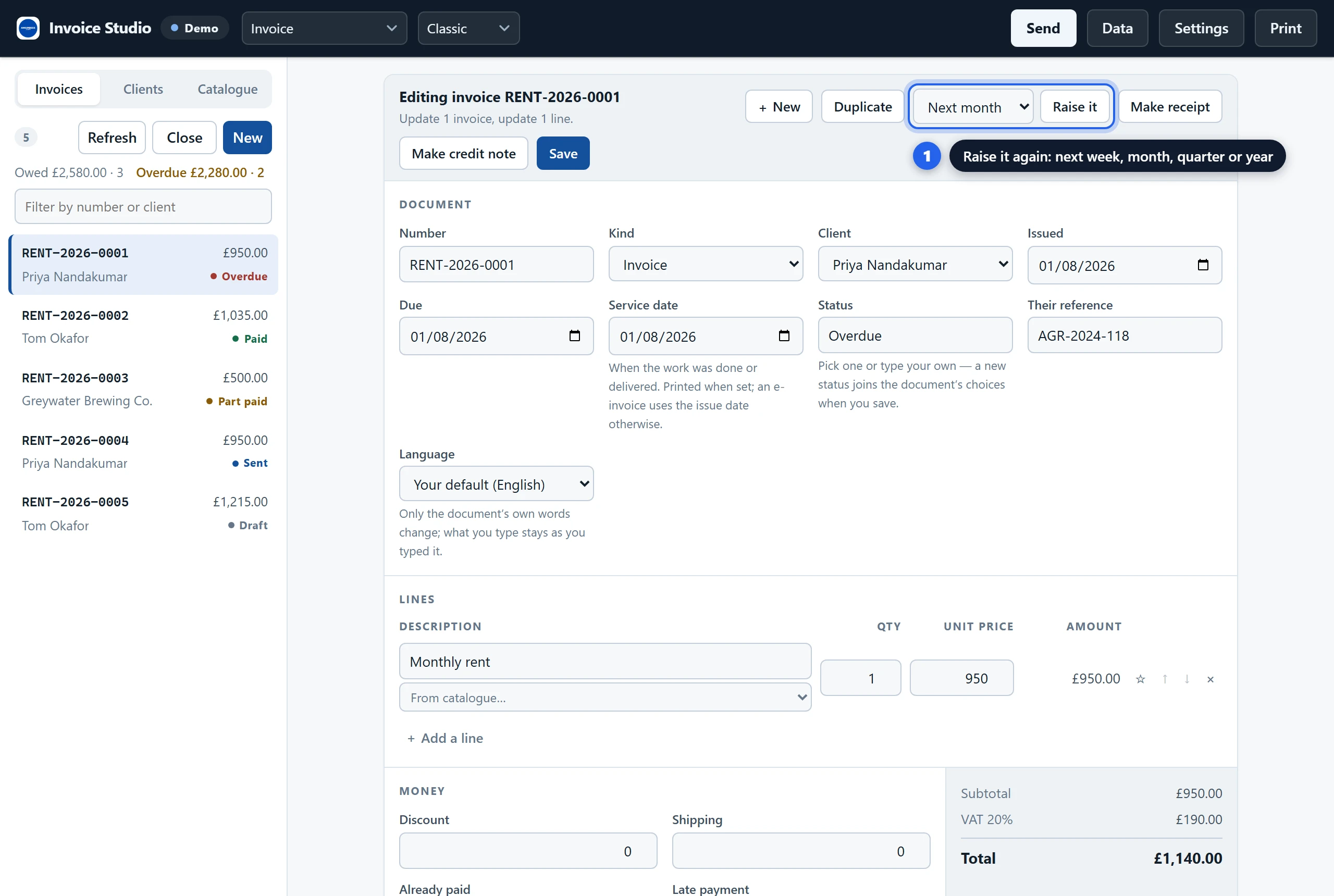
Open a saved invoice, choose Next month (or week, quarter, year) and press Raise it. The widget copies the lines, advances every date by the period, clears the number and opens the result as a draft. Save assigns the next number. Rent, retainers and subscriptions take one press a period.
Interest on a late payment
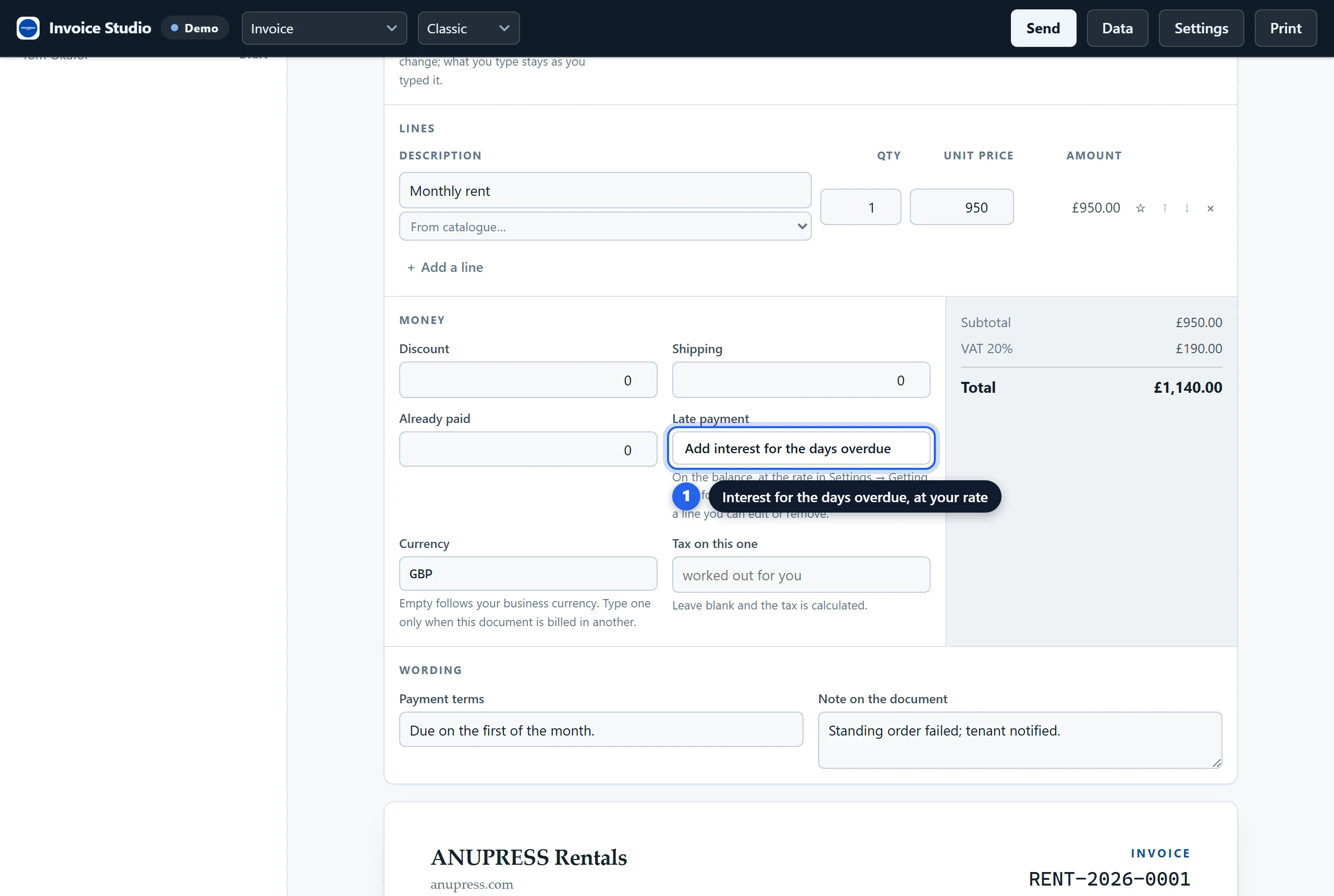
The rate lives in Settings → Money and tax → Getting paid, at 8% a year unless you change it, which is the figure most late-payment rules in Europe are built around. The line it adds names the days and the rate, so the client sees the working.
A statement of account
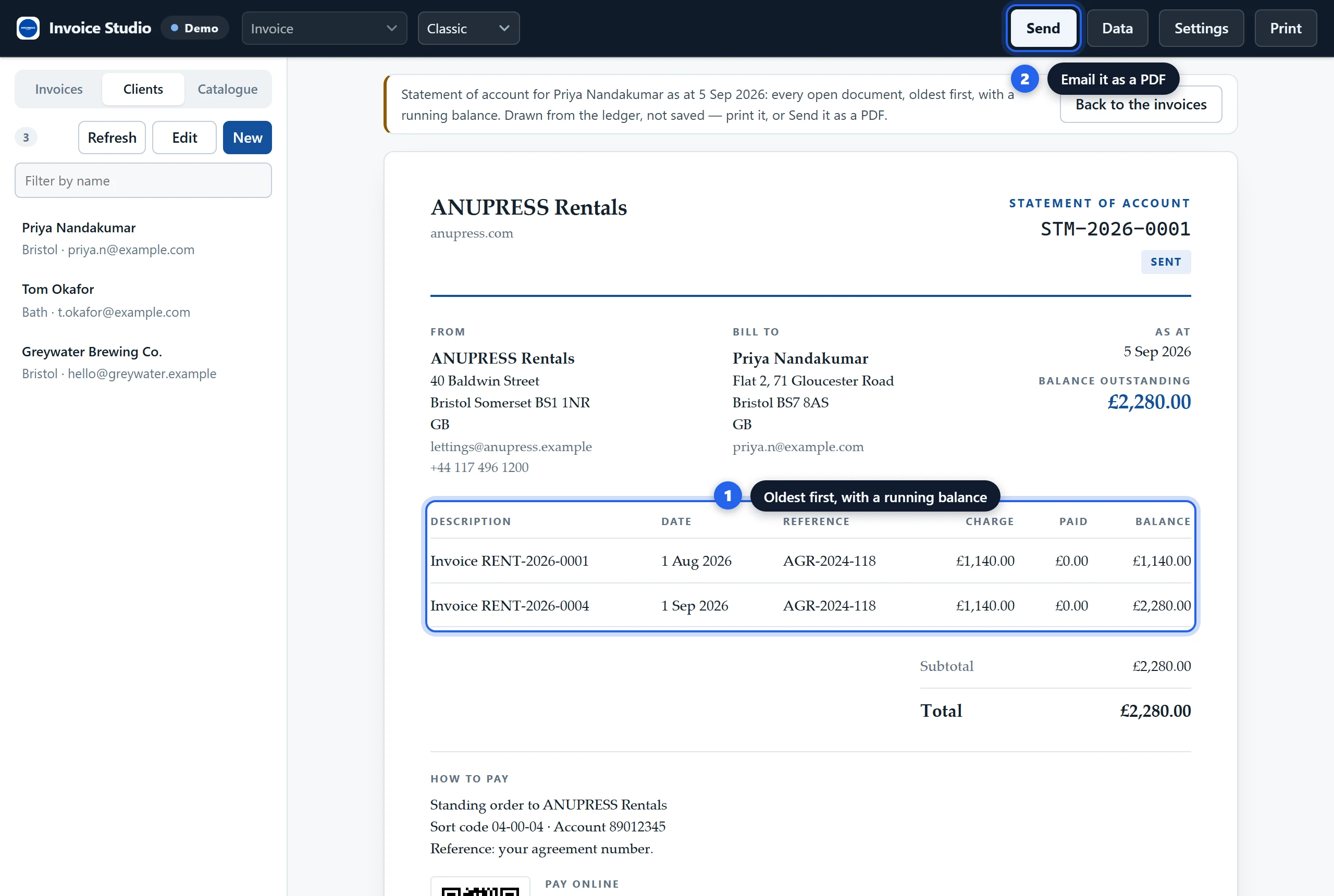
Open a client record and press Draw up a statement of account. The widget lists every open document for that client with what was charged, what was paid and the balance after each. Print it or send it as a PDF. It is drawn from the ledger each time, so it is never out of date and never saved as a document of its own.
Clients and the catalogue
The left column holds three lists: Invoices, Clients and Catalogue. Clients and catalogue items are added and edited there, with a live preview of how the address block or the thumbnail and price will print. A catalogue item takes a picture by drag-and-drop; on a live document it is uploaded as a Grist attachment.
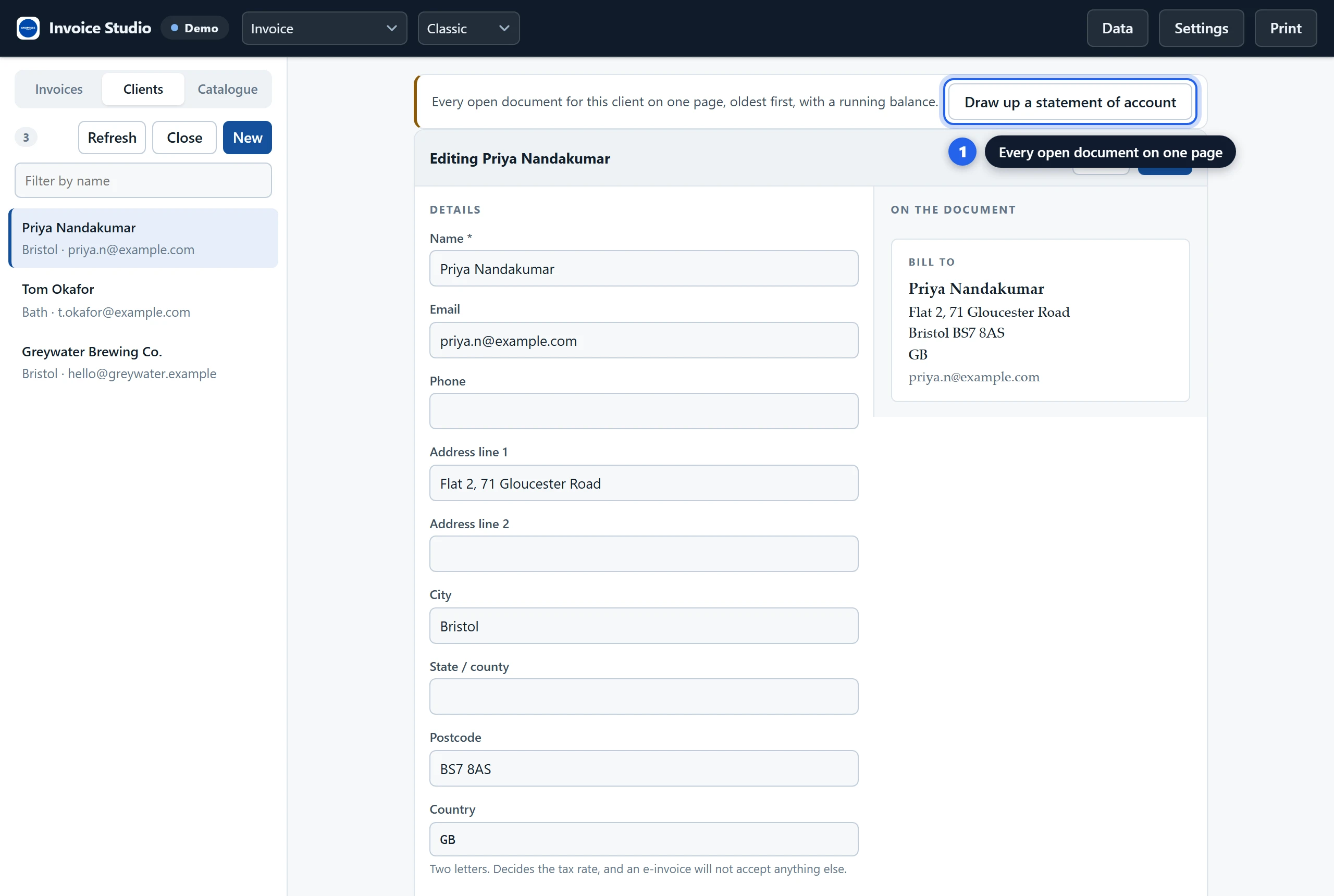
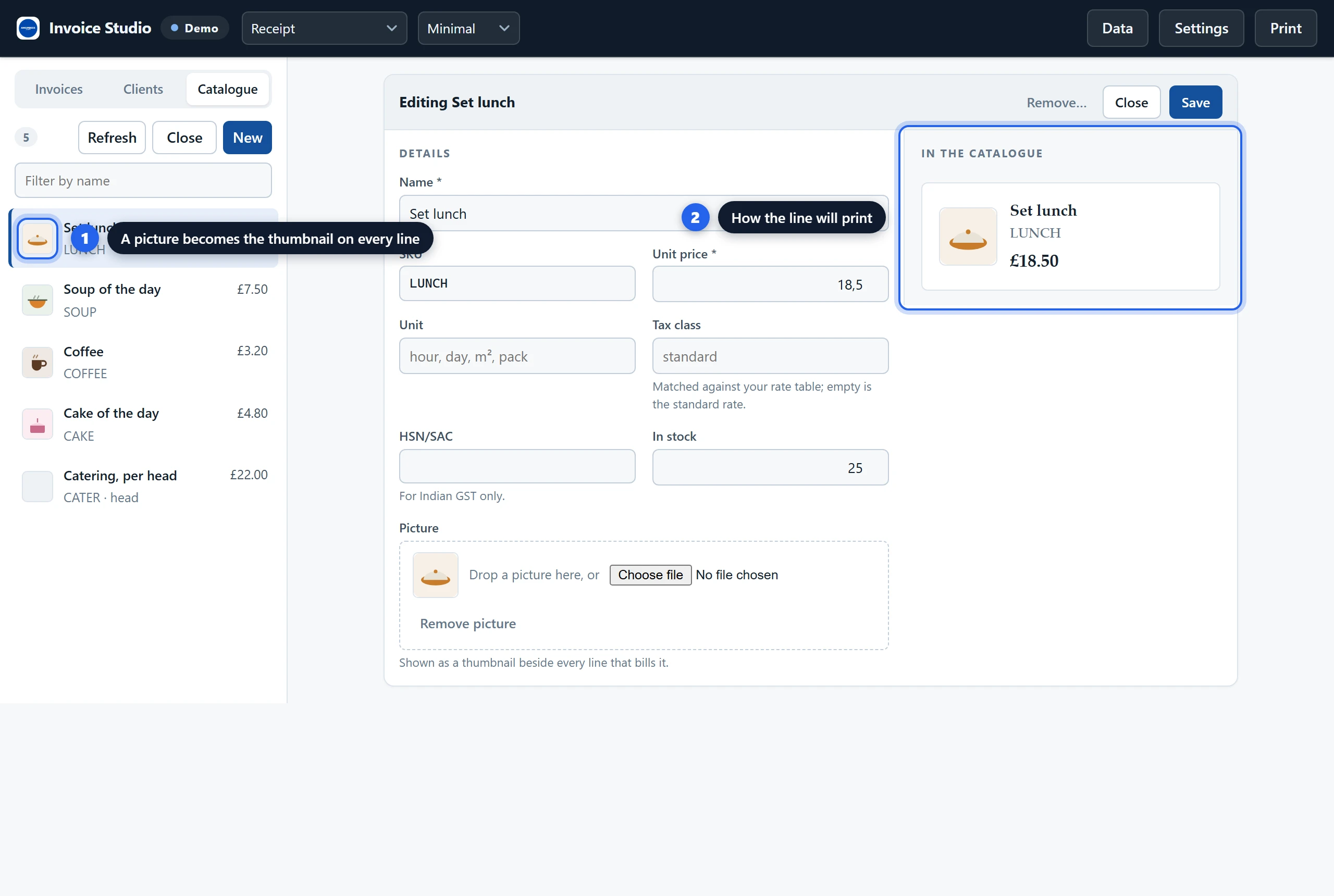
Every column the table has appears on the form, not only the ones the widget uses. A catalogue with Colour, Size or Supplier gets those boxes too. Where a field has no column at all, such as a client table with no email, one press adds the column the way Grist’s own “+” button does, and nothing else in the table changes.
Sending
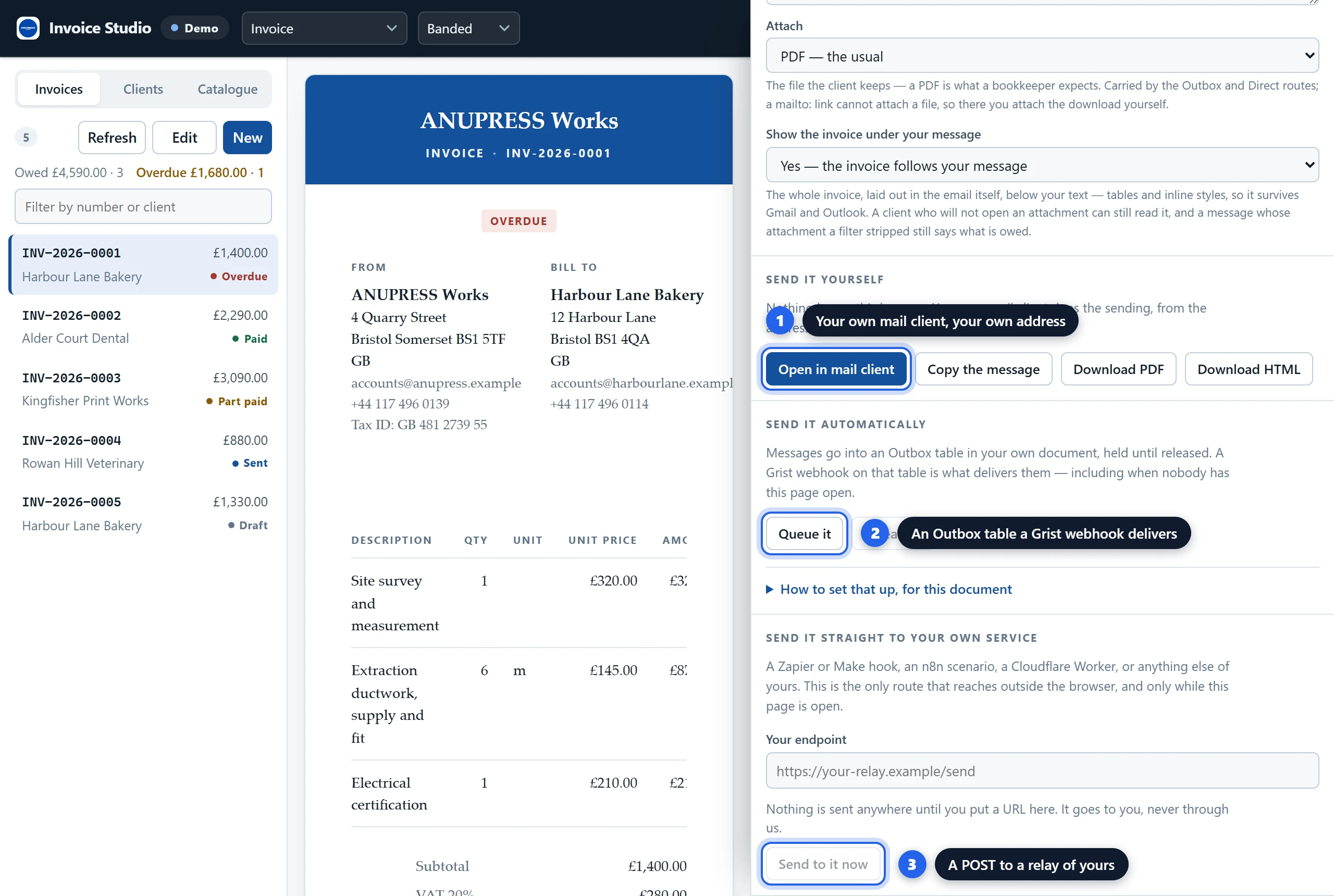
The Send panel writes the message for you, from wordings you can edit in Settings: invoice sent, a reminder before the due date, an overdue reminder, a final notice, payment received. Pick the wording, check the address and the subject, choose what to attach, then choose a route.
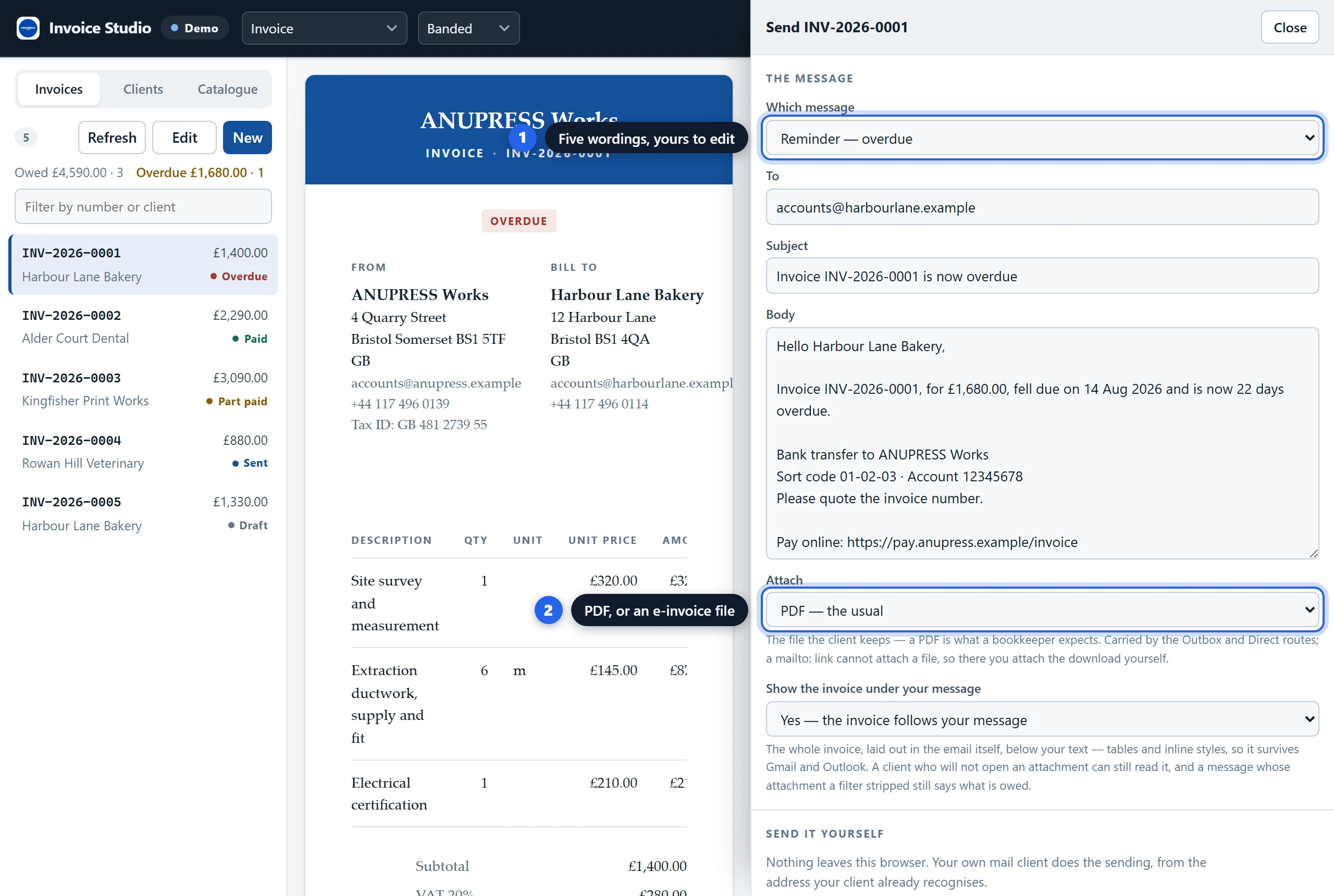
| Route | Attaches a file | Good for |
|---|---|---|
| Open in mail client | No. A mailto link cannot carry a file; you attach the download. | One invoice, your own address, no setup. |
| Copy the message | Paste a formatted message, with the invoice laid out under it, into any composer. | Webmail. |
| Queue it | Yes. The message and its files go into an Outbox table. | A Grist webhook or an automation that reads the Outbox and sends. |
| Send to it now | Yes. One POST to an endpoint you run. | Your own relay or mail service. |
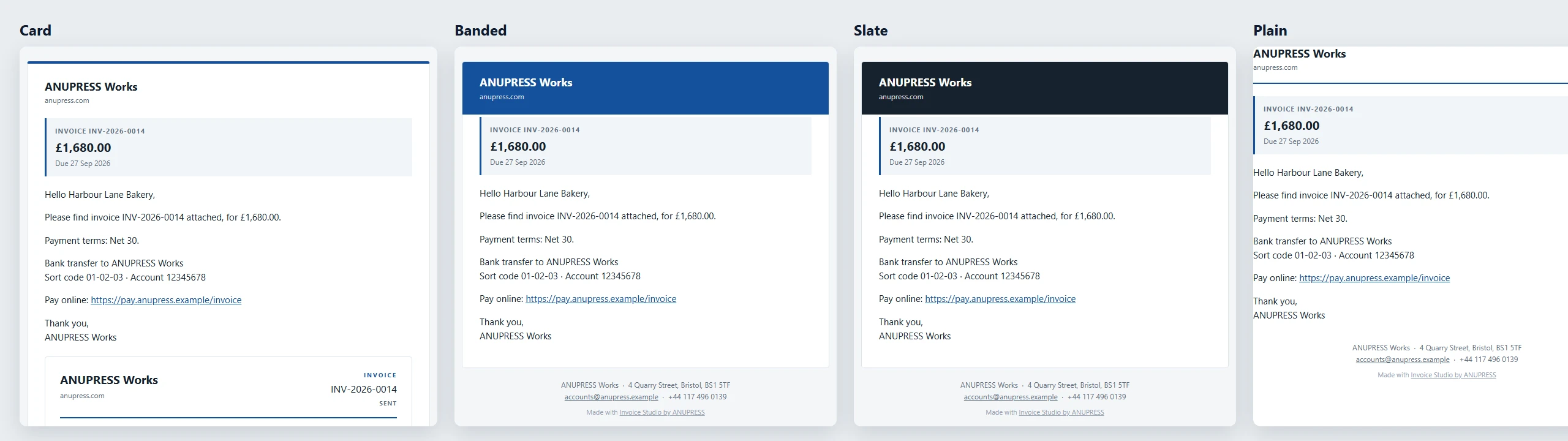
The email itself is built the way a designed transactional email is built, from tables and inline styles, in four shells: a card on a tinted ground, a coloured band with your name in it, a dark band, or hairlines on white. Your logo, your accent colour and your address sit in it; a small credit line at the very bottom can be turned off. A summary above the message names the document, the amount and the due date, because that is what a client answers. The whole invoice can follow under the message, so a client who never opens attachments still sees what is owed.
XRechnung, Factur-X and UBL from Grist
Public bodies in Germany already require an electronic invoice, and business-to-business mandates are arriving across the EU. The widget builds the file from the same document you see on screen.
| Format | What it is | Who wants it |
|---|---|---|
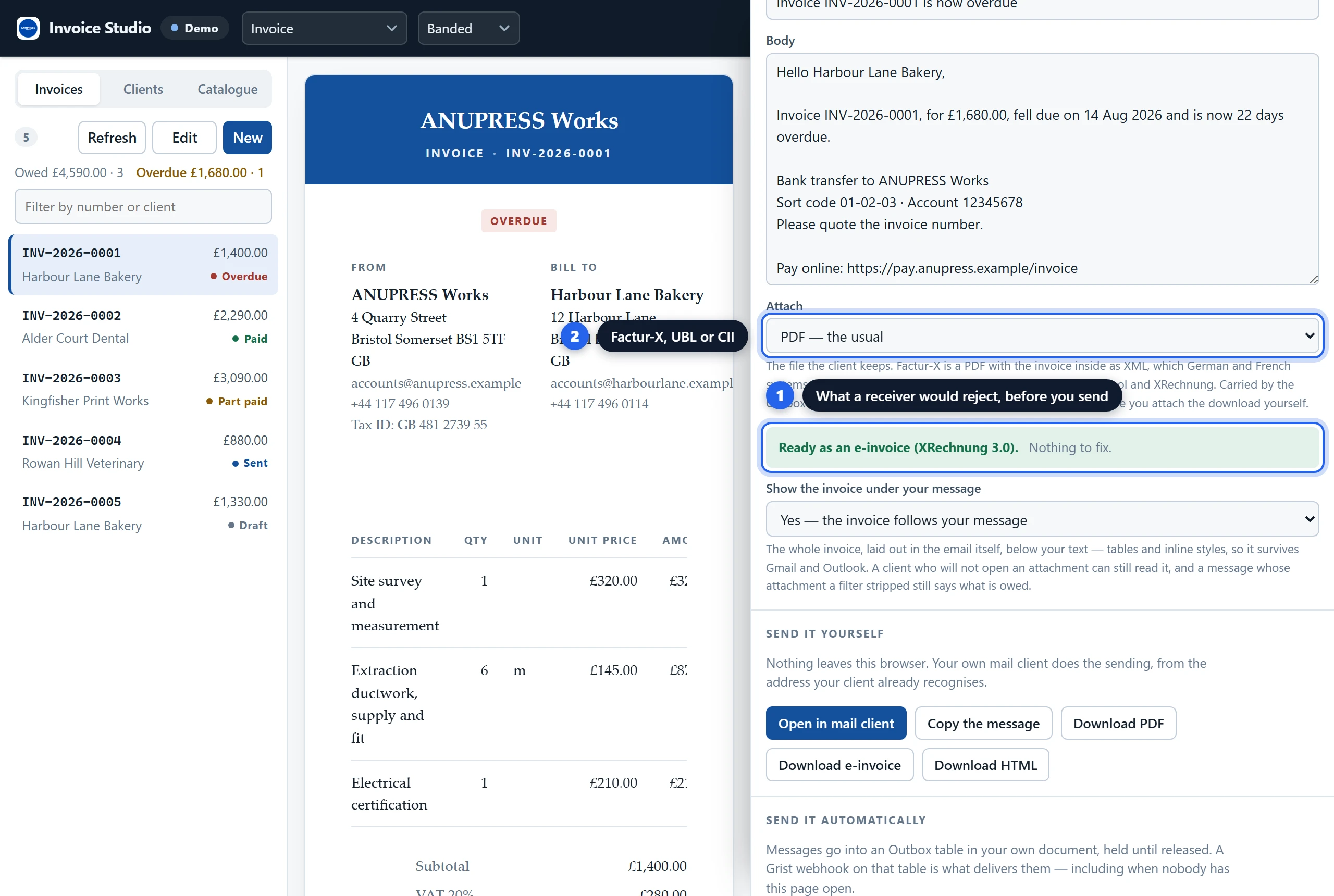
| Factur-X (ZUGFeRD) | A PDF/A-3 with the invoice embedded as CII XML. One file a person and a machine can both read. | German and French accounting systems, and anyone with a PDF reader. |
| UBL 2.1 | The XML most e-invoicing networks exchange. | Peppol, and public bodies that accept UBL. |
| CII | The XML behind Factur-X, on its own. | Recipients who ask for it by name. |
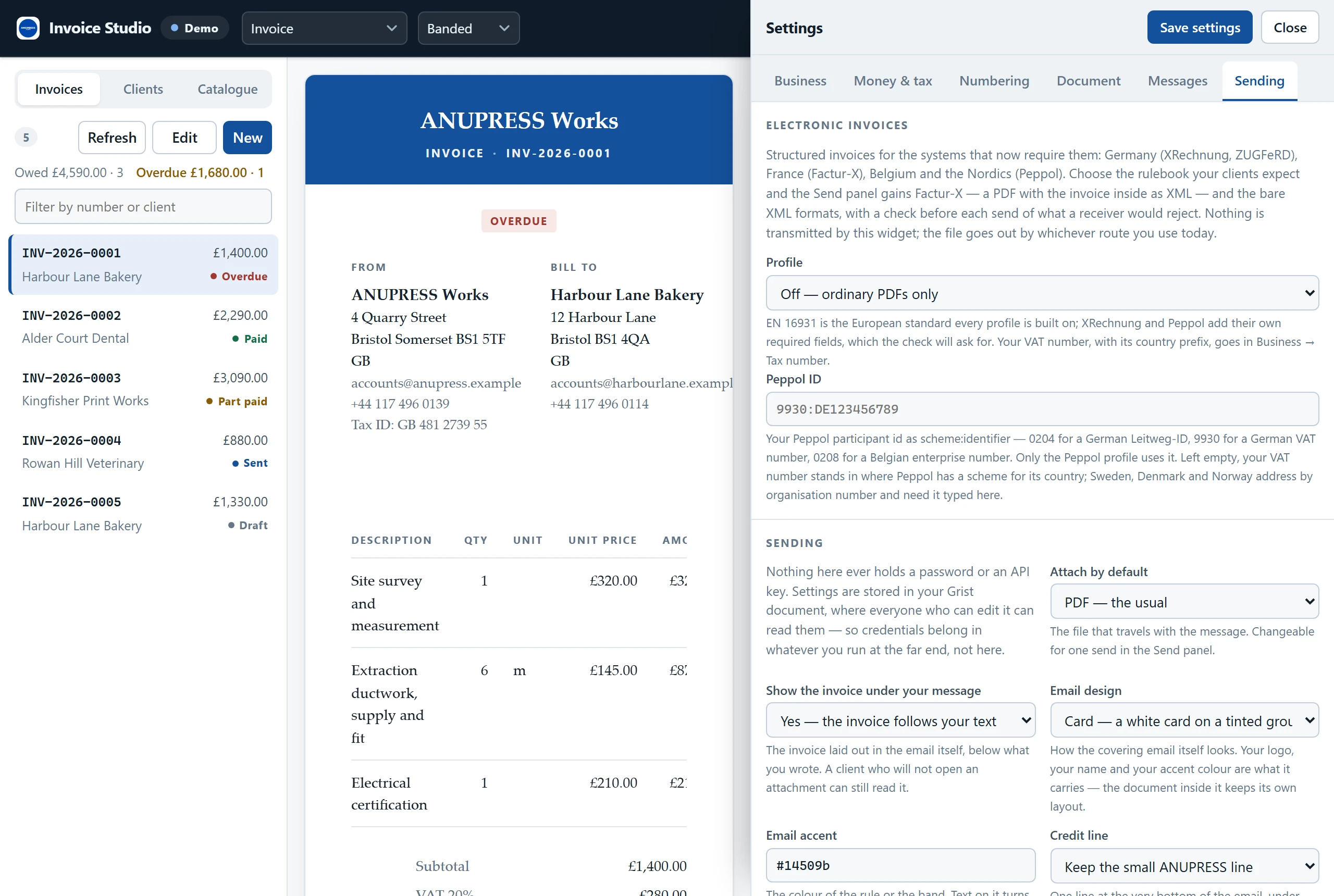
Choose the profile in Settings → Sending → Electronic invoices: EN 16931, XRechnung 3.0 for German public bodies, or Peppol BIS 3.0. Before a file goes, the Send panel lists what the profile requires and what the document is missing: a buyer reference, a seller tax number, a service date, a payment means. Transmission over the Peppol network needs an access point; hand the UBL file to one, with your Peppol ID entered in Settings.
Getting paid
Three things close most of the gap between an invoice and the money, and none of them needs a server.
- A SEPA code. On a euro document with your IBAN in Settings, the widget prints the EPC QR code that nearly every banking app in the euro area scans to pre-fill the transfer: account, amount, reference.
- A UPI code. On a rupee document with your UPI id, the equivalent for India.
- A payment link. Any payment page you already have, printed as a code with the URL beside it for anyone typing.
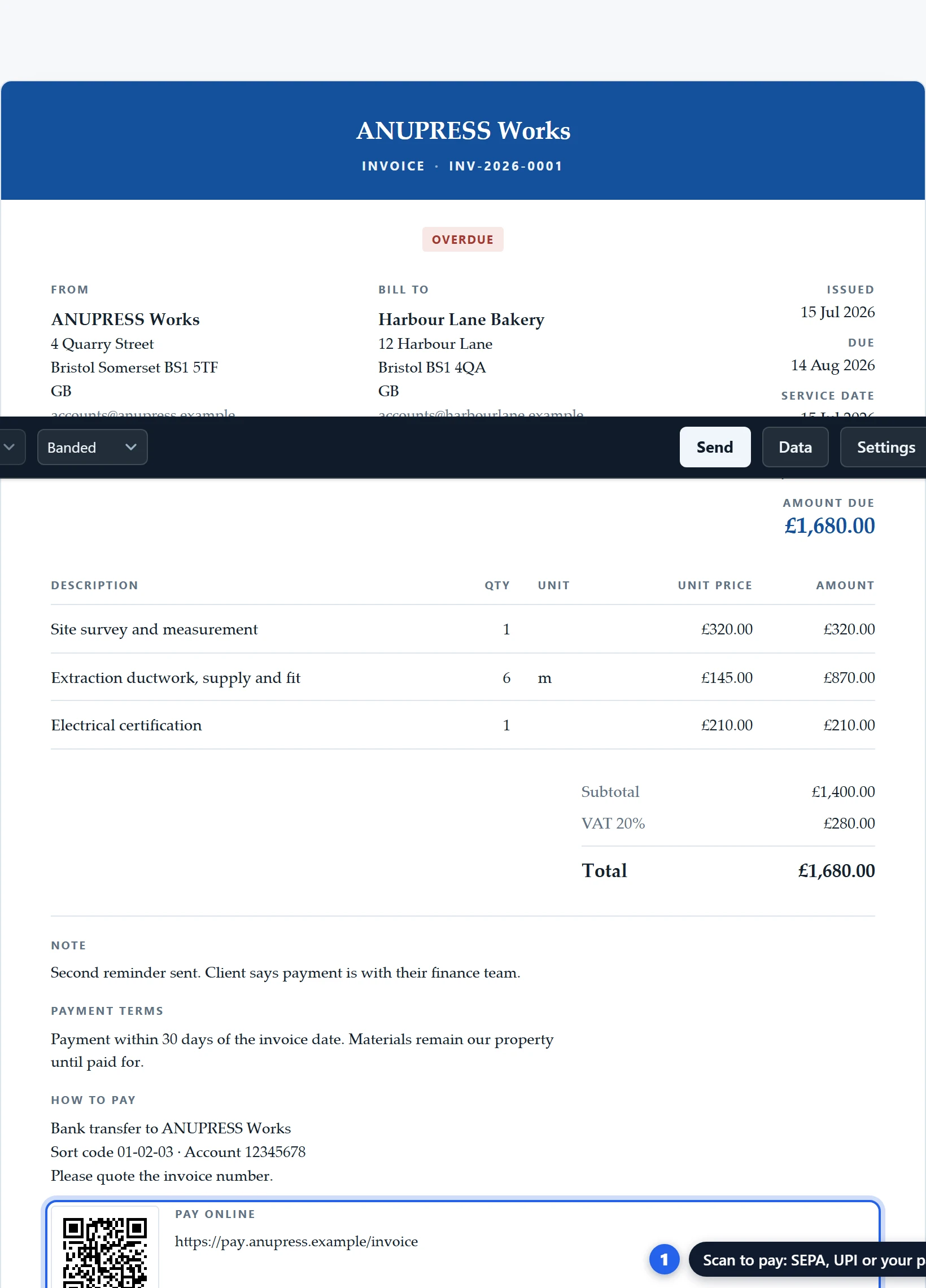
The code appears only on documents that ask for money with something still owed. A receipt, a quote or a credit note never carries one. Partial payments show a paid line and the balance; a paid receipt shows what was paid.
Languages and tax
A client’s Language column decides what their documents say: English, German, French, Spanish, Italian, Dutch, Polish or Portuguese. A French client gets a Facture, a German one a Rechnung, without anyone choosing per invoice. Dates, column headings, totals and the status word follow. The PDF embeds a subset of a font that carries the accents, so a Polish name prints as typed. Addresses are written in their country’s order: postcode first for a German client, town first for a British one.
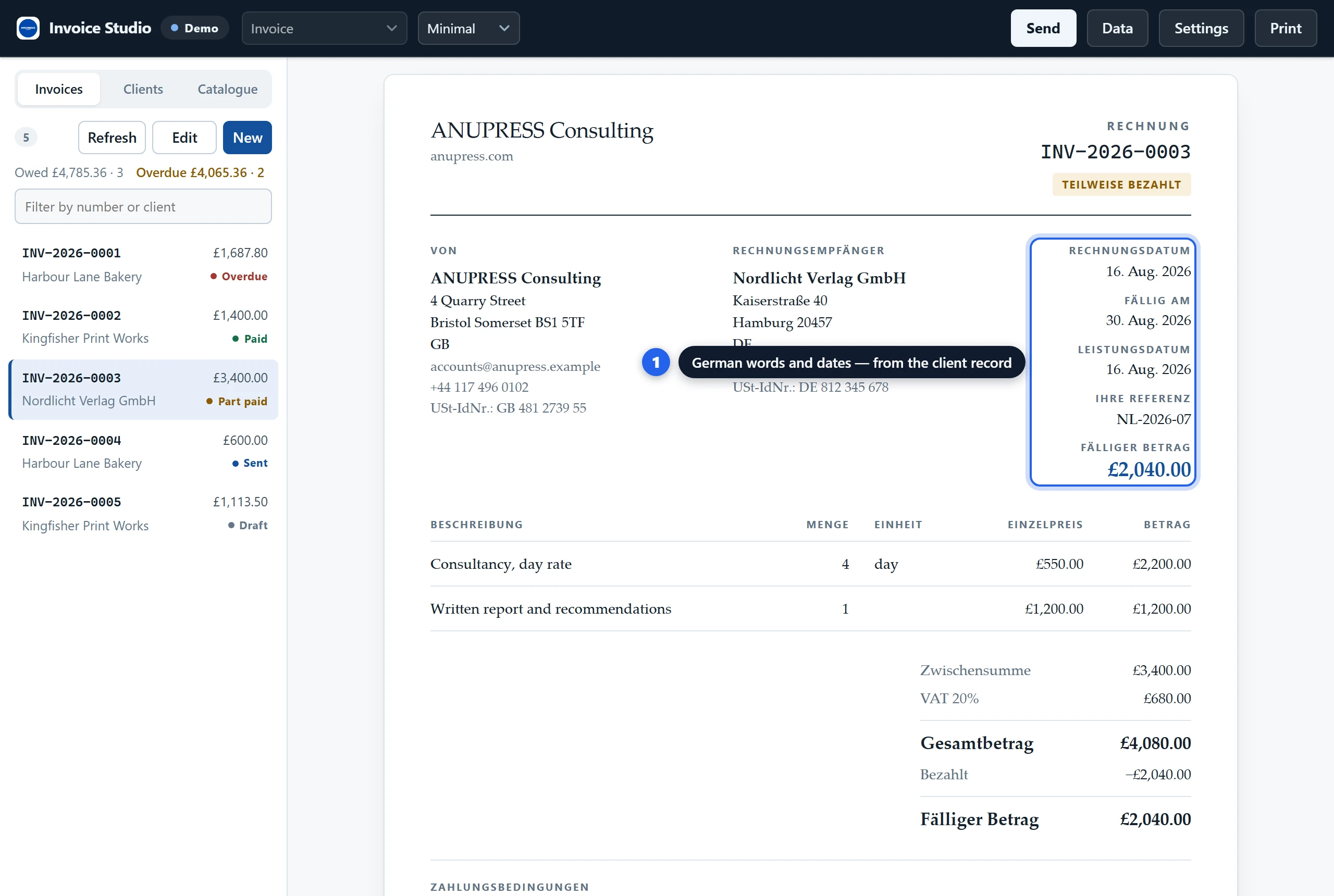
Tax comes from a rate you enter or from a rate table by country. The reverse charge between EU businesses is worked out from the two countries and the client’s VAT number, and the document says so. A business under a small-business scheme gets the sentence its country expects, such as the §19 UStG note in Germany. Indian documents split GST into CGST and SGST or keep IGST, from the two states.
Settings, tab by tab
Settings are saved into the Grist document itself, so everyone who opens the Grist invoice widget on that document sees the same business. Nothing in them is ever a password or an API key.
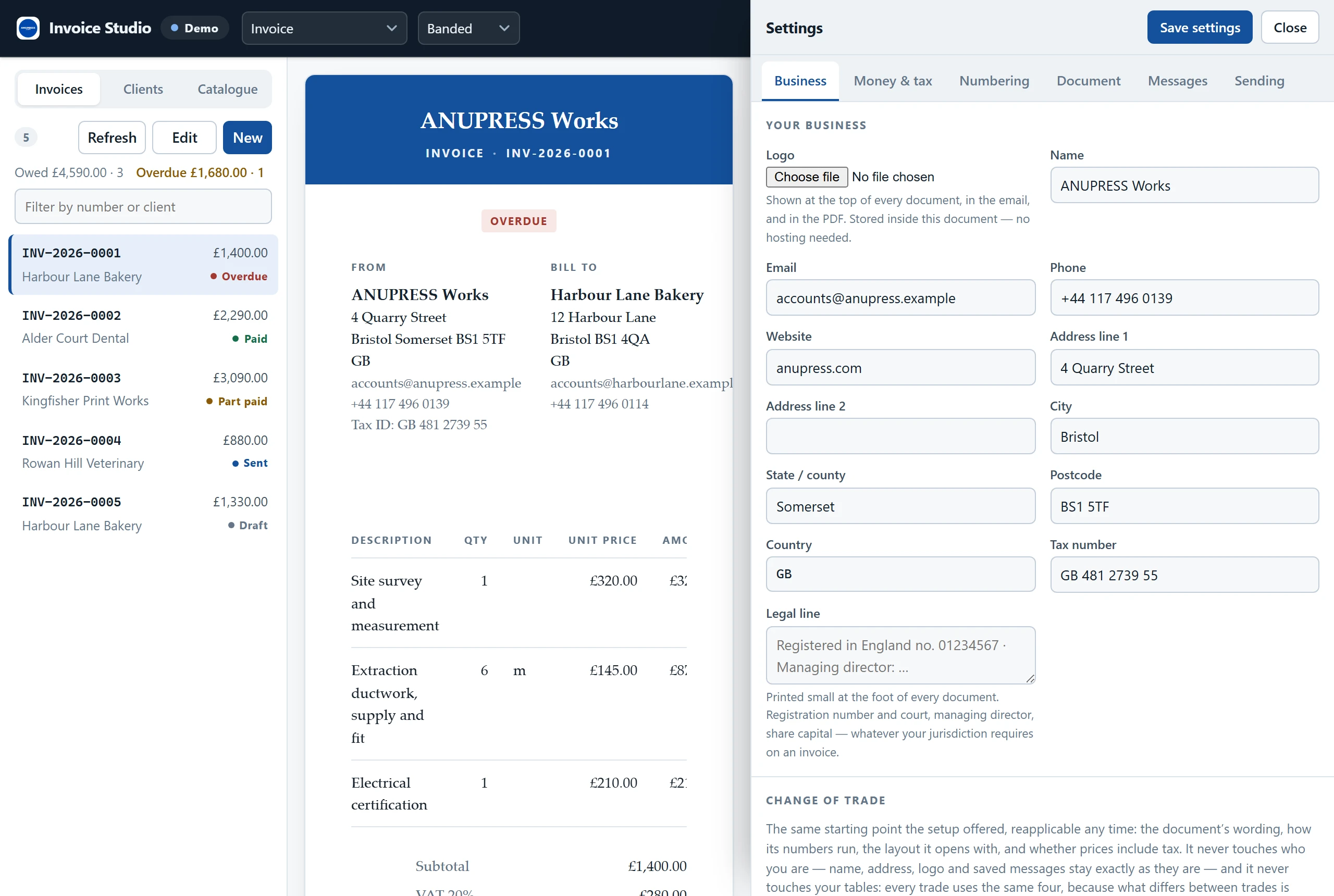
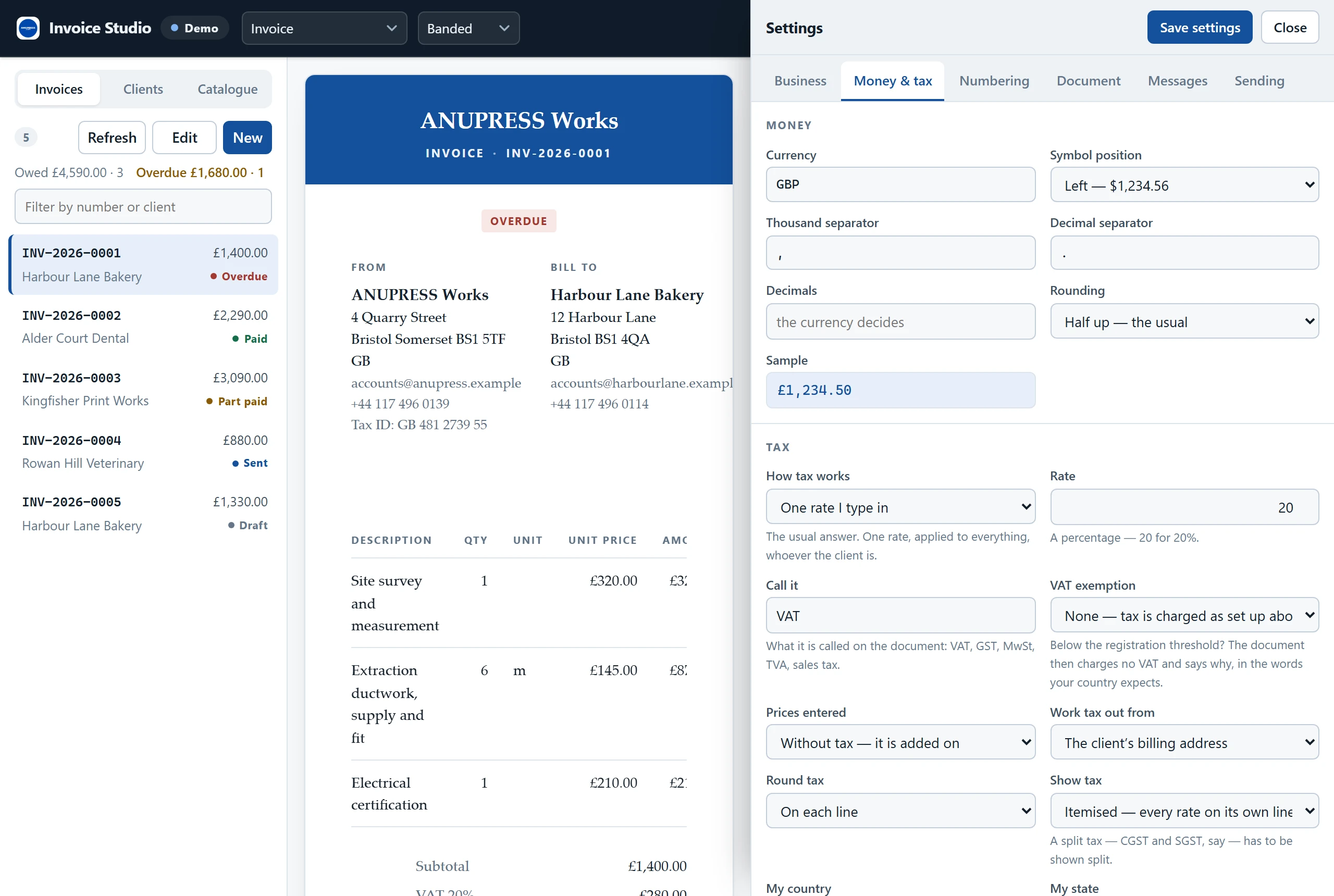
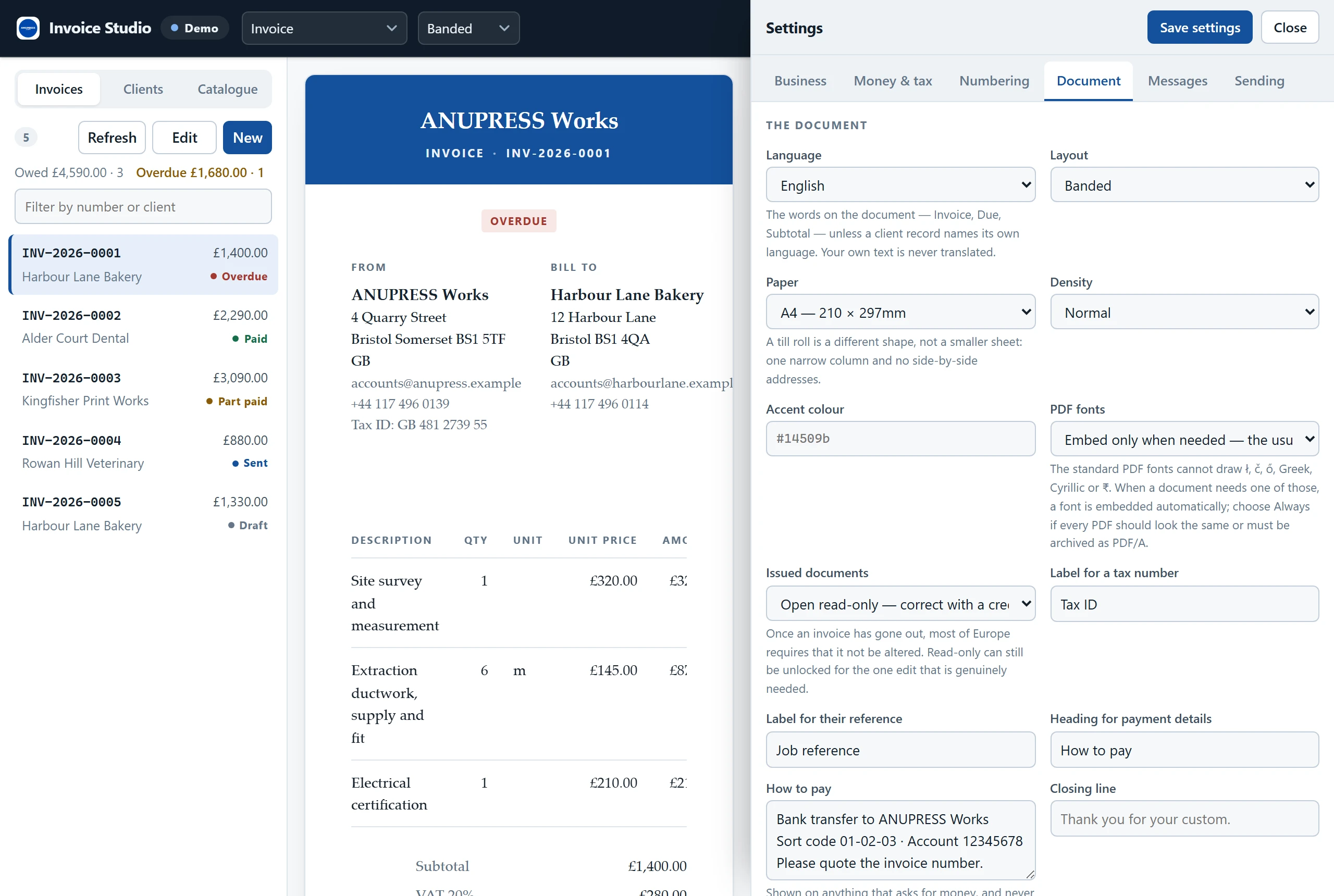
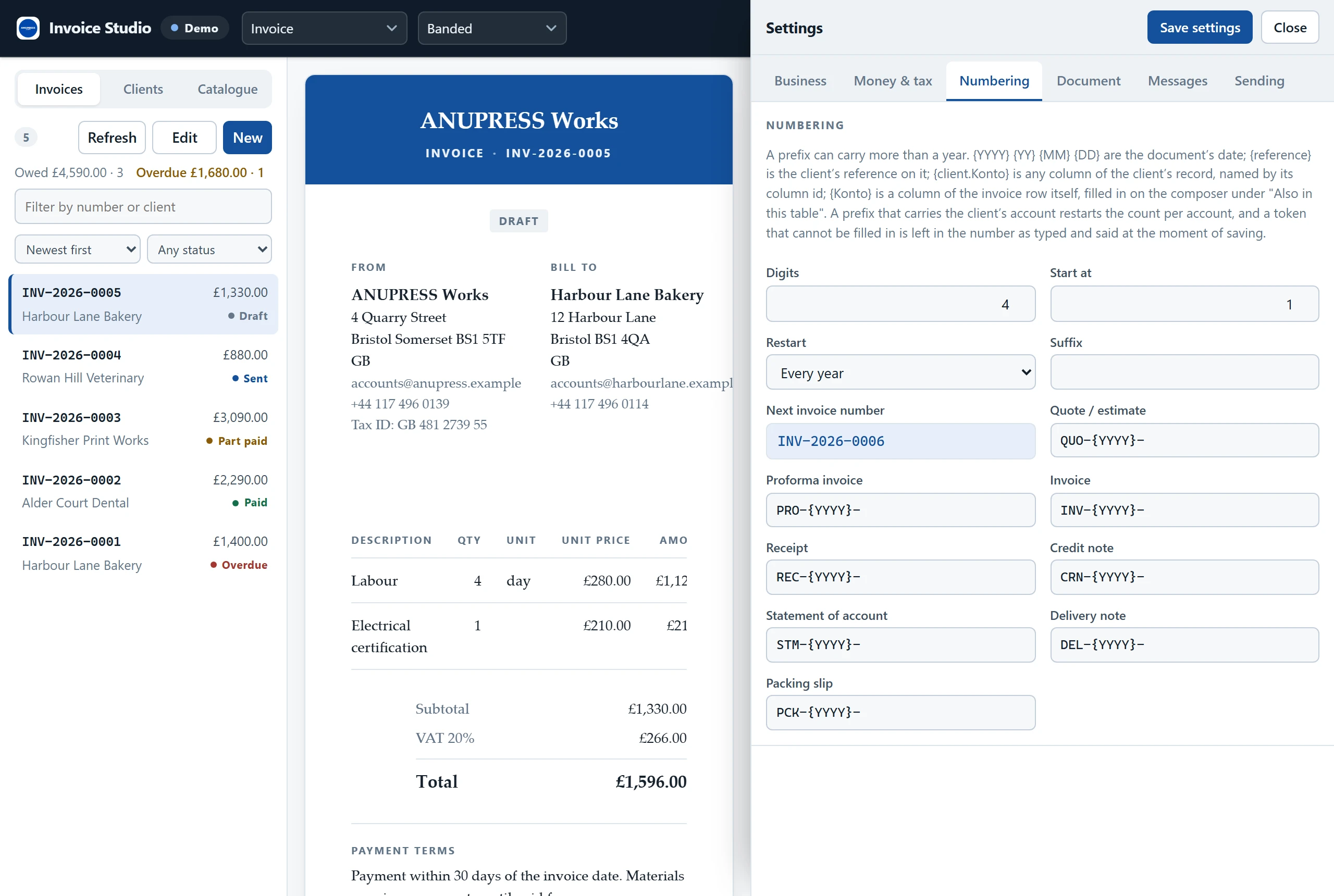
A prefix such as RE-{YYYY}-{client.Konto}- numbers by the client’s ledger account, where
Konto is the column’s id in your client table, and the sequence then runs per account. A token
the document cannot fill in stays in the number as typed and is said when the number is assigned. A Number
column that is a Grist formula is left to Grist: the widget assigns nothing over it and shows the formula’s
number once the row is saved. One tab is not pictured. Messages holds the five email wordings with
their placeholders, so the reminder says what you would say.
PDF and print
The PDF writer is part of the Grist invoice widget, not a library. A document that stays within Western European letters uses the standard PDF fonts and weighs about 6 KB. One that needs more embeds only the glyphs on the page. Paper is A4, US Letter, US Legal, A5, or an 80 mm or 58 mm till roll, which switches to a single-column layout.
Print prints the invoice and nothing else: no bar, no sidebar, and none of the browser’s own header and footer. A PDF saved from the print dialog is named after the invoice, the same name the Download button gives it. Download HTML gives a self-contained file that opens in any browser and looks identical.
Grist invoice templates: starters by trade
A template here is not a design; the layouts cover that. It is the handful of decisions a particular kind of business would otherwise make one at a time: what the document is called, what the reference field is for, how the numbers run, whether prices include tax, what a typical line looks like. Each starter is small on purpose, so there is little to undo. Every one below is a real first document from the demo, drawn with that trade’s settings, and every name and address in it is invented.
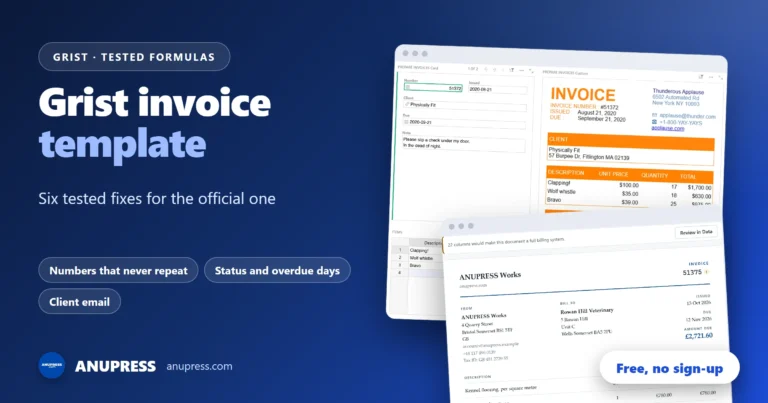
Looking for Grist’s own official Invoicing template instead of these starters? We tested its gaps and wrote down six fixes in Grist invoice template: what the official one misses.
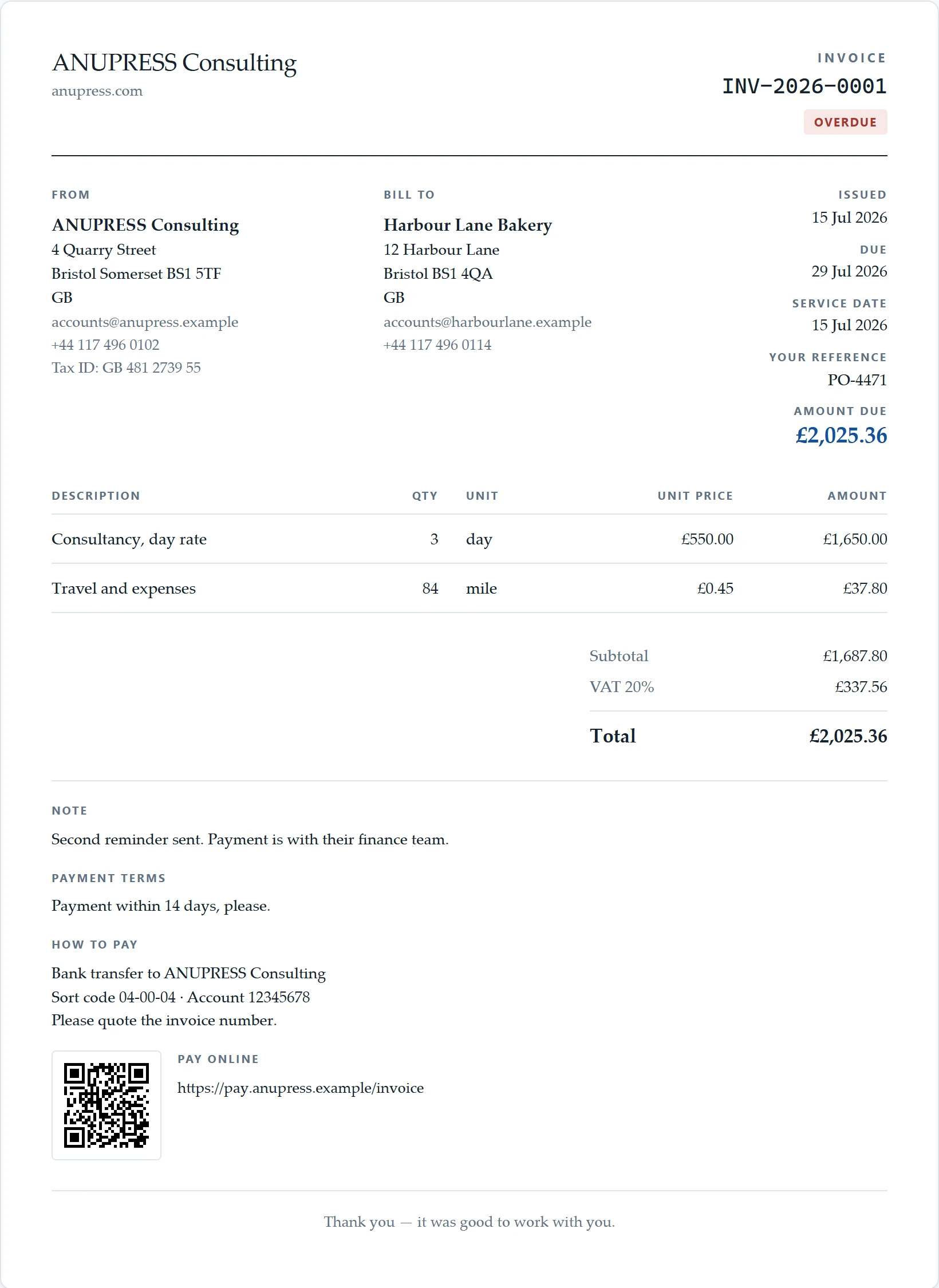
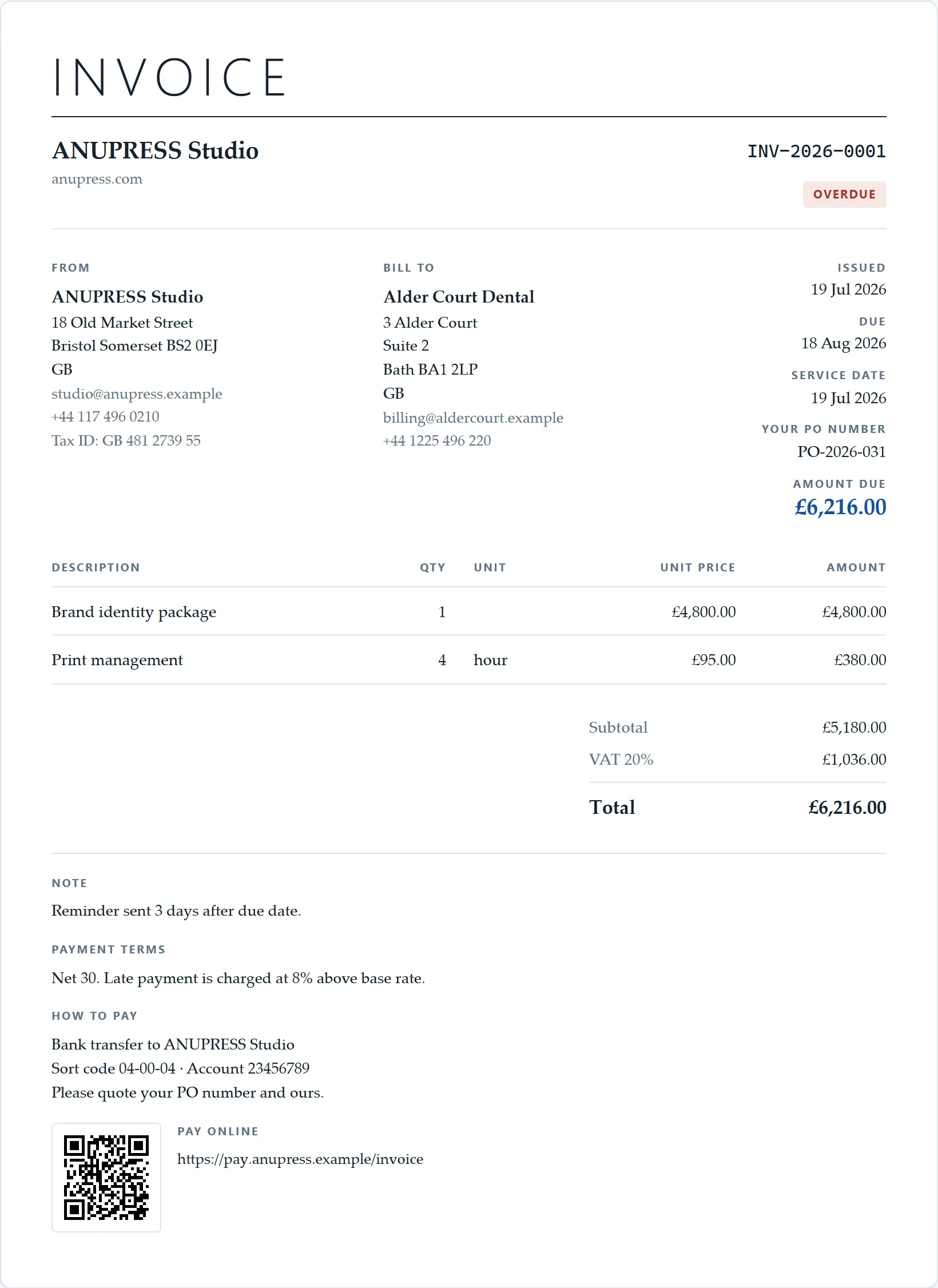
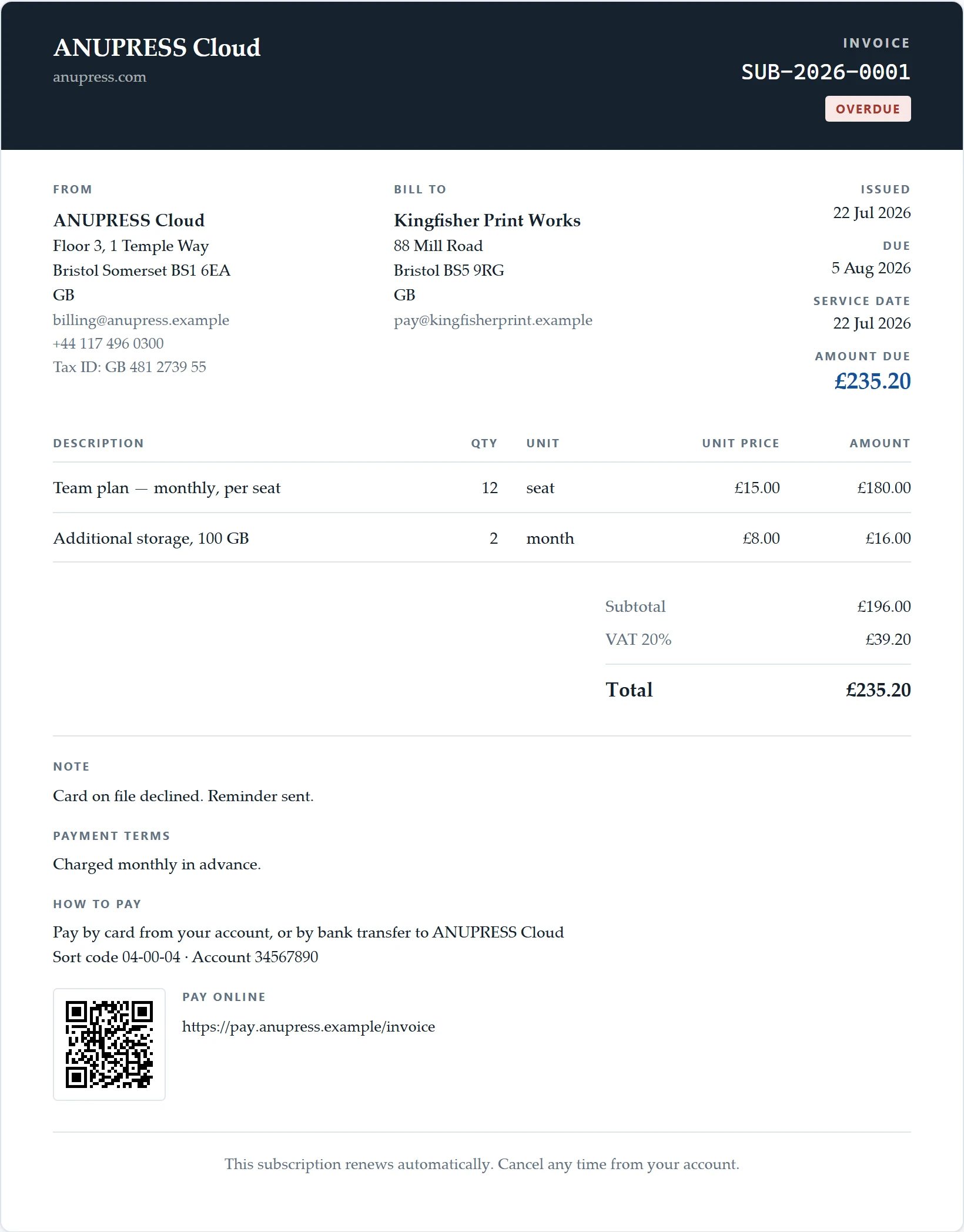
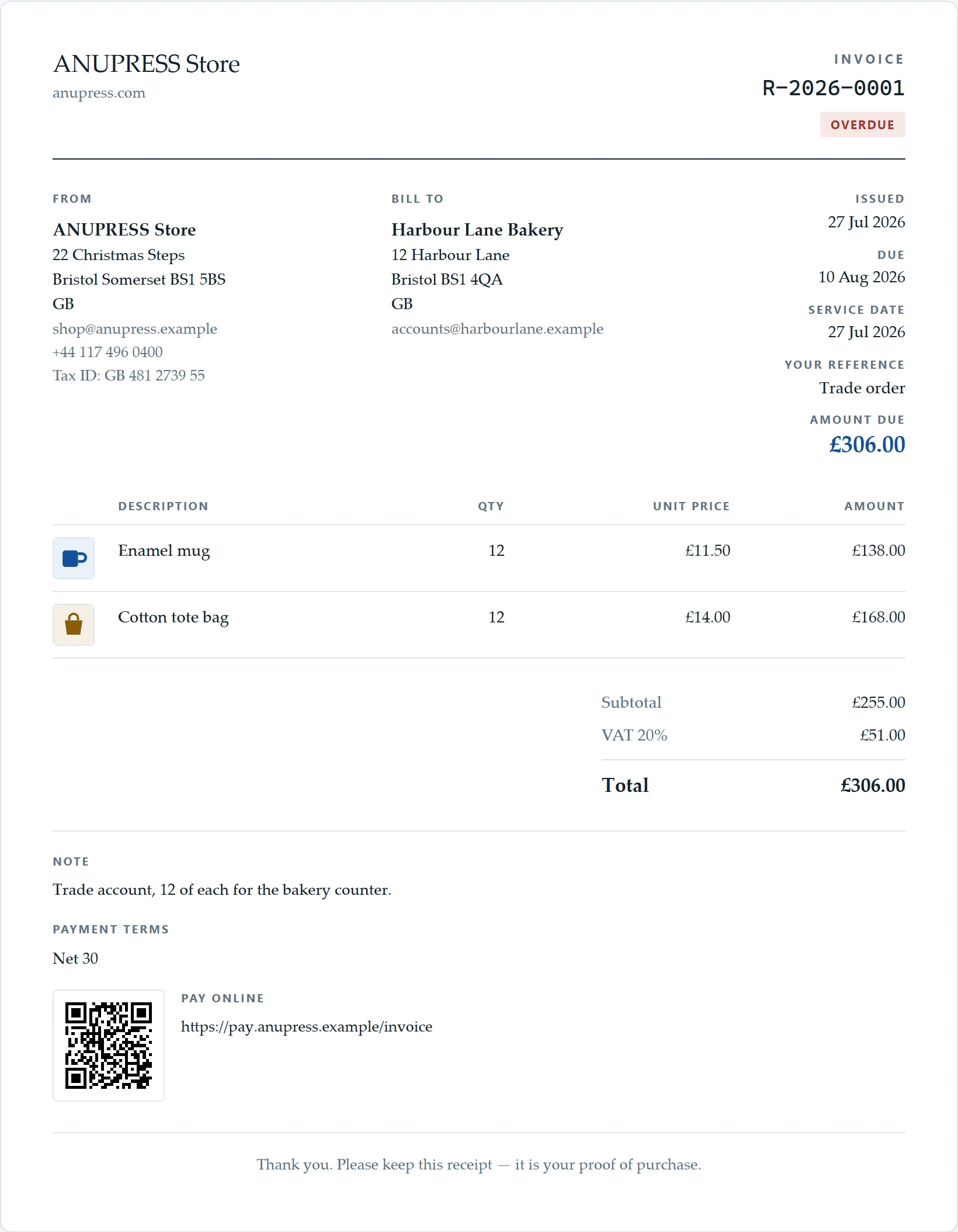
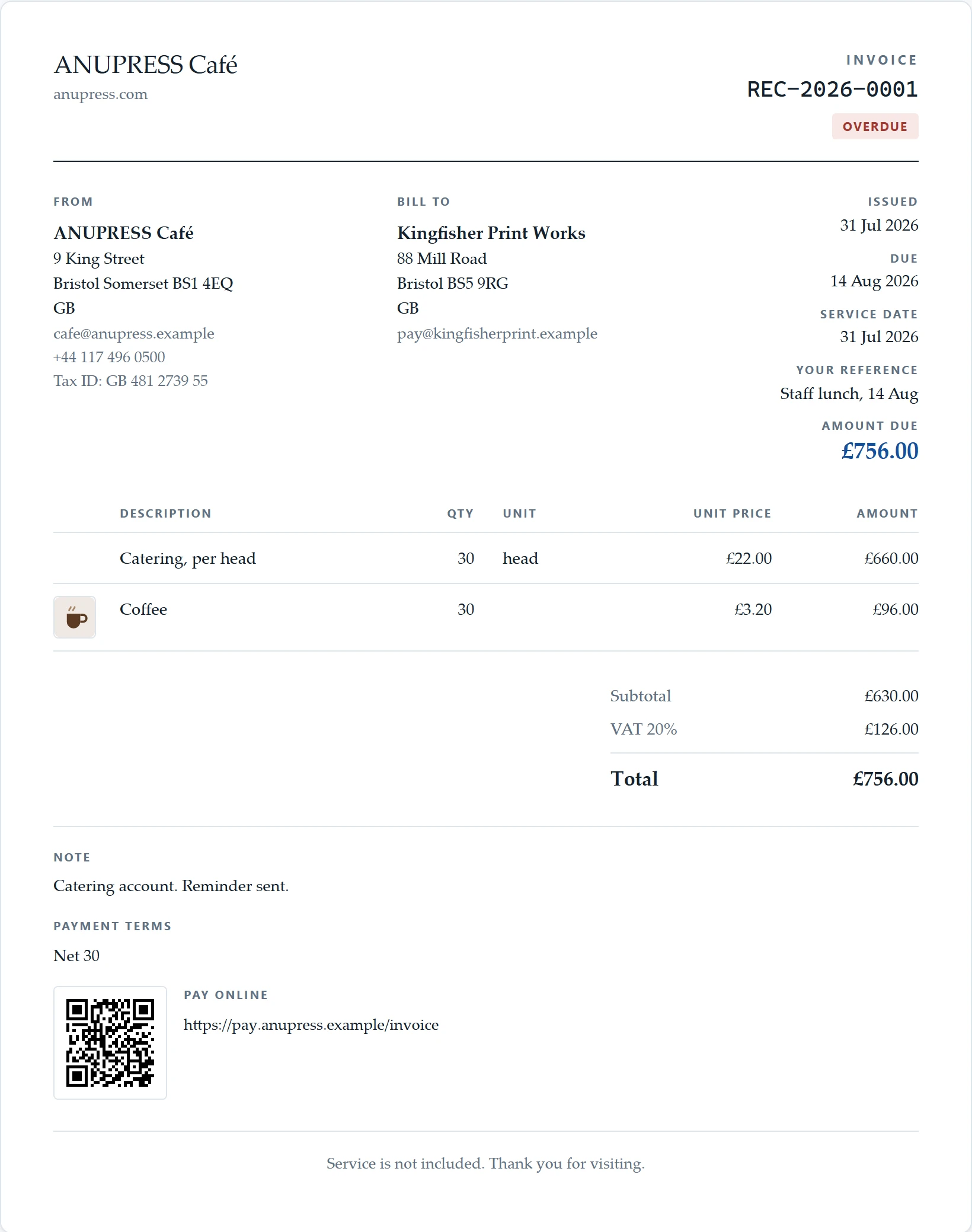
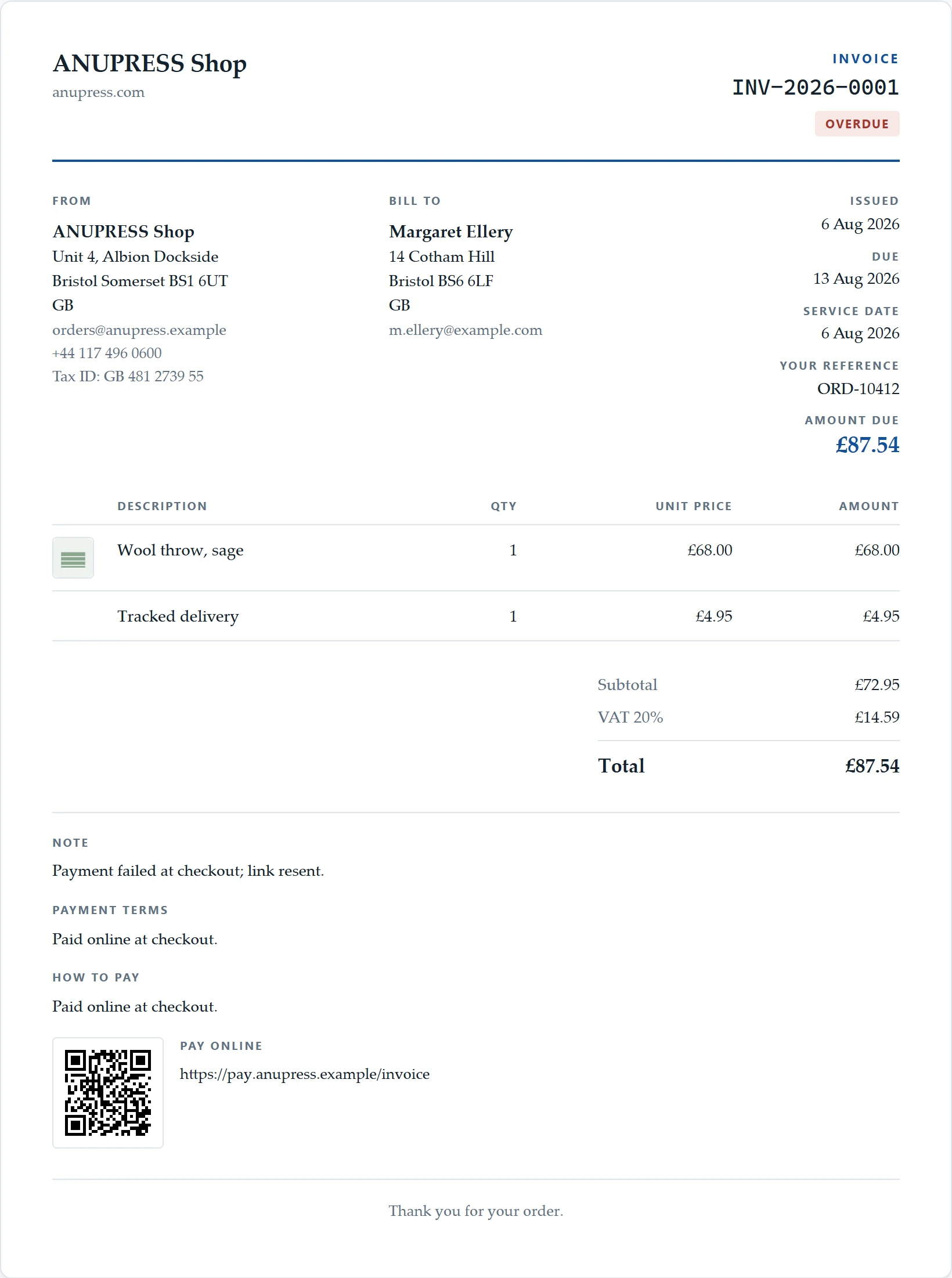
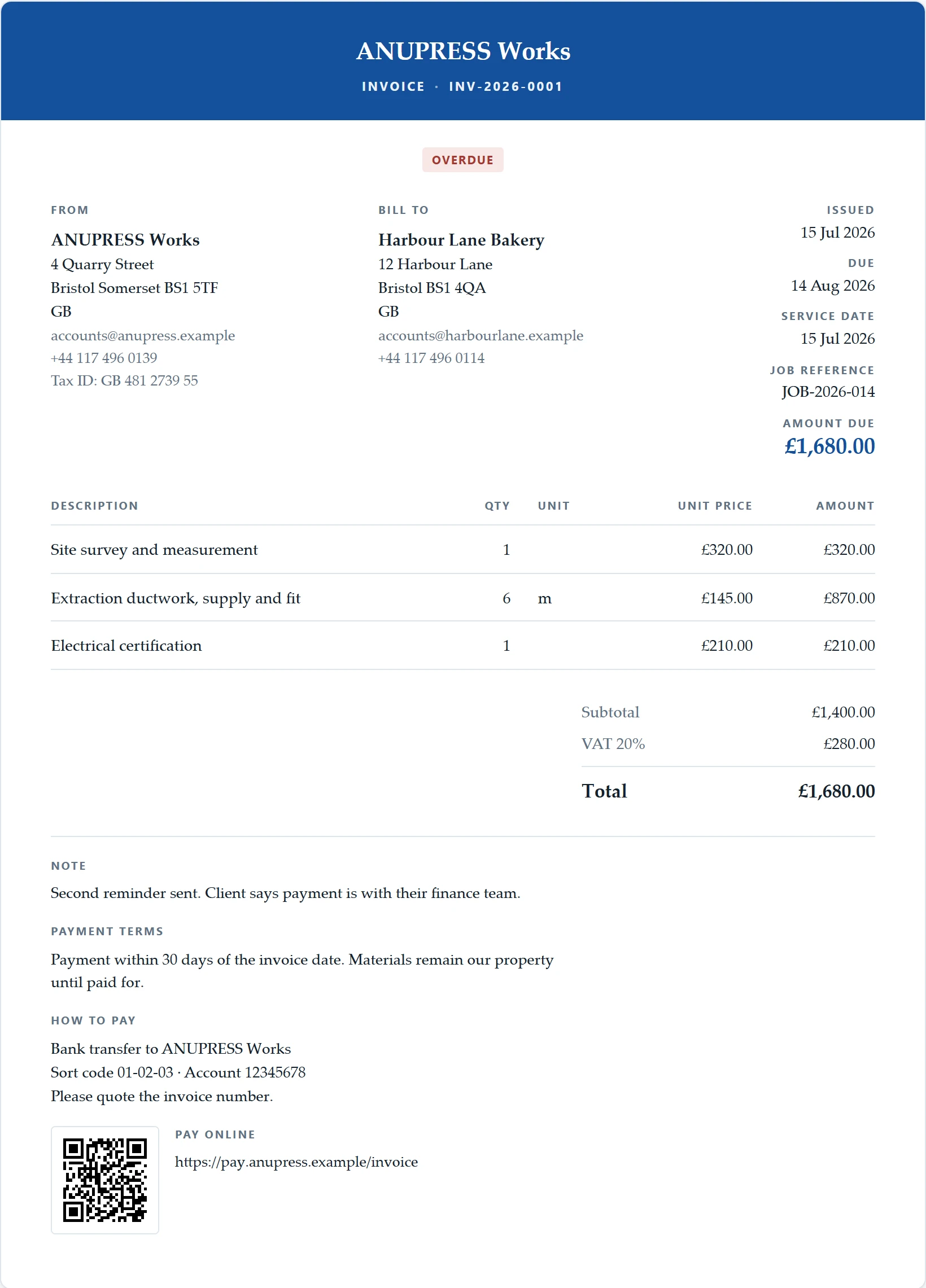
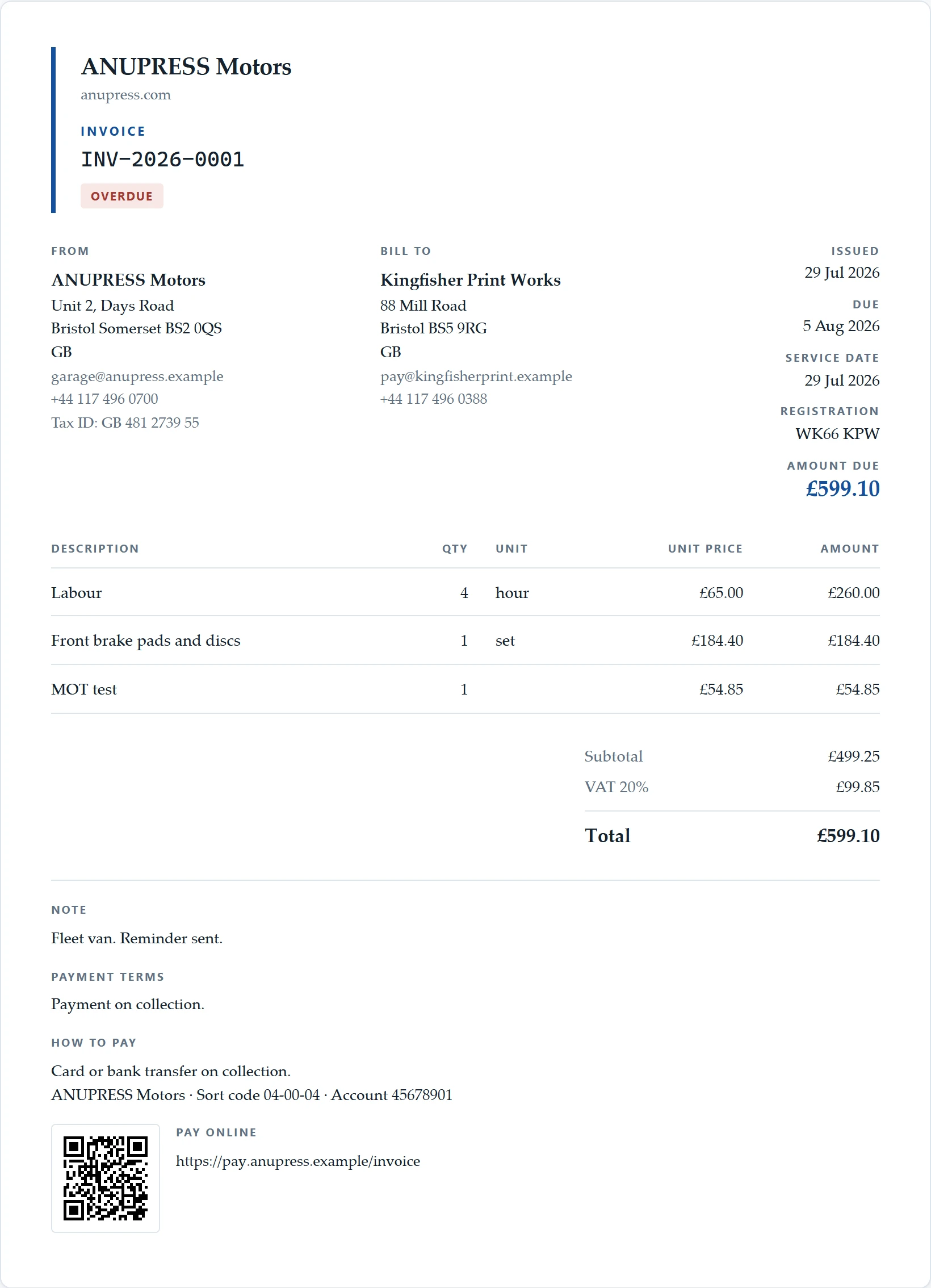
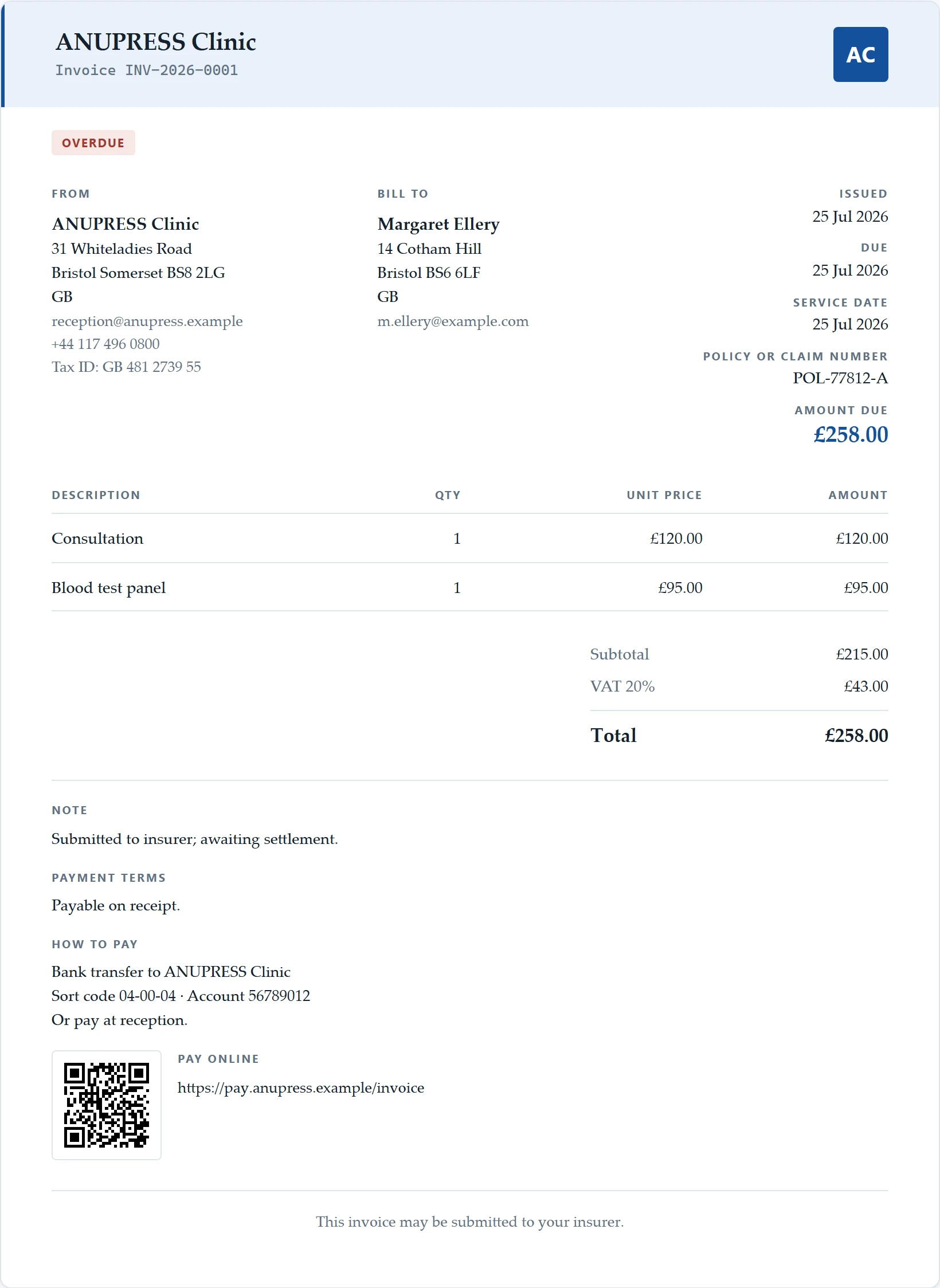
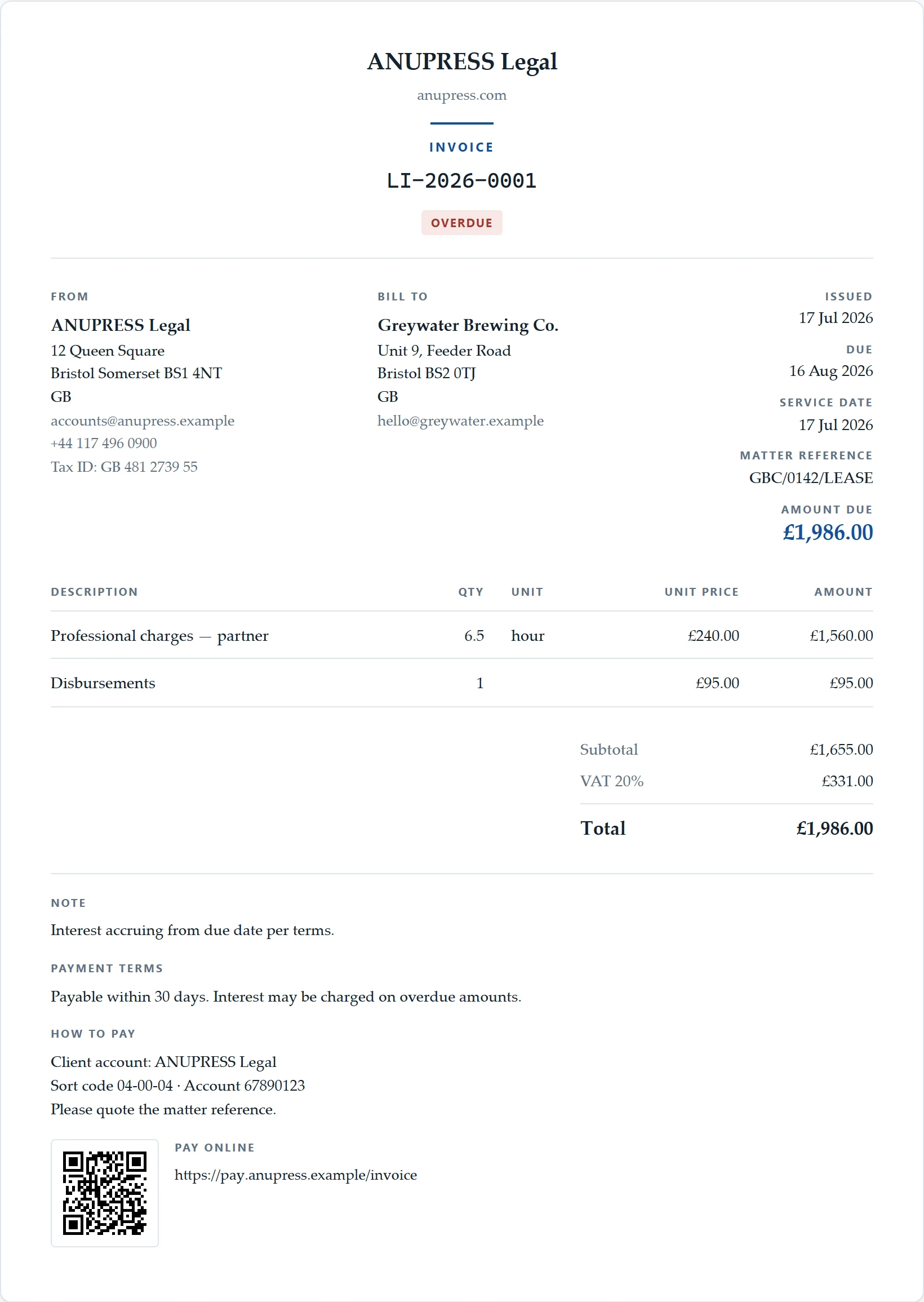
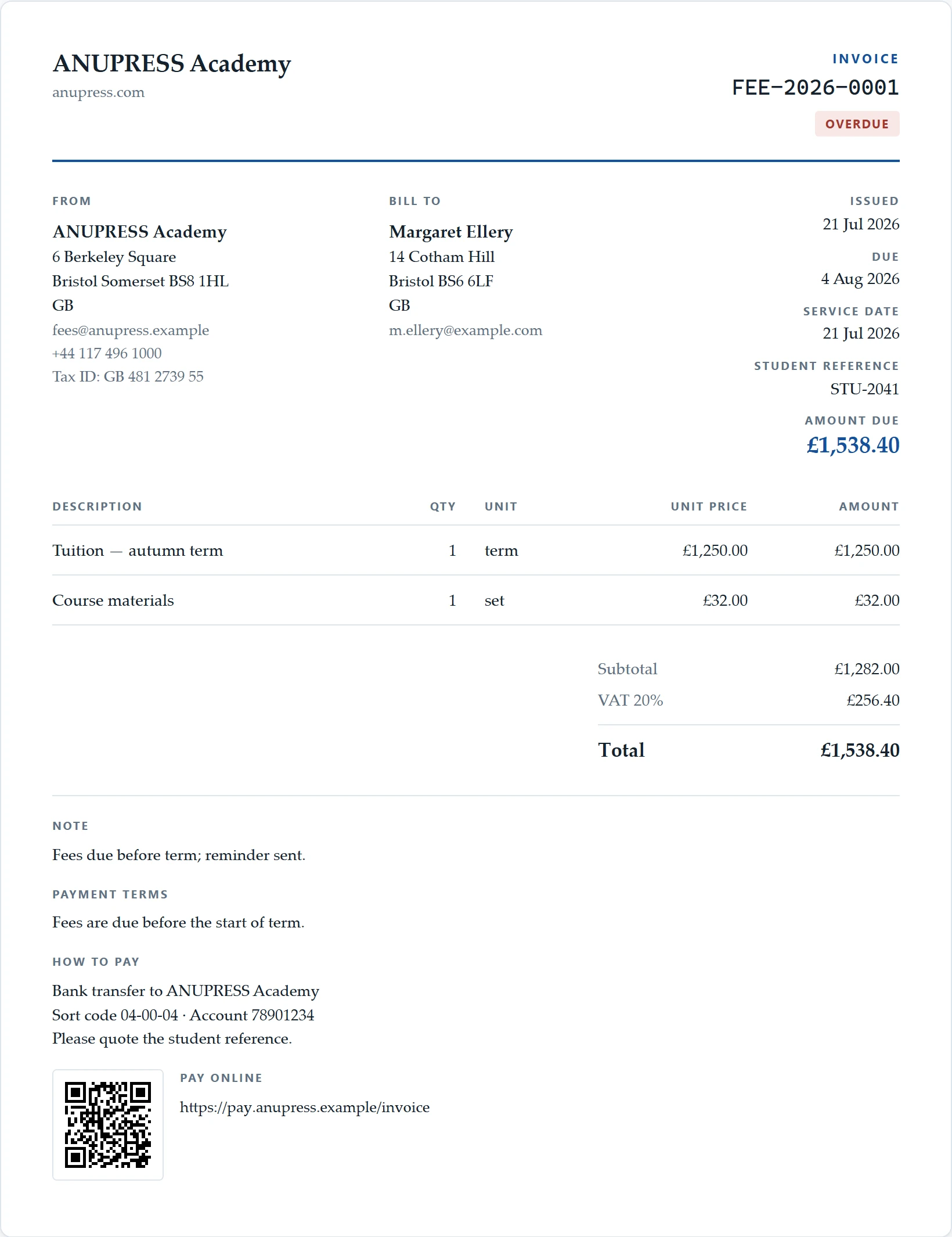
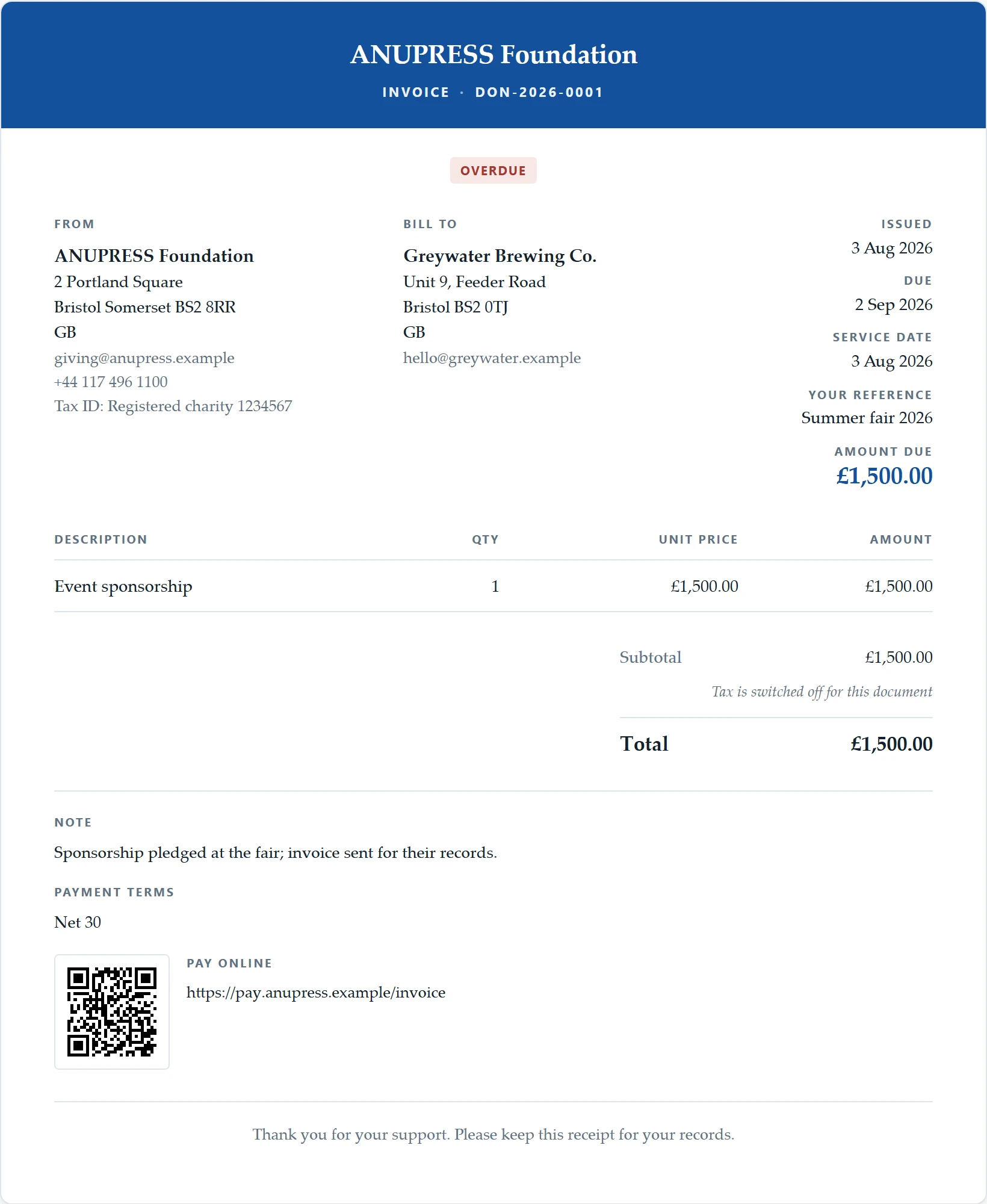
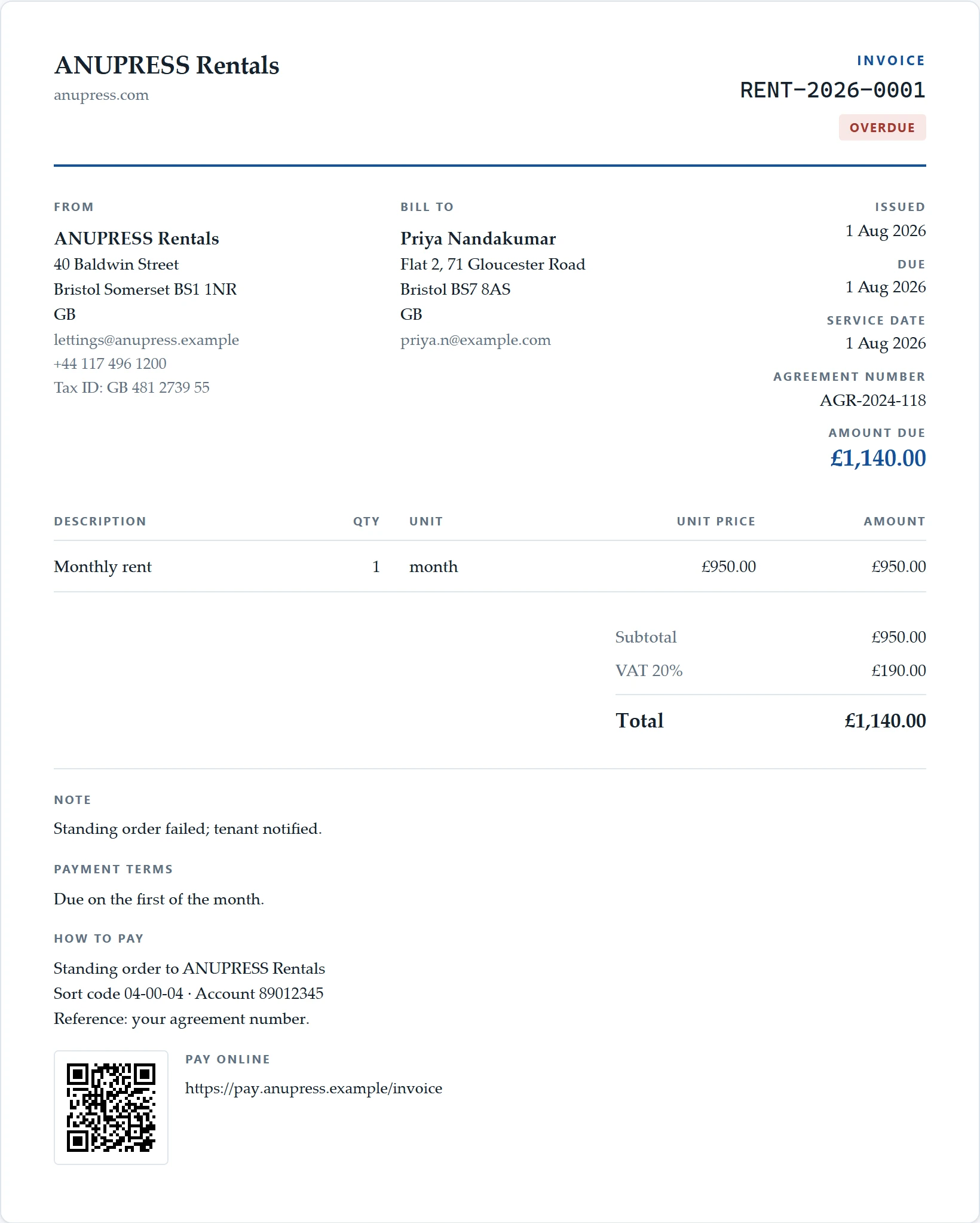
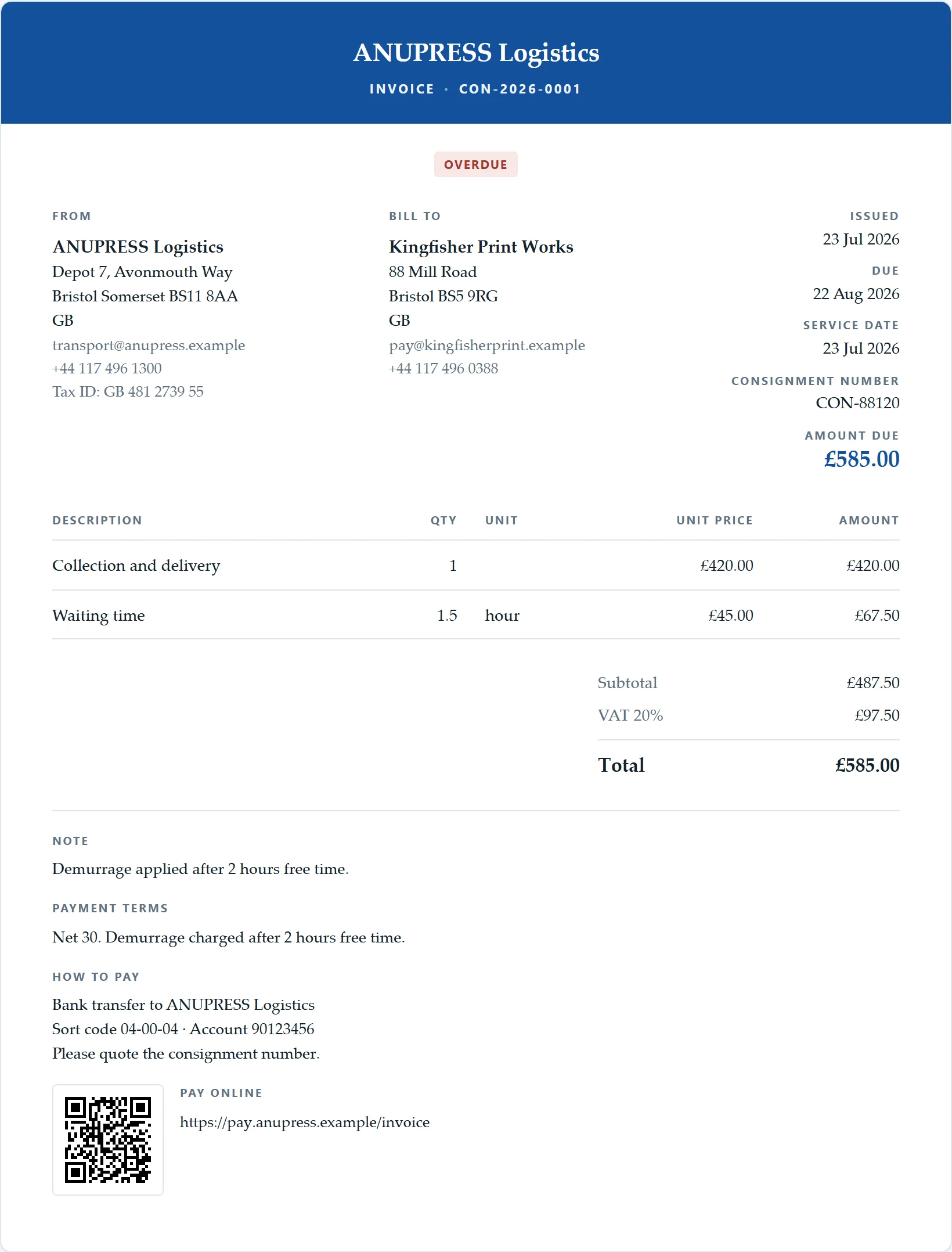
A trade can be reapplied later from Settings → Business → Change of trade. It resets the wording, numbering and layout the starter owns and leaves your name, address, logo, messages and tables exactly as they are.
Bulk import with CSV
Moving from another tool, or from a spreadsheet, is a CSV job. The repository carries four files with the Grist invoice widget’s own column headers, each in two versions: sample, filled with the construction starter’s business so you can see what goes where, and blank, with the headers alone for your data.
| File | Table | What each row is | Download |
|---|---|---|---|
| clients | Clients | One client: name, contact, address, tax number, language | sample · blank |
| products | Products | One catalogue item: SKU, name, price, unit, stock, tax class | sample · blank |
| invoices | Invoices | One document: number, client by name, dates, status, kind, totals | sample · blank |
| invoice-items | InvoiceItems | One line: the invoice it belongs to by number, description, quantity, price | sample · blank |
Download all eight files as a zip
- Prepare the rows. Export clients, items and invoices from the old tool as CSV, open each in a spreadsheet, and rename the headers to the ones in the blank file. Columns the old tool did not have can stay empty. Columns it had that the file lacks can be kept: the widget shows every column of a table on its forms and only reads the ones it knows.
- Import in Grist. In your document choose Add New → Import from file, pick a file, and set the destination to the existing table of that name. Grist matches columns by name. Import clients and products first, then invoices, then invoice items.
- Press Refresh in the widget. The list fills with what you brought in.
The same files, with a longer readme, live in the docs/import folder of the repository.
Where the Grist invoice widget loses
Naming what a tool cannot do is the part of a guide worth trusting.
- It cannot send email by itself. A web page has no mail server. The routes above hand the message to something that does. Grist’s own automations email collaborators only, so a Grist webhook needs a relay at the other end.
- Repeats are raised by a person. Raise it takes one press a period; a document nobody opens does not raise itself on a schedule.
- Scripts the embedded font does not cover, such as Chinese, Arabic and Devanagari, print as boxes in the PDF. The screen and the email are unaffected.
- Peppol transmission needs an access point. The widget builds a file the network accepts; it does not connect to the network.
- No client portal and no card payments. Both need a server, and the widget’s promise is that there is none.
Grist invoice widget FAQ
Is the Grist invoice widget free?
Yes. Invoice Studio is open source under the MIT licence and hosted on GitHub Pages. There is no account, no tier and no usage limit. Grist itself has a free plan, and can be self-hosted.
I have never used Grist. How much do I need to learn?
Enough to create a document and add a widget to a page, which is a few minutes. The widget builds its own tables with a sample business, so you can write your first invoice before you have learned anything about columns or formulas. Grist looks like a spreadsheet and behaves like a database, which is what makes the invoice tables filterable, chartable and exportable later.
Does my invoice data leave my Grist document?
No. The widget is a static page that runs in your browser. It reads your tables through Grist’s own widget API and writes back through the same API. ANUPRESS has no server and receives nothing.
Can it send an invoice by email on its own?
Not by itself. A web page cannot send email. The widget opens your mail client with the message written, copies a formatted message to the clipboard, queues the message in an Outbox table for a Grist webhook, or posts it to an endpoint you run.
Does it produce XRechnung and Factur-X files?
Yes. The Send panel attaches a Factur-X PDF, a UBL file or a CII file, built to EN 16931 with the XRechnung 3.0 or Peppol BIS 3.0 profile you choose in Settings. Every output is checked against the official KoSIT and Peppol validators before a release, and a pre-send check in the widget lists anything the chosen profile still needs.
Which languages can the documents be written in?
English, German, French, Spanish, Italian, Dutch, Polish and Portuguese. The language is set per client, so a French client gets a Facture without anyone choosing it per invoice.
Can I import my existing clients, products and invoices?
Yes. Four CSV files on GitHub carry the widget’s column headers, each in a filled sample version and a blank version. Export from your old tool, paste the rows under those headers, and import each file into its table with Grist’s Import from file. Clients are matched by name and invoice lines by invoice number.
Does it work with Grist’s own Invoicing template?
Yes. The template is recognised by its columns, so swapping the widget URL is the whole migration. The Data drawer then offers the columns the template lacks, such as a status, a paid date and a client email, and adds them without renaming or removing anything. If you would rather keep the official widget, our guide to that template tests six fixes you can make in plain Grist.
Does it fit German window envelopes (DIN 5008)?
Yes. The DIN 5008 layouts, Form B and Form A, put the address field 20 mm from the left edge and 45 mm from the top (27 mm on Form A), 85 by 45 mm, which is where a DIN lang window envelope shows it, with the information block at 125 mm, the subject two lines below the field, and fold and punch marks on the edge. The PDF is drawn in millimetres and the printed page at size. Print one at 100% and hold it against your envelope.
Can the invoice number carry our ledger account, or come from a Grist formula?
Both. A prefix such as RE-{YYYY}-{client.Konto}- takes any column of the client record, a column of the invoice row or the client’s reference, and the sequence then runs per account. If your Number column is already a Grist formula, the widget leaves numbering to it: the box is read-only and the formula’s number appears when the row is saved.
Keep going
The source, the changelog and the issue tracker are on GitHub. If you would rather have it set up for you, with your tables, your logo and your tax settings in place, that is a service we offer.
Invoice Studio is built and maintained by ANUPRESS. It is free, open source, and runs entirely in your browser. The sample businesses, clients and addresses in the demo are invented.