You do not need to hand your bank statement to a stranger’s server to make it smaller. What you need is five minutes to understand where the work happens, because “free online PDF tool” and “your file stays yours” turn out to be two completely different claims. This is a tutorial for twelve PDF tools without uploading anything: what each one does, how to use it, and where it lets you down.
The short version
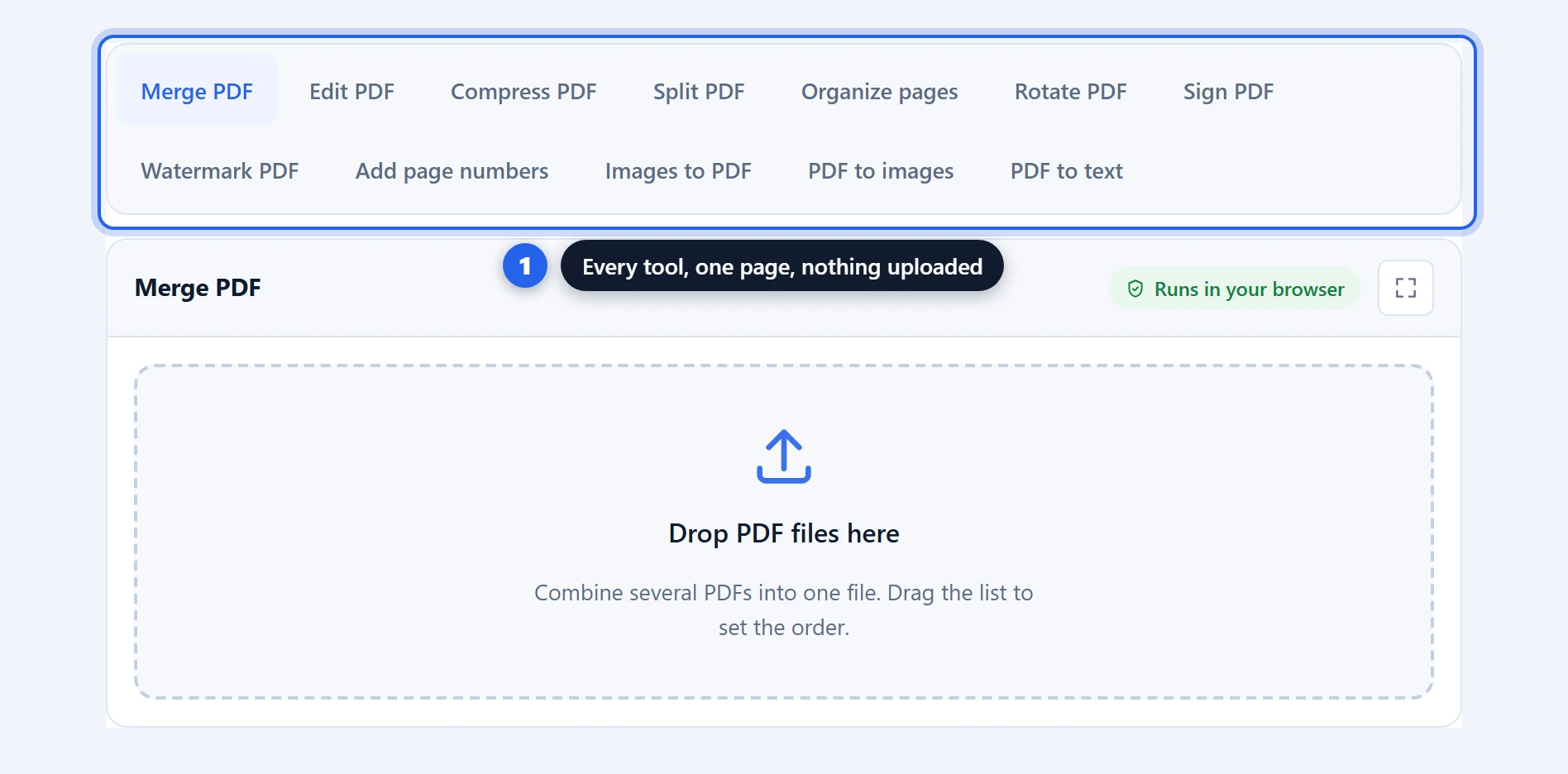
Twelve jobs, twelve PDF tools without uploading, all free and all local to your machine. Here is what each one is for and what it did when I put a real file through it.
| The job | The tool | What it did in testing |
|---|---|---|
| Combine files | Merge PDF | 12 files, 72 pages, one document |
| Pull pages out | Split PDF | Click thumbnails or type “1-3, 7” |
| Delete and reorder | Organize pages | Drag to reorder, removed pages grey out |
| Fix sideways pages | Rotate PDF | Writes rotation into the file, not the viewer |
| Get under a size limit | Compress PDF | 4.2 MB to 238 KB, text untouched |
| Fill in a form | Edit PDF | Real selectable text, not a picture of text |
| Sign something | Sign PDF | Flattened into the page, not a movable sticker |
| Mark a draft | Watermark PDF | Text or your logo, nine placements |
| Number the pages | Add page numbers | Six positions, five formats, cover skipped |
| Photos into a PDF | Images to PDF | Crop, then one per page or arranged freely |
| Pages into images | PDF to images | JPG, PNG or WebP, 72 to 600 DPI |
| Get the words out | PDF to text | Reads scans too, with OCR on your device |
The one rule: pick the tool for the job you have, not the site with the biggest list. And check where the work happens before you hand over anything sensitive, whether you use PDF tools without uploading or the other kind.
What “without uploading” actually means
Most free PDF sites are a web form in front of a server. Your file goes up, software you cannot see does the work, the result comes back down. The privacy page then tells you how long they keep it. Maybe that is an hour. Maybe it is until someone gets round to the cron job.
PDF tools without uploading have no server in the design. The heavy lifting is done by PDF.js, the same open-source engine Firefox uses to display PDFs, plus pdf-lib to write them. Both are JavaScript. Both run in the tab you already have open. The software travels to you; the document does not travel anywhere.
A privacy policy is a promise. Where the code runs is a fact.
How to check any PDF tool yourself
Two minutes, no technical knowledge, works on any site including this one.
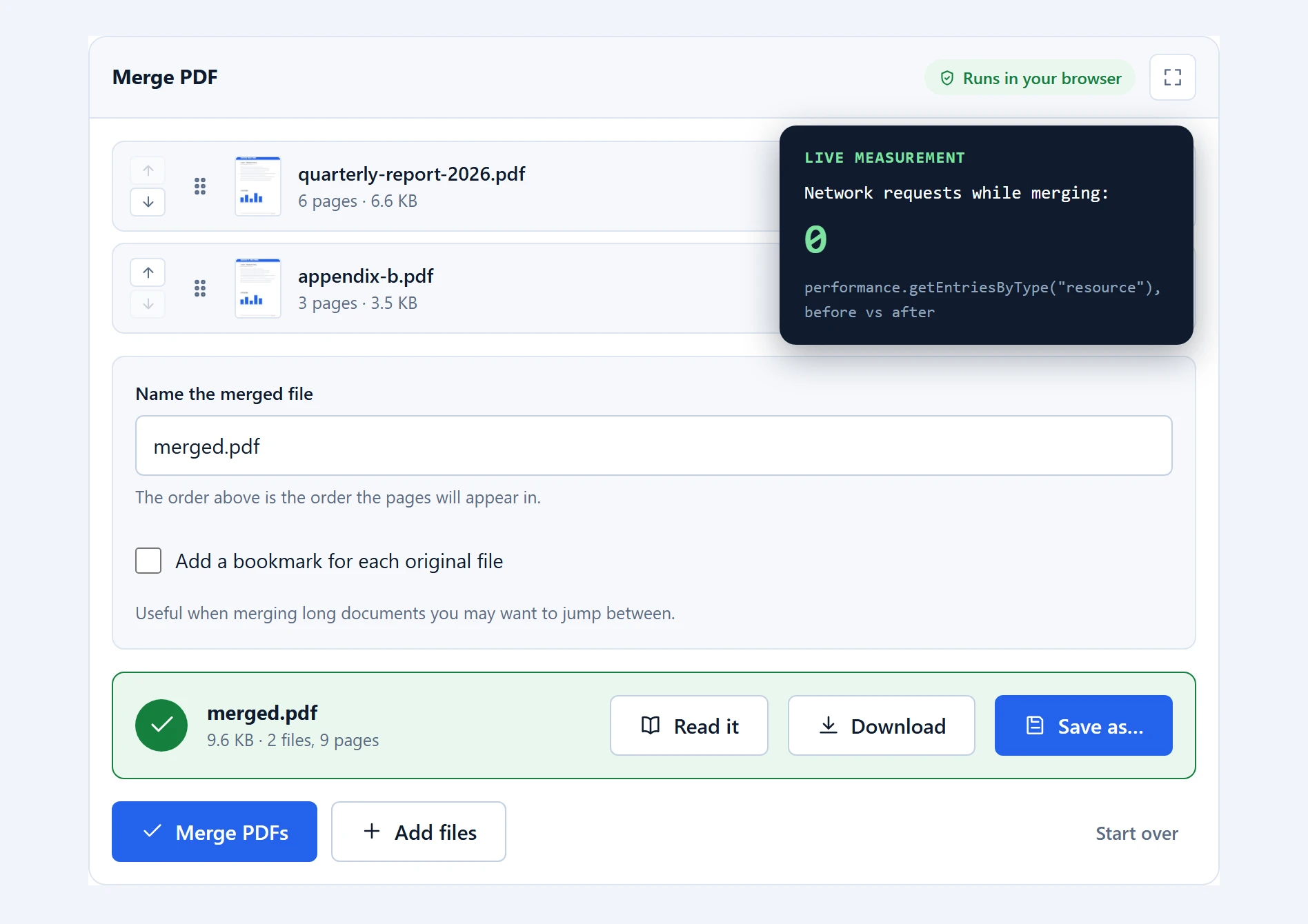
Load the page first and let it finish. Then turn off your wifi or pull the cable, and do the job: pick a file, run the tool, save the result. Genuine PDF tools without uploading finish the work with the network down, because the code is already sitting in your browser. An upload service will hang, or tell you it lost the connection, or stall at the progress bar.
If you want the version with receipts, press F12 before you start, open the Network tab, and watch it while the tool runs. You are looking for a request carrying your file out. On a local tool the panel stays quiet apart from things the page already loaded.
One caveat so the test stays honest: a tool can be local and still fetch part of itself the first time you use it, the way our text extractor downloads its recognition engine before it can read a scan. Software coming down to you is not the same as your document going up. Watch what is in the request, not just whether there is one.
Pages: combine, split and reorder
Four tools cover almost everything people do to the pages themselves. Like the rest of these PDF tools without uploading, they show you the document as thumbnails, so you choose pages by looking at them instead of guessing at numbers.
1. Merge PDF — several files into one
The one people reach for first. A contract plus its annexes becomes one document before anyone signs it. Twelve lecture PDFs become one file for the train.
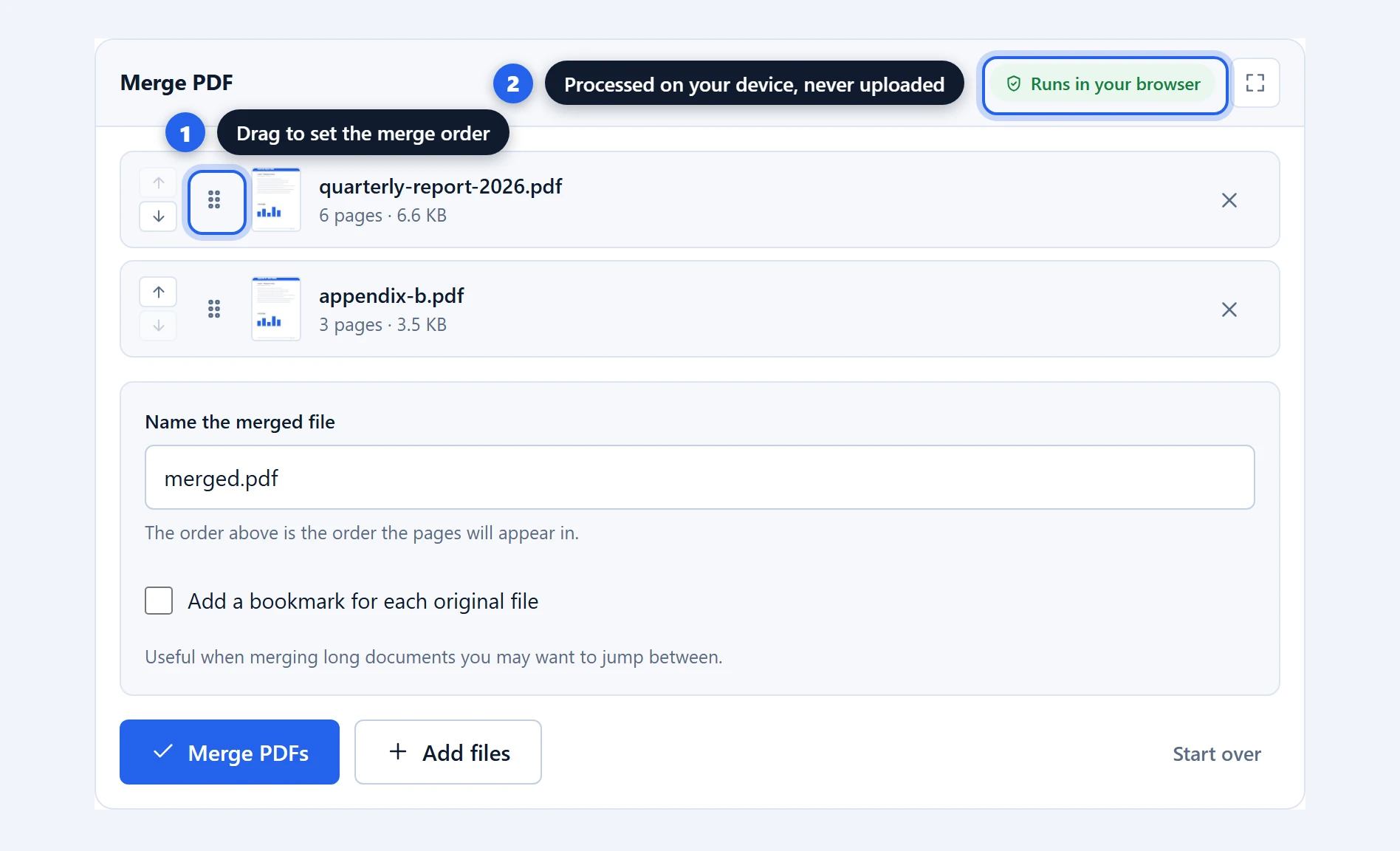
How to: open Merge PDF, drag your files onto the drop zone (or click it to browse), drag the grip on each row to set the order, then press Merge PDFs. Save the result.
Settings: file order (drag the grips, or use the up and down buttons on touch) · remove a file with its X · the output name.
I threw twelve files at it and got a 72-page document back. Because PDF tools without uploading never send the file anywhere, a 50 MB merge is exactly as private as a 500 KB one, and nobody is metering the difference.
2. Split PDF — pull out the pages you need
The awkward part of splitting has never been the splitting. It is knowing which pages you want.
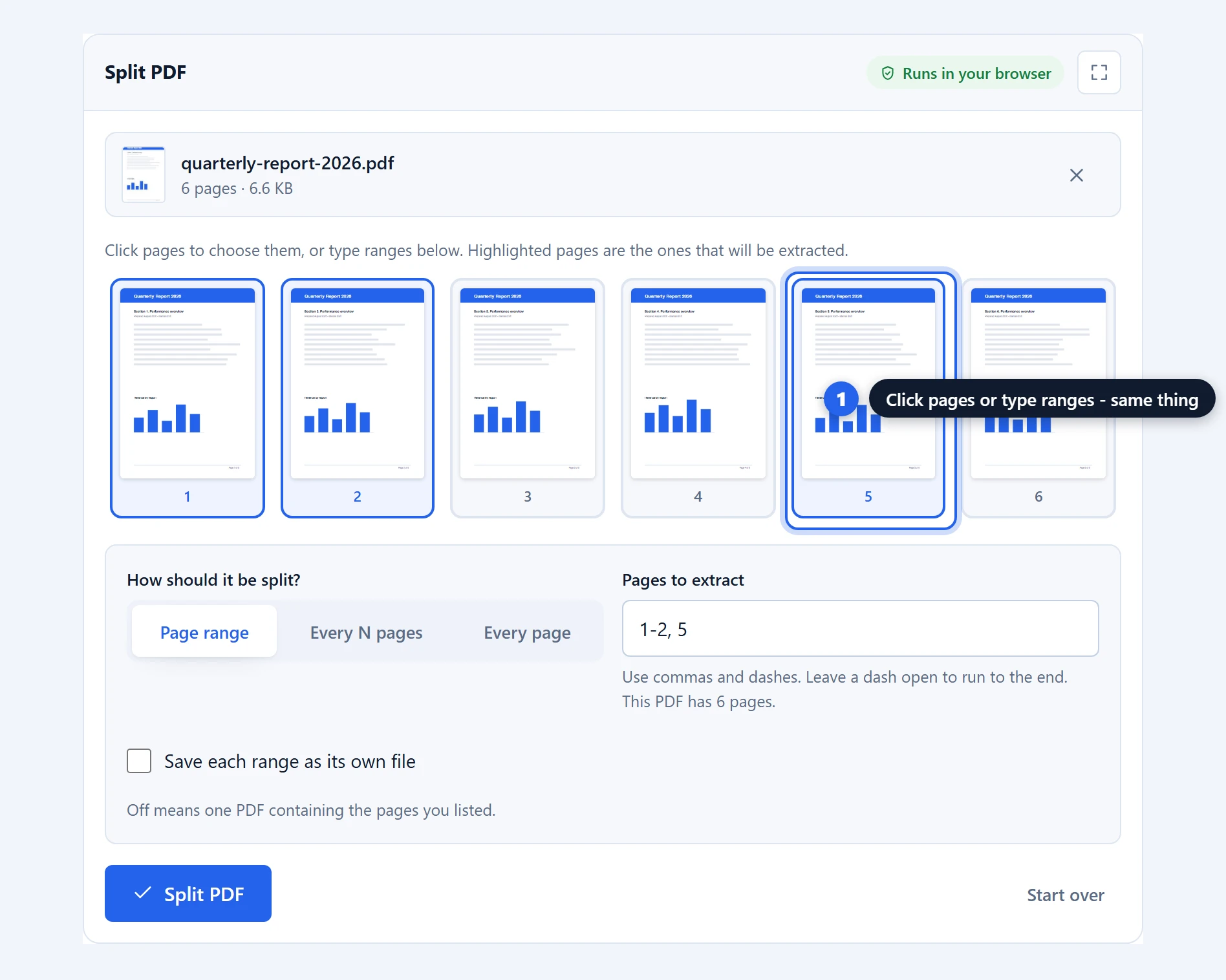
How to: open Split PDF and drop your file in. Every page appears as a thumbnail. Click the pages you want and the range field fills itself in, or type the range directly and watch the thumbnails highlight. Press Split PDF.
Settings: Extract a range (“1-3, 7”, and “11-” means eleven to the end) · Split into chunks of N pages · Every page as its own file · the output name.
If a thumbnail is too small to identify, click its magnifier and the document opens full screen as a readable book. That is usually what settles whether you want page 14 or page 15.
3. Organize pages — delete, reorder, rotate
Housekeeping: drop the blank scans, turn the sideways ones, and put the pages in the order they should have been in.
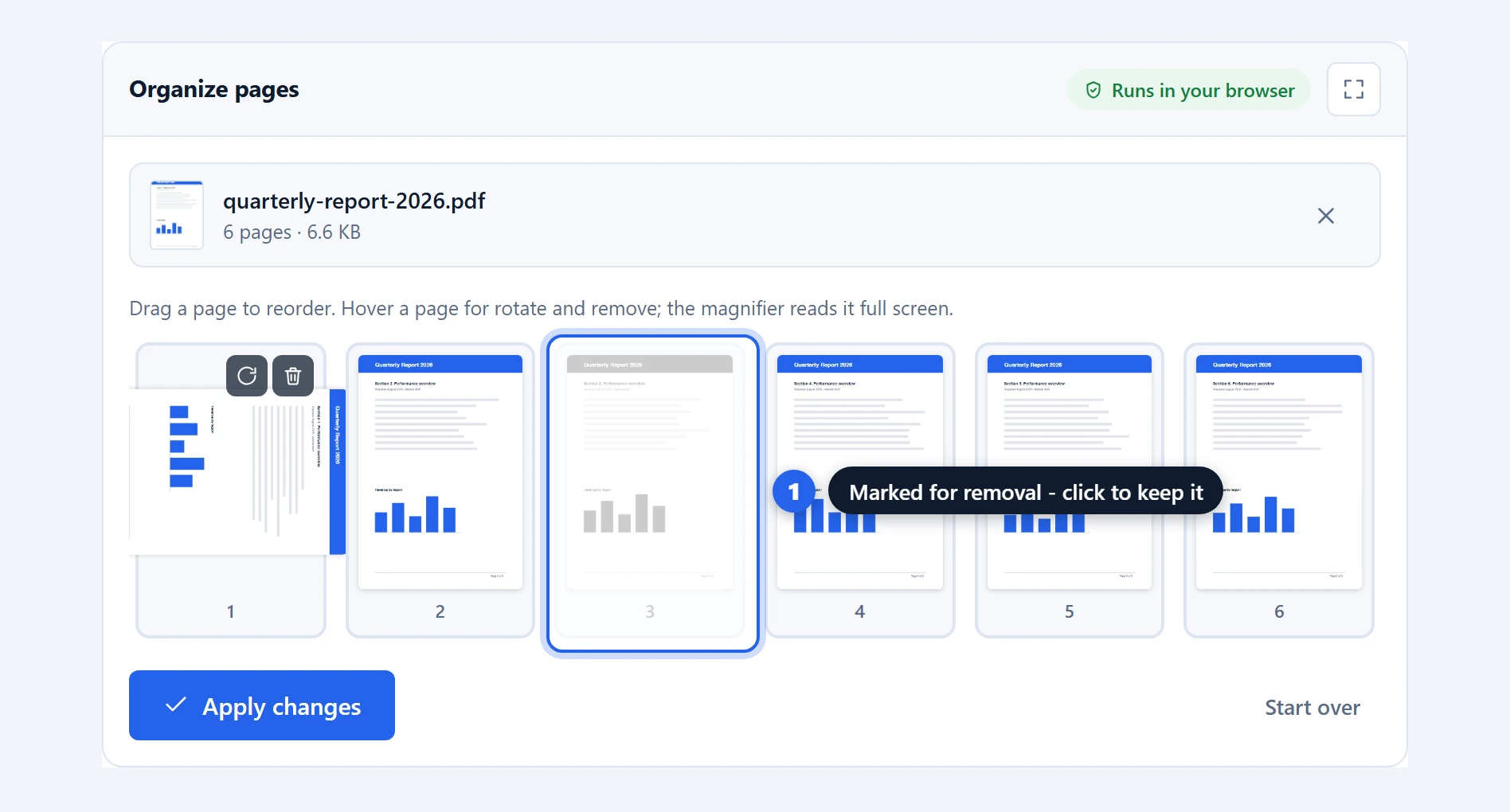
How to: open Organize pages and drop the file in. Hover a page for its bin and rotate buttons. Drag any page to a new position to reorder it. Press Apply changes when the grid looks right.
Settings: remove a page (click the bin, click again to bring it back) · rotate a page a quarter turn per click · drag to reorder · the magnifier to read a page full screen.
Pages you mark for removal go grey instead of vanishing, so a misclick costs you a click rather than a page. The summary afterwards tells you exactly what happened: “2 pages removed, 1 rotated, pages reordered”.
4. Rotate PDF — make a sideways page stay fixed
This tool exists because of a specific annoyance. You turn a sideways page in your PDF reader, save, send it, and it arrives sideways anyway. Most readers only rotate the view, not the file.
How to: open Rotate PDF, drop the file in, choose the turn and which pages get it, check the preview, then press Rotate pages.
Settings: 90 clockwise, 90 anticlockwise or 180 · All pages, or Only these with a list like “2, 5-7, 11-” · a live preview that flips through the document.
The preview jumps to the first page that will actually change, and pages outside your list say so plainly rather than looking identical and leaving you guessing.
Size: getting under a limit
5. Compress PDF — smaller file, sharp text
The tool with the most competition, and the one where PDF tools without uploading beat the upload sites on quality rather than privacy. Most free compressors flatten your pages into images. The file gets smaller and your text stops being text: no search, no copy, blurry at zoom. This one never touches the text. It finds the images inside the document, recompresses those, and leaves everything else alone.
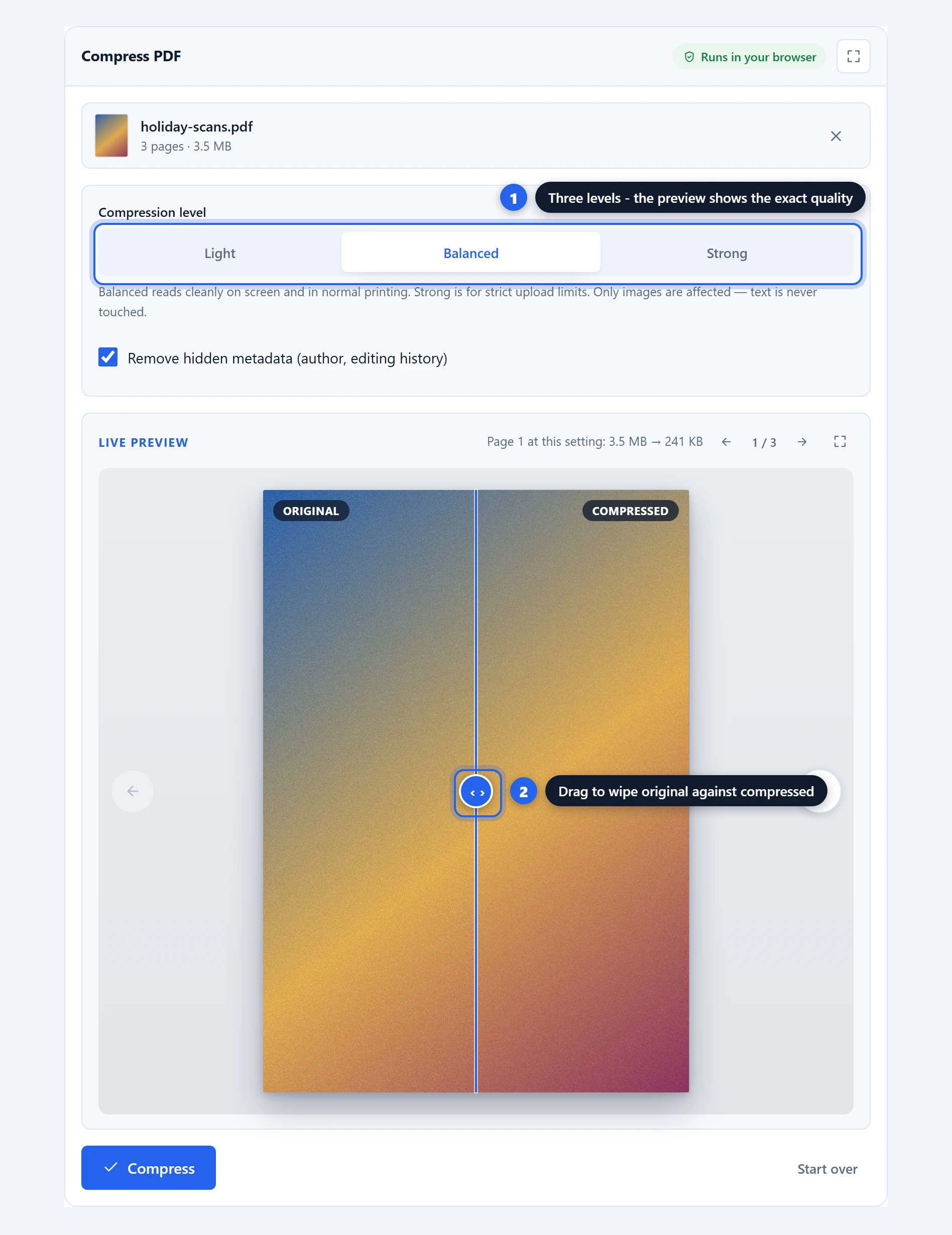
How to: open Compress PDF, drop the file in, pick a level, then flip through the preview to check the quality on the pages that matter. Press Compress.
Settings: Light, Balanced or Strong · remove hidden metadata (author, editing history) · a preview that pages through the document with the measured size at each setting · a divider you drag to wipe the compressed version across the original.
On a photo-heavy scan at Balanced, 4.2 MB came out at 238 KB. That is 94% gone with the text still selectable. On a PNG-heavy file it was 95%. Numbers like that are normal for scans, because scans are almost entirely image data.
When a file genuinely cannot be made smaller, the tool says so and hands your original back untouched. A text-only PDF came back byte for byte identical with a note explaining why. Plenty of tools would have renamed it “-compressed” and let you assume something happened.
Fill in, sign and mark up
These two share one editor. Of all the PDF tools without uploading here, this is the pair people are most surprised a browser can run at all. Both open your document full screen with every page in one scrolling column, and everything you place is flattened into a normal PDF when you save.
6. Edit PDF — type on the lines
For the form that arrives as a flat PDF with blank lines where the fields should be.
How to: open Edit PDF, drop the file in, press Open the editor. Pick a tool from the bar, click the page, and place what you need. Press Done, then Save the edited PDF.
Settings: Text (click and type, with typeface, size, bold, italic, underline and four colours) · Check and Cross for tick boxes · Mark to highlight · Cover to hide an area in white, black or blur · Ink to draw freehand, with five thicknesses · Sign · Image. Everything placed can be dragged, resized by its corner grip, nudged with the arrow keys, duplicated or deleted, with undo throughout.
What you type becomes real selectable text in the saved file, not a picture of text. Esc keeps your work and closes the editor; only Discard edits throws it away.
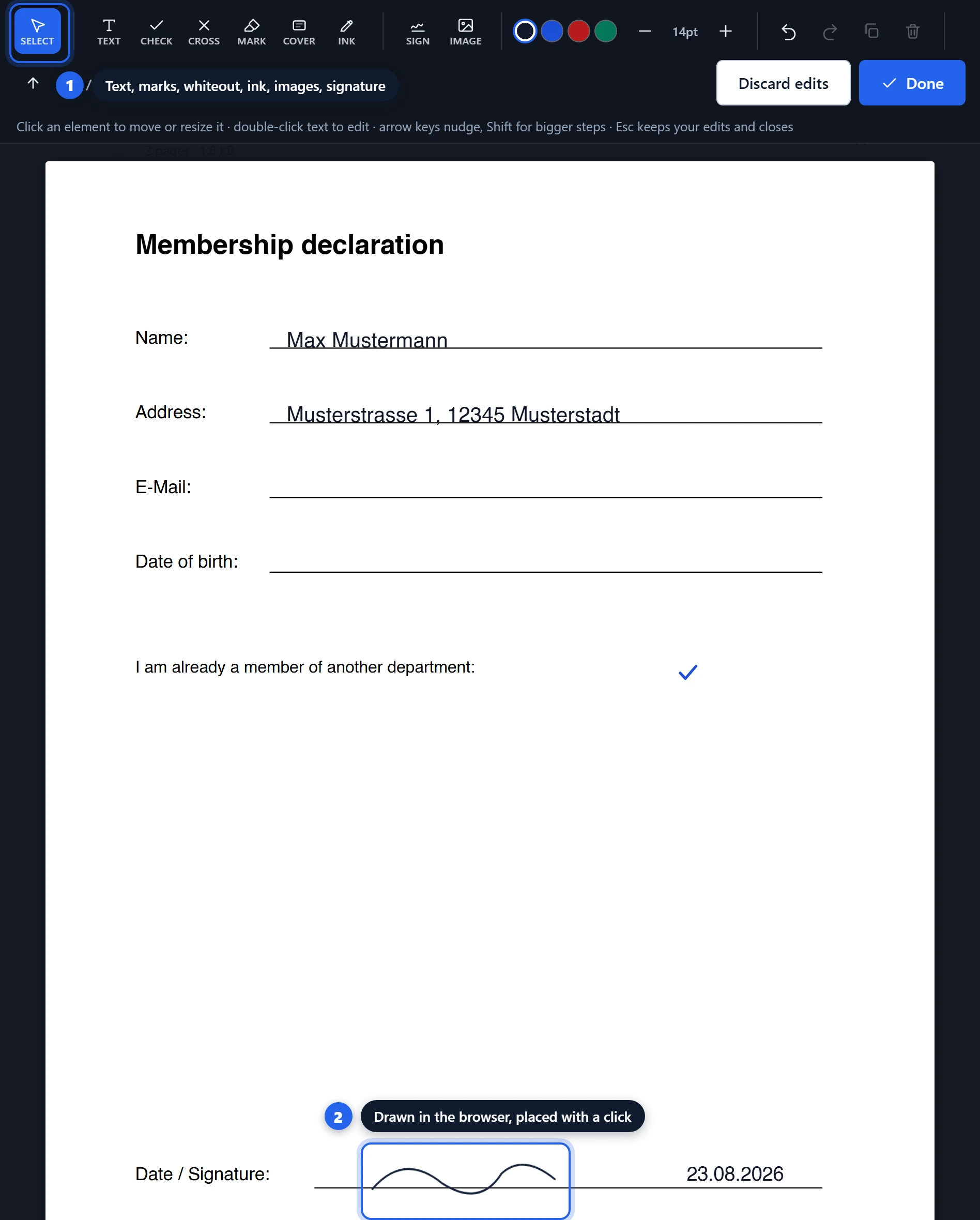
Now the part most editors will not tell you. Covers hide content from view and from print. They do not remove it from the file. Cover an account number with a black box and the number is still sitting in the PDF for anyone who selects all the text. That is true of the same feature everywhere, not just here. We test for it deliberately and say so on the page, because the alternative is someone emailing a “redacted” document that is not redacted. For genuinely sensitive material, use real redaction software.
7. Sign PDF — your signature, placed properly
The same editor cut down to signing, so the toolbar only carries what the job needs.
How to: open Sign PDF, drop the file in, press Open the signing view. Press Sign, then either draw your name or switch to the Type tab and have it rendered in a handwriting face. Click the page where the signature belongs, drag it onto the line, and add the date with the Text tool. Press Done, then Sign document.
Settings: Sign (Draw, Type, or Use previous) · Ink to sign straight onto the page, which is the nicer option on a tablet · Text for the date or a printed name · Image for a photographed signature, best as a PNG with a transparent background.
Your signature is remembered for the session, so initialling five pages is five clicks rather than five drawings. And it gets flattened into the page content instead of being added as an annotation. That distinction matters more than it sounds: annotations are designed to be edited, so a signature added that way can be selected, dragged elsewhere or deleted in any PDF reader. Nobody expects that from a signature.
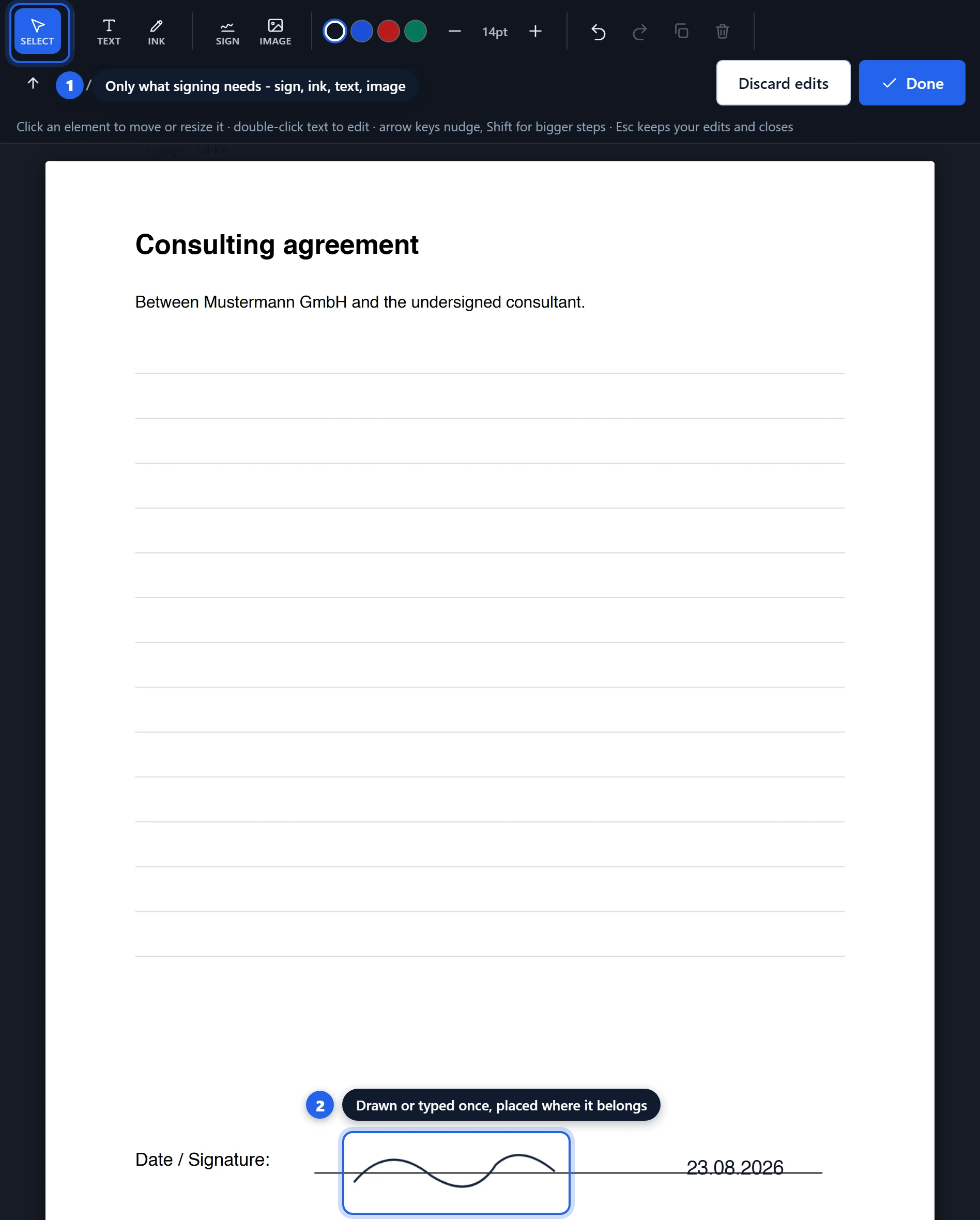
Of everything you might upload to a stranger, a clean transparent PNG of your own signature is probably the worst candidate. This is the job where PDF tools without uploading stop being a preference and start being the point.
Stamps and numbering
8. Watermark PDF — text or a logo on every page
DRAFT across a proposal, CONFIDENTIAL across a report, a client’s name across a set of proofs, or your logo sitting quietly in a corner. Your logo file stays on your machine too, which matters more than it sounds when the document is going out to a client.
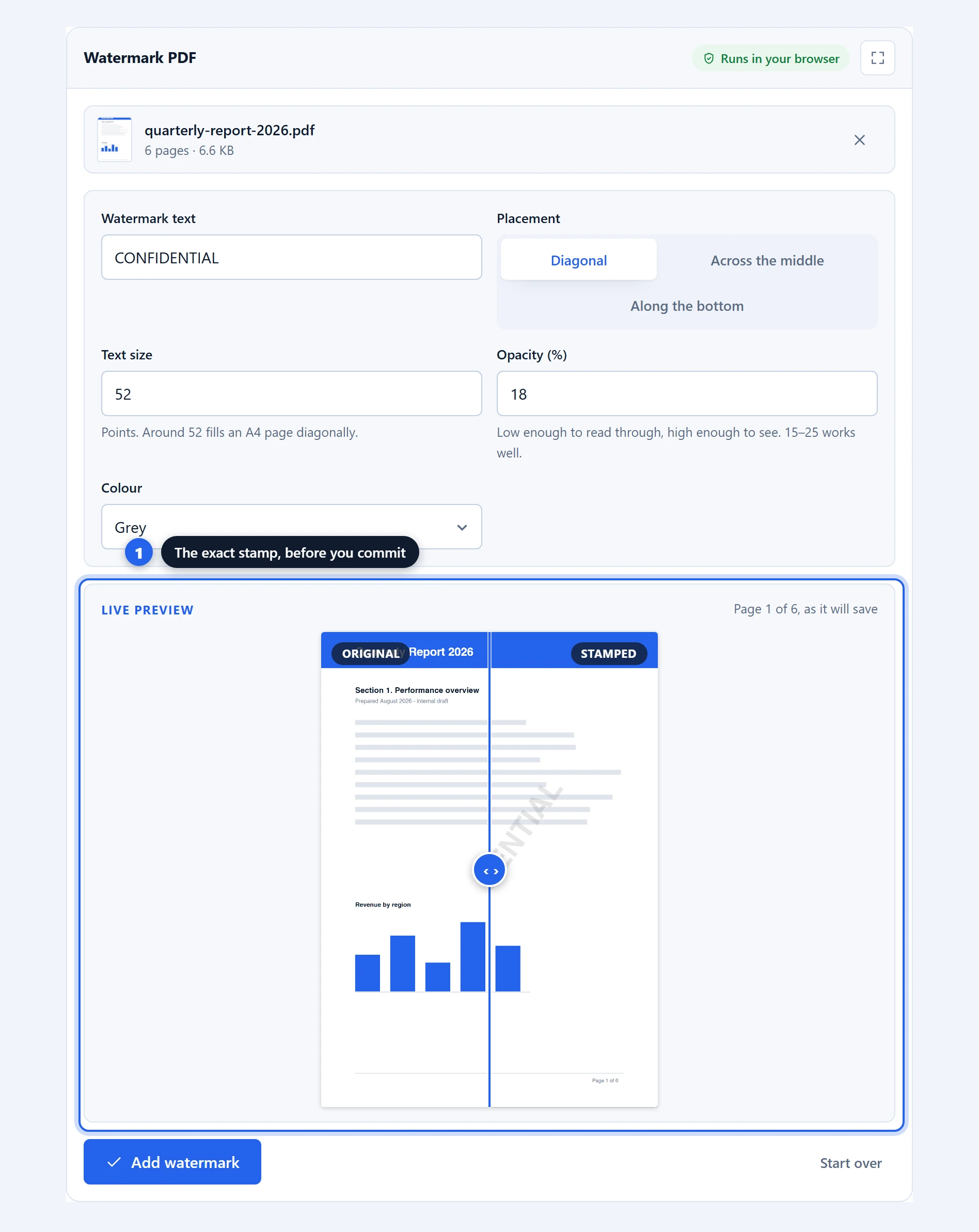
How to: open Watermark PDF, drop the file in, type your text (or switch to Image or logo and pick a PNG), choose a placement, then tune size and opacity against the preview. Press Add watermark.
Settings: Text or Image or logo · nine placements (diagonal, across the middle, tiled, top, bottom, and the four corners) · size · opacity · colour, for text.
Opacity is the setting people get wrong in both directions. Somewhere between 15% and 25% is right for most documents: light enough to read through, heavy enough to mean something. Below 10% it is decoration. Above 40% it fights the document. And be clear-eyed about what a watermark buys you, which is a label rather than protection.
9. Add page numbers — six positions, five formats
One small job, done properly.
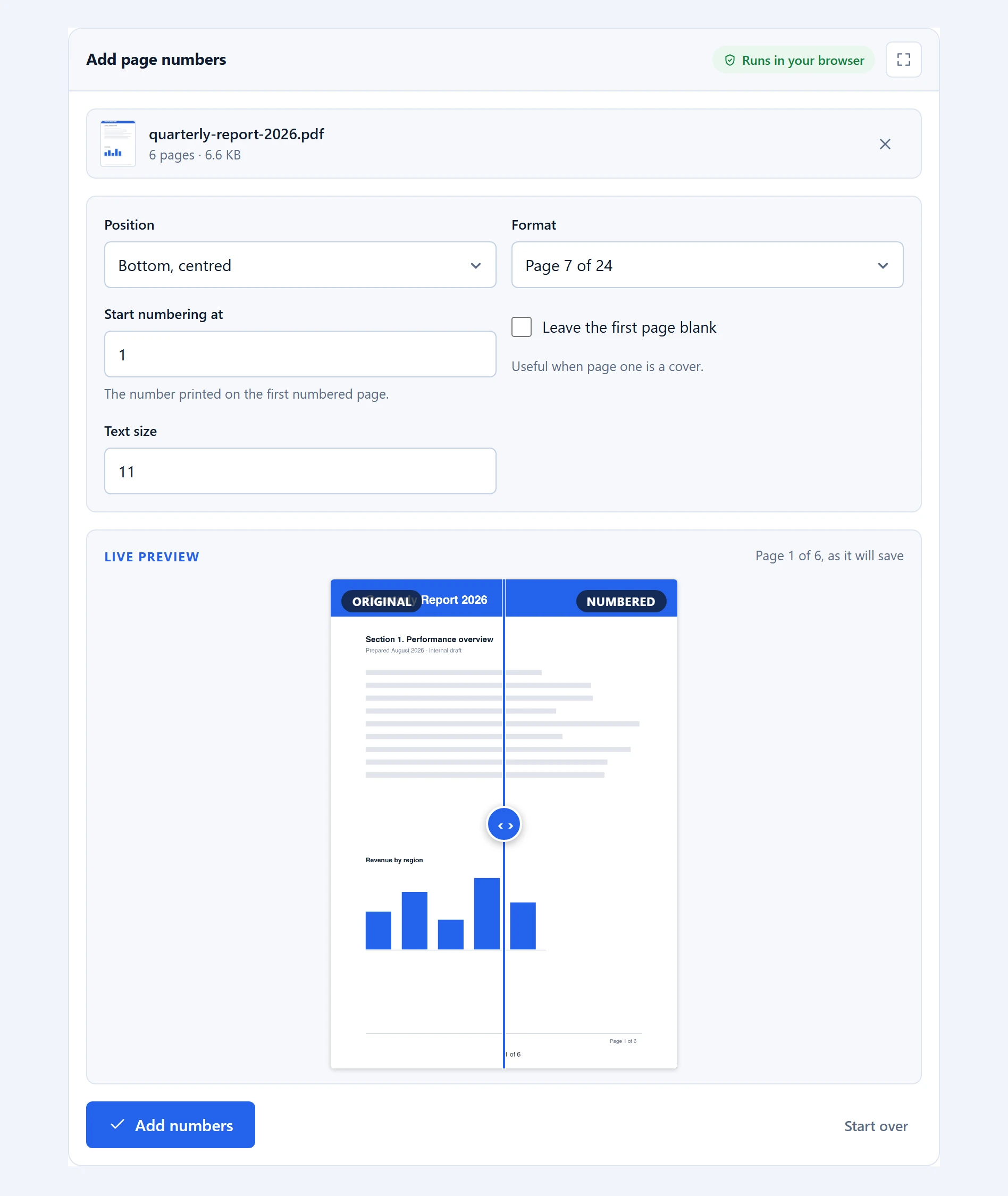
How to: open Add page numbers, drop the file in, choose where the number sits and how it reads, then page through the preview to check the number does not land on top of an existing footer. Press Add numbers.
Settings: six positions (top or bottom, each left, centre or right) · five formats (“7”, “7 of 24”, “Page 7”, “Page 7 of 24”, “– 7 –”) · start numbering at any value · leave the first page blank for a cover · text size · typeface (Helvetica, Times or Courier) · colour · bold.
The three typefaces are the ones already built into every PDF reader, so numbering a document adds nothing at all to its file size.
Converting in and out
Conversion is the job that feels like it must need a server. It does not, and these are the PDF tools without uploading that prove it most plainly: the whole conversion happens in the tab, on your machine, while you watch.
10. Images to PDF — photos into one document
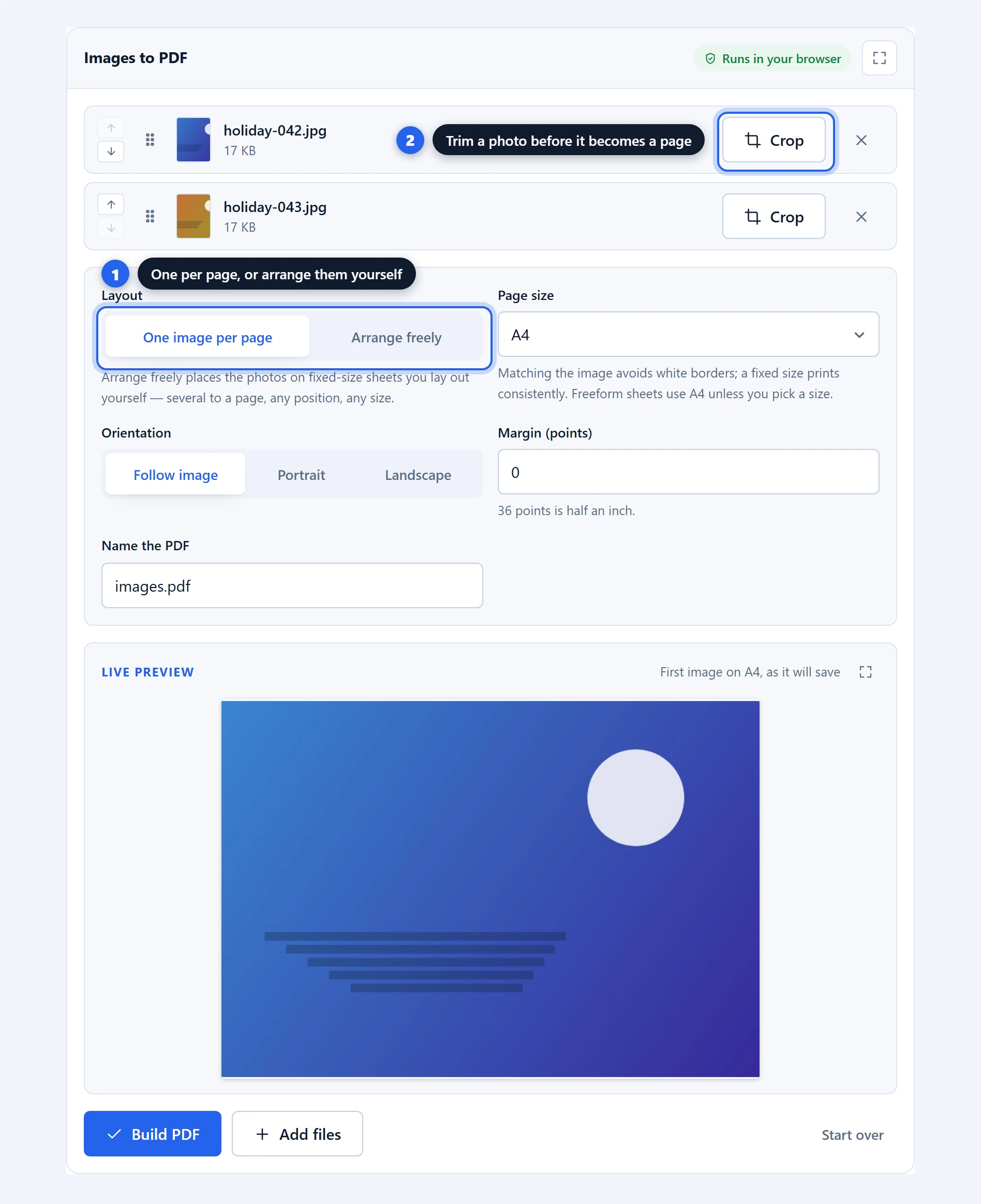
JPG, PNG and WebP files into a single PDF, either one image per page or laid out by hand.
How to: open Images to PDF, drag your images in, drag the rows to set the page order, choose a layout, then press Build PDF.
Settings: Crop, per image · One image per page or Arrange freely · page size (Match each image, A4, Letter, Legal) · orientation · margin · the output name.
Photograph a receipt on a kitchen table and most of the frame is table. Each row has a Crop button for that: drag a box over the part you want, lock it to a shape if the page needs one, rotate a sideways scan upright, and apply. The trimmed image replaces the original, so the preview and the finished PDF both use it, and the file on your disk stays as it was.
Arrange freely is the mode worth knowing about. Your photos start one per sheet, and you drag them anywhere, resize them by a corner, and pull several onto one page. Pages you empty get dropped from the file automatically. Photo evidence for an insurance claim, two receipts on one sheet, a contact sheet: that used to mean desktop software.
11. PDF to images — pages as JPG, PNG or WebP
A page becomes a slide, a figure becomes a web image, a document becomes something a picture-only workflow will accept.
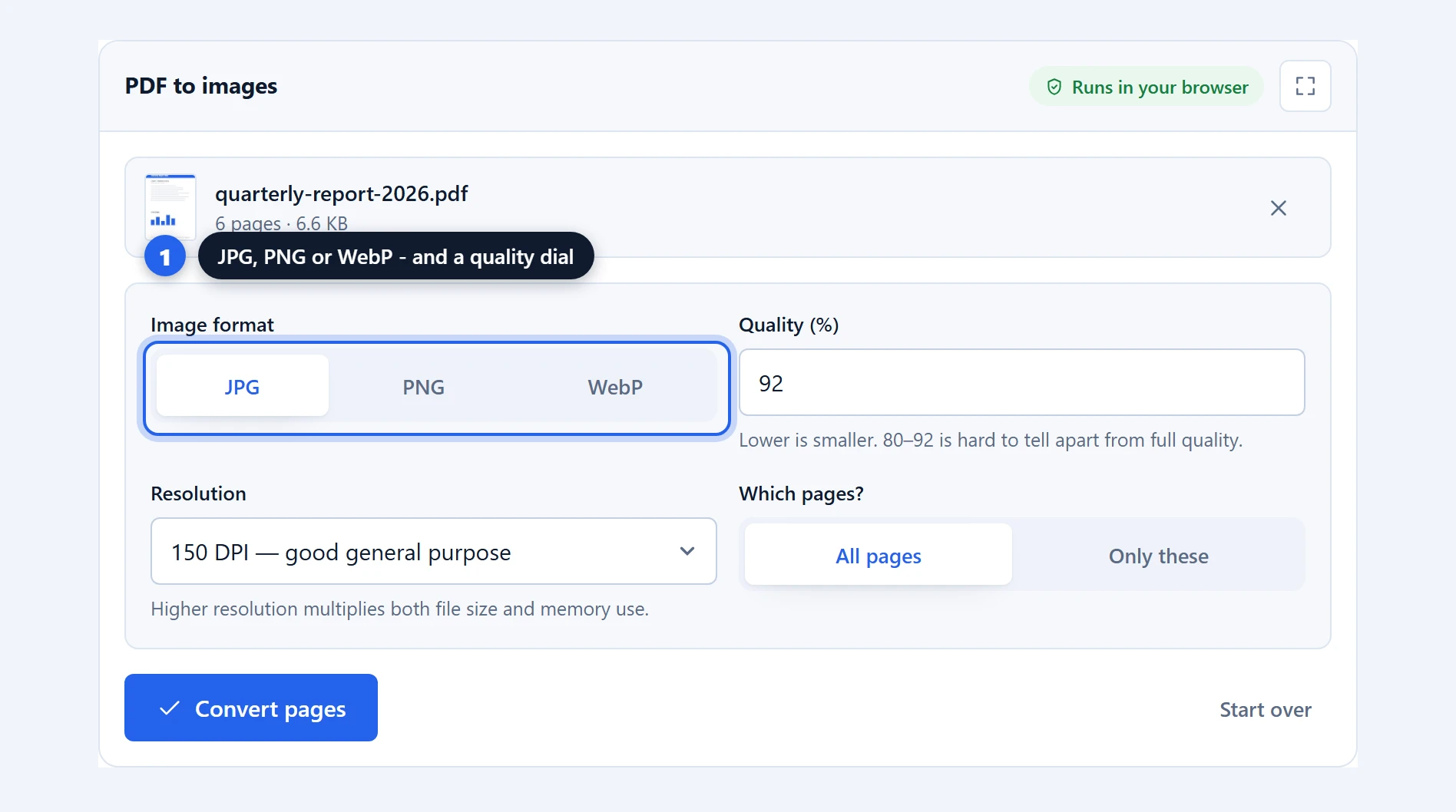
How to: open PDF to images, drop the file in, pick a format and resolution, name the pages you want, then press Convert pages. One page comes back as an image, several come back as a zip.
Settings: JPG, PNG or WebP · quality, for the lossy formats · 72, 150, 300 or 600 DPI · All pages or Only these.
Choose the format by content, not habit. JPG for pages with photographs, PNG for text and diagrams where you want edges perfectly crisp, WebP when the images are headed for a website and size matters. 150 DPI suits most jobs; 300 is print quality and considerably larger.
12. PDF to text — the words out, scans included
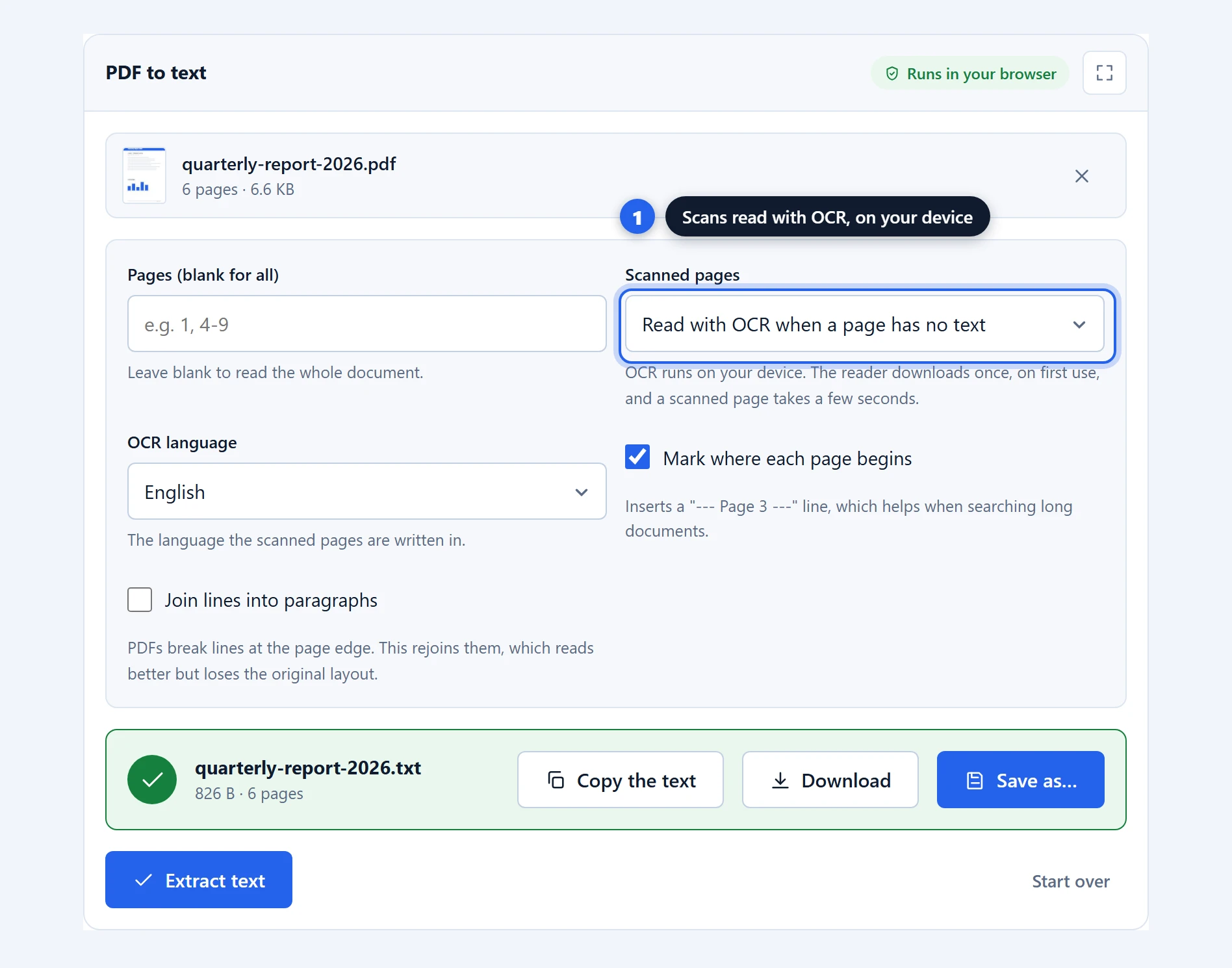
Every word as a plain .txt file. This is the tool I got wrong for months. It read digital PDFs perfectly and simply gave up on scans, explaining that a scan is a photograph of paper with no text inside it. Technically correct, useless in practice, and the most common complaint we got.
How to: open PDF to text, drop the file in, and press Extract text. For a scan, set the OCR language first if the document is not in English. Save the .txt, or press Copy the text and paste it straight where it is going.
Settings: pages (blank for all, or a list like “1, 4-9”) · scanned pages (read with OCR when a page has no text, OCR every page, or skip them) · OCR language · mark where each page begins · join lines into paragraphs.
I fed it a scanned invoice and got back the headline, the body line and “Total amount due: 1234.56 EUR” character for character. The recognition engine downloads once and is cached; the document still goes nowhere. Expect a few seconds per scanned page, and expect handwriting to defeat it the way it defeats all OCR.
Turn on “join lines into paragraphs” if you are going to read or reuse the prose. Leave it off if the line breaks carry meaning, as they do in addresses, code and poetry.
Where PDF tools without uploading lose
Three things are missing on purpose, and one is a real limitation I cannot design away.
There is no rewriting of the text already inside a PDF. Editors that promise it have to reconstruct subsetted fonts and re-flow paragraphs, and it shows: a slightly wrong typeface, a line that shifted. Everything our editor places goes on top of the page instead, which covers filling, signing and annotating, and cannot corrupt the document underneath.
There is no PDF to Word. Turning a fixed layout back into a flowing editable document is genuinely hard, and browser tools do it badly. I would rather not ship it than ship it broken.
There is no redaction, only covers, for the reason in the editor section above.
The real limitation is memory. Your device does the work, so your device sets the ceiling. A 300-page scan is comfortable on a laptop and can be a struggle on an old phone. Upload services push that cost onto their own hardware, which is the one honest advantage they hold over PDF tools without uploading. In exchange you give them the file.
What each approach actually costs you
| PDF tools without uploading | Typical upload service | Desktop software | |
|---|---|---|---|
| Your file goes | Nowhere | To their server | Nowhere |
| Cost | Free | Free tier, then a subscription | Licence or subscription |
| Account | None | Usually, past the free tier | Usually |
| Size limits | Your device’s memory | Hard caps on the free tier | Your device’s memory |
| Works offline | Yes, after the page loads | No | Yes |
| Install | None | None | Yes |
| Watermark on output | No | Sometimes, on free tiers | No |
Desktop software is the honest competitor here. It is private and it is powerful, and it costs money and disk space. PDF tools without uploading sit in the gap: nothing to install, nothing to pay, and a ceiling set by your own hardware rather than someone’s free tier.
PDF tools without uploading: FAQ
Are these PDF tools really free?
Free with no asterisk. No account, no daily limit, no watermark on your output, no premium tier holding a feature hostage. With PDF tools without uploading your device does the work, so there is nothing for us to meter or resell.
How can a browser edit a PDF without uploading it?
Browsers run real software now. The engines that display PDFs inside Firefox are JavaScript and WebAssembly, and they run in the page: they read your file off your disk, change it in memory and hand back the result. The proof takes ten seconds. Load a tool, go offline, use it.
Are online PDF tools safe to use?
It depends entirely on whether your file leaves your machine. If a tool uploads, you are trusting a retention policy you cannot inspect, which is a bad trade for a contract or an ID scan. With PDF tools without uploading there is nothing to trust, because there is nothing to send. Run the offline test before you decide.
Do PDF tools without uploading work offline?
Yes, once the page has loaded. That is the same fact as the privacy claim seen from the other side: the code is in your browser, so it does not need the network to do the work. The exception is a first-run download, like the recognition engine our text extractor fetches before it can read a scan.
Is there a file size limit?
No fixed cap. The practical ceiling is your device’s memory, which handles files far bigger than most free upload tiers allow. The scan your email gateway rejected is routine work here.
Can they handle scanned PDFs?
Yes. The thumbnail tools treat a scan like any other document, compression is at its best on scans, and PDF to text reads scanned pages with OCR on your device. The one thing no overlay tool can do is rewrite the text inside the scan itself.
Do they work on a phone?
Yes, and signing is genuinely better on one, because a finger beats a mouse for drawing your name. Large documents are happier on a laptop, for the memory reason above.
Bottom line
If you only remember one thing: check where the work happens before you hand over a document you would not email to a stranger. Most free PDF sites upload. PDF tools without uploading do not, and you can prove it in two minutes by pulling the plug.
Start with the job. Compress if something is too big to send, sign if a contract is waiting, pull the text out if you need the words from a scan. Everything sits on the PDF tools page next to the rest of our free online tools, and none of it asks who you are.