Grist invoice template: six fixes for the official one
This Grist invoice template guide covers what Grist’s official Invoicing template does, six things it leaves out, and a tested fix for each. The values shown are the values Grist returned when we ran the formulas.
The official Grist invoice template is a good place to start. It has three tables, a printable invoice and nothing to install. It is also a sample, and it behaves like one: the invoice number can repeat, there is no payment status, and no client has an email address. Each of these has a fix you can build yourself, with columns and formulas in your own document.
The short version: what the Grist invoice template leaves out
We opened the template, read its formulas and its widget’s code, and then tried to break it. This table shows each gap, what we saw, and where the fix is.
| Gap | What we saw | Fix |
|---|---|---|
The invoice number is $id + 51371 | After deleting the newest invoice, the next one got the same number, 51374 | A counter table |
| Sender details sit inside a formula | Changing your address means editing Python | A Settings table |
| The Total column on the invoice table is empty text | The real total exists only in a summary table | A sum formula |
| The due date is always one month after the issue date | There is no payment terms column | A Terms column |
| No status and no paid date | Nothing can be chased or counted as overdue | Status, Paid_on and an overdue formula |
| Clients have no email address | Nothing can be addressed to anyone | One new column |
Three more limits sit in the widget that draws the invoice, not in the tables, so no formula changes them. It formats every amount as US dollars, it prints dates in one US style, and its only output is a Print link. We cover those further down.
If you remember only four things, remember these:
- A number built from the row id can repeat. Store the number instead of calculating it.
- A formula that reads its own column goes circular. A counter table with
PEEKavoids it. - Void an invoice, do not delete it. A status of Void keeps the number in the books.
- The widget decides the currency and the date style. Formulas cannot change those.
What the official Grist invoice template holds
Grist Labs publishes the template in its template gallery.
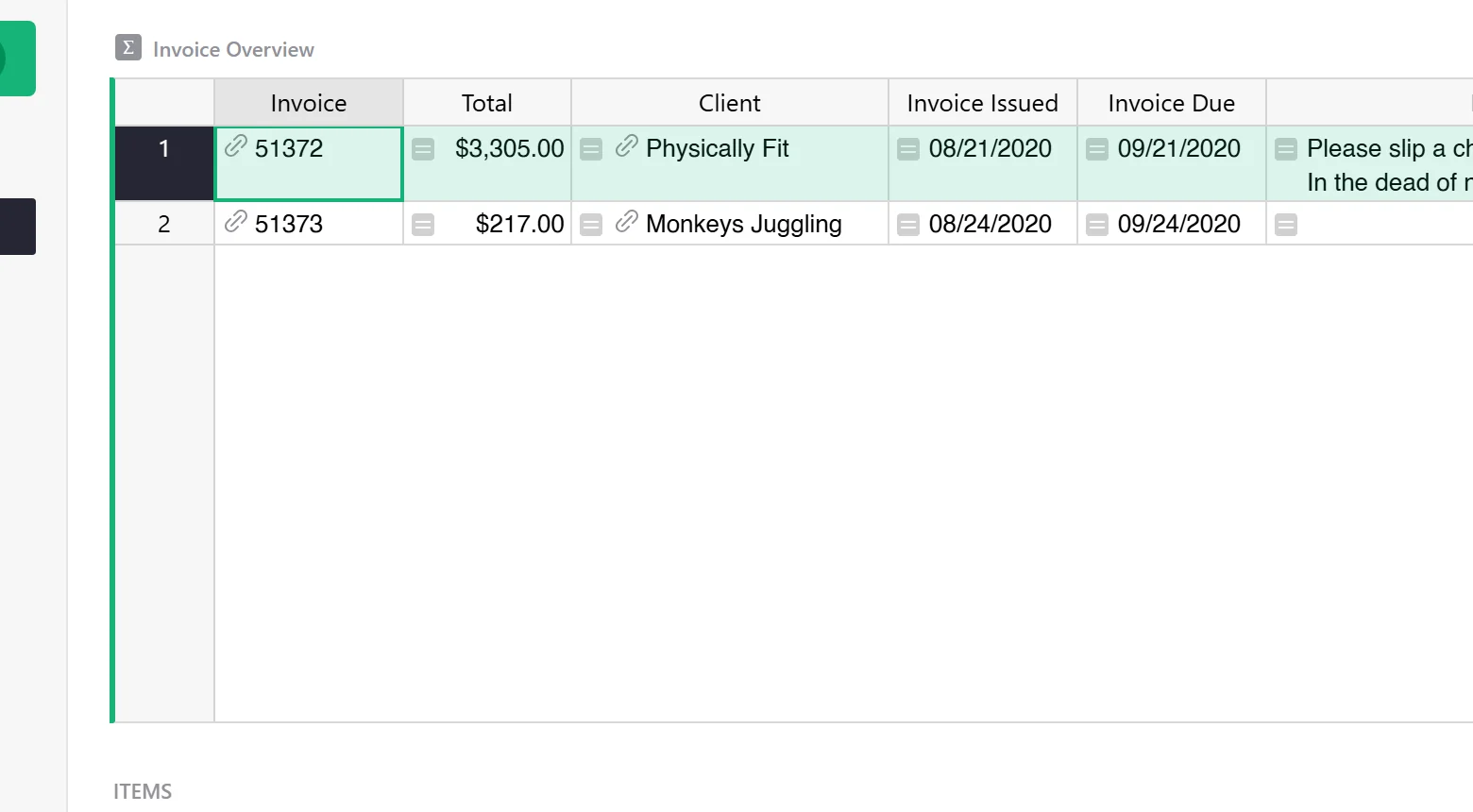
It has four tables. Prepare_Invoices holds one row per invoice. Items holds the lines.
Businesses holds the clients. A fourth table, Items_summary_Invoice, adds up the line
totals for each invoice and appears on the All Invoices page as Invoice Overview.
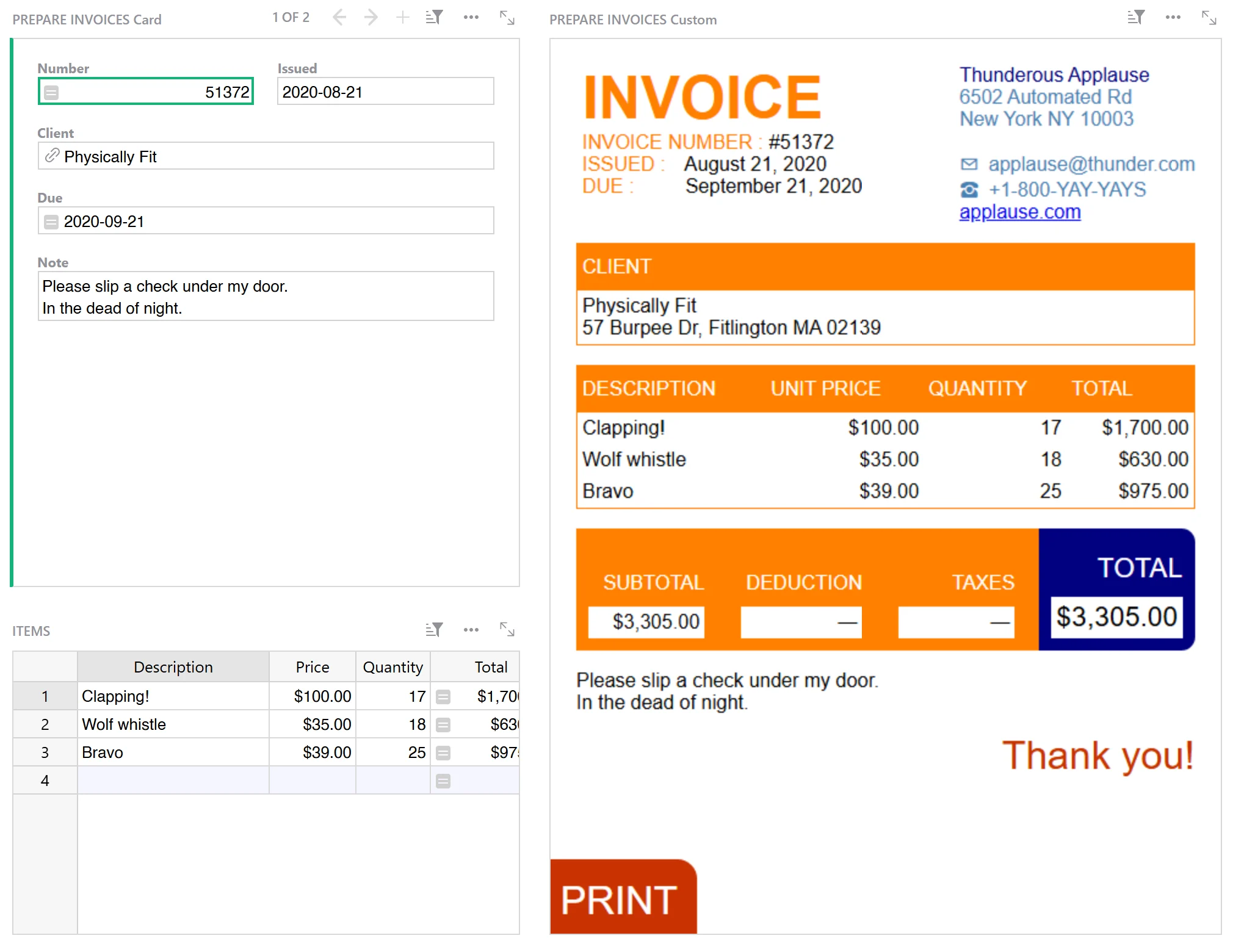
The right-hand block is a custom widget called Invoices. Grist Labs lists it in its widget gallery as
maintained by them, with access level “read table”, and its last update there is 18 August 2024. Its script,
invoice.js, is 6,701 bytes. That is a strength. You can read all of it in a few minutes, and it
asks for the least access Grist offers.
It also has three working rules you should know before you change anything. First, it needs a card or table on the same page and Select By set to it, because it draws the one row you have selected. Without that it shows “I need Select By set”. Second, it reads the columns it knows by name: Number, Client, Items, Invoicer, Issued, Due, Note, Subtotal, Deduction, Taxes, Total and Paid. Third, it fills in the total itself from the line items when the row has no Subtotal and no Total.
The six fixes, tested
We built a scratch copy of the template’s main tables in a Grist document and ran every fix below in it. If a
formula looks unfamiliar, our Grist formulas guide explains
$, lookupRecords and trigger formulas in plain words.
1. A number that never repeats
In the template, the Number column of Prepare_Invoices is a formula:
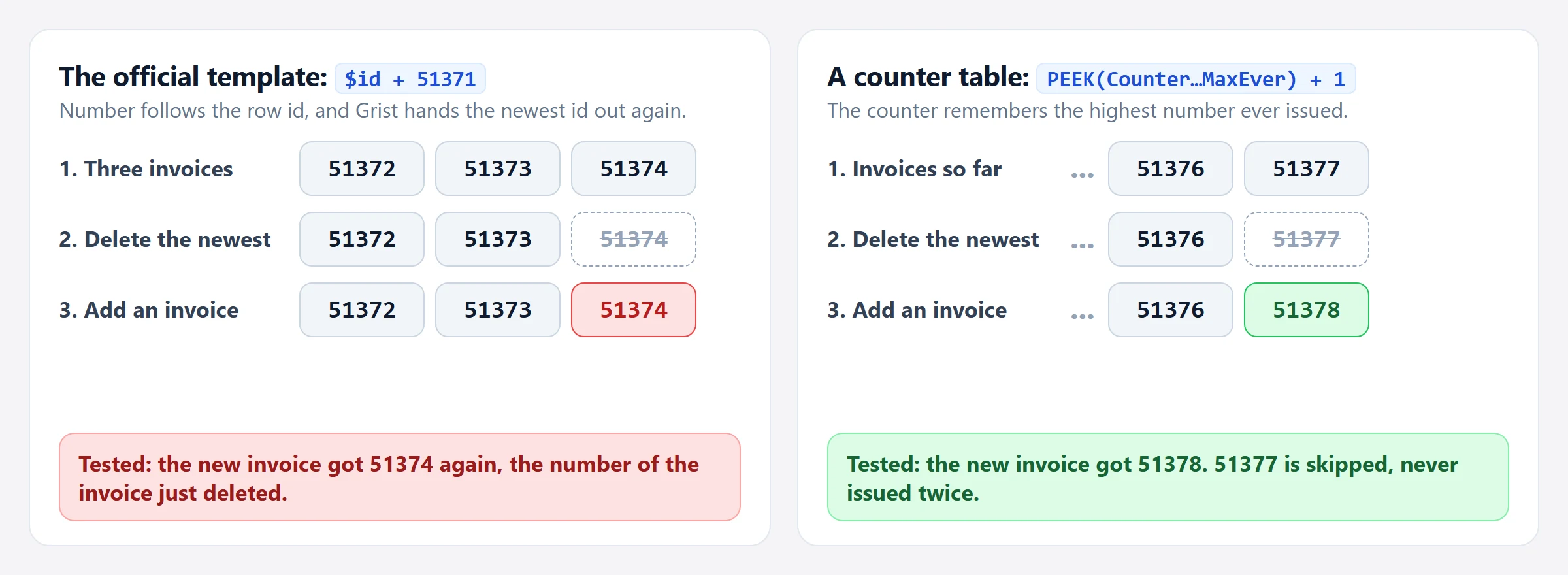
$id + 51371The first invoice is row 1 and gets 51372. This looks fine until you delete something. We added three invoices and got 51372, 51373 and 51374. Then we deleted the newest and added another. Grist gave the new row the id 3 again, so it got 51374 again, the number of the invoice we had just deleted. Grist’s own staff said in 2022 that deleted ids currently do get reused, and our test shows it still happens.
Two things do not happen, and we checked both. Deleting an invoice in the middle does not renumber the later ones: with three rows, we deleted the first, and the other two kept 51373 and 51374. It does leave a gap at 51372. So there are two separate effects: gaps, and a repeated number after the newest invoice goes.
In Germany a gap is not the problem. The law asks for a unique number and does not require an unbroken run, as our invoice in Germany checklist explains with its sources. A repeated number is the problem. Check what your own country asks for before you rely on this.
The obvious fix does not work. You might turn Number into a data column with a trigger
formula that reads the highest number so far:
nums = [r.Number for r in Prepare_Invoices.all if r.Number]
return (max(nums) if nums else 51371) + 1
Tested: every new row showed CircularRefError, because the formula depends on
the very column it fills. Grist staff describe a working pattern in a
community thread
that uses a small helper table and PEEK, a function that Grist’s
June 2022 newsletter
introduced to read a value without creating a dependency. Here is that pattern for invoices.
- Freeze the numbers you already have. Open the column menu of
Numberand choose Convert column to data. Grist’s help says the cells then stop changing when the cells they depended on change, so invoices 51372 and up keep their numbers. - Make a table called Counter with one row and two columns.
SetMaxNow (formula) MAX(Prepare_Invoices.all.Number) MaxEver (trigger formula) MAX(value, $MaxNow)MaxEveras a trigger formula that applies to new records and whenMaxNowchanges. It remembers the highest number ever seen, even after that invoice is deleted. - Give Number a trigger formula that applies to new records only.
PEEK(Counter.lookupOne().MaxEver) + 1
Tested: with invoices up to 51376, the counter row read 51376. A new invoice got 51377. We
deleted it and added another, and that one got 51378. The number 51377 is skipped and
never issued twice. We did not test a document that starts empty. There, type your starting number minus
one into MaxEver before you add the first invoice.
2. Sender details in a table, not in a formula
The template’s Invoicer column is a formula that holds your name, address, email, phone and
website as a Python dictionary typed straight into the formula. To change your phone number you edit code.
Move it to a table. Create Settings with the columns Name, Street1,
City, State, Zip, Email, Phone and
Website, add one row, and replace the Invoicer formula with:
RECORD(Settings.lookupOne())Tested: the column returned the row as a record with the keys
id, Name, Street1, City, Zip and
Email. Those are the same key names the template’s own dictionary uses. The widget draws
named fields (Name, Street1, Street2, City, State, Zip, Country, Email, Phone and Website), so an extra
id key is ignored. We did not run the official widget against this column, so check one
invoice before you rely on it.
3. The empty Total
Prepare_Invoices has a Total column, but it is a Text column and it is empty on every
row. The only real total is in the summary table. If you want the amount in the invoice table itself, for
a list, a chart or a late-payment page, add a numeric column and sum the lines:
SUM(Items.lookupRecords(Invoice=$id).Total)Tested: an invoice with 10 hours at 80 and 4 hosting months at 12.50 returned 850.
Name the new column Amount and leave the old Total alone. The widget reads a
column called Total and, when it finds nothing there, works the total out from the items
itself. Filling Total would change which of the two the widget uses, and we have not tested what
that does to the printed layout.
4. Payment terms and due dates
The template’s due date is a formula: DATEADD($Issued, months=1). Every invoice is due one
month after it is issued, and there is no place to say otherwise. Add a whole-number column
Terms for the number of days, change the type of Due to Date, and use:
DATEADD($Issued, days=$Terms or 14) if $Issued else NoneTested: an invoice issued on 21 September 2026 with no terms was due on
5 October 2026, which is 14 days. One issued on 22 September with Terms 30 was
due on 22 October 2026. Change the 14 to your usual default.
5. Status, paid date and overdue days
The template has no status and no paid date, so nothing in it can be chased or counted as overdue. Add
three columns to Prepare_Invoices:
Status, a Choice column with Draft, Sent, Paid and Void.Paid_on, a Date column.Days_overdue, a whole number with this formula:
(TODAY() - $Due).days if $Status == "Sent" and $Due and TODAY() > $Due else 0Tested on 16 October 2026: a Sent invoice due on 5 October showed 11.
The same invoice marked Paid showed 0, and so did one marked Void. A filter on Days_overdue
above 0 gives you a chase list, and a summary table by Status gives you what is owed.
6. A client email column
The Businesses table has Name, Street1, Street2, City, State and Zip. There is no email, no
phone, no country and no tax number.

Add an Email column, and a Country and a tax number column if you invoice across
borders. It needs no formula. It matters because whatever sends your invoices, whether you copy the address
by hand or a widget reads it, starts from this column.
What no formula fixes: the widget itself
Three limits live in the widget’s code, so changing your tables does not touch them:
- Every amount goes through a function called
formatNumberAsUSD, which formats with the currency set to US dollars. An invoice in euros or pounds still prints with a dollar sign. - Dates are printed in one style, for example August 21, 2020.
- Tax and deduction are single numbers that you type into columns named
TaxesandDeduction. There is no rate, and no tax line per rate.
Its only output is a Print link that calls the browser’s print dialog. It makes no PDF file of its own and sends nothing. For a few invoices in dollars, that may be all you need, and the six fixes above carry you a long way. If you need more, you have two routes. The widget’s code is public in Grist’s widget repository, so you can copy it and change the formatting. Or you can use a widget that was built for this.
Switching to Invoice Studio: what happens to your tables
Invoice Studio is our free widget for invoices, quotes, receipts and credit notes. This post is not its manual, which is the Grist invoice widget guide. This section answers one question: what does it do with a document you built from the official template?
It reads the template by column names. On 16 October 2026 we fed it the real column list of Grist’s
template. It matched the document as Grist’s Invoicing template, with full confidence, and mapped
Prepare_Invoices as the invoices, Items as the lines and Businesses as
the clients. That is a statement about our tool and nothing more. It also flagged two of the gaps from this
post: the empty Total and the missing client email.
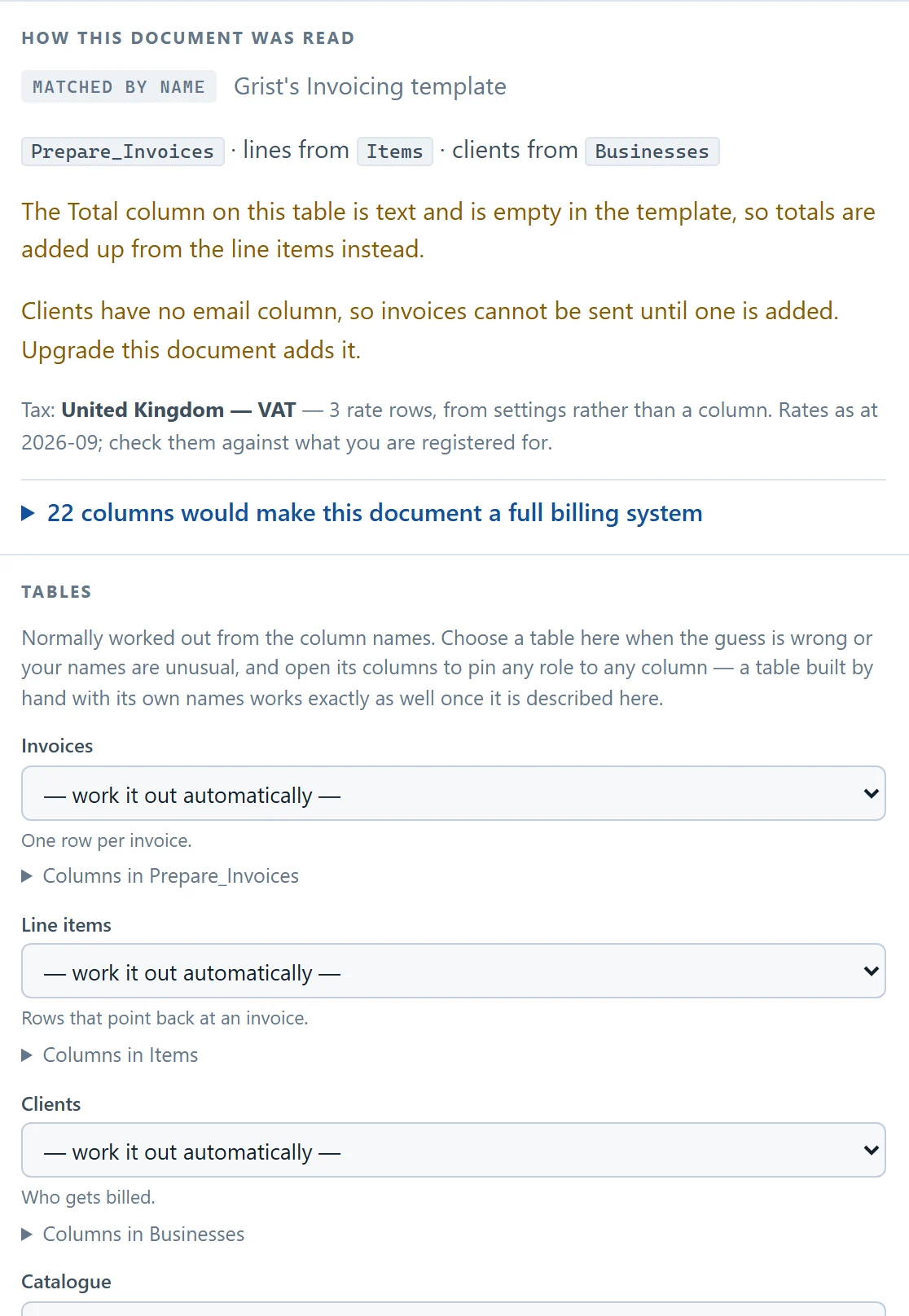
The panel says the Total column is empty text, so it adds up the line items instead. It also says clients have no email column, and that its Upgrade this document step adds one. That step shows you a checklist of columns first, such as Status, a paid date, Currency and Terms, and writes nothing until you agree. It adds columns next to yours and does not replace the ones you have.
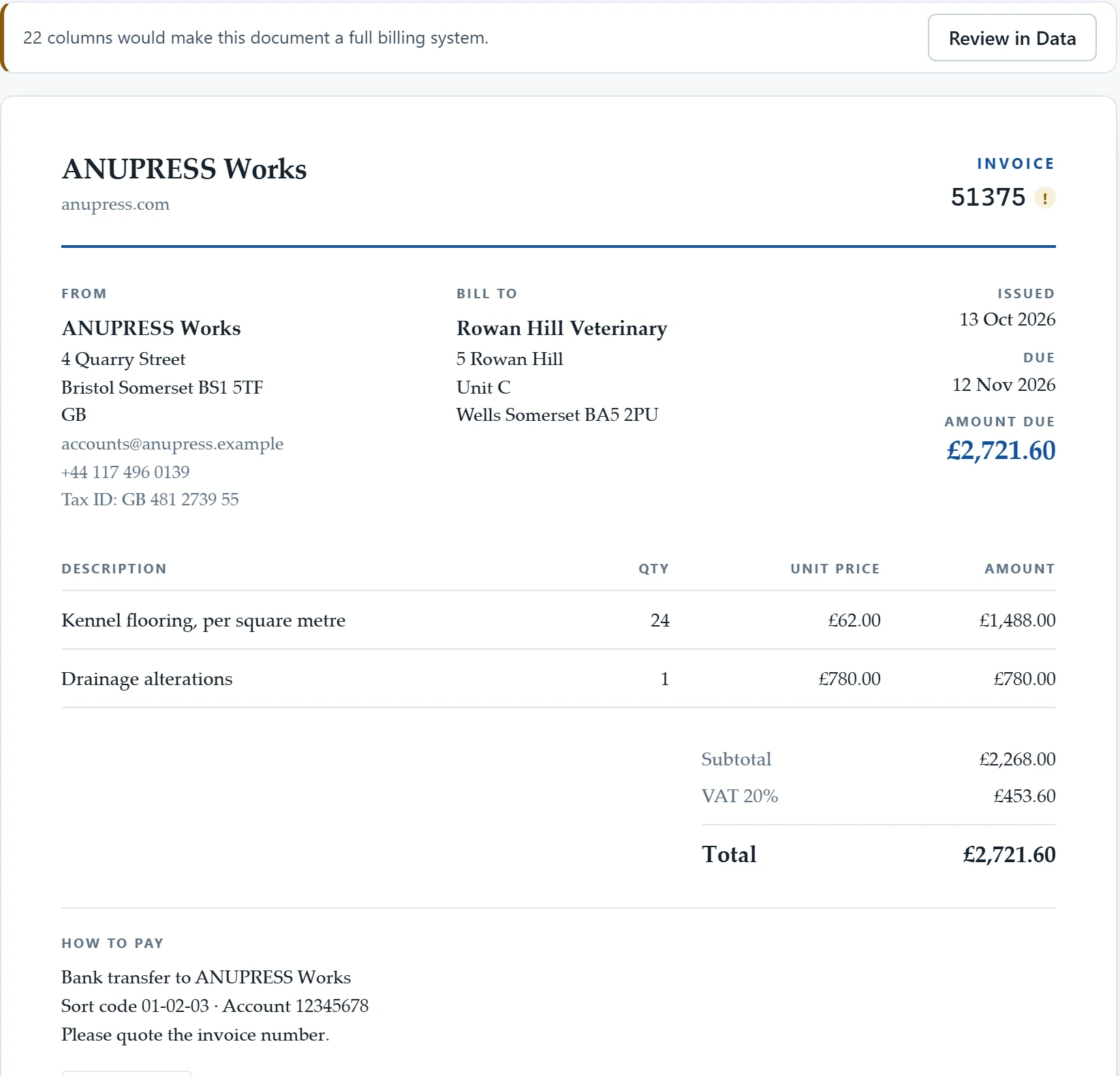
What you get beyond the six fixes: any currency, tax rates, a PDF file, e-invoice files and an email message. The guide covers each of them, and our XRechnung vs ZUGFeRD comparison explains the German e-invoice formats.
Prefer to watch? A 42-minute film builds a whole invoicing business in Grist with Invoice Studio, from the first quote to XRechnung files. The part about Grist’s own Invoicing template, your own tables and importing starts at 38:00.
Which one should you use?
Some people say a template should stay small, because a small widget is easy to read and easy to trust. That is a strong argument, and for a freelancer who sends a few dollar invoices a month it is the right one. Others say an invoice is a legal document and the tool should handle the rules. That is also fair, and it is where a template stops being enough.
- If you bill in US dollars and want one printable page, keep the official template and apply fixes 1 to 5. Add fix 6 if you will ever send the invoice by email.
- If you bill in another currency, charge tax at set rates, or must send PDF or e-invoice files, use Invoice Studio on the same tables.
- If you only need one invoice and no Grist document at all, our free invoice generator creates a PDF in the browser and stores nothing.
Grist invoice template: FAQ
Does Grist have an official invoice template?
Yes. The Invoicing template in Grist’s template gallery has four tables: Prepare_Invoices, Items, Businesses and a summary of the line totals per invoice. A custom widget called Invoices prints one invoice from the selected row. It is a sample to start from, and it behaves like one.
Why did my Grist invoice number repeat?
The template’s Number column is the formula $id + 51371, and Grist can give a deleted row’s id to the next row you add. In our test, deleting the newest invoice and adding another gave the new one the same number, 51374. A counter table that remembers the highest number issued stops this, and voiding an invoice instead of deleting it keeps the number in the books.
How do I stop invoice numbers repeating in Grist?
Store the number instead of calculating it. Convert Number to a data column, make a one-row Counter table with a MaxNow formula and a MaxEver trigger formula, and give Number the trigger formula PEEK(Counter.lookupOne().MaxEver) + 1. A simpler formula that reads the column’s own maximum returned CircularRefError in our test.
Can I change the currency in the official Grist invoice template?
Not with a formula. The Invoices widget formats every amount as US dollars in its own code and prints dates in one US style. To get another currency you need a different widget, or your own copy of the widget’s public code.
Do I need Invoice Studio to apply these fixes?
No. All six fixes are columns and formulas in your own Grist document, and none of them needs another widget. Invoice Studio is for what formulas cannot change: currencies, tax rates, PDF files and e-invoices.
How do I see overdue invoices in the Grist invoice template?
The template has no status or paid date, so add a Status choice column, a Paid_on date column and a Days_overdue formula such as (TODAY() – $Due).days if $Status == “Sent” and $Due and TODAY() > $Due else 0. A filter on Days_overdue above 0 then gives you the chase list.
Bottom line
Start with the official template, and fix the number first. A number that can repeat is the one gap that can cause real trouble later, and the counter table is three small steps. Add the status and terms columns when you start waiting for payments. Move to a different widget only when you need what the official one cannot do: another currency, tax rates, or files to send.
We are not neutral about that last step, because Invoice Studio is ours. The fixes in this post work without it, and we would rather you keep a template you understand than adopt a tool you do not need.