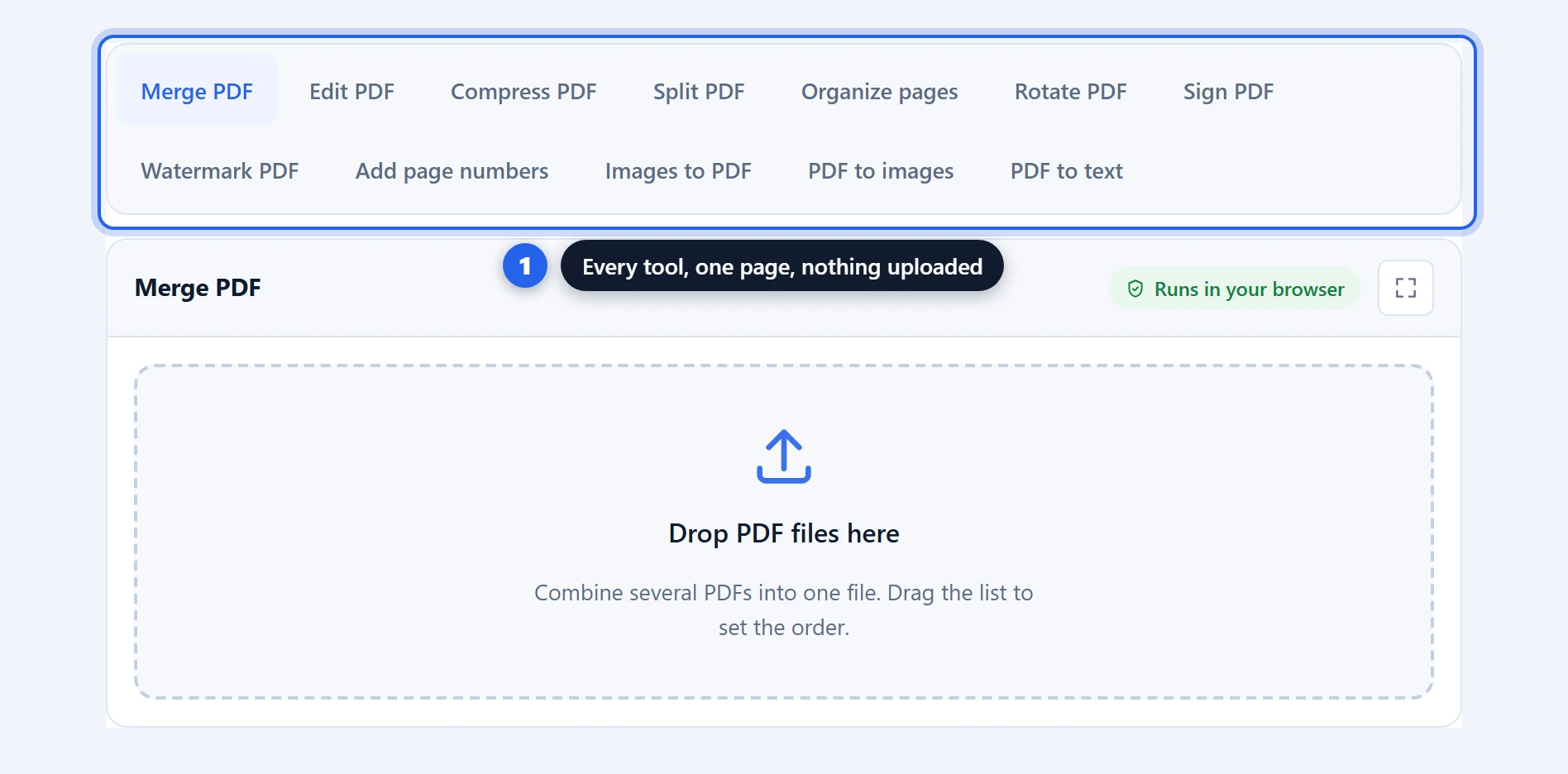
Edit a PDF in your browser, free, with no upload and no account. This is the tool for the form that arrived as a flat PDF with blank lines instead of fillable fields: the editor opens as soon as the file is in, so you type on the lines, tick the boxes, draw your signature and place it, cover what should not be passed on — on any page, with every page of the document scrolling in one column, exactly the way the big editing sites work. Then save, and everything you placed is flattened into a normal PDF that opens everywhere. You can also change the text that is already in the PDF, line by line, in the same font or the closest free one, and see which fonts the file uses.
Edit PDF Free: Change Text, Fill and Sign, No Upload
Watch every tool at work
The video goes through each tool on a made-up invoice. It starts at the toolbar, so pick a part to jump to it.

- Toolbar0:36
- Font1:02
- Edit text1:25
- Add text1:55
- Check and cross2:31
- Mark and cover2:52
- Ink3:27
- Sign3:49
- Image4:25
- Select and undo4:42
- Save5:01
- Offline proof5:30
- Limits5:52
The video loads from YouTube when you press play, in YouTube’s privacy-enhanced mode. Until then, this page sends nothing to YouTube.
How to edit a PDF in 3 steps
Step 1 — drop in your PDF. The editor opens by itself, right under the file on the same page: every page in one scrolling column, with a toolbar of placement tools along the top. Nothing to configure first — the editor is the workspace. For more room, press “Open the full-screen editor”. We recommend it: you get the whole screen, and whatever you have placed carries over in both directions.
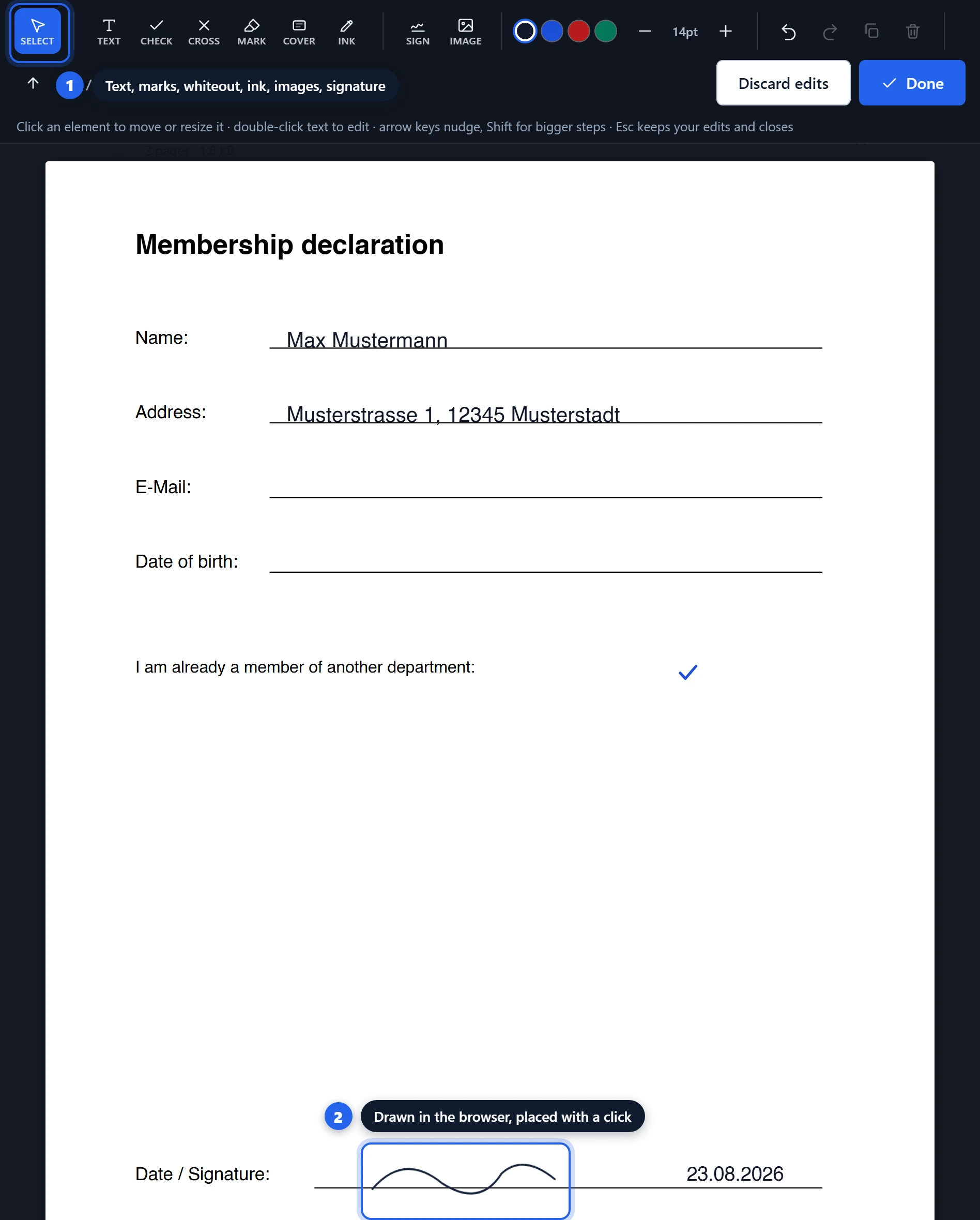
Step 2 — place what the document needs. Pick a tool and click the page. Text lands where you click and you type straight into it; checkmarks and crosses drop onto boxes; a cover drags across anything that should be hidden, in white, black or blur; the pen draws freehand; and the signature pad lets you draw once and place the result exactly where it belongs. Everything you place can be dragged, resized, recoloured or deleted, on any page, with undo throughout.
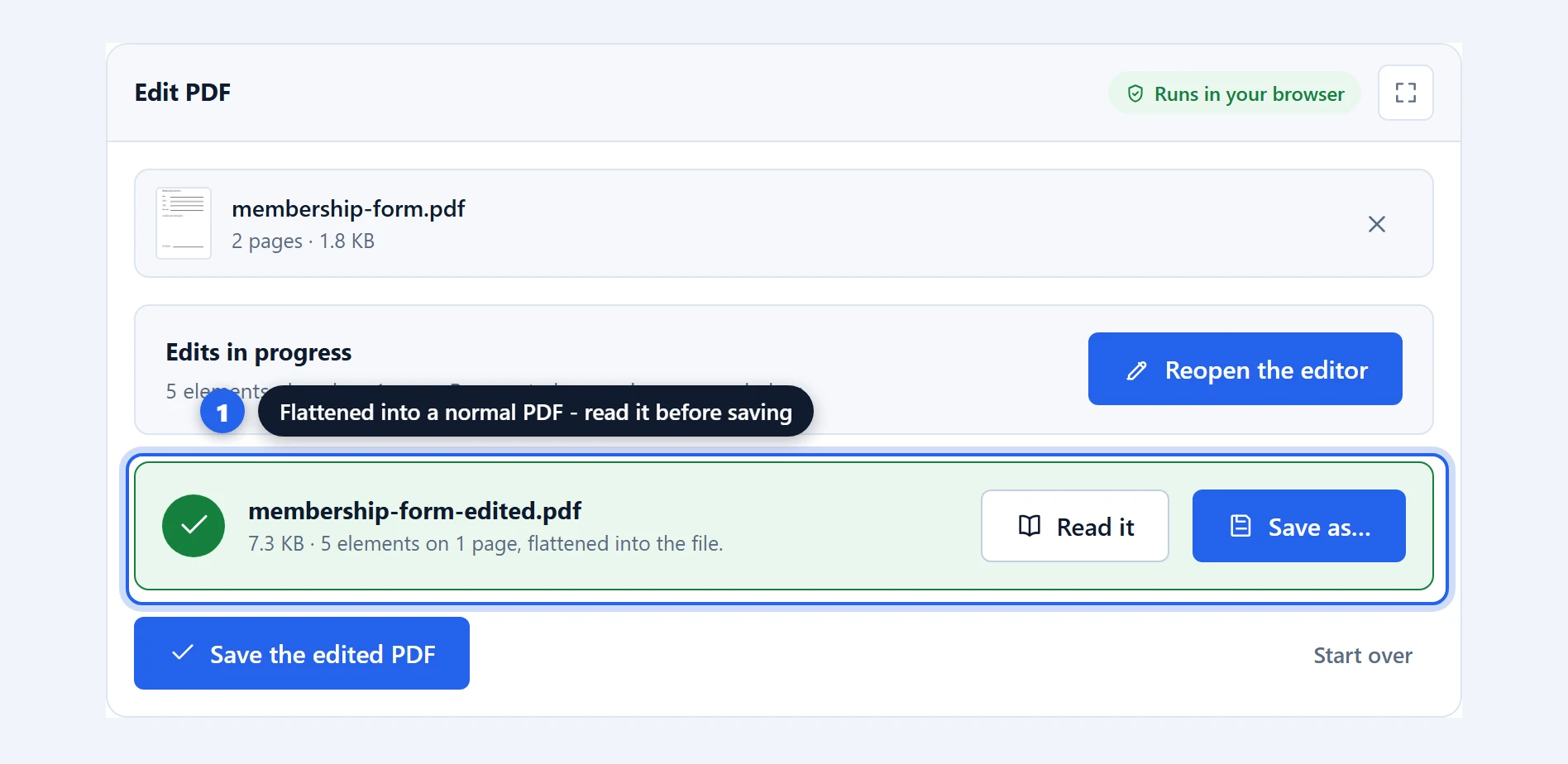
Step 3 — save. Click “Save the edited PDF” in the card above the editor to write your edits permanently into the file. (In the full-screen editor, click “Done” first: it brings you back here with your edits held.) The result card shows what was placed and offers “Read it”, so you can page through the finished document before deciding to keep it. Your original file is never modified.
Everything you can place, explained
Edit text. Click a line of the PDF’s own text and type the correction over it, in the same place, size and colour. How the font is matched, and what the limits are, has its own section below.
Text. Click anywhere and a text box opens there, ready for typing; drag instead to draw a box the text wraps in, and the saved file breaks the lines in the same places. Multi-line works with Enter, any colour, and text scales from small annotations to headline size — drag the corner handle or use the size buttons. Set it in Helvetica, Times or Courier, which every PDF reader already has, or search about 2,000 free fonts, which travel inside the file. What you type becomes real, selectable text in the saved PDF, not a picture of text.
Checkmarks and crosses. One click each, sized for the tick boxes on real forms, resizable when a form disagrees about how big a box should be.
Cover. Drag a rectangle over anything that should not be visible — an old address, a price column, a paragraph that does not apply. Three finishes: white to blend into the page, black for the classic redaction look, or blur, which saves a blurred snapshot of that region over itself — the softer look you see in shared screenshots. Read the section below about what covers are not, before using any of them on anything sensitive.
Freehand ink. A pen for circling a clause, striking through a line, or making the margin note a printed form never left room for. Strokes are smoothed into curves as you draw. The Stroke button sets the thickness, from a hairline to a broad stroke, and how see-through the line is; thick and see-through, it works as a highlighter pen. In Select mode a stroke can be picked, moved, changed or deleted on its own.
Your signature. Draw it on the signature pad with a fountain pen, ballpoint or marker, type it in one of eight handwriting fonts, or bring a photo or scan of it: the paper turns transparent, so only the ink lands on the page. Then click the page to place it. It is trimmed tight to the ink and lands where a signature line expects it. Made here, kept here: the signature never leaves your device.
Images. Place a logo, a stamp, or a photographed signature from your files. JPG, PNG and WebP all work, and transparency is preserved. Drag a corner to resize and the proportions stay, as in a photo editor; hold Shift, or switch off Keep ratio, to stretch.
Find out which fonts a PDF uses
Drop in a PDF and a panel called “Fonts in this PDF” appears under the editor button. It lists every font the document’s text is set in. Each card shows a line of real text from the page in that font, the font’s name and weight, the exact name stored in the file, the pages and sizes it is used at, and whether the font travels inside the file. “Copy name” puts the name on your clipboard.
Inside the editor, the Font tool in the toolbar works on the page itself. Point at a line and its font and size appear next to it. Click, and a card opens with the details, while every other place on that page set in the same font is outlined. That settles the usual questions quickly: which of two similar headings is the bold one, or which font a form expects you to match.
Why it reads the name instead of guessing
Image-based font finders such as WhatTheFont look at the shapes of the letters and compare them with a library of fonts, so their answer is the closest match. A PDF with real text works differently. The program that made it wrote down the name of every font it used, and this tool reads those names, so for real text there is no guessing. The same fact sets the limit. A scanned page is a picture of text and carries no font names, and the panel says so instead of inventing one. For scans, an image-based finder is the better tool.
Three more things are worth knowing. First, the name is whatever the creating program recorded. Usually that is the real font name, but some programs write a shortened or renamed one. Second, a name with six capital letters and a plus sign in front, such as ABCDEF+Georgia, means only the letters the document uses were embedded; the tool removes the prefix and marks the font as a subset. Third, knowing a font’s name does not give you the font. The tool shows names and does not extract font files. To use the font yourself you need your own copy, and a licence where the font requires one. For fonts that are not common Windows, Mac or Adobe fonts, the card also links to a search on Google Fonts. Only the font name goes to Google, and only when you click.
Change the text that is already in the PDF
Choose Edit text and click a line of the PDF’s own text, at the place you want to change. The editor covers that line in the colour it samples from the page around it, and puts an editable copy in the same place: on the same baseline, at the same size, in the colour of the original, with the caret where you clicked. Type the correction; Enter, or a click elsewhere, finishes the line. To remove words, empty the line.
The font is the hard part, and the reason many browser editors leave this job alone. A PDF usually carries only a trimmed copy of each font, holding just the letters the document uses, and many fonts are commercial and may not be copied anyway. So the editor sets your words in a free font, chosen in this order. First the same font, when the PDF’s font is itself free, as Montserrat, Roboto, Inconsolata and about 2,000 others are. Then a free font drawn to the same letter widths as a common commercial one: Carlito for Calibri, Caladea for Cambria, Gelasio for Georgia, and Arimo, Tinos and Cousine for Arial, Times New Roman and Courier New. Otherwise, the nearest free font of the same kind. The hint bar says which font it chose and why, and the font button lets you pick another.
The letter widths matter more than they sound. With a stand-in of the same widths, a corrected line is as long as the original, so nothing runs into the margin or over the next column. With any other stand-in the shapes come close but are not identical, and a careful reader can tell.
Three limits, stated plainly. It works one line at a time and does not reflow a paragraph, so a longer correction runs past where the old line ended. The old words are covered, not deleted: they stay in the file, and anyone who copies the PDF’s text can still find them, the same limit as a cover, explained in the next section. And a scanned page is a picture with no text in it, so there is nothing to click; cover the old words and type over them instead.
The free fonts are openly licensed, which is what allows them to travel inside your PDF. Choosing one downloads that font’s file once per visit from jsDelivr, a public network for open-source files. The request names the font; your PDF is never part of it.
Covers hide — they do not redact
This matters, so it gets its own section: a cover — white, black or blur — hides content from view; it does not remove it from the file. Edit text works the same way: the old words sit under a cover.
A cover is drawn over the page, and everything under it disappears from sight and from print. The blur variant is no different: it saves a blurred picture of the region on top of the region, and looking blurry is not the same as being gone. The text underneath still exists inside the PDF — someone who copies all the text out of the file, or opens it in an editor of their own, can recover what the cover hides. That is true of the equivalent feature on every overlay-based editor, including the well-known ones; the difference is whether the tool tells you.
Use covers for what they are good at: tidying a form, hiding a price column in a customer copy, softening a name in a screenshot, covering the paragraph that does not apply. Do not rely on them to permanently remove genuinely sensitive information — account numbers, medical details, names in legal documents. True redaction removes the underlying content itself and is a job for dedicated redaction software, and any document that has been through real redaction should be checked by selecting all its text afterwards.
Your document never leaves your device
The entire editor runs in your browser tab. The pages you see are rendered on your device, the elements you place live in your device’s memory, and the saved PDF is written by an engine running in the same tab. There is no server, no queue, no account, and no copy of your contract, form or ID anywhere but your own machine — which is precisely what you want for the documents people most often need to fill and sign.
It is built on the open-source pdf-lib engine for writing the edited file, with PDF.js — the engine inside Firefox’s own viewer — drawing the pages, and fontkit letting pdf-lib embed the free fonts. All three run as JavaScript in this tab.
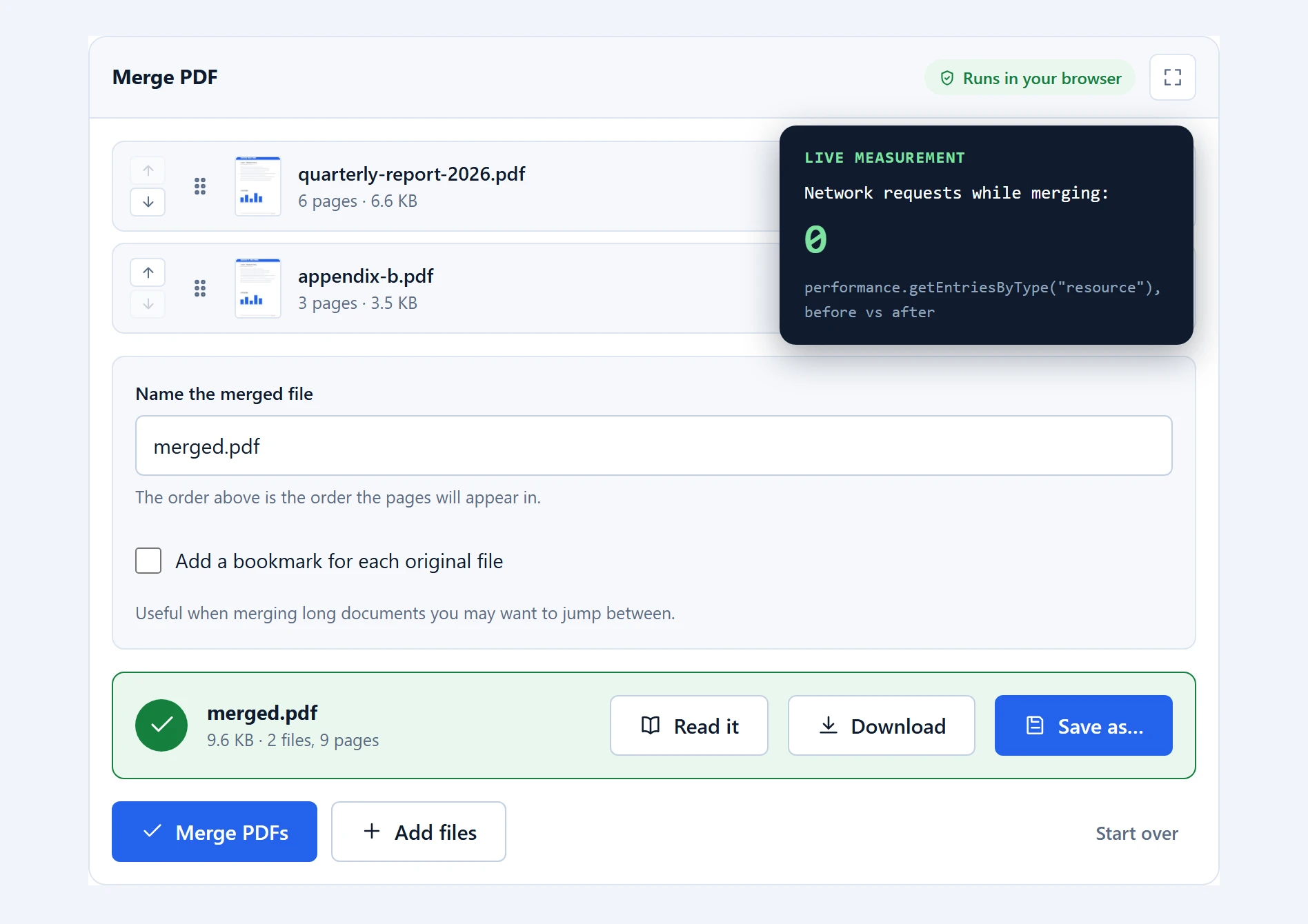
The claim is checkable in under a minute: open your browser’s network tab and edit away. No request carries your document. The only requests you will see are the editor’s own engines and, when you set text in a free font, that font’s file. Or load the page, switch to airplane mode, and keep editing; only the free fonts need the connection.
How this compares with upload-based PDF editors
The well-known editing sites are capable tools. The differences are where your document goes, what the free tier permits, and what happens to the text layer.
| This editor | Typical upload-based editor | |
|---|---|---|
| Where editing happens | On your device | On their servers |
| File uploaded | Never | Always |
| Fill, sign, annotate, cover, draw | Yes, all pages | Yes |
| Change existing text | Line by line, in the same or a matched free font; old words covered | Offered by some, such as Adobe Acrobat; results depend on the fonts |
| Free tasks per day | Unlimited | Often 1–3 |
| Account needed | No | Often, past the first document |
| Works offline | Yes, after first load | No |
| Output | Flattened, standard PDF | Varies |
The honest trade-off: a full editor such as Acrobat can reflow a whole paragraph and create form fields, which this tool does not do. Correcting a line, filling, signing and annotating it covers, and your document stays on your device.
Troubleshooting
My text looks slightly different in the saved file. Text in Helvetica, Times or Courier is shown in the closest font your system has and saved in the PDF’s own standard font; on some systems the two differ by a hair’s width. Text in a free font does not have this problem: the editor shows the very font file that goes into the PDF. Check the result with “Read it” before saving, which is what the button is for.
Edit text says there is no text here. The page is most likely a scan, a picture of text with no text in it. Cover the old words with the white cover and type the correction over them.
The changed line looks a touch different from its neighbours. The PDF’s font is not free, so the editor used a stand-in; the hint bar names it. Try another with the font button, or change the neighbouring lines too, so they all share the stand-in.
“This PDF is password-protected.” Encrypted files are refused rather than mangled. Open the file with its password in your PDF reader, save an unlocked copy, and edit that.
I placed something on the wrong page. Delete it (select it, press Delete or use the bin button) and place it again — or just drag it if it only needs to move within the page. Ctrl+Z undoes the last change, step by step.
The editor feels slow on a very large scan. A 300-page scanned document is a lot of pixels. Pages render as you scroll rather than all at once, so give the column a moment — and consider running the document through Compress PDF first, which makes heavy scans dramatically lighter to work with.
The save dialog never appeared. On Firefox and Safari there is no dialog; the edited file goes straight to your downloads folder.
Frequently asked questions
Is this PDF editor really free?
Yes, completely. No task limits, no page limits, no watermark on the output, no premium tier holding back the signature tool. Your device does the processing, so there is nothing for us to meter and charge for.
Is my PDF uploaded to a server?
No. The document is opened, edited and saved entirely in your browser. You can verify it: watch the network tab while editing, or switch to airplane mode after the page loads and keep working.
Can I edit the text that is already in the PDF?
Yes, one line at a time. Choose Edit text and click the line: it is covered in the page colour, and an editable copy appears on the same baseline, at the same size, in the same font if that font is free, or else in a free stand-in such as Carlito for Calibri. The old words are hidden under the cover rather than deleted from the file.
Can it tell me which font a PDF uses?
Yes, for PDFs with real text. The tool reads the font names the file stores and lists each font with its style, the pages it appears on and a sample of text set in it. In the editor, the Font tool shows the font of any line you point at. A scanned page carries no font names, so for scans an image-based font finder is the better choice.
Can I fill in a form that has no fillable fields?
Yes — that is this editor’s main job. Type on the blank lines, tick the boxes with the checkmark tool, add the date, and place your signature. The saved file looks exactly like a properly filled form.
How do I sign a PDF with this editor?
Choose the signature tool, draw your signature on the pad with a mouse, finger or stylus, and click the page where it should go. It can be moved and resized like anything else, and it is flattened into the page when you save. The signature is drawn and stays on your device.
Does whiteout permanently remove what it covers?
No. A cover — white, black or blur — hides content from view and from print, but the text underneath remains inside the file and can be recovered by copying the file’s text out. For genuinely sensitive information use dedicated redaction software — the section above explains the difference.
Will the recipient need anything special to open the edited file?
No. Everything you place is flattened into a standard PDF — no layers, no annotations that need a particular reader, nothing that can be accidentally moved or removed later. It opens in any PDF reader exactly as you saved it.
Can I edit a password-protected PDF?
Not directly. The editor refuses encrypted files rather than producing broken output. Remove the password in your PDF reader first, then edit the unlocked copy.
Does it work on my phone?
Yes — placing, dragging and resizing all work by touch, and the signature pad is finger-friendly. A large screen is more comfortable for long documents, but nothing about the editor requires one.
More PDF tools that stay on your device
Editing is one of the tools in the PDF toolbox, all built the same way. If signing is the whole job, Sign PDF does exactly that with a live click-to-place preview. To remove or reorder whole pages before filling anything in, organize pages shows every page on a thumbnail grid. And a heavy scanned form is much lighter to edit after a pass through Compress PDF.