Add page numbers to a PDF in your browser, free, without uploading the document. Choose where they sit, how they read, which number to start from, and whether the cover page stays blank. A live preview draws the real number onto your real page as you change settings, so the first version you save is usually the one you keep.
Add Page Numbers to PDF Free: 6 Positions, 5 Formats
How to add page numbers to a PDF in 3 steps
Step 1 — choose position and format. Drop in your PDF, then pick one of six positions and one of five formats, and set the look: Helvetica, Times or Courier, in the size and colour you want, bold if it needs to carry. The preview updates immediately with the real number on your real page — and flips through every page, so you can check the corner of page 14 as easily as page 1.
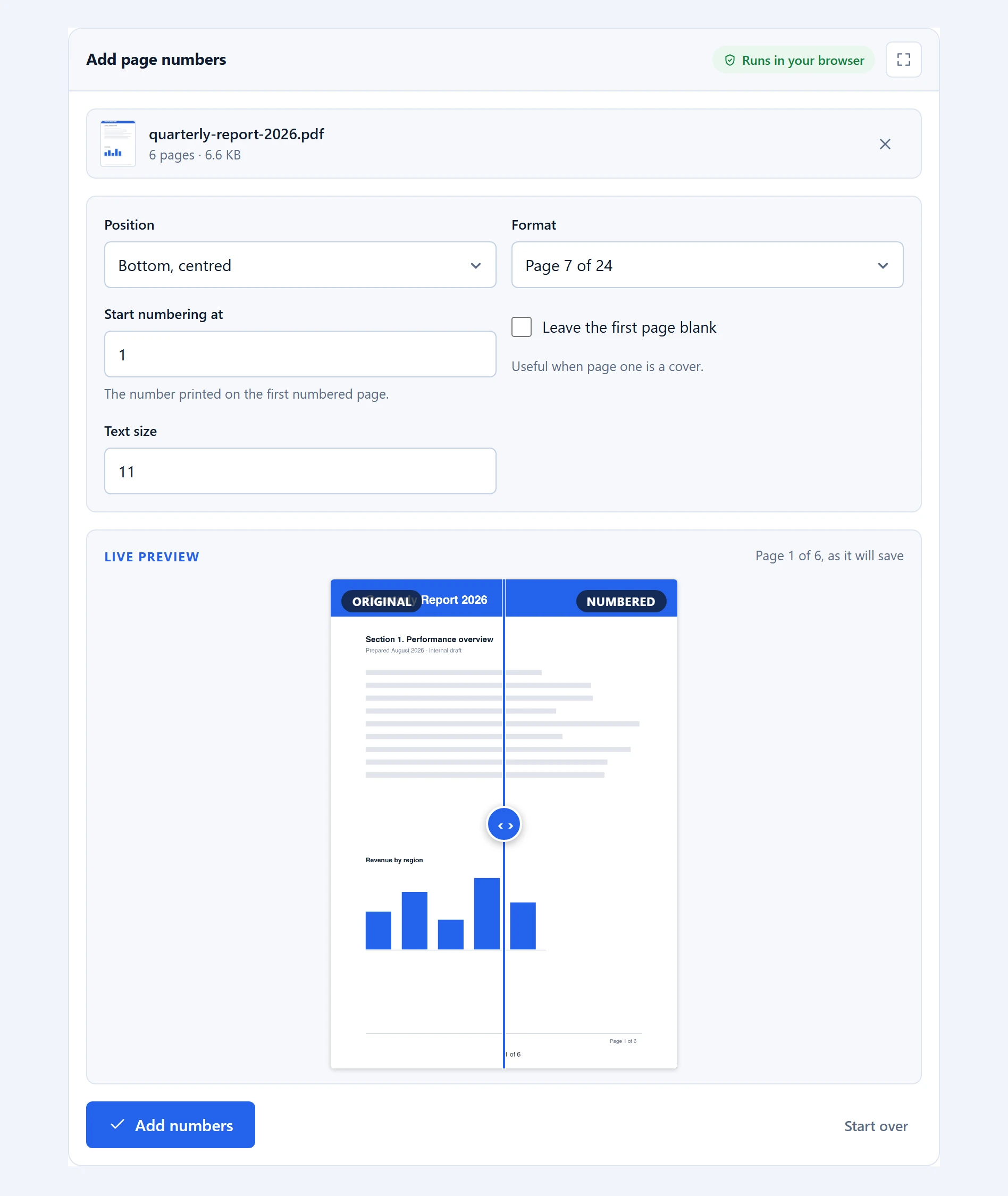
Step 2 — handle the cover. If page one is a title page, tick “Leave the first page blank”. The preview jumps to page two, since that is now the first page that will carry a number.
Step 3 — number and save. Click “Add numbers” and save. The summary confirms how many pages were numbered, which is a useful check when you have skipped a cover.
The five formats, and when to use them
7 — the plain number. Unobtrusive and right for most documents. When in doubt, this one.
7 of 24 — number and total. Genuinely useful on anything printed and handed over, because a reader can tell immediately whether a page is missing. Standard on contracts, submissions and anything that travels as loose paper.
Page 7 — spelled out. Slightly formal, and clearer when the footer already contains other numbers such as a reference code or a date, where a bare digit could be ambiguous.
Page 7 of 24 — the fullest form. The safest choice for legal and official documents, where being explicit beats being elegant.
– 7 – — dashes either side. A typographic convention from book printing that centres nicely and looks deliberate on printed material.
Whichever format you pick, the typeface follows the document: Helvetica for most things, Times where the document is set in a serif face, Courier for technical material. All three are built into every PDF reader, so the file gains no weight whichever you choose — and grey, black, blue or red covers the rare document where the default grey disappears into a busy footer.
Choosing a position
Six positions: bottom or top, each in left, centre or right.
Bottom centre is the default and the safest. It is where readers look for a page number, and it rarely collides with existing content.
Bottom right suits documents that will be bound or stapled on the left, since the outer corner is what you see when flicking through. It is also the convention in a lot of business writing.
Top positions are for documents whose footer is already occupied by a legal line, a company address, or an existing footer from the original template. Moving the number to the top avoids a collision that would otherwise look careless.
Whichever you choose, check the preview. The tool draws the number over whatever is already there, so if a footer occupies the spot you picked, you will see the overlap before you save rather than after.
Starting from a number other than one
The “Start numbering at” field exists for documents that are part of something larger, and it comes up more often than you would think.
If you split a hundred-page report and are numbering the section that begins at page 47, set the start to 47 and the numbers match the original. If a document is chapter three of a bound volume and the previous chapters ran to page 88, start at 89. And if the printed cover and contents are not part of the PDF but do count in the final document, starting at 3 keeps everything aligned.
The “of N” total adjusts with the start value, so numbering a ten-page extract from page 47 produces “47 of 56” rather than a nonsensical total.
Why this runs on your device
Numbering is another small operation that does not need a server: some text drawn at a fixed position on each page. Sending a document away for that is disproportionate, especially since the documents people number tend to be contracts, submissions and reports — precisely the ones worth keeping to yourself.
pdf-lib draws the numbers and writes the file, in your browser. The preview uses the same drawing code as the final save, so what you see genuinely is what you get.
Where it works well, and where it does not
Numbers are drawn on top of existing content. They do not push anything aside or reflow the page. If a footer already occupies your chosen position, the two overlap — which the preview shows you.
Only the first page can be skipped. Documents with a cover and a separate contents page needing two blanks are not covered. The workaround is to split off the front matter, number the rest starting at the right value, and merge them back.
Roman numerals are not offered. Front matter numbered i, ii, iii is a genuine convention we do not yet support.
Three typefaces, four colours. Helvetica, Times and Courier are offered because every PDF reader already has them, so choosing one costs the file nothing. A corporate typeface would mean embedding a font file, which is a real download for every reader of the document, so that is not offered.
Mixed page sizes are handled individually. The margin adapts per page, so a document mixing A4 and Letter keeps its numbers at a consistent distance from each page’s edge.
Troubleshooting
The number overlaps an existing footer. Move it to another position — top centre is usually clear — or reduce the text size. The preview shows the collision before you save.
The count is one less than I expected. “Leave the first page blank” is ticked, so page one carries no number. That is what the summary line is confirming.
Numbers sit too close to the edge for my printer. Increase the text size slightly; the margin scales with it, moving the numbers inward. Most home printers cannot print within about 5 mm of the paper edge.
The preview shows page 2. Expected when you have skipped the cover — the preview always shows the first page that will actually receive a number.
Frequently asked questions
Is this page numbering tool free?
Yes. No account, no page limit, no watermark, and no cap on use. The numbering happens on your device, so there is nothing for us to meter.
Is my PDF uploaded?
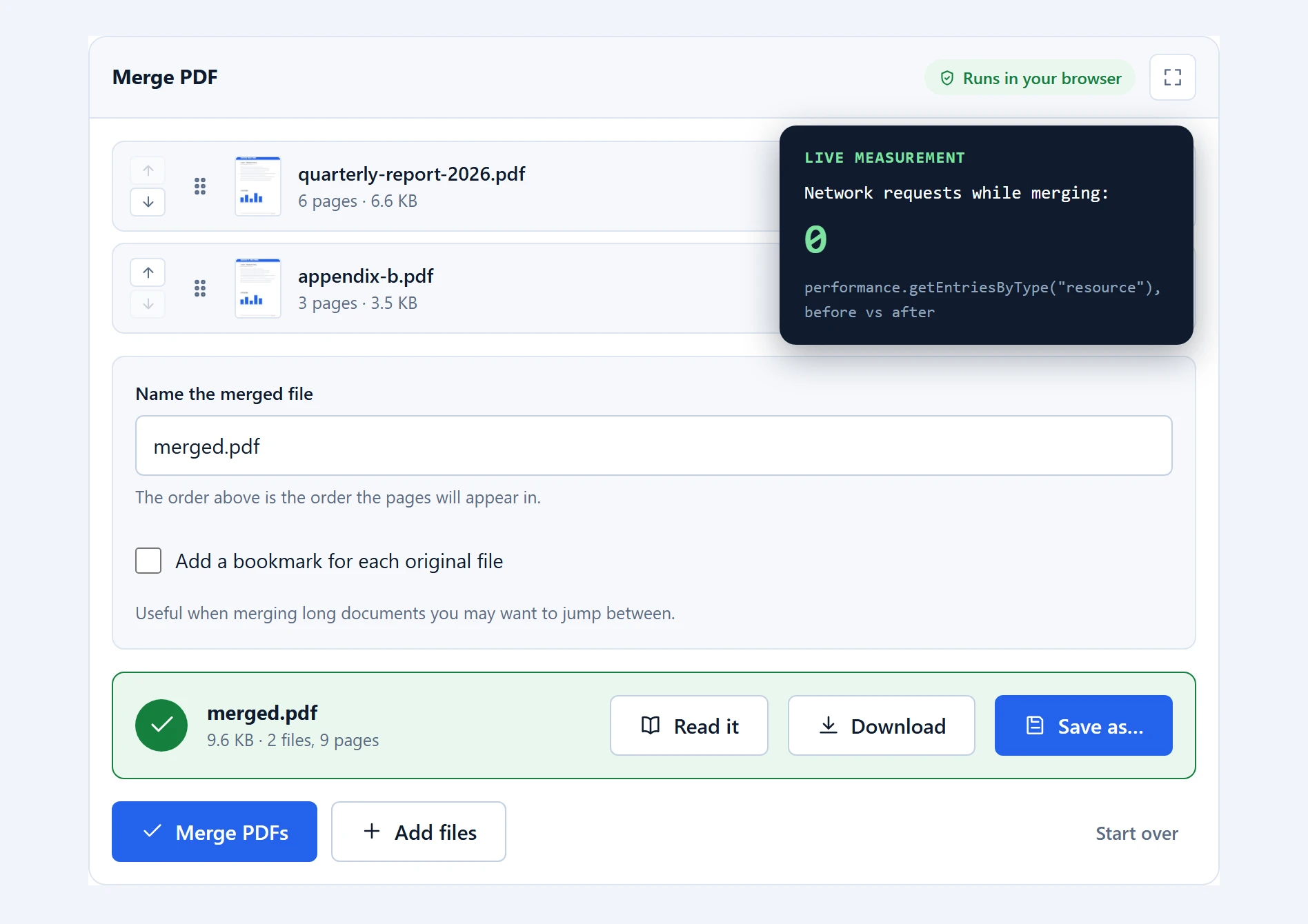
No. The document is read and written entirely in your browser. Check the network tab while numbering, or use the tool with your connection off after the page has loaded once.
Can I start numbering from a page other than the first?
Yes, in two ways. “Leave the first page blank” skips a cover, and “Start numbering at” sets which number the first numbered page carries — useful when a document continues from another.
Can I put page numbers at the top of the page?
Yes. Six positions are available: top and bottom, each in left, centre or right. Top positions help when the footer is already occupied.
Will the numbers cover my existing footer?
They can, because numbers are drawn on top rather than reflowing the page. The live preview shows any overlap before you save, so you can move them to a clear position.
Can I use Roman numerals for front matter?
Not currently. The five formats are all Arabic numerals. Roman numbering for front matter is a real convention we would like to add.
What does the “of N” total count?
The number of pages that receive a number, adjusted for your start value. Numbering a ten-page extract starting at 47 produces “47 of 56”, not a total that ignores where you began.
Can I change the font or colour?
Yes. Pick Helvetica, Times or Courier, set the colour to grey, black, blue or red, and turn on bold if the number needs to carry. All three typefaces are built into every PDF reader, so the file gains no weight. Fonts beyond those three would have to be embedded, which is why they are not offered.
Related PDF tools
Number a document after assembling it with merge PDF, so the numbers run continuously across the whole thing. On drafts, watermark PDF pairs naturally with numbering. Everything sits on the PDF tools page.