Rotate PDF pages in your browser, free, and have the rotation actually stick. Turning a page in your PDF reader often only changes how that reader displays it, so the file arrives sideways again for the next person. This tool rewrites the rotation into the document itself, so it opens the right way up everywhere. A live preview shows the turned page before you save, and nothing is uploaded.
Rotate PDF Free: Fix Every Page in 2 Clicks
How to rotate a PDF in 2 clicks
Step 1 — pick a direction. Drop your file in and choose right 90°, upside down, or left 90°. The preview immediately shows the first affected page turned that way, so there is no guessing which direction “rotate right” means for your particular document.
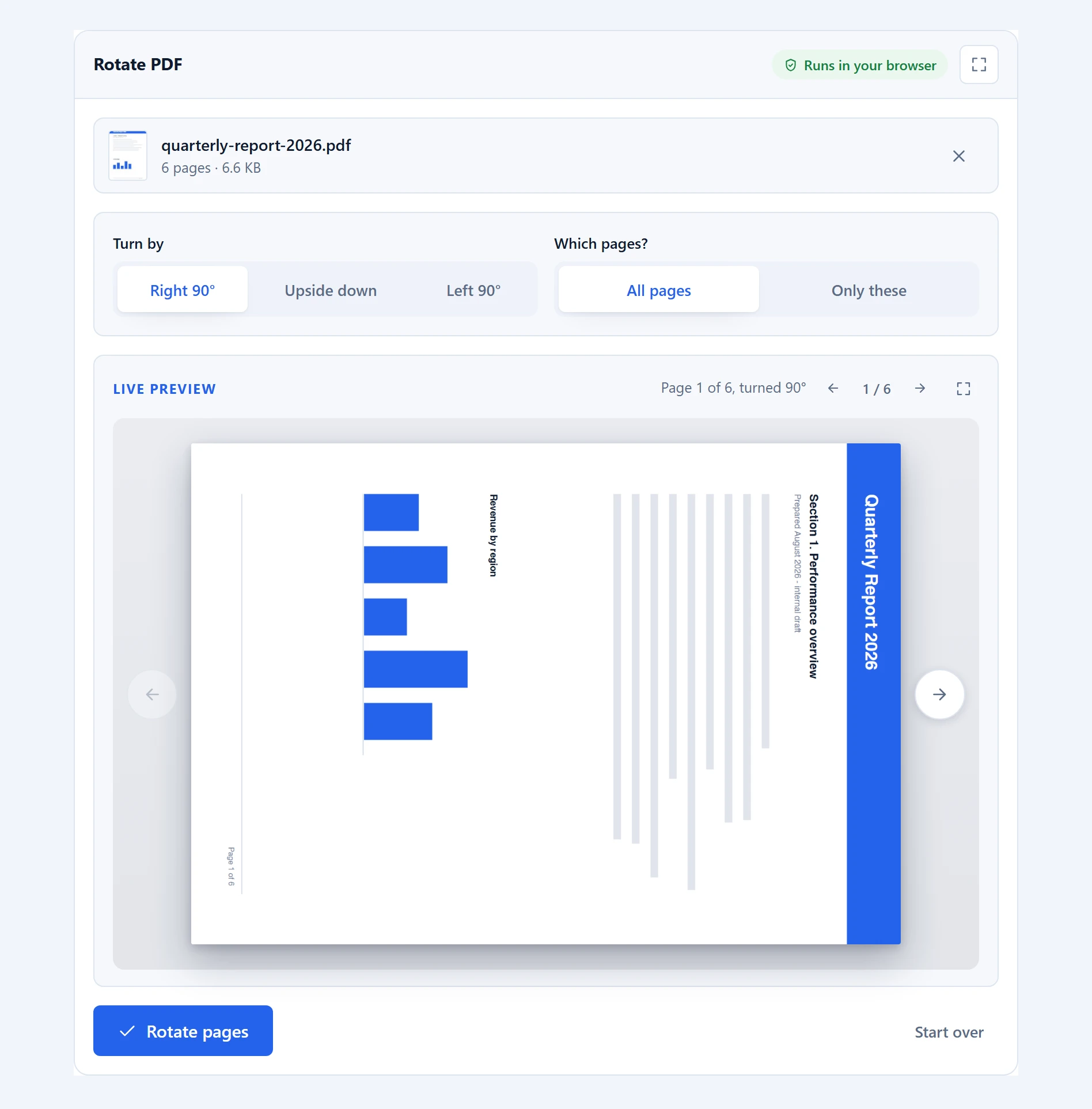
Step 2 — rotate and save. Leave it on “All pages” for a document that is uniformly sideways, or switch to “Only these” and name the pages that need it. Click “Rotate pages” and save the result.
Why rotating in your PDF reader often does not stick
This is the thing that sends most people looking for a rotation tool in the first place, and it is worth explaining because the behaviour is genuinely confusing.
Most PDF viewers offer a rotate button that turns the page on screen. In many of them, that is a view setting: it changes what you see now and nothing about the file. Close the document and the setting is gone. Send the file to a colleague and it arrives sideways, because their reader never knew about your rotation.
Every PDF page carries its own rotation value as part of the document. That is the number this tool changes. Once saved, the page is stored as rotated, and every reader — Acrobat, Preview, Chrome, a phone, a printer — honours it, because it is part of the file rather than a preference in one application.
A useful detail: the tool adds your turn to whatever rotation the page already had, rather than replacing it. Scanned pages frequently carry a rotation you cannot see, because your viewer is already applying it. Adding rather than overwriting means a quarter turn is always a quarter turn from what you are looking at, which is what you expect.
Rotating only some pages
Mixed documents are common: a portrait report with three landscape charts dropped in, or a scan where the feeder grabbed a few sheets the wrong way round. Switch to “Only these” and name the pages.
The range field takes commas and dashes together, so “2, 5-7, 11-” means page two, pages five to seven, and everything from eleven onward. The preview follows your selection and jumps to the first page that will actually change — and from there you can flip through every page of the document, with pages outside your list saying so plainly, so you can confirm you picked the right ones before committing.
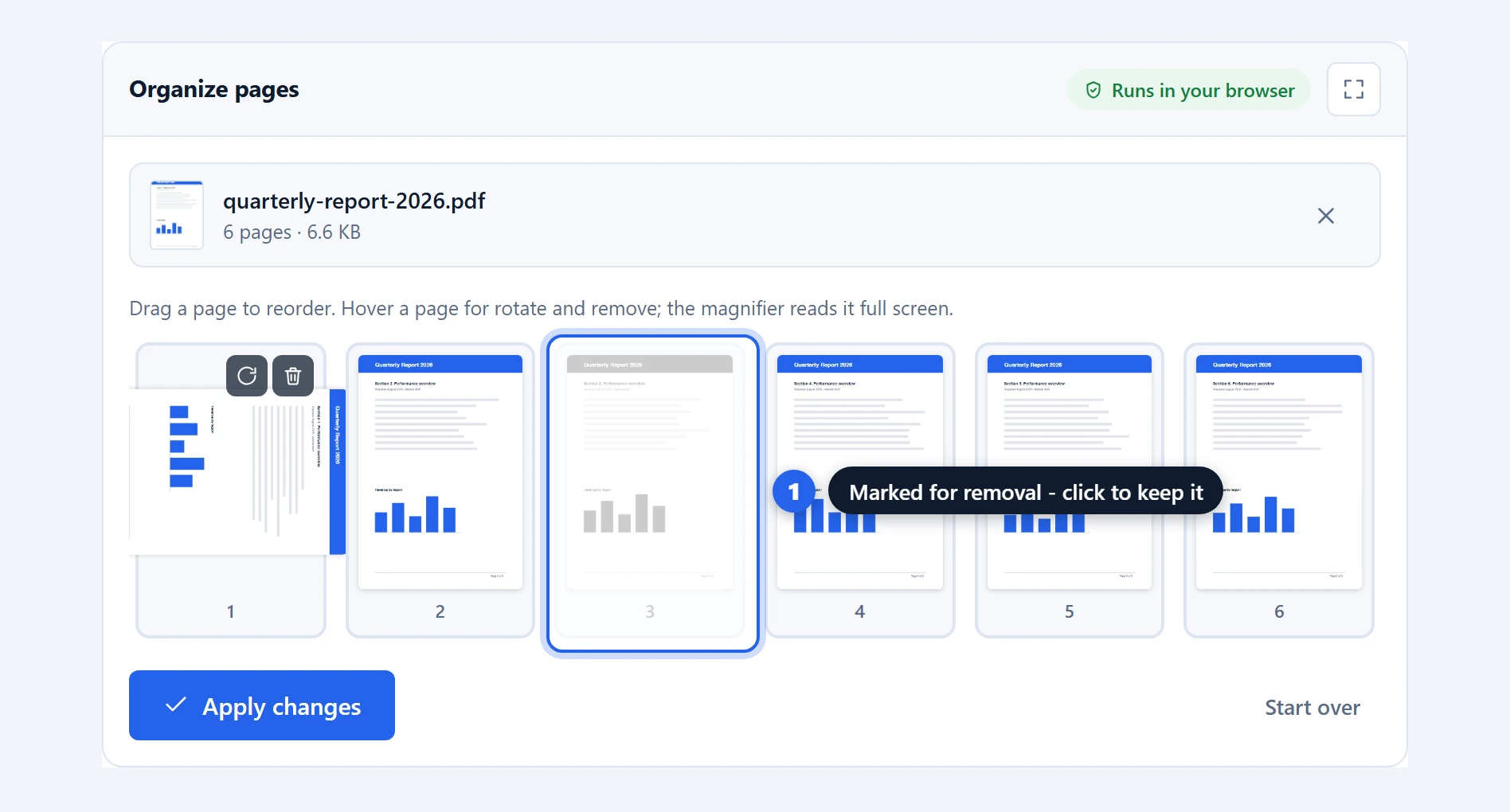
If different pages need turning in different directions, run the tool twice — once for each direction — or use organize pages, where each page has its own rotate control on a thumbnail grid.
Why this happens on your device
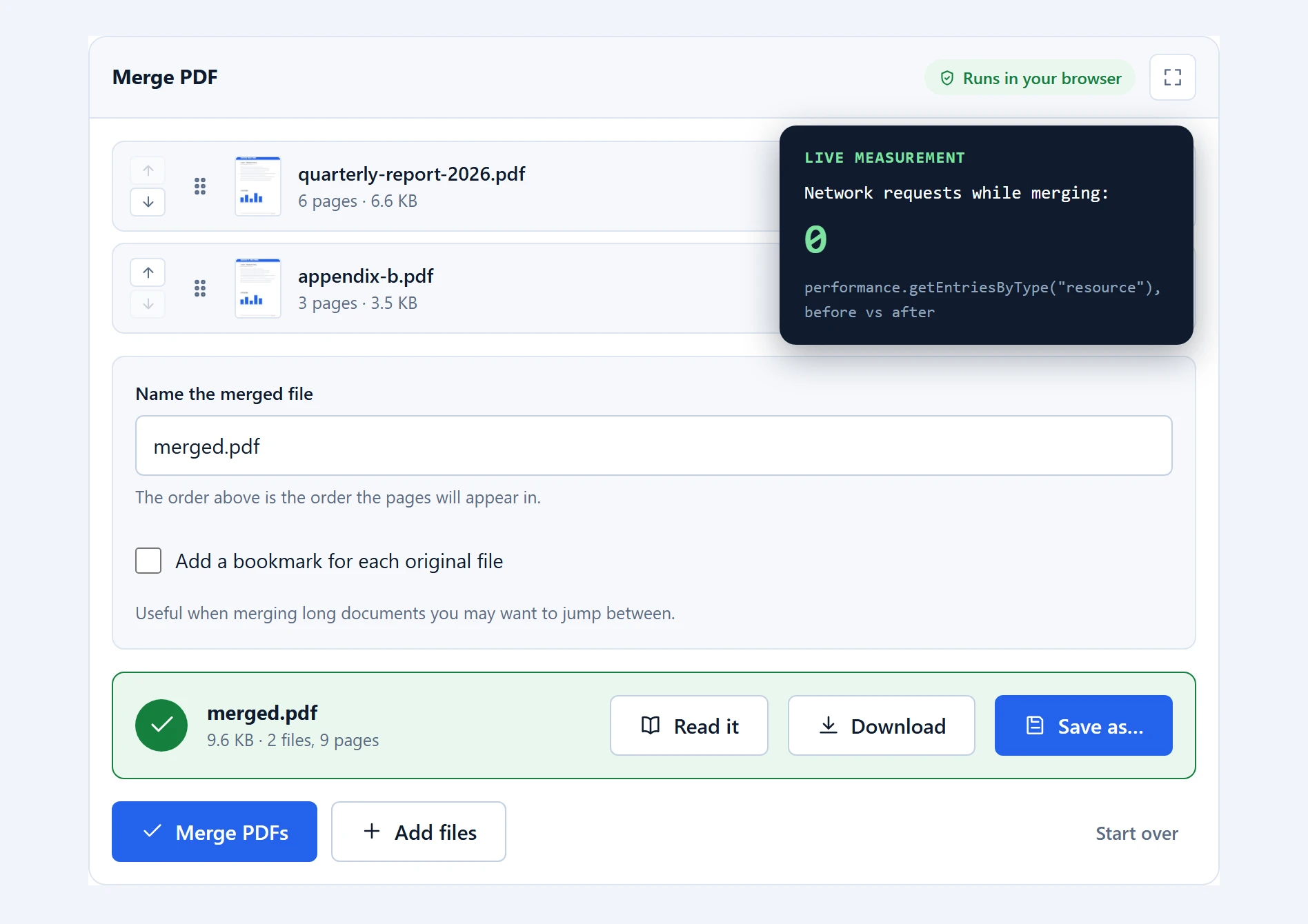
Rotating a page is one of the lightest operations you can perform on a PDF: it changes a single number per page and leaves everything else untouched. Uploading a document to a server for that is disproportionate, and it means handing over the whole file — scanned contracts and all — for a job your own device does instantly.
pdf-lib reads the document and writes the new one, in your browser. Because the content itself is not re-encoded, rotation is lossless: text stays selectable and images keep their exact resolution. The output is the same document with different rotation values, not a re-rendered copy.
Where it works well, and where it does not
Rotation is limited to quarter turns. 90, 180 and 270 degrees are the only values a PDF page can store, so a scan that came in at a slight angle cannot be straightened here. Fixing a few degrees of skew means re-rendering the page as an image, which loses selectable text — a different operation with a real cost, and not one we hide inside a rotate button.
Password-protected files are refused rather than half-processed. Unlock the file in your reader first.
Rotation does not change the page size. A landscape page turned upright becomes a portrait-shaped page, which is usually what you want, but it will not match the dimensions of the portrait pages around it. Printers handle this fine; layout tools sometimes complain.
Some readers cache aggressively. If a rotated file still looks wrong, close it fully and reopen rather than refreshing — a few viewers hold onto the previous render.
Troubleshooting
It rotated the wrong way. Directions are as seen on screen. If right 90° was not what you meant, run it again with left 90° on the saved file, or start over and pick the other direction.
Only some pages turned. “Only these” was probably still active from an earlier run with a range that no longer matches. Switch back to “All pages”.
“This PDF has 6 pages, so 9-12 is out of range.” The pages you named do not exist. The message always states the real count.
The rotation did not survive emailing the file. Confirm you sent the saved output rather than the original. The tool never modifies your source file, so both exist side by side and it is easy to attach the wrong one.
Frequently asked questions
Is this rotate PDF tool free?
Yes. No account, no page limit, no watermark, and no cap on how often you use it. Your browser does the work, so there is nothing to meter.
Why does rotating in Acrobat or Preview not save?
In many readers the rotate button is a view setting that changes the display without altering the file. This tool rewrites the page’s own rotation value into the document, so every reader opens it the right way up.
Is my file uploaded?
No. The rotation is applied in your browser and the file never leaves your device. You can verify it in the network tab, or by using the tool with your connection switched off after the page loads.
Can I rotate only certain pages?
Yes. Choose “Only these” and enter the pages, for example “2, 5-7, 11-“. The live preview jumps to the first page that will change, and you can flip through the rest to check the selection before saving.
Can I rotate different pages in different directions?
Not in one pass. Either run the tool twice, once per direction, or use the organize pages tool, where every page has its own rotate control.
Does rotating reduce quality?
No. Only the page’s rotation value changes; the content is not re-encoded. Text stays selectable and images keep their exact resolution.
Can I straighten a scan that is slightly crooked?
No. PDF pages can only store quarter turns, so a few degrees of skew cannot be corrected this way. Fixing skew requires re-rendering the page as an image, which would lose the selectable text.
Will the rotation work when I print?
Yes. Because the rotation is stored in the document rather than in a viewer preference, printers honour it like any other reader.
Related PDF tools
For per-page control on a thumbnail grid, use organize pages, which also deletes pages. To pull the fixed pages out separately, split PDF. They are all on the PDF tools page.