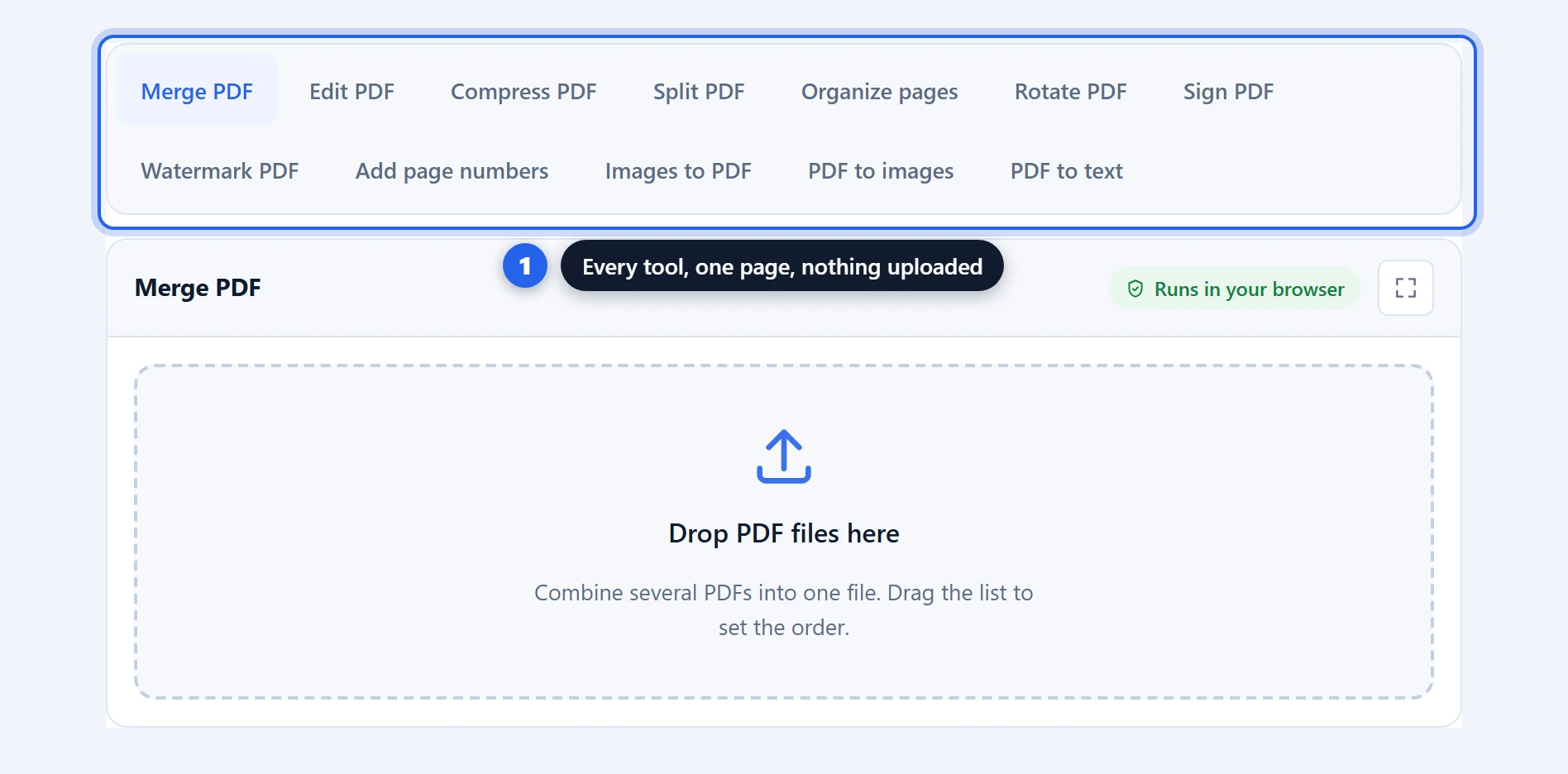
Convert PDF to JPG in your browser, free, without uploading the document. Turn every page into an image, or just the pages you need, at anything from a quick 72 DPI thumbnail to a 600 DPI archival scan. PNG output is available when you need transparency or perfectly sharp text. Each page is rendered by the same engine Firefox uses for its own PDF viewer, so what you get looks exactly like what you see.
PDF to JPG Free: Every Page in 4 Resolutions
How to convert PDF to JPG in 3 steps
Step 1 — choose a format. Drop in your PDF and pick JPG, PNG or — where your browser can write it — WebP. JPG suits pages with photographs and produces much smaller files; PNG suits text, diagrams and screenshots, where it keeps edges perfectly crisp; WebP lands smaller than JPG at the same quality and suits images headed for the web. For the lossy formats a quality control sets the trade-off — 80 to 92 is hard to tell apart from full quality.
Step 2 — choose a resolution and pages. Four resolutions cover the realistic range. Convert everything, or switch to “Only these” and name the pages you actually want.
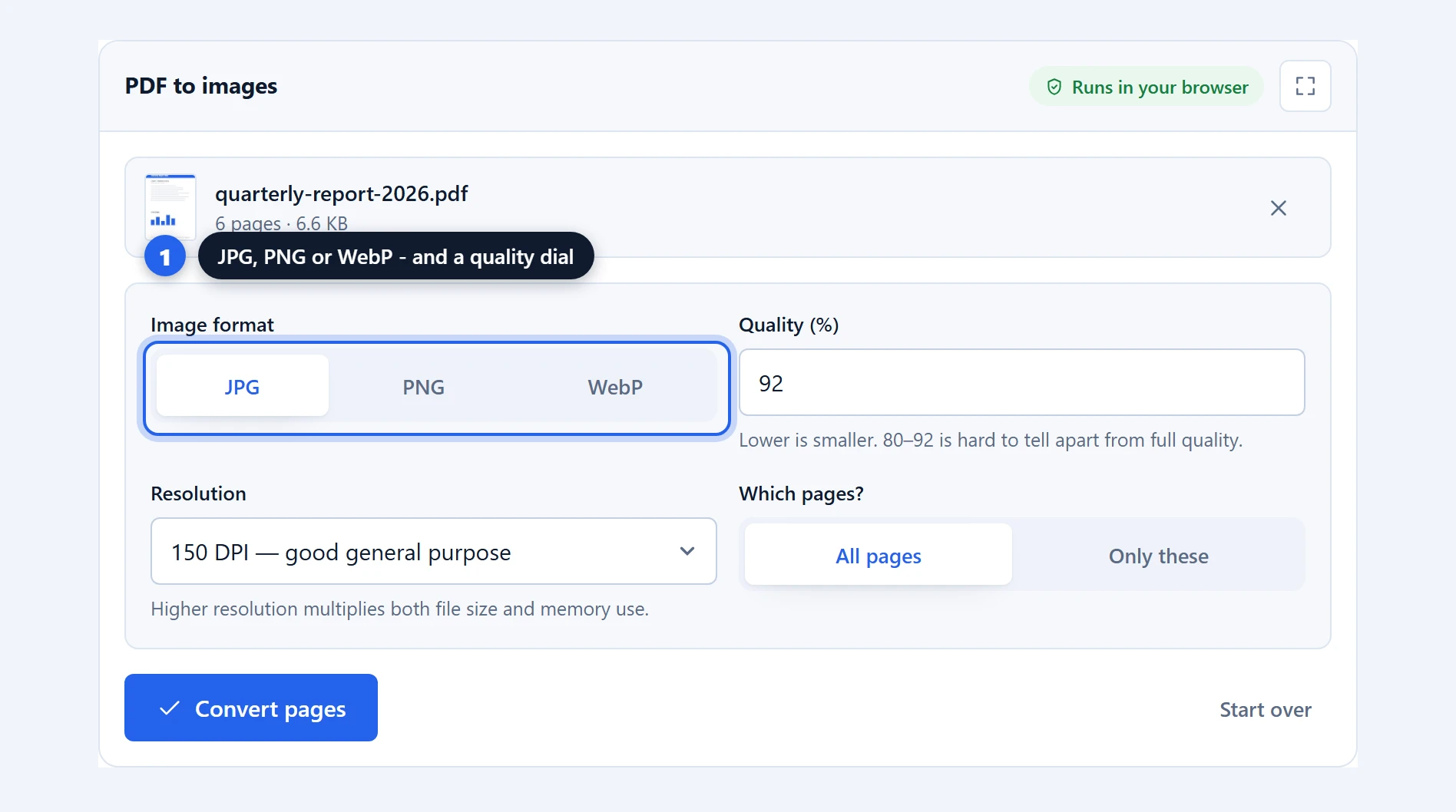
Step 3 — convert and save. A progress bar tracks each page. One page gives you one image; several arrive together in a zip, numbered so they stay in order.
Which resolution should you choose?
DPI means dots per inch: how many pixels are rendered for each inch of the original page. It is the setting that decides both how good the image looks and how large the file gets, and the two scale together sharply — doubling the DPI roughly quadruples the pixel count.
72 DPI renders an A4 page at roughly 595 × 842 pixels. Fine for a thumbnail, a preview, or a small image in a web page. Body text will be legible but soft, so this is not the setting for anything anyone needs to read closely.
150 DPI gives about 1240 × 1754 pixels for A4. This is the sensible default and the right answer most of the time: text is comfortably readable on any screen, images look clean, and file sizes stay reasonable. Use it for slides, documentation, email attachments and anything viewed rather than printed.
300 DPI reaches about 2480 × 3508 pixels, the standard for print. Choose it when the image will be printed at full size, placed in a designed layout, or when someone needs to zoom in on detail. Files get noticeably larger.
600 DPI is archival: roughly 4960 × 7016 pixels per A4 page. Reserve it for documents where fine detail genuinely matters, such as a signature or a stamp that will be examined. Files are very large and long documents at this setting can exhaust a browser’s memory.
If you are unsure, 150 DPI is right far more often than not. It is easy to convert again at a higher setting; it is not possible to add detail to an image that was rendered too small.
JPG, PNG or WebP?
JPG compresses by discarding detail the eye is unlikely to miss. It is excellent for photographs and produces files several times smaller than PNG. Its weakness is sharp edges: black text on white can pick up faint smudging around the letters, visible if you zoom in.
PNG is lossless. Every pixel is preserved exactly, so text stays perfectly crisp and diagrams keep their clean lines. The cost is size: a text page as PNG can be three to five times larger than the same page as JPG.
WebP compresses like JPG but more efficiently — typically a quarter to a third smaller at the same visible quality. Every modern browser displays it, so it is the right pick for images going onto a website. The option appears when your browser can write the format, which the current Chrome, Edge and Firefox all can; a few older browsers cannot, and there the choice simply stays JPG or PNG rather than producing a file whose name lies about its contents.
The short version: photographs and mixed pages, use JPG — or WebP if the images are for the web. Text, diagrams, screenshots and anything that must stay sharp, use PNG.
Why converting on your device matters
Converting a PDF to images means every page is rendered in full. Whatever is on those pages — figures, addresses, medical detail, contract terms — passes through whatever machine does the rendering. On a server-based converter, that machine is not yours.
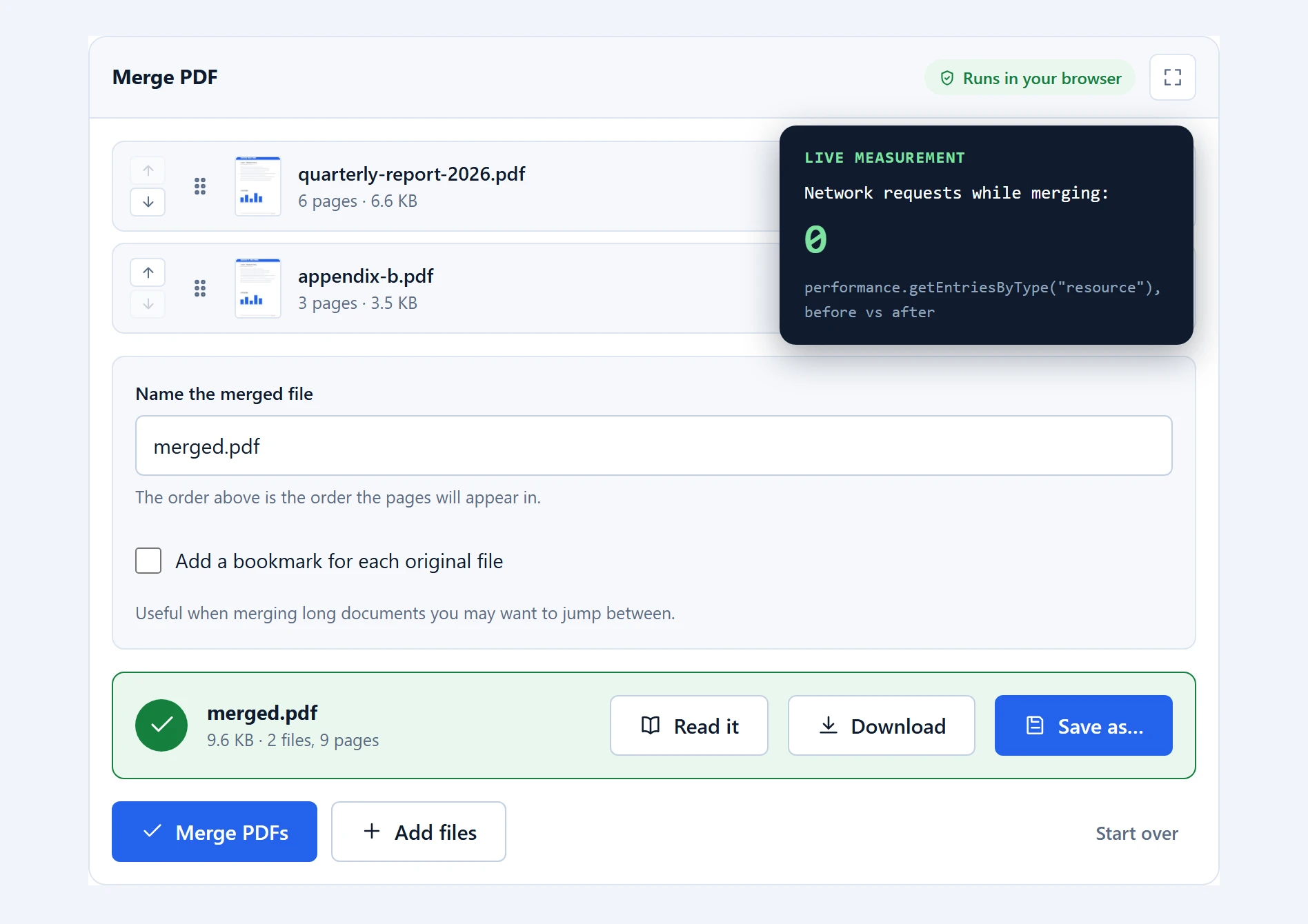
Here it is your own. PDF.js, the rendering engine inside Firefox, draws each page onto a canvas in your browser and the canvas is encoded as an image. Nothing is transmitted, and there is no upload wait before conversion begins.
One practical detail worth knowing: rendering runs in a mode that keeps working when the tab is in the background. Converting a long document at 300 DPI takes a while, and you can switch away and come back to find it finished rather than stalled.
Where it works well, and where it does not
The result is an image, so the text is gone. This is the nature of the conversion rather than a shortcoming, but people are caught out by it. An image of a page cannot be searched, selected or copied. If you want the words, use PDF to text instead.
High DPI on long documents is memory-hungry. A hundred pages at 600 DPI asks for several gigabytes. On a phone that will fail. Convert in batches with the page selector when the document is long and the resolution high.
Password-protected files are refused rather than partly rendered. Unlock the file first.
Unusual fonts fall back. If a PDF references a font it does not embed, the renderer substitutes the closest available. Text stays readable and correct, but spacing may differ slightly from another viewer. Well-made PDFs embed their fonts and are unaffected.
Troubleshooting
The tab froze or crashed. Almost always resolution multiplied by page count. Drop to 150 DPI, or convert a range at a time.
My text looks fuzzy. Either the DPI is too low for how you are viewing it, or JPG compression is softening the edges. Try 300 DPI, and switch to PNG for text-heavy pages.
I only wanted one page but got a zip. A zip means more than one page was converted. Check that “Only these” is selected and the range names a single page.
The images have white backgrounds where I expected transparency. JPG cannot store transparency at all. PNG output preserves it where the page itself has none.
The files are much bigger than the PDF. Expected. A PDF stores text as instructions; an image stores every pixel. A 200 KB text document can easily become several megabytes of images.
Frequently asked questions
Is this PDF to JPG converter free?
Yes. No account, no page cap, no watermark on the images, and no limit on how often you use it.
Is my PDF uploaded to convert it?
No. Every page is rendered in your browser and encoded there. Nothing is transmitted, which also means there is no upload wait before conversion starts.
What DPI should I choose?
150 DPI suits most purposes: readable on any screen, sensible file sizes. Use 300 DPI for printing, 72 DPI for thumbnails, and 600 DPI only when fine detail genuinely matters.
Should I choose JPG or PNG?
JPG for pages with photographs, since files are much smaller. PNG for text, diagrams and screenshots, since it is lossless and keeps edges perfectly sharp. When the images are for a website, WebP beats JPG on size at the same quality — the option appears when your browser can write the format.
Why did my pages arrive as a zip file?
Browsers can only save one file at a time, so multiple images are bundled into a single zip. Filenames include zero-padded page numbers so they stay in order.
Can I convert only certain pages?
Yes. Switch to “Only these” and enter a range such as “1-3, 7”. This is also the practical way to convert a long document at high resolution without exhausting memory.
Will the text in the images still be selectable?
No. Once a page is an image, its text is just pixels. To get the words out, use the PDF to text tool instead.
Can I convert a whole book this way?
On a desktop, yes, though at high DPI it is worth doing in batches. On a phone, a few dozen pages at 150 DPI is a realistic ceiling before memory becomes the limiting factor.
Related PDF tools
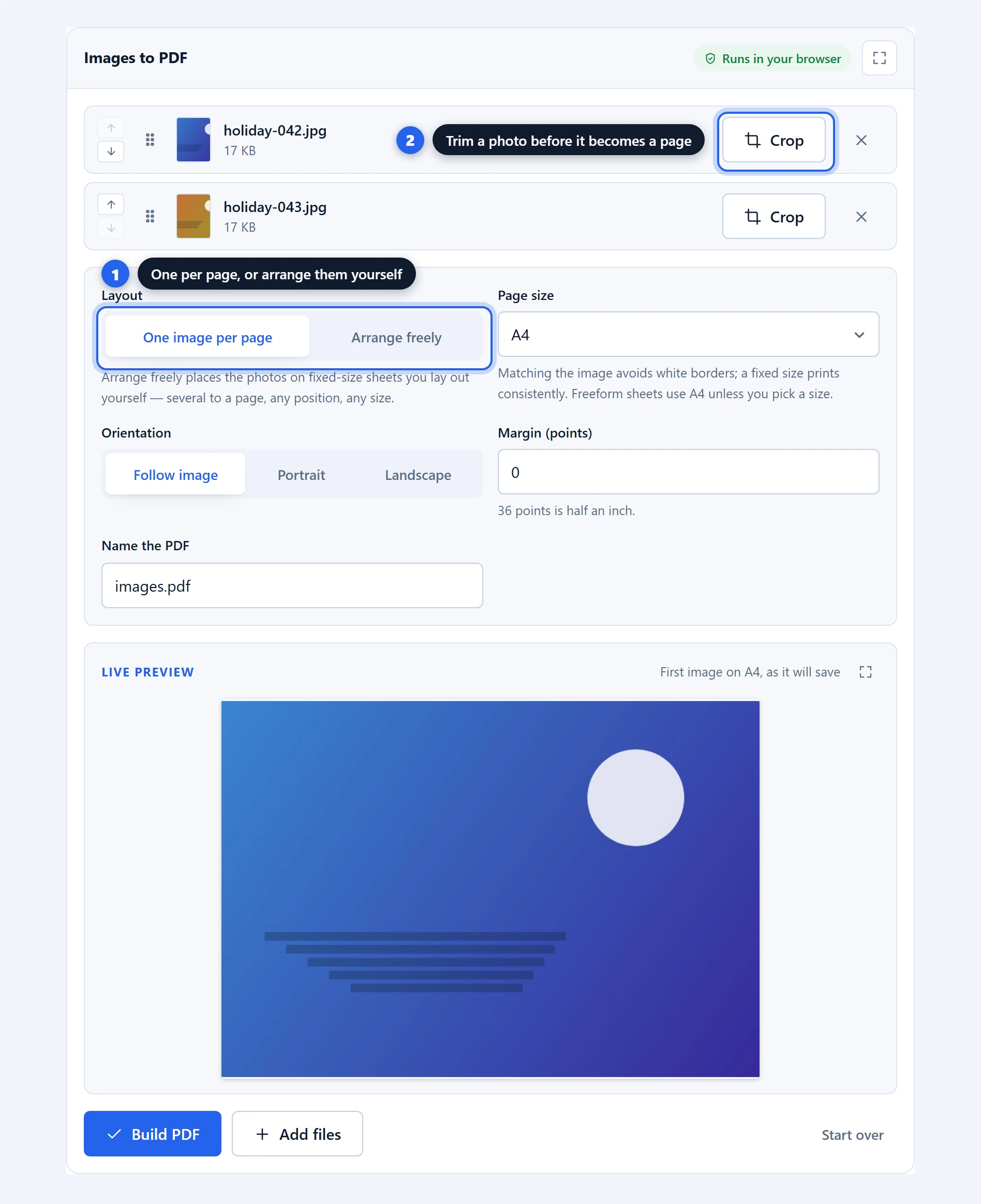
Going the other way, images to PDF turns photos back into a document. For the words rather than the pixels, PDF to text. To convert only part of a document, split PDF first. Everything is on the PDF tools page.