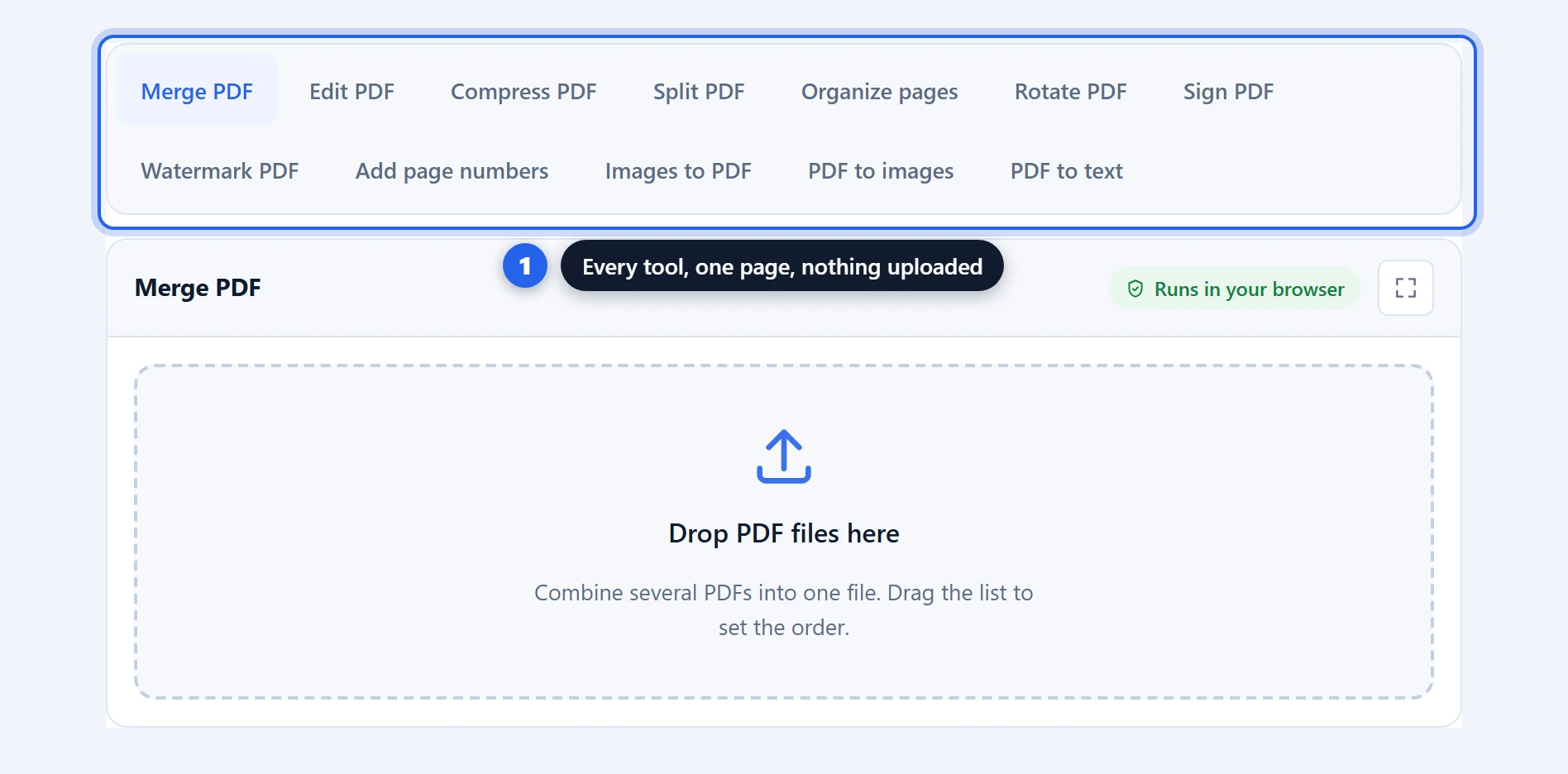
Convert PDF to text in your browser, free, without uploading the document — scans included. A digital PDF’s text layer is extracted directly; a scanned page, which is only a photograph of text, is read by OCR running on your device. Every word comes out as a plain .txt you can search, paste into a document, feed to another program, or simply read without a PDF viewer. Page markers keep long extractions navigable, and an optional setting rejoins lines that were only broken because the page ran out of width.
PDF to Text Free: Extract Everything in 1 Step
How to extract text from a PDF in 2 steps
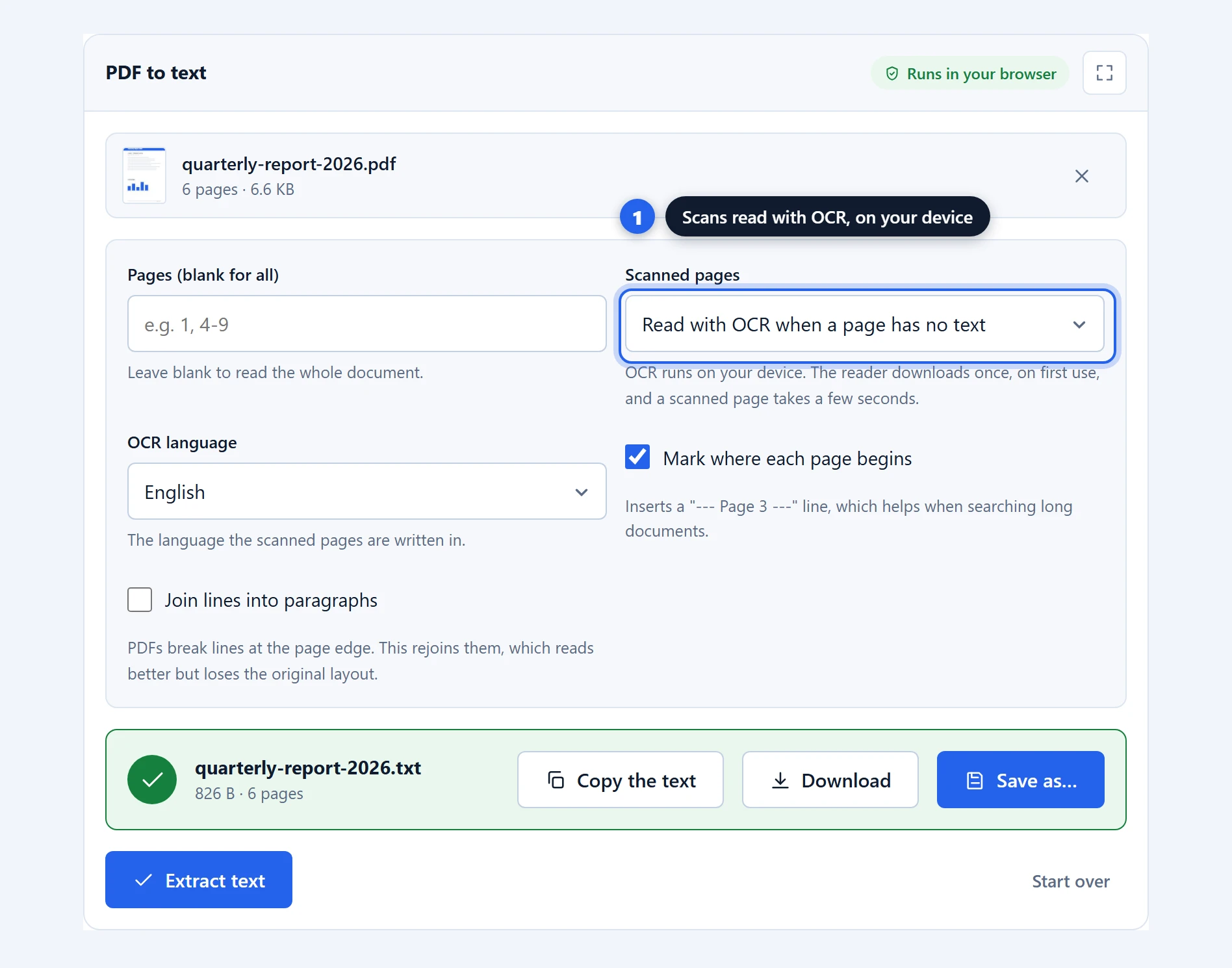
Step 1 — set the options. Drop your PDF in and decide whether you want page markers and whether lines should be rejoined into paragraphs — both are explained below, and the defaults suit most documents. Only need part of a long document? Name the pages, like “1, 4-9”, and everything else is skipped. Scanned pages need no setting at all: by default, any page without a text layer is read with OCR automatically — just pick the document’s language if it is not English.
Step 2 — extract and save. Click “Extract text”. A progress bar tracks each page — OCR pages take a few seconds each — and you get a .txt file named after the original, or press “Copy the text” on the result and paste it straight where it is going, no file involved.
The options, and what they do
Pages. Blank means the whole document. A list like 1, 4-9 reads only those pages — the practical way to pull one chapter out of a long report, and the page markers keep their real numbers so --- Page 7 --- still means page 7 of the original.
Scanned pages. The default reads any page without a text layer using OCR, so a scanned contract or a digital report with a scanned appendix both come out complete. “OCR every page” ignores the text layer entirely — useful for the occasional PDF whose embedded text is garbage even though the pages look fine. “Skip them” extracts the text layer only, which is the right choice when you specifically want to know what the file really carries.
OCR language. The language the scanned pages are written in — recognition guesses letters, and it guesses far better when it knows the alphabet and dictionary it is looking at. The reader and its language model download once, on first use, and are cached after that.
Mark where each page begins. Inserts a line reading --- Page 3 --- at the start of each page’s text. On by default, and worth keeping for anything long. When you later search the extraction for a phrase, the marker tells you which page of the original to open. Turn it off when the text is going straight into another document, where the markers would be noise.
Join lines into paragraphs. Off by default, and worth understanding before you turn it on. PDFs have no concept of a paragraph: they store lines of text at fixed positions. Extraction therefore produces text broken at exactly the point each printed line ended, which looks ragged in a text editor and reflows badly if you paste it anywhere.
With this on, the tool rejoins lines that appear to be continuations, using punctuation as its guide: a line ending in a full stop, question mark or colon is treated as a genuine ending, while one ending mid-sentence is joined to the next. The result reads far better in a word processor. The cost is that the original layout is lost, which matters if the line breaks were meaningful — poetry, addresses, code, or tabular data.
Rule of thumb: reading or reusing the prose, turn it on. Preserving structure, leave it off.
Scanned PDFs contain no text — so OCR reads them
This is the single most common surprise with any text extractor, so it is worth explaining properly.
PDFs come in two kinds that look identical on screen. A digital PDF — exported from Word, a browser, or design software — stores actual text: characters, fonts and positions. Extraction reads that directly and gets a perfect result.
A scanned PDF is a photograph of paper wrapped in a PDF container. It looks like a document, but as far as any software is concerned it is a picture. There are no characters to extract, only pixels arranged in the shape of letters. Selecting text in your PDF viewer is the quickest test: if you cannot highlight a word, there is no text layer there.
For those pages this tool switches to optical character recognition: the page is rendered as an image and read by an OCR engine, which recognises the letter shapes and types them back out. The engine is a WASM build of Tesseract, the same open-source recogniser behind a great deal of commercial OCR, and it runs on your device — the page images it reads never leave your browser.
Two honest caveats. Recognition is a reading, not a copy: on a clean, straight scan of printed text it is very accurate, but expect the odd wrong character, and check numbers before relying on them. And it takes real work — a few seconds per page, longer on a phone — where text-layer extraction is instant.
Why extraction on your device is the right default
Text extraction is often the first step in an analysis: pulling clauses out of contracts, figures out of statements, notes out of research papers. It runs over the entire document, every word of it.
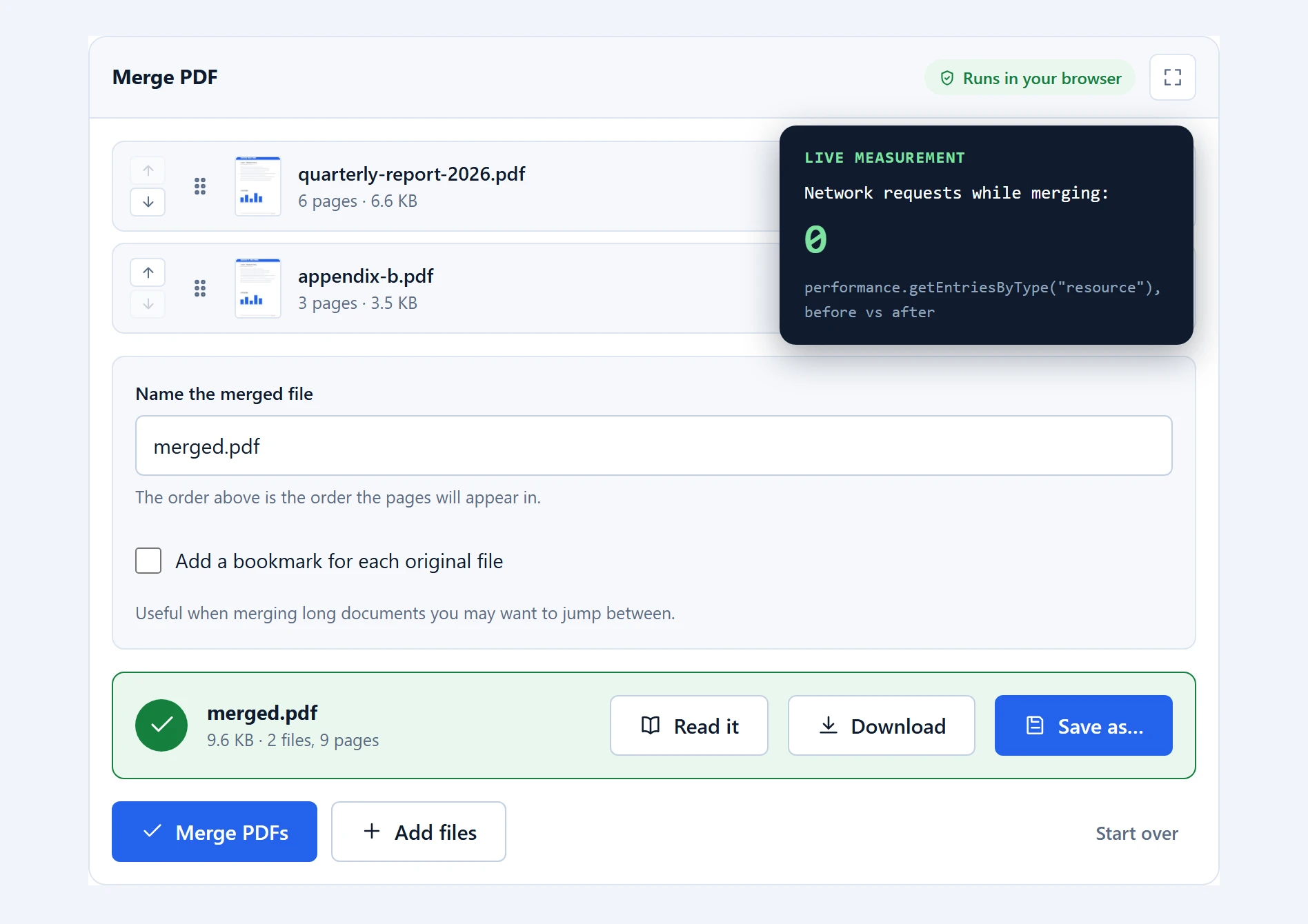
Here that happens in your browser. PDF.js reads the text layer page by page and assembles it, and the result is offered to you as a file. Nothing is transmitted and nothing is retained. OCR follows the same rule with one clarification worth making: the first time a scanned page needs reading, the browser downloads the OCR engine and its language model — a few megabytes, cached after that. That download brings the software to your device; the document, and the page images the engine reads, never go anywhere.
The reconstruction is a little cleverer than reading characters in order. PDFs store text in whatever sequence the producing program happened to write it, which is not always reading order. The tool tracks the vertical position of each fragment and inserts a line break when it jumps, which is the difference between readable output and one long run-on paragraph.
Where it works well, and where it does not
Formatting does not survive, by definition. A .txt file has no bold, no italics, no headings, no font sizes. What you get is the words. That is usually the point of asking for text, but it is worth stating.
Multi-column layouts can interleave. Academic papers and newspapers store their columns as separate blocks, and the reading order is not always what the eye follows. Text may come out jumping between columns. Extracting one column at a time by splitting the pages first sometimes helps; often it is quicker to fix the result by hand.
Tables lose their shape. A table in a PDF is text positioned to look like a grid, with no underlying structure. Extraction gives you the cell contents in roughly the right order but without rows and columns. Nothing that reads a PDF text layer can do better; recovering real tables needs a different kind of analysis.
Encrypted files are refused. Unlock the document in your reader first.
Ligatures occasionally need cleaning. Some fonts store “fi” and “fl” as single glyphs, which can come out as odd characters depending on how the PDF was made. A find-and-replace in your text editor fixes it in seconds.
OCR reads print, not handwriting. Typed and printed pages recognise well; handwriting, decorative fonts, and low-resolution or skewed scans degrade quickly. Where the scan is rough, expect to proofread the result rather than trust it.
Troubleshooting
“This PDF holds no extractable text.” You are running with scanned pages set to “Skip them” on a document that is all scan. Switch the setting back to OCR and run again — that is exactly what it is for.
OCR output has wrong characters. Check the OCR language matches the document first — English recognition applied to German text mangles every umlaut. Then look at the scan itself: low resolution, skew and shadows all cost accuracy.
The text is jumbled or out of order. Usually a multi-column layout, where the PDF’s internal order differs from reading order. Splitting the pages and extracting smaller sections sometimes improves it.
Every line breaks in an odd place. That is the original line layout showing through. Tick “Join lines into paragraphs” and extract again.
Some pages came out empty. With OCR on, that means recognition genuinely found nothing it could read on them — a blank page, or a photograph without text. The summary counts them, so nothing disappears silently.
Strange characters appear where letters should be. A font using non-standard character mapping. Usually confined to a few ligatures and fixable with find-and-replace.
Frequently asked questions
Is this PDF to text tool free?
Yes. No account, no page limit, and no cap on how often you use it. Extraction happens on your device, so there is nothing to meter.
Is my document uploaded?
No. The text layer is read in your browser and assembled there, and OCR runs in your browser too. The only download is the OCR engine itself, fetched once and cached — the document, and the page images the engine reads, never leave your device.
Can it read scanned PDFs?
Yes. Pages without a text layer are read with OCR automatically — the recognition runs on your device, with the engine downloaded once and cached. Pick the document’s language for the best result, and expect a few seconds per scanned page. On clean printed scans accuracy is high; handwriting and rough scans degrade it.
What does “join lines into paragraphs” do?
PDFs store fixed lines, not paragraphs, so raw extraction breaks text wherever each printed line ended. This option rejoins lines that continue mid-sentence, which reads far better in a word processor but discards the original line layout.
Does the formatting survive?
No. A .txt file holds plain characters only — no bold, italics, headings or fonts. If you need formatting, converting to a word processor format is a different and much harder job.
Can it extract tables properly?
Not as tables. A PDF table is text positioned to look like a grid, with no underlying row and column structure. You get the cell contents in roughly the right order, without the layout.
Are page markers included?
By default, yes. A line reading “— Page 3 —” precedes each page, which makes long extractions much easier to navigate. You can switch it off if the text is going straight into another document.
Can I extract text from a password-protected PDF?
Not directly. Open it in your PDF reader with the password, save an unlocked copy, and extract from that.
Related PDF tools
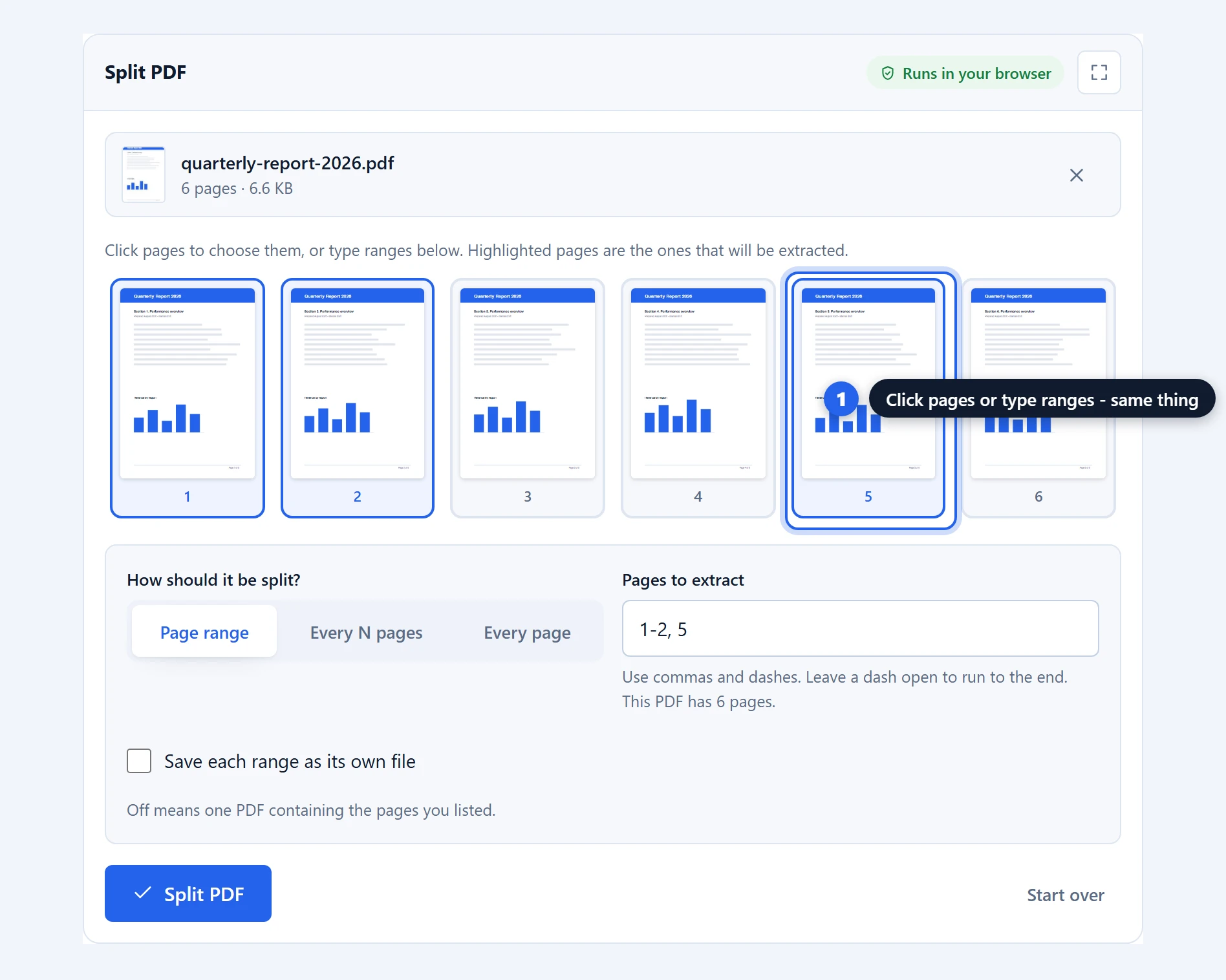
If the words are not what you need, PDF to images gives you the pages as pictures instead. To extract text from part of a document, split PDF first. They are all on the PDF tools page.