Split PDF files in your browser, free, without uploading anything. Whether you need one chapter out of a long report, a hundred-page scan broken into manageable pieces, or every page saved as its own file, all three happen on your own device. You can pick pages by clicking their thumbnails rather than guessing at numbers, and hovering any page enlarges it so you can actually read what you are about to extract.
Split PDF Free: 3 Easy Ways, No Upload Needed
How to split a PDF in 3 steps
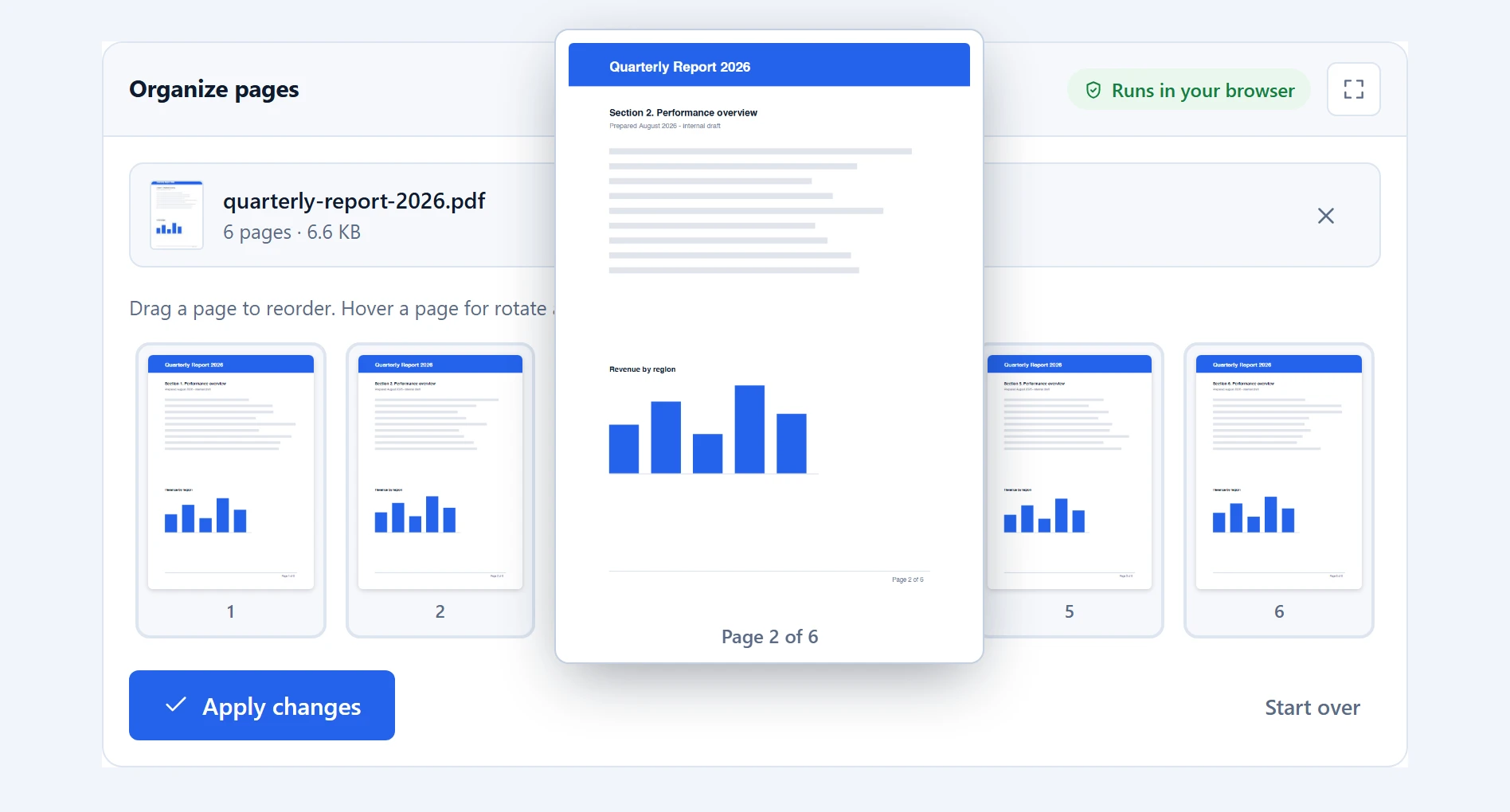
Step 1 — open your file. Drop a PDF onto the tool or click to browse. Every page appears as a thumbnail. Hover any of them and it enlarges beside the grid, large enough to read the heading and tell page 7 from page 8 without opening the document elsewhere.
Step 2 — choose your pages. Click the pages you want and they highlight. The range field underneath fills in as you click, so clicking pages 1, 2 and 5 writes “1-2, 5”. You can type in that field instead if you prefer, and the matching thumbnails light up as you type. The two directions stay in sync, so use whichever suits the job.
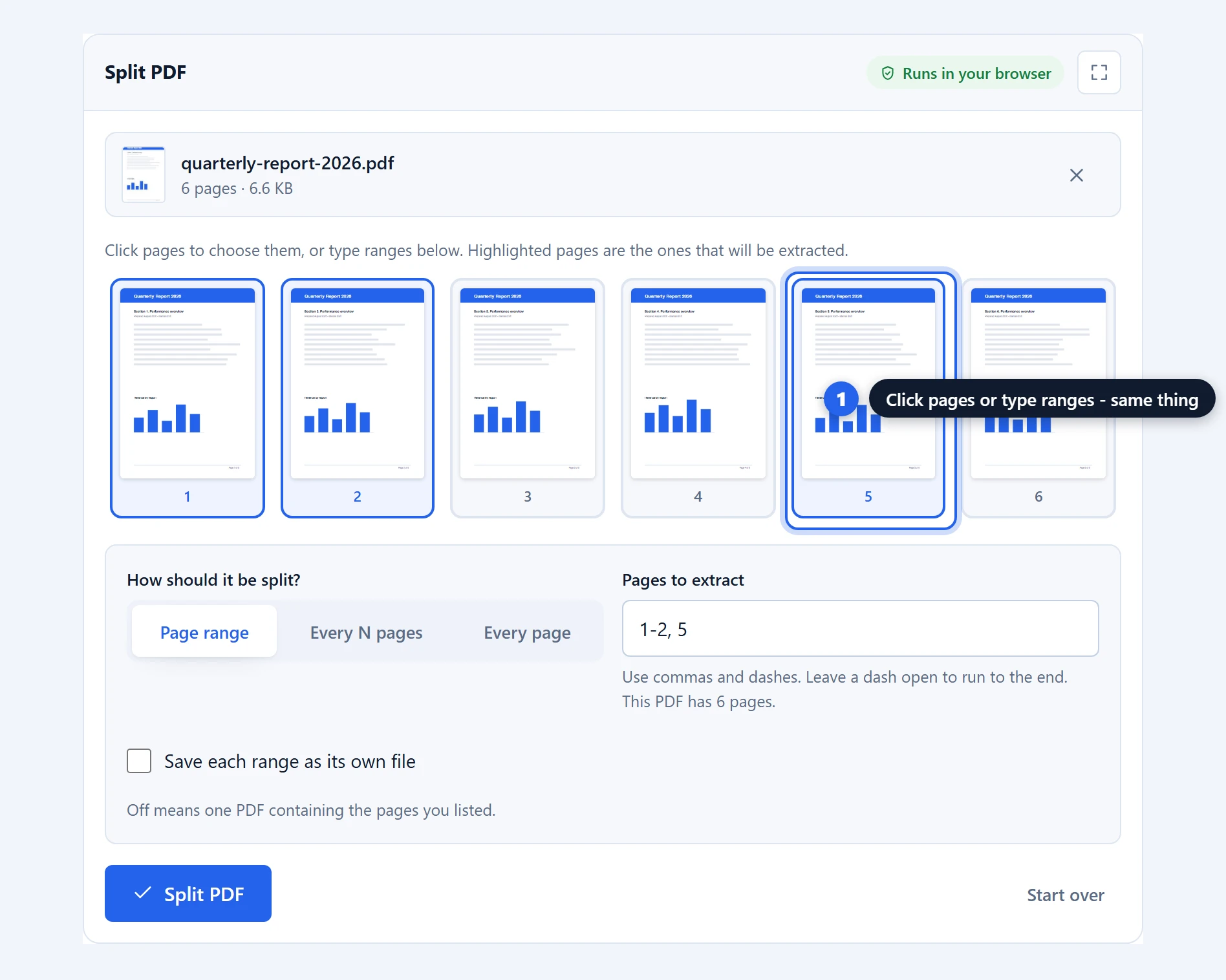
Step 3 — split and save. Click “Split PDF”. If your choice produces a single document you get one file. If it produces several, they arrive together in a zip, named after the original with page numbers appended so nothing is ambiguous later.
The three ways to split a PDF
Most tools give you one splitting mode and make you work around it. This one has three, because the three jobs people actually bring to a splitter are genuinely different.
Page range is the everyday choice. You name the pages you want and get them as one document: a chapter, an invoice out of a batch, the two pages of a form somebody actually needs. The range syntax accepts commas and dashes together, so “1-3, 7, 12-” means the first three pages, page seven, and everything from twelve to the end. Leaving a dash open like that is handy when you do not know or care where the document finishes.
Every N pages chops a long document into equal pieces. Set it to 10 and a 95-page file becomes ten documents, the last holding the five left over. This is the mode for splitting a scanned book into chapters of roughly even length, or breaking something too large to email into parts that fit.
Every page gives you one file per page. It is the right answer surprisingly often: separating a batch of scanned receipts, splitting a merged set of certificates back into individuals, or preparing pages to be re-ordered elsewhere. A six-page file becomes six PDFs in a zip.
There is also a checkbox on the page-range mode: “Save each range as its own file”. Off, “1-3, 7” gives you one four-page document. On, it gives you separate files. The difference matters when you are extracting things that belong to different people.
Why splitting a PDF in your browser is safer
Splitting is often the most sensitive PDF job of all, and it is worth naming why. People split documents precisely because they want to share part and withhold the rest: one payslip from a year’s worth, one clause from a contract, one patient’s page from a batch. Uploading the whole document to a stranger’s server in order to keep most of it private is an odd bargain.
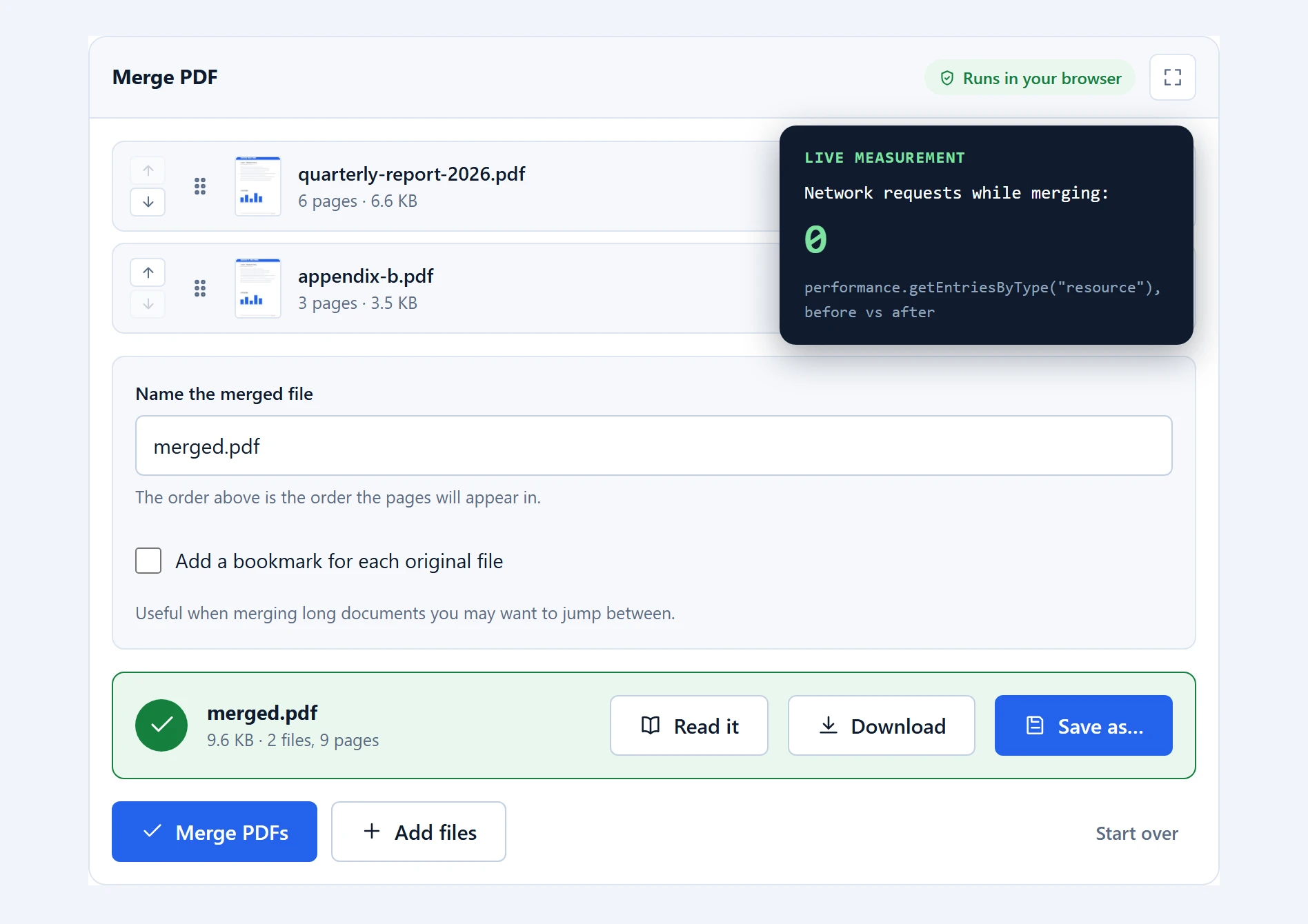
Here the whole file stays on your device. It is read into memory by pdf-lib, the pages you asked for are copied into a new document, and the result is handed straight back to you. Nothing is transmitted, so there is no retention window to worry about and nothing to delete afterwards.
You can confirm it in about thirty seconds. Open your browser’s network tab with F12 and split a file while watching: nothing goes out. Or load this page, switch off your connection entirely, and split offline. Both work, because after the first visit the engine is cached in your browser and there is nothing left for the network to do.
Understanding page ranges
The range field is small but it does more than it looks. A few things worth knowing:
- Order does not matter. “5, 1-2” and “1-2, 5” produce the same document, with pages in their original sequence. The tool sorts and de-duplicates for you, so overlapping ranges like “1-5, 3-7” simply give you pages 1 to 7 once each.
- Open-ended ranges work in one direction. “12-” means twelve to the end. There is no equivalent for “everything up to page 5” — write “1-5”.
- Out-of-range numbers are caught immediately. Ask for page 12 of a six-page document and the tool says so plainly rather than silently giving you fewer pages than you asked for.
- Clicking is often faster than typing. For scattered pages out of a long scan, clicking the thumbnails is quicker and far less error-prone than counting.
Where splitting works best, and where it does not
Extracted pages are exact copies. Text stays selectable, images keep their resolution, and nothing is re-compressed, so a page pulled from a document is identical to the page it came from.
Encrypted files are refused. A password-protected PDF stops the tool with a clear message rather than producing damaged output. Unlock it in your usual reader first.
Splitting does not shrink files as much as people expect. If a scanned document embeds one large font or image set shared across pages, each split file may carry a copy of what it needs. Ten pages out of a hundred will usually be far smaller than the original, but not necessarily a tenth of the size.
Links between pages can break. Internal links, such as a table of contents pointing at page 40, cannot survive if page 40 is not in the file you kept. The link stays visible but stops going anywhere. This is true of every PDF splitter, server-based ones included.
Very large scans on phones. Rendering thumbnails for a 400-page scan is memory-hungry on a phone. The tool warns you when a file looks too large for the device rather than letting the tab die halfway through.
Split PDF vs organize pages: which do you want?
These two tools overlap enough to confuse people, so here is the distinction in one line: split takes pages out into new files, organize edits the document in place.
Use split when you want a subset as a separate document, or when one file needs to become several. Use organize pages when you want one file back with some pages removed, some rotated, and the rest intact. If you find yourself splitting a document only to merge most of it back together, organize is the tool you actually wanted.
Troubleshooting
“This PDF has 6 pages, so 9-12 is out of range.” Exactly what it says: you asked for pages that do not exist. The message always tells you the real page count so you can correct it in one go.
I got a zip and I wanted one PDF. A zip means your settings produced more than one document. Check whether “Save each range as its own file” is ticked, or whether you are still in “Every page” mode from a previous run.
The thumbnails are taking a long time. Every page is being rendered individually, so a very long document takes a moment. The pages fill in progressively rather than all at once, and you can start selecting before they all finish.
Nothing happens when I click “Split PDF”. Check that the range field is not empty and does not contain a typo; errors appear directly above the tool in red.
Frequently asked questions
Is this split PDF tool free?
Yes, with no limits at all: no cap on pages, file size, or how many times you use it, and no account. Your device does the work, so there is nothing for us to meter.
Is my PDF uploaded when I split it?
No. The file is read and split entirely in your browser. Check it yourself with the network tab open, or split a file with your internet disconnected after the page has loaded once.
Can I extract pages that are not next to each other?
Yes. Click any combination of page thumbnails, or type them with commas, for example “2, 9, 14”. They come out as one document in their original order, or as separate files if you tick “Save each range as its own file”.
How do I split a PDF into equal parts?
Choose “Every N pages” and set how many pages each file should hold. A 95-page document split every 10 pages produces ten files, the last containing the remaining five.
Why did my split files arrive as a zip?
Because your settings produced more than one document, and browsers can only save one file at a time. Everything is bundled into a single zip named after the original file.
Does splitting reduce quality?
No. Pages are copied exactly as they are. Text stays selectable, images keep their resolution, and nothing is re-compressed.
Can I split a password-protected PDF?
Not directly. The tool refuses encrypted files rather than producing broken output. Open the file in your PDF reader with its password, save an unlocked copy, then split that.
What is the difference between splitting and organizing pages?
Splitting takes pages out into new files. Organizing edits the document in place, letting you delete, rotate and keep the rest as one file. If you would only merge the pieces back together afterwards, use the organize tool instead.
Related PDF tools
Once you have your pages, merge PDF puts documents back together in any order, and add page numbers renumbers an extract that no longer starts at page one. The full set lives on the PDF tools page.