By ANUPRESS Team · Last reviewed July 2026 · 18 min read
Your WordPress site is probably slower than it needs to be, and it’s probably not your fault. Most sites lose a few seconds the boring way: a theme shipping CSS you’ll never use, a header image nobody compressed, a caching plugin that got installed and never configured. None of that looks dramatic on its own. Added together, it’s the difference between a visitor staying and a visitor leaving.
This WordPress speed optimization checklist is built to fix that, and to keep working no matter when you read it. Google will keep adjusting its ranking signals, browsers will keep changing how they measure “fast”, and today’s favorite caching plugin will eventually get replaced by something else. The physics underneath don’t change: smaller files load faster, fewer server requests load faster, and a server sitting close to your visitor beats one on the other side of the planet. Every fix below is built on one of those three ideas, which is why it holds up as well in five years as it does today.
We’ve organized it into eleven categories, roughly in the order you should tackle them: hosting first, since it sets a ceiling on everything else, then caching, images, code, database, themes and plugins, fonts, server-level tweaks, mobile-specific fixes, Core Web Vitals, and ongoing maintenance. Each section ends with a short checklist you can work through directly. Short on time? Jump to the quick-reference recap near the end and start there.
This post contains an affiliate link to Hostinger. If you buy through it, ANUPRESS may earn a commission at no extra cost to you, and it doesn’t change what you pay. How this works.
In this checklist
- Why WordPress speed actually matters
- Test your site before you touch anything
- 1. Get the hosting foundation right
- 2. Set up caching properly
- 3. Optimize every image
- 4. Clean up CSS and JavaScript
- 5. Optimize the database
- 6. Audit your theme and plugins
- 7. Optimize web fonts
- 8. Server-level and advanced fixes
- 9. Mobile-specific speed optimization
- 10. Fix Core Web Vitals directly
- 11. Keep it fast: ongoing maintenance
- Recommended tools and plugins
- Common mistakes that undo your work
- Frequently asked questions
- Quick-reference checklist
Why WordPress speed actually matters
Speed isn’t a vanity metric. It connects to three things site owners actually care about: rankings, revenue, and whether people stick around long enough to read what you wrote.
On the ranking side, Google has used page experience, measured through Core Web Vitals, as a ranking signal since 2021, and that hasn’t gone away. It’s not the biggest factor in the algorithm (content relevance and backlinks still outweigh it), but among pages that are otherwise similar in quality, the faster one has an edge. Google has also indexed and evaluated sites mobile-first for years now, which means your mobile performance, not your desktop performance, is usually what gets judged first.
On the revenue side, the connection is more direct. Slow pages mean fewer ads actually render before a visitor scrolls past or leaves, and fewer pages viewed per session means fewer total ad impressions. If you run AdSense or any other ad network, a faster site is close to a free revenue increase: nothing about your content changes, but more of your existing traffic actually experiences it.
Then there’s the plain human factor. A visitor who clicks a link expecting information and instead watches a blank screen for four seconds doesn’t wait around to find out if it was worth it. They leave, and they leave with a slightly worse opinion of your site than if they’d never visited at all. That’s a real cost even if you never open an analytics dashboard.
None of this means obsessing over the last 100 milliseconds. Diminishing returns are real: getting a page from 6 seconds to 2.5 seconds matters enormously, getting it from 1.2 seconds to 0.9 seconds mostly doesn’t. The goal here is to get comfortably past the thresholds that matter, not to chase a perfect lab score no real visitor will ever notice.
Test your site before you touch anything
Optimizing without measuring first is how people end up installing five plugins that fight each other. Run a baseline test, note the numbers, then re-test after every meaningful change so you actually know what worked.
Three tools cover almost everything you need:
Google PageSpeed Insights matters most for SEO, because it pulls two kinds of data: a lab test run the moment you check, and real field data from actual Chrome users who visited your site in the past 28 days, once enough traffic exists to report it. The field data is what Google uses for ranking purposes, not the lab score, a detail a lot of guides skip.
GTmetrix gives you a fuller waterfall view of exactly which requests are slow, plus historical tracking with a free account, useful for spotting a regression the week after you installed something new.
WebPageTest is the deep end: multiple test locations, connection-speed simulation, and filmstrip views showing exactly what a visitor sees frame by frame as your page loads. Overkill for a quick check, genuinely useful when you’re chasing one specific problem.
Whichever tool you use, three metrics keep coming up: Largest Contentful Paint (LCP), how long the biggest visible element takes to render; Interaction to Next Paint (INP), how quickly the page responds when someone clicks or taps something; and Cumulative Layout Shift (CLS), how much content jumps around while the page loads. Together these make up Core Web Vitals, and Google’s current “good” thresholds are LCP under 2.5 seconds, INP under 200 milliseconds, and CLS under 0.1. We come back to fixing each one specifically in section 10.
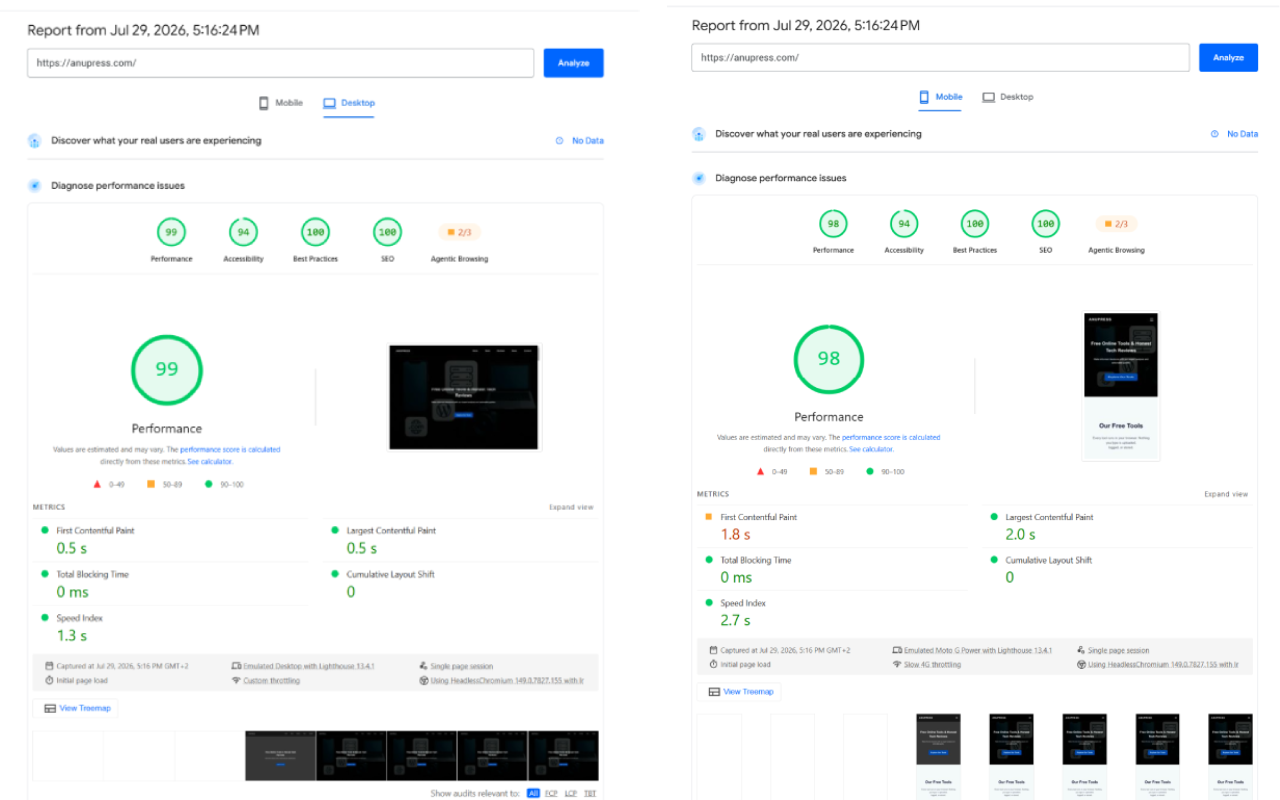
Test mobile and desktop separately. They’re scored differently, and on WordPress especially, they can tell two very different stories.
The complete WordPress speed optimization checklist
This is the core of it: eleven categories, worked through roughly in priority order. Hosting comes first because it sets a hard ceiling nothing else can fix around. Everything after that stacks on top of whatever foundation your host provides. Work through each section’s checklist, re-test after the ones touching caching or images specifically since those tend to move the needle most, and don’t feel obligated to finish all eleven in one sitting.
1. Get the hosting foundation right
No plugin can fix a slow server. If your host is overselling shared resources or running an outdated stack, you can minify every file on the site and still post a mediocre score. Hosting is the one category that sets a ceiling on everything else in this checklist, which is why it goes first.
A few things actually matter here: server-level caching, not just plugin-level caching (hosts running LiteSpeed with LiteSpeed Cache, or Nginx with FastCGI caching, handle a meaningful chunk of caching before WordPress even loads, faster than any plugin doing the same job in PHP); a data center close to the majority of your actual readers, not close to you personally; the latest stable PHP version your plugins support, since WordPress.org’s requirements page tracks a minimum but “minimum” and “recommended” aren’t the same thing, and that recommendation shifts every year or two; and object caching availability, Redis or Memcached support, even as an optional add-on, which makes a real difference on database-heavy sites, particularly anything running WooCommerce or a membership plugin.
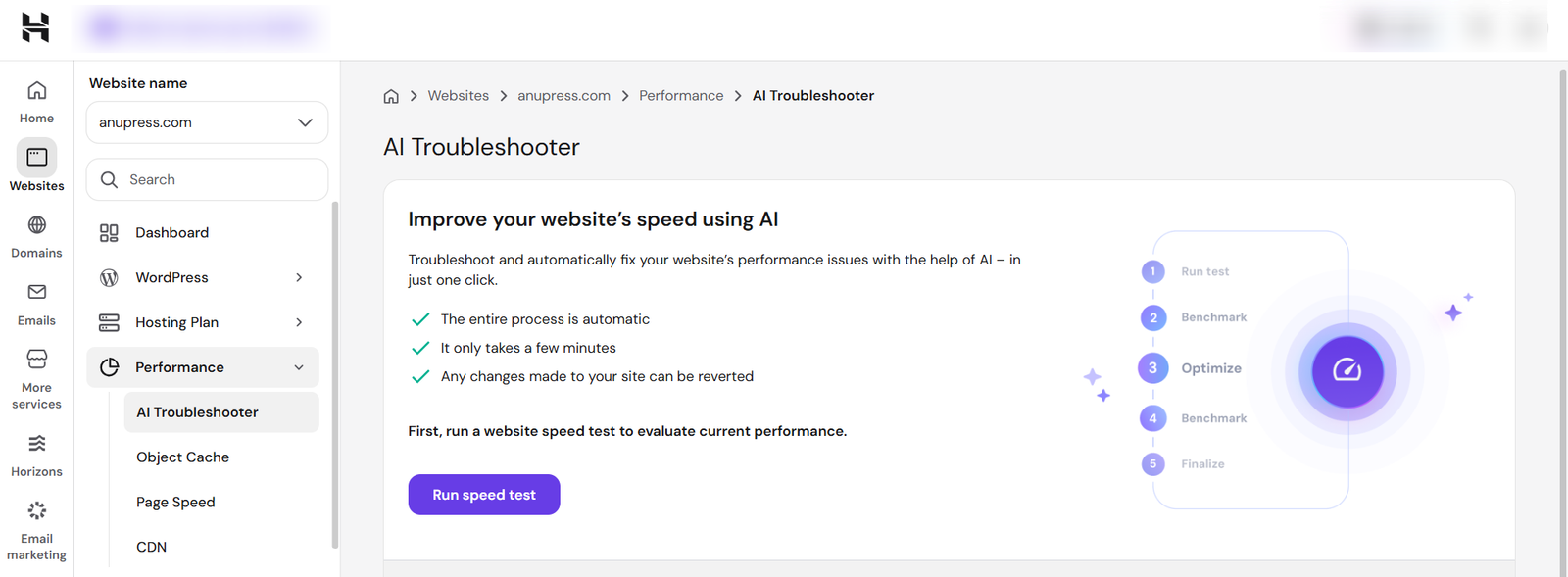
If you’re hosting on Hostinger specifically, there’s a tool worth knowing about before installing a single caching plugin. Inside hPanel, under your website’s Performance section, there’s an AI Troubleshooter: click Run Speed Test, it profiles your actual WordPress install, then a second button, Optimize Performance, applies the fixes it found automatically. It shows a before-and-after comparison, and you can revert if anything looks off. We’ve found it particularly useful for mobile scores specifically, since a lot of manual optimization guides (including parts of this one) are written with desktop in mind first and treat mobile as an afterthought. This tool profiles both from the start.
We go deeper on hPanel, real renewal pricing, and where Hostinger’s performance actually lands in independent testing in our full Hostinger review. If you’re weighing it against a pricier managed option first, our SiteGround vs Hostinger comparison breaks down the actual trade-off instead of just declaring a winner.
Hostinger’s hPanel AI Troubleshooter
A one-click speed test and auto-optimizer built into hPanel’s Performance section, with a compare and revert option. Particularly useful for pushing up mobile scores without touching code by hand.
Try Hostinger’s AI Troubleshooter →Affiliate link · read the full Hostinger review first if you want the complete picture on pricing and performance.
Section checklist
- Confirm your host runs server-level caching (LiteSpeed, Varnish, or Nginx FastCGI)
- Pick the data center closest to your actual audience, not to you
- Run the latest stable PHP version your plugins support
- Check whether Redis or Memcached object caching is available
- On Hostinger, run the Performance section’s AI Troubleshooter before manually installing a caching plugin
- Test a shortlist of hosts on a real WordPress install before committing to a multi-year renewal term
2. Set up caching properly
Caching is the single biggest-impact fix on this list, and also the one people most often get wrong by installing too much of it.
Four layers are worth understanding. Page caching stores a fully rendered HTML version of a page so WordPress doesn’t rebuild it from the database on every visit. Browser caching tells a returning visitor’s browser to reuse files it already downloaded instead of asking your server again. Object caching stores the results of expensive database queries in memory, this is where Redis or Memcached comes in. CDN caching serves static files from a server physically close to the visitor instead of your origin server.
Pick one caching plugin and configure it properly rather than installing several and hoping they average out. WP Rocket, LiteSpeed Cache, and WP Super Cache all handle page and browser caching well; which one fits depends mostly on your hosting stack (LiteSpeed Cache needs a LiteSpeed server to run its full feature set).
If you’re setting browser caching manually rather than through a plugin, a rule like this on Apache servers tells browsers how long to hold onto different file types before re-checking with the server:
Set long expiry times for anything that rarely changes, images, fonts, versioned CSS and JS, and shorter times for HTML itself. If you run WooCommerce, exclude the cart, checkout, and my-account pages from page caching specifically, since caching a page that needs to show live cart contents creates a genuinely confusing bug, not just a performance quirk. After any theme, plugin, or content update, clear the cache and re-test; a cached old version of a page after a fix is one of the most common “why didn’t this work” support tickets in WordPress.
Section checklist
- Install one page caching plugin, not several
- Enable browser caching for static assets
- Turn on object caching if your host supports Redis or Memcached
- Add a CDN in front of static files
- Exclude cart, checkout, and account pages from caching on WooCommerce sites
- Clear the cache and re-test after every meaningful change
3. Optimize every image
Images are usually the heaviest thing on a WordPress page, and also the easiest category to fix with the least risk of breaking something.
Compress before you upload, not after. A single unedited photo straight off a phone camera can run 4 to 8 MB; the same photo compressed properly for web use is usually under 200 KB with no visible quality loss at normal viewing sizes. Plugins like Imagify, ShortPixel, or EWWW Image Optimizer handle this automatically on upload if you’d rather not do it manually first.
Serve WebP or AVIF instead of JPEG and PNG where you can. Both newer formats compress meaningfully smaller than JPEG at equivalent visual quality, and browser support for WebP has been essentially universal for a few years now, so there’s little reason not to use it as your default, with a fallback for the rare older browser that needs one.
Set explicit width and height attributes, or an aspect-ratio in CSS, on every image. Without this, the browser doesn’t know how much space to reserve before the image finishes loading, so the rest of the page jumps around as images pop in, exactly what Cumulative Layout Shift measures.
Lazy-load offscreen images, but skip lazy loading on whatever image loads first on the page, usually your featured or hero image. This is a genuinely common mistake: lazy loading is meant to delay images a visitor hasn’t scrolled to yet, but applying it to the exact image that counts as your Largest Contentful Paint actively delays the metric you’re trying to improve.
Section checklist
- Compress every image before or immediately after upload
- Serve WebP or AVIF with a fallback
- Set width, height, or aspect-ratio on every image
- Lazy-load offscreen images, but never your hero or LCP image
- Resize images to their actual display dimensions instead of shrinking a huge file with CSS
- Use responsive srcset so mobile devices don’t download desktop-sized images

4. Clean up CSS and JavaScript
Code bloat is quieter than a giant unoptimized image, but on a lot of WordPress sites it adds up to more total weight, especially once you count every plugin’s separate stylesheet and script file.
Minify CSS and JavaScript to strip whitespace and comments; most caching plugins include this as a toggle, so there’s rarely a reason to handle it manually. Combining files used to be standard advice too, fewer files meant fewer requests, but that logic was built for HTTP/1.1. Under HTTP/2 or HTTP/3, which most hosts now run by default, the browser can pull many files in parallel over a single connection, so combining everything into one giant file can actually hurt more than it helps by forcing the browser to wait for one big blocking download instead of several small parallel ones. Test both ways on your specific site instead of assuming the older advice still applies.
Defer anything that isn’t needed to render what’s visible first. Non-critical JavaScript, chat widgets, analytics snippets, most third-party embeds, should load with the defer or async attribute so they don’t block the page from becoming interactive.
Audit third-party scripts specifically. Every chat widget, ad script, font loader, and analytics tag is a request to a server you don’t control, and each one can block rendering while your browser waits for a response. It’s worth opening your browser’s network tab occasionally and just looking at what’s loading and how long each request takes; you’ll usually find at least one script you forgot was even there.
Removing unused CSS is the most technical item on this list. Page builders and multipurpose themes often ship CSS for every possible layout option, most of which your specific site never uses. Tools like PurgeCSS, or the unused-CSS features built into plugins like Perfmatters, can trim this automatically, though it’s worth testing carefully since overly aggressive removal can strip styles a page actually needs.
Section checklist
- Minify CSS and JavaScript
- Test whether combining files helps or hurts on your specific HTTP/2 or HTTP/3 setup
- Defer or async-load non-critical scripts
- Audit third-party scripts and remove ones you don’t actually need
- Remove unused CSS, testing carefully after each change
- Inline critical above-the-fold CSS if your caching plugin supports it
5. Optimize the database
WordPress stores far more in its database than most people realize: every autosave, every post revision, every deactivated plugin’s leftover settings. None of it shows up on the page, but all of it makes every database query marginally slower as the tables grow.
Post revisions are the biggest offender on an older site. By default, WordPress keeps every revision of every post and page forever, and a frequently edited page can accumulate dozens of database rows for content nobody will ever look at again. You can cap this in wp-config.php:
Beyond revisions, clean out spam and trashed comments regularly (they sit in the database until manually or automatically emptied), delete expired transients (temporary cached data that sometimes fails to clear itself), and run a table optimization pass every so often to defragment tables that have had a lot of rows added and deleted over time. Plugins like WP-Optimize or Advanced Database Cleaner handle all of this through a dashboard instead of requiring direct database access, worth using unless you’re comfortable with phpMyAdmin.
One more thing worth checking: when you delete a plugin, its database tables often don’t go with it unless the plugin specifically built an uninstall routine. A site that’s cycled through a dozen plugins over the years can be carrying database weight from tools nobody has used in ages.
Section checklist
- Limit post revisions in wp-config.php
- Delete spam and trashed comments on a schedule
- Clean expired transients
- Optimize database tables periodically
- Check for orphaned tables left behind by deleted plugins
6. Audit your theme and plugins
Every plugin you install is a bet that its usefulness outweighs its performance cost. Most of the time that’s a fine trade. The problem is that bets accumulate, and nobody goes back to re-evaluate the ones made two years ago.
Start with the theme. A lightweight, purpose-built theme will almost always outperform a giant multipurpose theme packed with page-builder integrations, animation libraries, and layout options you’ve never touched, simply because the unused code still has to load. If your current theme feels heavy, test a well-reviewed, actively maintained lightweight alternative before assuming the slowness has to live somewhere else.
For plugins, the honest first step is opening your plugins list and asking, for each one, whether you’d notice if it disappeared tomorrow. Deactivating a plugin stops its code from running, but the files stay on the server; delete the ones you’re confident you don’t need, after confirming with a backup that nothing depends on them.
Query Monitor is worth installing temporarily (then removing, since it adds its own overhead) to see which specific plugin is actually slow, rather than guessing. It shows query counts, execution time, and hook performance per plugin, which turns “my site feels slow” into “this specific plugin adds 400ms to every page load.”
Page builders deserve a specific mention: genuinely useful for people who don’t want to touch code, but the visual flexibility comes from shipping a lot of CSS and JS by default. If you’re using one, check whether it can load styles only for the elements actually used on each page instead of loading the entire library everywhere.
Section checklist
- Choose a lightweight, actively maintained theme
- Delete plugins you don’t actually use, not just deactivate them
- Use Query Monitor to identify which plugin is actually slow
- Check whether your page builder can load styles selectively instead of site-wide
7. Optimize web fonts
Fonts are easy to overlook because they don’t look like a performance problem, they look like a design choice. But every font file is a network request, and every extra weight or style you load (regular, bold, italic, bold-italic, times two if you’re using two font families) multiplies that cost.
Limit yourself to one or two font families and two or three weights total. That’s almost always enough for a real design system, and it’s a fraction of what a lot of default theme setups load without anyone deciding to.
Use font-display: swap so text renders in a fallback font immediately and swaps to your custom font once it loads, rather than staying invisible until the font arrives.
If you’re using Google Fonts, either self-host the font files or add a preconnect hint so the browser starts the connection to Google’s font servers earlier instead of discovering it needs to mid-render:
Self-hosting removes the extra DNS lookup and connection entirely, and it’s a small privacy improvement too, since the request no longer goes to a third-party server at all.
Section checklist
- Limit to one or two font families, two or three weights
- Use font-display: swap
- Preconnect to your font host, or self-host font files entirely
- Subset fonts to only the character sets your content actually uses
8. Server-level and advanced fixes
Everything in this section either happens automatically on good hosting or needs to be turned on once and then mostly forgotten about.
Compression is the first thing to check. Gzip has been standard for years; Brotli is newer and compresses text-based files (HTML, CSS, JS) noticeably smaller than Gzip at the same quality setting. Most modern hosts enable one or both by default, but it’s worth confirming rather than assuming, since older shared hosting configurations sometimes don’t:
HTTP/2 or HTTP/3 should be active on your server. Both let browsers request multiple files over a single connection instead of opening a new connection per file, a meaningful speed gain over the older HTTP/1.1, and one that doesn’t require anything from you beyond hosting somewhere that supports it, which most decent hosts now do by default.
PHP OPcache stores precompiled PHP script bytecode in memory so the server doesn’t recompile your theme and plugin code on every page load. It’s usually enabled at the server level already on quality hosting; ask your host or check phpinfo() if you’re not sure.
Object caching through Redis or Memcached, mentioned earlier under hosting, belongs here too if you haven’t set it up yet. And a CDN in front of your entire site, not just images, pushes both static files and (on some CDN configurations) cached HTML to edge servers near each visitor, which matters most if your audience is spread across multiple countries or continents.
Section checklist
- Confirm Gzip or Brotli compression is active
- Confirm HTTP/2 or HTTP/3 is active
- Confirm PHP OPcache is enabled
- Set up Redis or Memcached object caching if your host supports it
- Put a CDN in front of your whole site if your audience is geographically spread out
9. Mobile-specific speed optimization
Most speed advice online is written and tested on desktop, then assumed to apply equally to mobile. It doesn’t, and Google has evaluated the mobile version of your site as the primary version for indexing and ranking for years now, which makes this section worth taking seriously rather than treating as a footnote.
Mobile connections are slower and far less consistent than a home broadband or office connection, and mobile processors, even flagship ones, have noticeably less headroom for running heavy JavaScript than a desktop CPU. A page that feels instant on your laptop over WiFi can feel sluggish on a mid-range phone over patchy 4G, and that gap is exactly what mobile-specific testing is meant to catch.
A few fixes matter more here than on desktop: compress images harder, since mobile screens are physically smaller and rarely benefit from the same resolution a desktop monitor needs; avoid image-heavy sliders and carousels that load several full-size images upfront regardless of which slide is actually visible; and trim third-party scripts more aggressively, since each one competes for the same limited mobile CPU budget.
This is also where Hostinger’s AI Troubleshooter is worth mentioning again, specifically because it’s genuinely useful here. The tool tests and reports separately for each device type, and in our experience it tends to surface mobile-specific issues, render-blocking resources, oversized images served at desktop resolution, unoptimized fonts, that a lot of manual desktop-first checklists (this one included, if you skip this section) can miss. If diagnosing render-blocking resources by hand or figuring out which image is hurting your mobile LCP isn’t something you want to do manually, running the AI Troubleshooter from hPanel’s Performance section and letting it apply its suggested fixes is a reasonable shortcut, with the option to compare before and after and revert if you don’t like the result.

Section checklist
- Test mobile and desktop scores separately, don’t assume one represents the other
- Compress images harder for mobile-specific delivery
- Avoid sliders and carousels that load multiple full images at once
- Reduce third-party scripts specifically on mobile
- Confirm your viewport meta tag is set correctly and tap targets are large enough
- On Hostinger, let the hPanel AI Troubleshooter run a mobile-focused pass before manually chasing individual fixes
10. Fix Core Web Vitals directly
Everything above eventually rolls up into three numbers, so it’s worth knowing exactly what moves each one instead of optimizing generally and hoping.
Largest Contentful Paint (LCP)
Measures how long the biggest visible element, usually a hero image or a large heading, takes to fully render. To improve it: identify your actual LCP element (PageSpeed Insights tells you directly), preload that specific image with a <link rel="preload"> tag, never lazy-load it, and keep your server response time (Time to First Byte) low, since nothing else here matters if the server takes a full second just to start responding. Good hosting and page caching are the two biggest levers.
Interaction to Next Paint (INP)
Measures how quickly the page responds when someone taps a button, opens a menu, or fills in a form field. It replaced First Input Delay as the official Core Web Vital for responsiveness in March 2024. To improve it: break up long JavaScript tasks so the browser’s main thread isn’t blocked for hundreds of milliseconds at a stretch, defer everything not needed immediately, and audit third-party scripts specifically, since one bloated chat widget or ad script is a common single cause of a poor INP score. This is currently the hardest of the three metrics for most sites to pass; recent field data suggests a large share of sites, some analyses put it above 40 percent, still fail the 200-millisecond threshold, which tells you it deserves real attention rather than an afterthought.
Cumulative Layout Shift (CLS)
Measures how much visible content jumps around while a page loads. To improve it: set explicit width and height (or aspect-ratio) on every image, video, and embed; reserve space for ads or dynamically inserted content before it loads instead of letting it push existing content down; and be careful with custom fonts, since a font swap that changes text width can shift everything below it if you haven’t accounted for the size difference.
None of these three are separate projects. They’re the direct, measurable result of the caching, image, code, and hosting work covered earlier. If you’ve worked through the sections above and your Core Web Vitals still look rough, that usually means one specific fix didn’t take, not that the whole approach failed, worth re-testing each category individually rather than starting over.
Section checklist
- Identify and preload your actual LCP element, and never lazy-load it
- Keep server response time (TTFB) low through hosting and page caching
- Break up long JavaScript tasks and defer non-essential scripts to improve INP
- Audit third-party scripts as a primary INP suspect
- Set explicit dimensions on every image, video, and embed to prevent CLS
- Reserve space for ads and dynamic content before it loads
11. Keep it fast: ongoing maintenance
Speed optimization isn’t a one-time project you finish and forget. Every new plugin, every theme update, every fresh batch of uploaded images is a small chance to undo the work above, quietly and without any obvious warning sign.
A simple monthly habit covers most of it: re-run a speed test on your homepage and one or two of your heaviest content pages, check for plugin and theme updates, and clear out the database items covered earlier, spam comments, expired transients, excess revisions.
Quarterly, go a level deeper: check the Core Web Vitals report in Google Search Console, which shows real field data across your whole site rather than a single-page lab test, and audit any plugin you’ve added since the last check, since that’s the most common source of a mystery slowdown nobody investigated in time.
Treat every major change (a new theme, a redesigned homepage, a plugin doing something structurally different, like a live chat widget or a popup) as a reason to re-test immediately, not eventually. Catching a regression the day it happens is a five-minute fix; catching it three months later after traffic has already dipped is a much longer investigation.
Section checklist
- Re-test speed monthly, including at least one heavy content page, not just the homepage
- Check for plugin and theme updates monthly
- Run database cleanup monthly
- Review Core Web Vitals field data in Search Console quarterly
- Re-test immediately after any major site change
Recommended tools and plugins
A quick reference for the tools mentioned throughout this checklist, organized by what they actually do rather than by brand. Don’t install one of everything at once, pick what your site is missing, add it, re-test, and move to the next gap.
| Tool | Category | What it does | Cost |
|---|---|---|---|
| WP Rocket | Caching | Page caching, minification, lazy loading, and database cleanup in one plugin | Paid |
| LiteSpeed Cache | Caching | Full-featured caching, best on LiteSpeed-powered hosting | Free |
| WP Super Cache | Caching | Simple, lightweight page caching | Free |
| Imagify / ShortPixel | Images | Automatic compression and WebP/AVIF conversion on upload | Freemium |
| Autoptimize | Code | CSS and JS minification and combination | Free |
| Perfmatters | Code / general | Script manager, font optimization, disables unused WordPress features | Paid |
| Query Monitor | Debugging | Shows exactly which plugin or query is slow | Free |
| WP-Optimize | Database | Cleans revisions, transients, spam, and optimizes tables | Freemium |
| PageSpeed Insights | Testing | Lab and real-world field data, the one that matters most for SEO | Free |
| GTmetrix | Testing | Detailed waterfall view and historical tracking | Freemium |
| Cloudflare | CDN | Global CDN with a usable free tier | Freemium |
Common mistakes that undo your speed work
A handful of mistakes show up constantly, often from people who’ve genuinely put in the effort and still end up disappointed with the result.
Running multiple caching plugins at the same time is the most common one. They don’t add together; they fight over the same rewrite rules and cache headers, and the result is often slower and buggier than running none at all. Pick one.
Never re-testing after a change is a close second. Without a before-and-after number, you don’t actually know whether that new plugin helped, did nothing, or quietly made things worse, and six months later you’ve got a stack of changes with no idea which ones earned their place.
Chasing a perfect 100 score is worth naming directly. A real visitor cannot tell the difference between an 88 and a 100 on PageSpeed Insights; they can absolutely tell the difference between a 45 and an 85. Spend your effort getting comfortably past the “good” thresholds, not squeezing out the last few points for a screenshot.
Ignoring mobile because the desktop score looks fine is covered earlier in this checklist, worth repeating because it’s genuinely common: Google evaluates your mobile experience first, and some fixes that help desktop (bigger images, heavier hero sections) can actively hurt mobile if applied without checking both.
Lazy-loading everything, including the hero image, ends up delaying the exact metric, LCP, that lazy loading was never meant to touch in the first place.
And picking hosting purely on the first-year advertised price, without checking the actual renewal rate or what that means for your real multi-year budget, is a decision that’s genuinely hard to walk back once you’re locked into a long-term plan. It’s worth five minutes of comparison before signing up anywhere; our SiteGround vs Hostinger comparison runs the actual renewal math side by side if you’re weighing those two specifically.
Section checklist
- Run one caching plugin, never more
- Re-test after every meaningful change
- Stop optimizing once you’re comfortably past the “good” thresholds
- Test mobile and desktop separately, always
- Never lazy-load your hero or LCP image
- Check a host’s renewal price, not just its first-term price, before committing
Frequently asked questions
How fast should a WordPress site load?
Aim for a Largest Contentful Paint under 2.5 seconds and an Interaction to Next Paint under 200 milliseconds, Google’s current “good” Core Web Vitals thresholds. In plainer terms, most visitors start feeling like a page is slow around the 3-second mark, so getting comfortably under that, rather than chasing the fastest possible number, is a reasonable practical target.
Does WordPress site speed really affect SEO rankings?
Yes, though it’s one signal among many rather than the deciding factor. Page experience, measured through Core Web Vitals, has been a Google ranking signal since 2021. Among pages already similar in content quality and relevance, speed can be the tiebreaker. It also affects rankings indirectly: slow pages get abandoned faster, and that behavior feeds back into how Google evaluates your site over time.
What’s the difference between GTmetrix and Google PageSpeed Insights?
PageSpeed Insights combines a lab test with real field data from actual Chrome users, and that field data is what Google uses for ranking purposes. GTmetrix is lab-only, but gives a more detailed waterfall breakdown of individual requests plus free historical tracking, useful for spotting exactly when a regression started.
Can I make WordPress fast on budget shared hosting?
To a real point, yes, especially on hosts running a caching-capable stack like LiteSpeed. We cover Hostinger’s actual performance in detail, including independent third-party monitoring data, in our Hostinger review. Very high-traffic or complex sites eventually outgrow shared and entry-level cloud hosting no matter how well-optimized the WordPress side is, but that ceiling is higher than most people assume.
How often should I test my WordPress site’s speed?
Monthly at minimum, plus immediately after any major change, a new theme, a new plugin, a redesigned page, or a bulk image upload. Waiting longer means a regression can sit unnoticed for months before you catch it.
Do WordPress caching plugins conflict with each other?
Yes, regularly. Two caching plugins running at once often compete over the same .htaccess rewrite rules, apply conflicting cache headers, or both try to minify the same files, which can produce broken layouts, not just wasted effort. Run one page caching plugin at a time.
Is a CDN necessary for a small blog?
Not strictly necessary, but it’s cheap insurance, and increasingly it’s already included free with decent hosting, so there’s rarely a reason to skip it. It matters most if your visitors are spread across multiple countries or continents relative to your server’s location.
Will a faster WordPress site actually increase AdSense or ad revenue?
Indirectly, yes. Faster pages mean more visitors stick around long enough for ads to actually render and become viewable, and more pages viewed per session means more total ad impressions from the same traffic. Your content or ad placement doesn’t need to change for this benefit to show up, it comes purely from more of your existing traffic experiencing the page fully instead of abandoning it partway through loading.
The bottom line
None of this requires a rebuild, and it definitely doesn’t require doing all eleven categories in a single weekend. Start with hosting, since everything else depends on it, then move to caching and images, which tend to produce the biggest visible jump for the least effort. Everything after that is refinement.
What makes this checklist worth bookmarking rather than reading once is that none of it is tied to a specific year or algorithm update. Core Web Vitals will keep getting adjusted at the margins, WordPress will keep shipping new versions, and some plugin popular today will eventually get replaced by something else. Smaller files, fewer requests, and a server close to your visitor will still be true whenever you come back to this.
If you’re rebuilding your hosting setup as part of this process, that’s the single highest-impact decision on the entire list, worth getting right before touching anything else.
Start with hosting
Our full breakdown of Hostinger’s real pricing, performance, and hPanel (including the AI Troubleshooter covered above) or the direct SiteGround vs Hostinger comparison are both good next stops if hosting is where you’re starting.
Check Hostinger’s current plans →Affiliate link · see the full review and the SiteGround comparison.
Quick-reference checklist
Every item from this guide, condensed. Bookmark this section and work down the list.

Hosting
Server-level caching, the right data center, current PHP, object caching available.
Run Hostinger’s hPanel AI Troubleshooter first if that’s your host.
Caching
One page caching plugin, browser caching, object caching, CDN.
Images
Compress, WebP/AVIF, explicit dimensions, lazy-load everything except the LCP image.
Code
Minify, defer non-critical JS, remove unused CSS, audit third-party scripts.
Database
Limit revisions, clean spam and transients, optimize tables.
Theme & plugins
Lightweight theme, delete unused plugins, find slow ones with Query Monitor.
Fonts
One or two families, font-display swap, preconnect or self-host.
Server-level
Gzip/Brotli, HTTP/2 or HTTP/3, OPcache, Redis/Memcached, site-wide CDN.
Mobile
Test separately, compress harder, cut third-party scripts, run the AI Troubleshooter’s mobile pass.
Core Web Vitals
Preload the LCP element, break up long JS tasks for INP, set dimensions everywhere for CLS.
Maintenance
Re-test monthly, review Search Console quarterly, re-test after every major change.
Last reviewed July 2026. See how we review and our affiliate disclosure.