If you already have a WordPress site and want to sell something, WooCommerce is the first name you’ll hear. There’s a good reason for that. It turns a normal WordPress installation into a full online store, it’s free to download, and it currently runs somewhere north of four million live shops. That’s more storefronts than any other platform on the internet.
I’ve built WooCommerce stores for years, and I still recommend it to most people who ask. But I also tell them the things the sales pages leave out: the plugin is free, the store around it isn’t, and “free” comes with homework. So this guide covers the whole picture. What WordPress WooCommerce actually is, what it really costs in 2026 once you add up the parts nobody mentions, how to set it up from a blank hosting account to a working checkout, and what changed in WooCommerce 10.9, the version that shipped at the end of June 2026.
Grab a coffee. This one is long on purpose, because I wanted it to be the only tab you need open.
What’s in this guide
- What is WordPress WooCommerce?
- How WordPress and WooCommerce fit together
- WooCommerce in 2026, by the numbers
- What’s new in the latest version (WooCommerce 10.9)
- The honest pros and cons
- Who should use WooCommerce (and who shouldn’t)
- Technical requirements before you start
- Setting up WooCommerce, start to finish
- Adding your first product
- Picking a theme that won’t slow you down
- Extensions worth paying for (and free ones that do the job)
- What a WooCommerce store really costs in 2026
- WooCommerce vs Shopify, the short honest version
- SEO for WooCommerce stores
- Maintenance, security, and updates
- Seven mistakes I see beginners make
- FAQ
What is WordPress WooCommerce?
WooCommerce is a free, open source ecommerce plugin for WordPress. You install it the same way you’d install any other plugin, and once it’s active, your site gains products, a shopping cart, a checkout, order management, customer accounts, coupons, tax handling, and basic reports. WordPress on its own can’t do any of that. WordPress with WooCommerce can do all of it.
The plugin started in 2011 as a fork of an earlier project called Jigoshop, built by a company named WooThemes. It caught on fast. In 2015, Automattic, the company behind WordPress.com, bought WooThemes, and WooCommerce has been developed under that roof ever since. That ownership matters more than it sounds. It means the same organization that shapes WordPress also has a direct stake in keeping WooCommerce compatible with it, which is part of why the plugin has survived fifteen years of WordPress changes that killed off plenty of other ecommerce plugins.
You can sell almost anything with it. Physical products with shipping and stock levels. Digital downloads like ebooks, presets, or software licenses. Services and appointments. Subscriptions and memberships, with the right extension. Affiliate products that link out to another site. I’ve seen WooCommerce run a two-product candle shop and a catalog with 40,000 SKUs, and the core plugin handled both.
One thing worth being clear about early: WooCommerce is self-hosted. Unlike Shopify or Wix, nobody hosts your store for you. You rent a server, you own the files, you own the database, and you’re responsible for keeping it all running. That’s the trade at the heart of every WooCommerce decision. Full ownership and zero platform fees, in exchange for doing (or paying someone to do) the maintenance yourself.
How WordPress and WooCommerce fit together
People searching “wordpress woocommerce” are often confused about which piece does what, and honestly the naming doesn’t help. Here’s the plain version.

WordPress is the content management system. It handles pages, blog posts, users, media, and the admin dashboard. It runs about 43% of all websites, which is a wild number when you sit with it. WordPress is the foundation everything else stands on.
WooCommerce is a plugin that sits on top of WordPress and adds the store layer: products, cart, checkout, orders, and everything commerce-related. Without WordPress, WooCommerce is nothing. It literally cannot run on its own.
Your theme controls how the whole thing looks. Most modern WordPress themes support WooCommerce out of the box, and some are built specifically for it.
Extensions are extra plugins that bolt new abilities onto WooCommerce, the way apps extend a phone. Subscriptions, bookings, wishlists, shipping label printing, marketplace integrations. There are thousands of them, some free, some paid.
So when someone says “I built my shop on WordPress WooCommerce,” they mean: a hosting account, running WordPress, with the WooCommerce plugin active, wearing some theme, probably with five to fifteen other plugins helping out. Every piece is swappable. That modularity is the platform’s greatest strength and, on a badly maintained site, its biggest headache. More on that later.
WooCommerce in 2026, by the numbers
Market share numbers for WooCommerce are famously slippery because every tracker measures something different. Still, the rough shape is consistent across sources, and the shape is: big.
StoreLeads, which crawls over 13 million active storefronts, counts roughly 4.3 to 4.5 million live WooCommerce stores in 2026, about a third of every online store it tracks. BuiltWith detects the technology on more than 6 million websites, a higher figure because it includes installs that aren’t actively selling. WordPress.org shows over 7 million active installations of the plugin, and lifetime downloads have passed 344 million. Whichever number you prefer, WooCommerce leads the world in store count, ahead of Shopify’s roughly 2.8 to 4.8 million stores depending on who’s counting.
The nuance, and I think it’s an important one, is that Shopify wins on money. Shopify processes over $270 billion in annual merchandise volume against an estimated $30 to 35 billion across all WooCommerce stores. Among the top one million ecommerce sites, Shopify also holds the larger share. Translation: WooCommerce dominates the long tail of small and mid-sized shops, especially in Europe and anywhere cost sensitivity is high, while the biggest brands skew toward hosted platforms. Neither fact makes the other one false. It just tells you which crowd you’d be joining.
One more honest data point. StoreLeads’ figures show the live store count peaked in late 2024 and has drifted down a bit since. WooCommerce in 2026 is a mature platform, not a rocket. For a store owner, mature is mostly good news: the bugs are old and documented, the ecosystem is enormous, and the platform’s current development energy goes into speed and reliability rather than chasing features.
What’s new in the latest version: WooCommerce 10.9
WooCommerce moved to a monthly release cycle a while back, so “the latest version” changes fast. As I write this in early July 2026, the current release is WooCommerce 10.9, which shipped on June 23, 2026, followed a day later by the small 10.9.1 patch. If you’re reading this later, the official WooCommerce release notes are the place to check what’s current.
Here’s what actually changed in 10.9, in plain English.
Checkout got leaner
The headline change is invisible to shoppers but meaningful for store databases. Until now, WooCommerce created a persisted draft order very early in the checkout process, basically the moment a new session started moving toward checkout. Every shopper who wandered into checkout and left generated a leftover draft order sitting in your database. On a busy store, those pile up into real clutter. In 10.9, the draft order is created much closer to the moment the shopper actually places the order. Fewer abandoned drafts, less junk in your order tables, less cleanup work.
Fewer queries everywhere
10.9 also trims repeated saves and lookups during checkout, improves how product filter queries behave, and lowers the query volume on both the shop page and the admin product screens. None of these are features you’ll see, but on shared hosting, fewer database queries per page load is the difference between a snappy store and a sluggish one. This release is part of a clear pattern: the 10.x series has been overwhelmingly about performance.
A cleaner, more WordPress-like admin
Store management screens keep getting restyled to match the wider WordPress admin, which matters more than usual right now because WordPress 7.0 landed this spring and refreshed the admin design. Recent WooCommerce releases have been aligning with it so the store area doesn’t feel like a bolted-on foreign country inside your dashboard.
One update quirk to know about
Some sites saw a scary-looking fatal error notice in wp-admin while updating to 10.9, sometimes with WordPress firing off a recovery email. In the cases the WooCommerce team reviewed, it was a timing gap: a cached copy of the old plugin code briefly tried to load a class that moved in the new version. It clears itself once the update finishes and the page reloads. If you see it, reload first, and if it lingers, flush your server’s OPcache or ask your host to restart PHP. Annoying, but not data loss. The team says hardening against this is in progress.
What 10.9.1 fixed
The 10.9.1 patch restored backward compatibility in a product feed interface that had accidentally broken older versions of the WooCommerce Stripe gateway extension. If you use Stripe, update to 10.9.1 rather than sitting on 10.9.0.
Worth knowing from the last few releases
Because monthly releases move quickly, a few recent changes are still news to a lot of store owners. WooCommerce 10.8 (May 2026) raised the minimum requirement to WordPress 6.9, so older sites need a WordPress update before they can take current WooCommerce versions. 10.8 also brought a genuinely useful email template sync system: the block-based order emails now track whether you’ve customized them, and you can reset any email back to the stock template with one click. My favorite small addition is that WooCommerce commands now work in the WordPress command palette everywhere in wp-admin. Press Cmd/Ctrl + K on any admin screen and you can jump straight to adding a product or opening an order. And back in February, version 10.5 overhauled how orders get imported into the analytics tables, fixing the notorious ActionScheduler backlogs that used to slow down high-volume stores.
Zoom out across the whole 10.x era and the story is consistent. High-Performance Order Storage (HPOS) is the standard way orders are stored now, in dedicated database tables built for commerce queries instead of the old generic post tables. The block-based cart and checkout are the default and keep gaining accessibility and speed work each month. WooCommerce in mid-2026 is faster and more stable than it has ever been, and most of the old “WooCommerce gets slow at scale” complaints are aimed at a version of the plugin that no longer exists.
The honest pros and cons
Every WooCommerce article has this section, and most of them are useless because they’re written by people selling WooCommerce services. Here’s my version after a lot of years and a lot of stores.
Where WooCommerce genuinely shines
It’s free and stays free. The core plugin costs nothing, forever, and there is no revenue share. Nobody takes a percentage of your sales for the privilege of using the software. When your store grows from $1,000 a month to $100,000 a month, your platform cost doesn’t move. On hosted platforms, it does.
You own everything. The code, the database, the customer list, the design. If your host annoys you, you move the files somewhere else. Nobody can suspend your store, change the terms under you, or hold your data hostage. For some businesses this is a nice-to-have. For others, especially in regulated or “brand-risky” niches that hosted platforms sometimes refuse to serve, it’s the whole reason.
Content and commerce live in one place. WordPress is still the best blogging and content system there is, and your store shares a database with it. If your growth plan involves SEO, tutorials, comparison posts, or any kind of content marketing, having the blog and the shop on one platform is a real advantage. It’s the main reason content-heavy brands pick WooCommerce over Shopify.
Infinite flexibility. Unlimited products, unlimited variations, unlimited staff accounts, any payment gateway you want, and if a feature doesn’t exist, a developer can build it, because it’s all open PHP running on your own server. I have never once hit a wall where WooCommerce flatly could not do something. I’ve hit walls where doing it was expensive, which is a different problem.
The ecosystem is enormous. Thousands of compatible themes, tens of thousands of plugins, and a decade and a half of Stack Overflow answers, tutorials, and developers who know the platform. Whatever weird thing goes wrong at 11pm, someone has already written about it.
Where it will frustrate you
You are the IT department. Updates, backups, security, speed, uptime. Either you handle them, your host handles some of them, or you pay someone. This is the single biggest difference from Shopify, and people who ignore it end up with a hacked or broken store and a bad opinion of WooCommerce that was really a bad opinion of their own maintenance.
Quality control is on you. The open ecosystem cuts both ways. A poorly coded third-party plugin can slow down or break your store, and WooCommerce won’t stop you from installing it. Most “WooCommerce is slow” stores I’ve audited were running 40+ plugins on $4 hosting. The platform gets blamed for the setup.
Costs are unpredictable at first. Free core, paid everything else. Until you know which extensions you need, budgeting is fuzzy, and a couple of $99-a-year extensions here and there add up quietly. I’ll give you realistic numbers in the cost section so you’re not guessing.
Regional compliance takes an extra step. WooCommerce ships as a fairly US-shaped product. Stores in the EU, and Germany especially, need additional plugins to handle things like GDPR requirements, proper price displays, and legally required checkout elements. Solutions exist and work well (Germanized is the usual pick for German shops, and its base version is free), but it’s setup work Shopify’s local templates partially do for you.
Who should use WooCommerce, and who shouldn’t
WooCommerce is the right call if at least a couple of these describe you: you already run WordPress and like it, your marketing plan leans on content and SEO, you want to keep monthly costs near zero while starting out, you need something custom that hosted platforms can’t do, or you simply refuse to pay a platform a cut of your revenue on principle. It’s also the natural choice for agencies and freelancers building stores for clients, since there are no per-store platform fees eating the budget.
I’d steer you elsewhere if you want to touch technology as little as humanly possible and are happy paying monthly for that comfort. Shopify exists precisely for that person and it’s genuinely good at it. Same if you’re testing a dropshipping idea you might abandon in six weeks; the setup effort of WooCommerce isn’t worth it for a coin-flip experiment. And very large enterprises with heavy compliance requirements usually end up on specialized platforms with contractual support, though WooCommerce does run some surprisingly big catalogs.
The honest middle: most small and mid-sized shops could succeed on either. The decision usually comes down to whether “I control everything” sounds like freedom or like a chore to you. Both reactions are valid. Only one of them should be running a self-hosted store.
Technical requirements before you start
Before installing anything, make sure your setup clears the bar. As of the current releases, that means:
- WordPress 6.9 or newer. This became the hard minimum with WooCommerce 10.8 in May 2026. If your WordPress is older, update it first.
- PHP 7.4 at minimum, but aim for PHP 8.1 or newer. The official docs list 7.4 as the floor. In practice, modern PHP is dramatically faster and old versions no longer get security patches, so there’s no good reason to run one. Any decent host lets you switch PHP versions with one click.
- MySQL 5.6+ or MariaDB 10.1+. Almost any hosting from the last decade clears this.
- An SSL certificate. Non-negotiable for a store. You’re taking payment details; the connection must be HTTPS. Most hosts include free Let’s Encrypt certificates.
- At least 256 MB of WordPress memory. The commonly cited minimum is lower, but WooCommerce plus a theme plus a handful of extensions gets hungry. 256 MB keeps you out of white-screen territory.
None of this is exotic. If a host can’t meet these numbers in 2026, that tells you something about the host.
Setting up WooCommerce, start to finish
This is the part most guides rush. I’m going to walk it slowly, because the first hour of setup decisions will follow your store around for years.
Step 1: Get hosting and a domain
Your host matters more for a WooCommerce store than for a regular website, because every product page, cart update, and checkout hits the database. Cheap shared hosting can run a small store, but you’ll feel the ceiling early. My general advice: start with a quality shared or managed WordPress plan in the $5 to $25 a month range, and only look at the $30+ managed WooCommerce tiers once you have real traffic. We’ve tested and reviewed the hosts we actually use over on our SiteGround review and Hostinger review, if you want the long version with benchmarks.
A domain runs $10 to $15 a year from any registrar. Pick something short, spellable out loud, and ideally a .com. Don’t overthink it for a week; I’ve watched people burn more energy on the domain than on the product line.
Step 2: Install WordPress
Nearly every host offers one-click WordPress installation now, and some pre-install it the moment you sign up. Do that, log in at yourdomain.com/wp-admin, and before anything else: go to Settings, then Permalinks, and set the structure to “Post name”. Clean URLs matter for SEO and it’s much easier to set this before you have products with ugly URLs floating around.
Step 3: Install the WooCommerce plugin
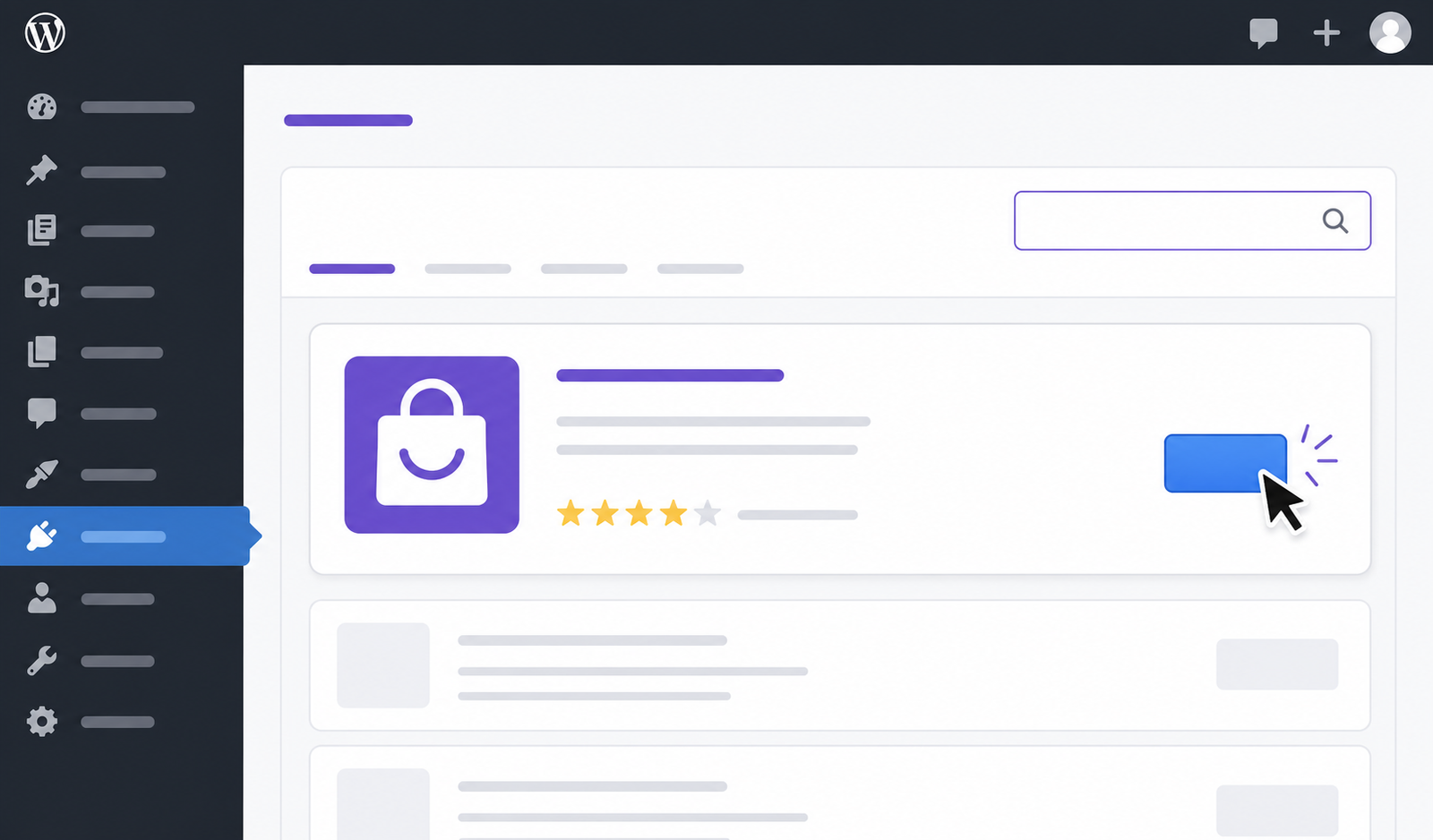
In your WordPress dashboard, go to Plugins, then Add New, and type WooCommerce into the search box. It’ll be the first result, the one with millions of active installations, published by Automattic. Click Install Now, wait a few seconds, click Activate. That’s genuinely the whole installation. If you prefer to see what you’re installing first, the plugin’s official home is on the WordPress.org plugin directory, where you can also read the changelog and support threads.
Step 4: Run the setup wizard, but don’t trust it blindly
On activation, WooCommerce launches a guided setup. It asks where your store is located, what industry you’re in, what kind of products you sell, and a few business details. Answer honestly; some answers change which features get switched on. Two pieces of advice for the wizard. First, when it offers to install extra “recommended” plugins and marketing tools, feel free to skip most of them. You can add anything later, and a lean store is a fast store. Second, if it offers a theme and you don’t have one picked, taking the free Storefront theme is a fine temporary answer.
The wizard gets you maybe 70% configured. The remaining 30% lives in the settings screens, and that’s where stores quietly go wrong.
Step 5: Walk the settings, tab by tab
Go to WooCommerce, then Settings. Budget twenty unhurried minutes here.
General. Your store address (it affects tax and shipping calculations, so get it right), which countries you sell to and ship to, your currency, and whether taxes and coupons are enabled. If you only ship domestically, say so here. Nothing sours a new store faster than an order from a country you can’t ship to.
Products. Set your shop page, your units for weight and dimensions (you’ll need these for shipping rates later, so fill them in even if it feels premature), and decide whether to allow product reviews. My take: leave reviews on. Social proof beats the occasional grumpy comment. The Inventory sub-tab is where you enable stock management, low-stock email alerts, and whether out-of-stock items stay visible.
Tax. If you enabled taxes, this tab controls whether prices are entered with or without tax and how rates apply per region. Tax setup is the one area where I’ll say it plainly: fifteen minutes with an accountant is worth more than any blog post, including this one. Rules vary wildly by country and business type. WooCommerce can calculate almost any scheme correctly once you tell it the right rules; the hard part is knowing your rules.
Shipping. WooCommerce works with shipping zones. A zone is a region (say, Germany, or the EU, or Everywhere Else) and each zone gets one or more methods: flat rate, free shipping, or local pickup out of the box. A structure that works for most small stores: a domestic zone with a flat rate plus free shipping above a threshold, a wider international zone with a higher flat rate, and local pickup if you have a physical location. Free shipping thresholds do lift average order values; pick a number slightly above your current average order and watch what happens.
Payments. Covered properly in the next step, because it deserves it.
Accounts & Privacy. Enable guest checkout. I mean it. Forcing account creation is one of the most reliably documented cart killers in ecommerce. Let people opt into an account during checkout instead. This tab also holds your privacy policy hooks and the personal data erasure tools you’ll want for GDPR requests.
Emails. WooCommerce sends order confirmations, processing notices, completed-order emails and more. Check the sender name and address, put your logo in, and send yourself a test order later to see how they look. Since the recent releases moved emails to block-based templates with the new sync and reset system, customizing them is far less scary than it used to be; you can always reset a template to stock with one click.
Step 6: Set up payments
You need at least one way to take money, and realistically you want two or three, because payment preferences are stubbornly regional.
WooPayments is the in-house option, built on Stripe’s rails. Cards, Apple Pay, Google Pay, and local methods, managed inside your dashboard, at roughly 2.5% to 2.9% plus 30 cents per transaction depending on the payment type and country. It’s the path of least resistance and the one the setup wizard nudges you toward.
Stripe and PayPal both have mature free plugins. Stripe covers cards and wallets with clean checkout UX. PayPal still converts remarkably well in Europe; plenty of shoppers simply trust the button. Running card payments plus PayPal side by side is the standard small-store setup for a reason.
Bank transfer, cash on delivery, and check ship with WooCommerce core, cost nothing in fees, and still matter in B2B and in some markets. They’re a checkbox each.
The fee math is worth pausing on. WooCommerce itself adds zero payment fees on top of your processor’s rate, and it never penalizes you for choosing an outside gateway. Hosted platforms often do; Shopify, for instance, adds up to an extra 2% per transaction if you use a third-party processor on its basic plan. Over a year of real revenue, that difference alone can outweigh every other cost in this article.
Step 7: Create the legal pages
Unglamorous, mandatory. A privacy policy, terms and conditions, and a returns/refund policy at minimum. WooCommerce generates page stubs for some of these during setup, but the text is your job (or your lawyer’s). If you sell into the EU, GDPR applies: a compliant cookie consent solution, a privacy policy that reflects what your plugins actually collect, and data export/erasure processes, which WooCommerce includes tools for. German stores have the strictest requirements in Europe around imprint, withdrawal rights, and price display, which is exactly what plugins like Germanized handle. Budget an hour for this. It’s the least fun hour of the build and skipping it is how stores collect warning letters.
Adding your first product
Go to Products, then Add New. The editor will feel familiar if you’ve written a WordPress post, with a product data panel bolted on. Before filling anything in, it helps to know the four product types, because picking the right one saves rework later.
A simple product is one item, one price. Most stores are 90% simple products. A variable product has options the customer chooses, like size and color, and each combination (a “variation”) can carry its own price, stock level, image, and SKU. You define the options under Attributes first, then generate variations from them. A grouped product is a collection page of related simple products sold individually. An external/affiliate product lists on your site but the buy button goes to another website. And any simple or variable product can additionally be marked virtual (no shipping, like a service) or downloadable (delivers files after purchase, with WooCommerce handling secure download links and limits).
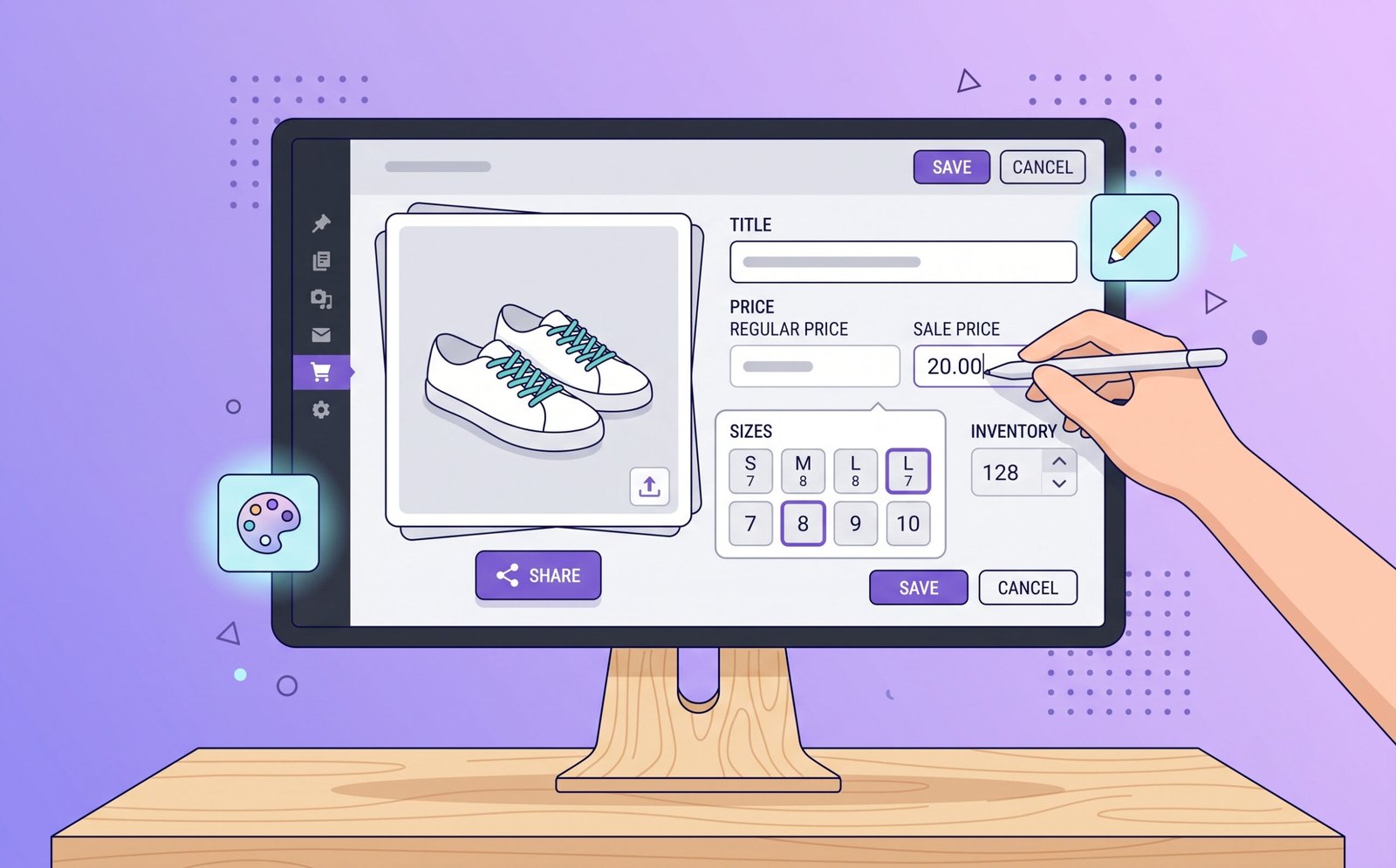
For the product itself, a few things carry more weight than beginners expect. The long description is your selling space; write it for a human who’s 80% convinced and needs the last 20%. The short description shows next to the price and should answer “what is this and why do I care” in two or three sentences. Set both a regular and, when relevant, a sale price, and WooCommerce renders the strikethrough automatically, with optional scheduling for the sale window. Fill in the SKU even if you only have six products, future-you doing inventory will be grateful. Add weight and dimensions if you ship physical goods, because your shipping rates may depend on them.
Images deserve their own sentence: use consistent dimensions across all products (square, 1000 to 1200 pixels, is the safe convention), compress them before upload, and write alt text that describes the product. Product photography sells more than any plugin you will ever install.
Finally, assign a category or two, hit Publish, and open the live page in an incognito window. Add it to the cart. Walk the whole checkout with a real test order using your payment gateway’s test mode. You’d be surprised how many stores launch without the owner ever completing their own checkout once.
Picking a theme that won’t slow you down
Almost any modern WordPress theme technically works with WooCommerce. That’s a different statement from “is good for a store.” What you want from a store theme, in order: fast load times, clean product and checkout templates, and mobile layouts that don’t bury the buy button. Design flourishes come fourth.
Storefront is the official free theme from the WooCommerce team. It’s plain to the point of boring, and I mean that as a compliment. It’s fast, it never breaks on a WooCommerce update, and boring is completely fine for your first months while you figure out what actually sells. You can dress it up later or replace it once revenue justifies the effort.
Block themes are the modern WordPress-native route. Recent default themes work well with WooCommerce’s block-based cart, checkout, and product templates, and the Site Editor lets you rearrange store pages visually without code. If you’re starting fresh in 2026, this is the direction the whole platform is moving, and building on it means fewer compatibility surprises down the road.
Commercial themes like Astra, Kadence, Blocksy, or Flatsome dominate the WooCommerce world for a reason: professional store designs out of the box, deep WooCommerce styling options, and demo sites you can import and edit. Expect $50 to $100 a year. One warning from experience: heavyweight multipurpose themes with builders stuffed inside can drag performance. Check a theme’s demo with PageSpeed Insights before buying, not after.
Whatever you choose, resist swapping themes every month. Each switch means re-checking every store page. Pick something fast and decent, then put your energy into products.
Extensions worth the money (and free ones that do the job)
The extension ecosystem is where WooCommerce becomes whatever you need it to be, and also where budgets quietly die. My rule: launch with the minimum, add extensions only when a real limitation shows up, and review the list twice a year.
A sensible starter stack looks like this. A payment gateway or two (free). An SEO plugin, with Yoast SEO or Rank Math both offering solid free tiers that handle store pages well. A backup plugin like UpdraftPlus if your host doesn’t do automatic offsite backups. A caching/performance plugin appropriate to your host. And a security plugin such as Wordfence or Solid Security. All of that is achievable at zero cost.
Paid extensions earn their keep when they make a whole business model possible rather than just shaving time off a task. WooCommerce Subscriptions enables recurring billing and is the backbone of every “box of the month” store on the platform. Bookings turns products into reservable time slots for services and rentals. Product Add-Ons handles engraving text, gift wrap, and per-product options. Shipping label extensions print real carrier labels from the order screen and pay for themselves in saved time within weeks if you ship daily. Official extensions from the WooCommerce marketplace run roughly $29 to $299 per year each, with most sitting between $79 and $129, and they come with a 30-day refund policy, so testing one is low-risk.
Two habits keep the stack healthy. Prefer one well-built extension over three overlapping ones, and check the “last updated” date and support threads before installing anything. An abandoned plugin is a future security hole with your store’s name on it.
What a WooCommerce store really costs in 2026
Time for real numbers, because “WooCommerce is free” is both true and the least useful sentence in ecommerce. The software is free. The store is not. Here’s where money actually goes, using current 2026 pricing, and you can cross-check the platform’s own math on the official WooCommerce pricing page, which even includes a cost calculator now.

| Cost item | Typical range (2026) | Notes |
|---|---|---|
| WooCommerce core | $0 | Free forever, no revenue share, unlimited products and orders |
| Domain | $10–$15 / year | Standard .com registration |
| Hosting | $5–$25 / month starting out; $25–$350 / month per WooCommerce’s own guidance for most established stores | The one cost that scales with traffic |
| SSL certificate | Usually $0 | Free via Let’s Encrypt at most hosts |
| Theme | $0–$100 / year | Storefront and block themes are free; commercial themes ~$50–$100 |
| Extensions | $0–$600 / year | Official marketplace extensions run $29–$299/year each; many stores need only 2–4 paid ones |
| Payment processing | ~2.5%–2.9% + $0.30 per transaction | Processor fees only; WooCommerce adds nothing on top |
| Development help | $0 (DIY) to $60–$150 / hour | Optional; typical custom builds start around a few thousand dollars |
Put together, three realistic budgets emerge. A lean DIY starter (shared hosting, free theme, free plugins, WooPayments) runs roughly $100 to $300 for the first year, plus transaction fees. That’s the cheapest legitimate way to open a real store on the internet, full stop. A typical small business setup with better hosting, a commercial theme, and two or three paid extensions lands around $500 to $1,500 a year. A growing store on managed WooCommerce hosting with a fuller extension stack and occasional developer hours sits in the $2,000 to $6,000 a year range, and the industry’s usual total-cost-of-ownership estimates for serious stores fall right in that band.
The structural point matters more than any single number: WooCommerce costs are tied to infrastructure, not to sales. There are no plan tiers gating features, no fee per staff account, no cap on product variants, and 0% revenue share. Whether that beats a hosted platform depends entirely on your revenue. At $500 a month in sales, the difference is pocket change either way. At $50,000 a month, platform percentages and forced payment fees become one of your largest expenses, and that’s typically the moment growing stores start doing WooCommerce migration math.
WooCommerce vs Shopify, the short honest version
This comparison deserves (and has) entire articles, but you probably want the executive summary, so here it is without the usual hedging.
| Feature | WooCommerce | Shopify |
|---|---|---|
| Platform fee | $0 | $29 to $2,300+ per month by plan |
| Revenue share / payment penalties | None; any gateway, no penalty | Up to 2% extra per transaction for third-party gateways on lower plans |
| Hosting & maintenance | Yours to arrange | Included |
| Ownership & portability | Full: code, data, customers | You rent; export is possible but partial |
| Customization ceiling | Effectively none (open source) | High but bounded by the platform |
| Product variants | Unlimited | Capped per product |
| Content / blog / SEO tooling | Best in class (it’s WordPress) | Serviceable |
| Learning curve | Steeper, more decisions | Gentler, fewer decisions |
My honest read: Shopify is the better product for people who want a store the way they want electricity, as a utility that’s just there. WooCommerce is the better platform for people building an asset they fully own, whose growth depends on content, or whose costs need to stay flat as revenue climbs. The data backs the split: WooCommerce leads the world in total store count, while Shopify leads among the highest-traffic brands. Pick the side that matches your temperament, not the one that won some blogger’s affiliate comparison.
SEO for WooCommerce stores
Sitting on WordPress gives WooCommerce stores a genuine head start in search, but the head start isn’t automatic. A few things move the needle most.
Write real product descriptions. Manufacturer boilerplate pasted across forty sites is the most common reason product pages never rank; a hundred and fifty original words describing who the product is for and what problem it solves outranks a spec dump surprisingly often. Give the same care to category pages, which for most stores are the pages with actual ranking potential; add a paragraph or two of useful intro text above or below the product grid instead of leaving them as bare grids.
Handle the technical basics once and forget them: an SEO plugin generating your XML sitemap and meta tags, product schema markup so listings can show price and stock in search results (WooCommerce outputs the basics, and SEO plugins extend it), clean permalinks, and compressed images with descriptive alt text. And because rankings increasingly track page experience, everything from the maintenance section below doubles as SEO work. A store that loads in under two seconds has an advantage no keyword tool can give you.
The biggest lever is the one WooCommerce is uniquely positioned for: content. Buying guides, comparisons, tutorials, and honest reviews that link to your products bring in shoppers months before they search for the product itself. It’s the whole reason content-driven brands choose this platform, so actually use the blog sitting next to your shop.
Maintenance, security, and updates
The unglamorous chapter, and the one that decides whether your store is still healthy in year three. A self-hosted store needs a routine. Here’s a realistic one that takes under an hour a month.
Backups first, always. Automatic daily backups stored somewhere other than your server, either through your host or a plugin. Before any major update, take a manual one. A backup you’ve never test-restored is a hope, not a backup, so restore one to a staging site once to prove it works.
Update on a schedule, not on impulse. WooCommerce ships monthly, and WordPress, themes, and plugins update constantly. Waiting a few days after a major WooCommerce release lets patch versions like 10.9.1 catch the early issues, then update WordPress core first, WooCommerce second, everything else after. If your host offers staging sites, update there first; that habit alone prevents most “the shop is down” mornings. Skipping updates for months is worse than any update bug, since outdated plugins are how the overwhelming majority of WordPress sites get hacked.
Security is mostly hygiene. Strong unique passwords with two-factor authentication on every admin account, a security plugin watching for file changes and brute-force attempts, no abandoned plugins or themes lying around installed-but-inactive, and an SSL certificate that auto-renews. Do that much and you’re ahead of most stores on the internet.
Watch speed like a metric, because it is one. Run your homepage and a product page through PageSpeed Insights quarterly. If numbers slide, the culprit is almost always a recently added plugin or uncompressed images, in that order. The current WooCommerce releases keep cutting query counts on their end; don’t give those gains back with a bloated plugin list.

Seven mistakes I see beginners make
Every one of these comes from a real store I’ve been called in to fix, so consider this section a shortcut past other people’s tuition fees.
- Launching on the cheapest possible hosting and then blaming WooCommerce for a slow checkout. The plugin can only be as fast as the server underneath it.
- Installing thirty plugins before the first sale. Every plugin is code that loads, can conflict, and needs updating. Add tools when a problem exists, not in case one might.
- Forcing account creation at checkout. Turn on guest checkout. This one setting recovers real revenue.
- Never test-buying from their own store. Broken checkouts routinely go unnoticed for days because the owner never walks the path a customer walks. Do a test order after every significant change.
- Ignoring updates for six months, then doing them all at once with no backup. That’s the recipe for the worst afternoon of your year. Small regular updates with backups are boring, and boring is the goal.
- Treating legal pages as optional. Especially in the EU, missing privacy, withdrawal, and imprint requirements isn’t a cosmetic gap, it’s a financial risk with your name on it.
- Postponing product photography and descriptions while endlessly fiddling with theme colors. Nobody has ever abandoned a cart because the accent color was slightly off. Plenty have because the photos were bad and the description said nothing.
Frequently asked questions
Is WooCommerce really free?
The plugin itself is genuinely free with no revenue share and no feature paywalls, including unlimited products and orders. Running a store around it costs money: hosting from about $5 to $25 a month for starters, a domain around $10 to $15 a year, and optional paid themes and extensions. A lean first year can stay between $100 and $300 before payment processing fees.
What is the latest version of WooCommerce?
As of early July 2026, the current release is WooCommerce 10.9.1. Version 10.9 shipped on June 23, 2026 with checkout and database performance improvements, most notably creating draft orders much later in checkout so abandoned sessions no longer clutter the database, and 10.9.1 followed a day later with a compatibility fix for older Stripe gateway versions. WooCommerce releases monthly, and since version 10.8 it requires WordPress 6.9 or newer.
Do I need to know how to code?
No. Installation, setup, products, payments, and shipping are all point-and-click, and this guide’s steps require zero code. Coding (or hiring a developer) only enters the picture for custom functionality that no existing extension covers.
Is WooCommerce cheaper than Shopify?
Usually, and the gap widens as you grow. WooCommerce has no monthly platform fee, no revenue share, and no penalty for using outside payment gateways, so your fixed costs stay tied to hosting rather than to sales volume. Shopify starts at $29 a month plus payment fees, and adds up to 2% extra per transaction on lower plans if you use a third-party processor. The fair caveat: Shopify’s fee buys you hosting and maintenance you’d otherwise handle yourself.
How many products can WooCommerce handle?
There’s no built-in limit on products or variations, and stores with tens of thousands of SKUs run on it today. In practice the ceiling is your hosting; large catalogs need proper servers, good caching, and the modern order storage (HPOS) that current versions use by default.
Can I sell digital products and subscriptions?
Digital downloads are built into the core plugin, with secure expiring download links, download limits, and no shipping step. Recurring subscriptions need the WooCommerce Subscriptions extension (or an equivalent), after which WooCommerce handles the recurring billing without per-subscription platform fees.
Is WooCommerce GDPR-compliant?
The core plugin includes the technical tools, personal data export and erasure, consent hooks, and privacy page integration, but compliance is a property of your whole setup: your policies, your cookie consent, and what your other plugins collect. EU stores should add a consent management solution, and German stores almost always add Germanized or a similar plugin to cover the stricter local requirements around checkout and price display.
Can I switch to WooCommerce from another platform later?
Yes. Migration plugins and services move products, customers, and order history from Shopify, Wix, Magento and others. It’s routine work for WooCommerce agencies, and since you’ll own the data on arrival, it’s also the last migration where someone else controls your export.
Should you build on WordPress WooCommerce in 2026?
If you want full ownership, costs that don’t scale with your success, and a store that shares a home with the best content tools on the web, yes, and the current 10.x releases make it the fastest and most stable WooCommerce has ever been. If you’d rather pay monthly to never think about servers, that’s a legitimate preference and a hosted platform will make you happier.
What I’d push back on is waiting. The setup in this guide is an afternoon of honest work: hosting, WordPress, the plugin, twenty minutes of settings, one product, one test order. Everything after that, the theme polish, the extension stack, the SEO, improves a store that exists. So build the boring version this weekend, sell one thing, and iterate from there. That’s how nearly every one of those four million stores started.