How to secure your WordPress website from hackers
Most hacked WordPress sites were never “targeted”. A bot scanned a few million domains, found an outdated plugin on one of them, and let itself in. This guide closes the common doors one by one: updates, logins, hosting, firewalls, backups, plus a set of hardening tweaks you can copy and paste. With honest notes on what matters and what is mostly theater.
Why hackers go after WordPress
WordPress runs roughly 42% of all websites, which makes it the biggest single target on the internet. Nobody sits down and picks your site by hand. Attackers point automated scanners at millions of domains a day, looking for one thing: a known weakness they already hold an exploit for.
The supply of those weaknesses grew sharply last year. Patchstack, which tracks vulnerabilities across the WordPress ecosystem, logged 11,334 new ones in 2025. That’s a 42% jump over 2024 and the worst year on record. Here’s the part most people get wrong, though: almost none of those bugs were in WordPress itself. Around nine out of ten sat in plugins. The core software had two all year.
So when someone says “WordPress is insecure”, they’re half right. The core is well audited and rarely the problem. The 60,000+ plugins bolted onto it are where the trouble lives, and the average site runs 20 to 30 of them.
What do attackers want with your blog or small shop? More than you’d think:
Your traffic
Sneaky redirects send your visitors to scam pages, fake giveaways and “your device is infected” popups.
Your rankings
Hidden spam links and pharma pages piggyback on your search reputation until Google notices and blacklists you.
Your server
A hacked site is a free machine for sending phishing email, hosting malware and attacking other websites.
Your customers
Card-skimming scripts on WooCommerce checkouts and fake login pages harvest whatever your visitors type.
None of that requires your site to be famous. It only requires it to be reachable.
How WordPress sites actually get hacked
Nearly every compromise walks through one of a handful of doors. Once you know the doors, the rest of this guide will feel obvious.
1. A vulnerable plugin or theme
The number one cause, by a wide margin. And the timeline has become brutal: when a flaw goes public, Patchstack measured a median of just five hours before the first mass exploitation attempts in 2025, with 70% of heavily targeted flaws under attack within a week. Worse still, 46% of disclosed vulnerabilities had no patch available on the day they went public. Updating fast helps enormously. It just can’t be your only defense anymore.
2. Weak, reused or stolen passwords
Bots hammer /wp-login.php around the clock with lists of common passwords (brute force)
and with real credentials leaked from other services (credential stuffing). If you used the same
password on WordPress and on some forum that got breached in 2019, that password is in a list
somewhere, and a bot will try it here eventually.
3. Nulled themes and plugins
Pirated copies of paid products are the classic self-inflicted hack. A large share of them ship with a backdoor already inside. You’re not downloading a free plugin. You’re installing an attacker’s code on purpose, then wondering how they got in.
4. The supply chain
Sometimes the legitimate source itself gets compromised. In July 2025, attackers briefly served backdoored copies of Gravity Forms, one of the most popular form plugins around, from the developer’s own website. Rare, but real, and a strong argument for malware scanning even when you did everything right.
5. A weak hosting environment
Old PHP versions, loose file permissions, and shared servers without proper account isolation. On a badly configured shared server, someone else’s hacked site can become your problem overnight.
6. Your own computer
Malware on your laptop can lift saved SFTP and WordPress passwords straight out of the browser. It’s the door nobody thinks about, which is exactly why it keeps working.
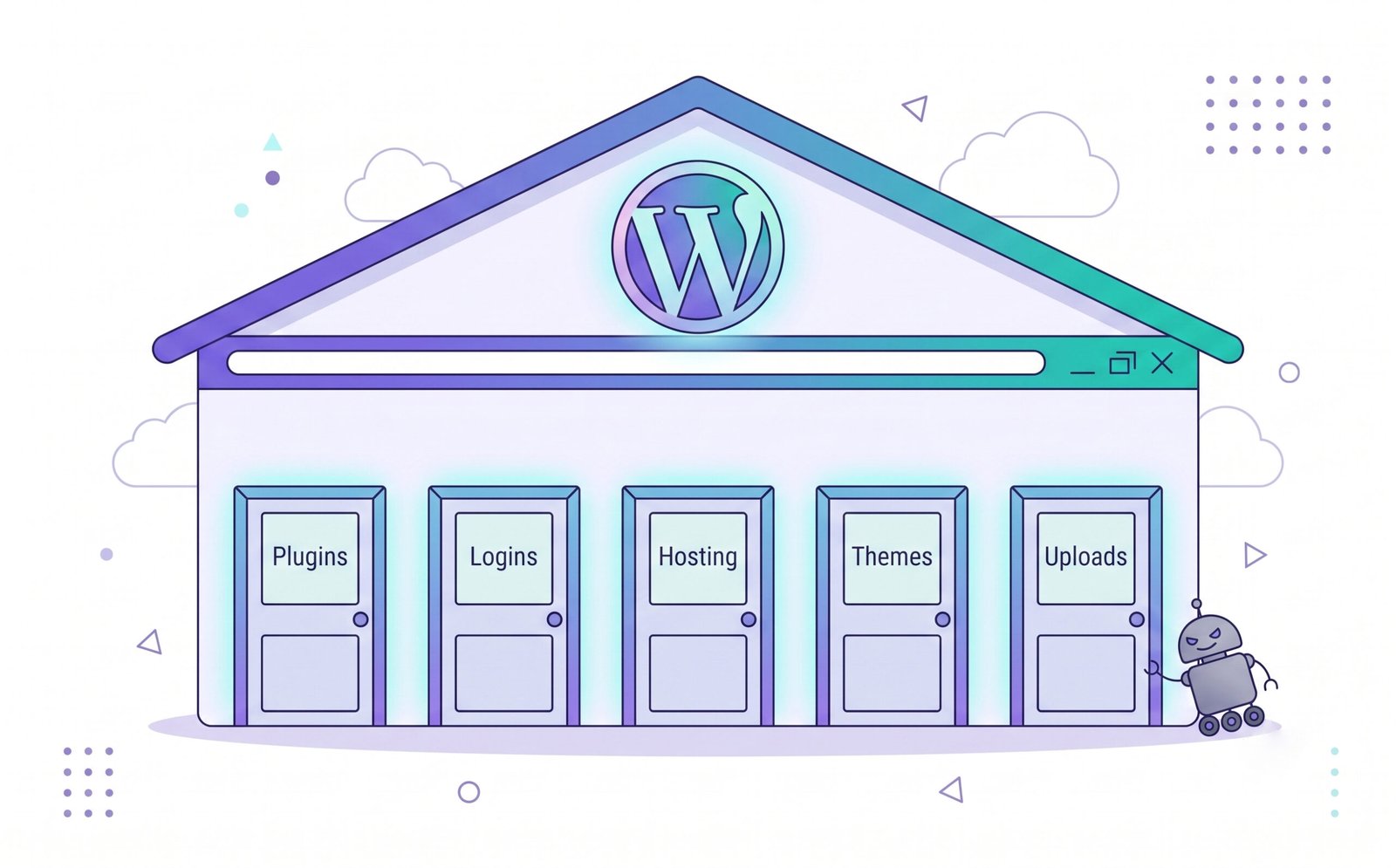
| Door | Typical opener | Where we fix it |
|---|---|---|
| Plugins & themes | A known flaw, exploited within hours of disclosure | Updates + Firewall |
| Login page | Brute force and credential stuffing | Logins |
| Pirated software | Backdoor included in the download | Never install nulled software. That’s the whole fix. |
| Hosting / server | Old PHP, no account isolation | Hosting |
| Uploads folder | A rogue PHP file executed remotely | Hardening |
| Everything at once | No safety net when it goes wrong | Backups |
The 10-minute quick wins
If you close this tab after one section, make it this one. These eight moves block the attacks behind the vast majority of hacked WordPress sites, and none of them needs technical skill.
- Run every pending update. Dashboard → Updates. Core, plugins, themes, translations, all of it. More on doing this safely below.
- Delete what you don’t use. Deactivated plugins and themes still sit on the server, and some flaws can be reached even while a plugin is switched off. Keep one default theme (Twenty Twenty-Five) as a fallback and remove the rest.
- Turn on two-factor authentication for every administrator account. Ten minutes of setup, and it neutralizes the entire password-guessing industry.
- Check your users list. Remove accounts you don’t recognize, demote anyone who doesn’t need admin, and delete old contractor logins that outlived the contract.
- Install one reputable security plugin. Wordfence or Solid Security, either is fine. Switch on login attempt limits and the malware scanner.
- Confirm you have an off-site backup. Not on the same server. If you can’t point to one right now, set up UpdraftPlus to a cloud drive before you go to bed.
- Force HTTPS everywhere. If any page still loads over
http://, fix it today. Your host’s free Let’s Encrypt certificate takes minutes to enable. - Check your PHP version. In your hosting panel, look for 8.2 or 8.3. Anything still on 7.x stopped receiving security fixes years ago.
Keep everything updated (and know the limits)
Updates fix the exact holes attackers scan for, which makes them the highest-value habit in this whole guide. As of this writing, current core is WordPress 7.0 “Armstrong”, released on May 20, 2026. It also raised the floor on PHP: 7.0 won’t install on anything below PHP 7.4, and the sensible target is 8.2 or 8.3.
Here’s how I’d set updates up on a typical site:
- Core: leave automatic minor updates on (the default). Those are the security releases. For major jumps like 6.8 → 7.0, update by hand after checking plugin compatibility, ideally on a staging copy first.
- Plugins: enable auto-updates for the small, boring, well-maintained ones. Do a manual pass once a week for the big ones your site depends on (page builder, WooCommerce, forms), so a broken update never surprises you on a Saturday.
- Themes: auto-update the dormant default theme; update your active theme manually. If you edited theme files directly instead of using a child theme, updates will erase your changes. That’s why people stop updating, and that’s how sites get hacked. Fix that setup first.
Before you install anything new, spend sixty seconds on its listing page. When was it last updated? Is it tested with your WordPress version? Do support threads get answers? A plugin abandoned for two years is a liability with a nice icon.
Now the uncomfortable part. Updating fast used to be enough. With the median time-to-exploit down to about five hours, and nearly half of new flaws unpatched at disclosure, there are windows where no update exists for you to install. That isn’t a reason to give up on updates. It’s the reason the firewall section exists.
Lock down your logins
Your login page is public. Bots find it within hours of a site going live and never stop knocking. The answer is layers, and the first two cost nothing.
Passwords first. Long, generated, unique per site, kept in a password manager (Bitwarden and 1Password both do the job). Your hosting account password matters just as much as the WordPress one, so treat both the same. And skip “admin” as a username. It’s the first thing every bot tries, so why hand it half the answer.
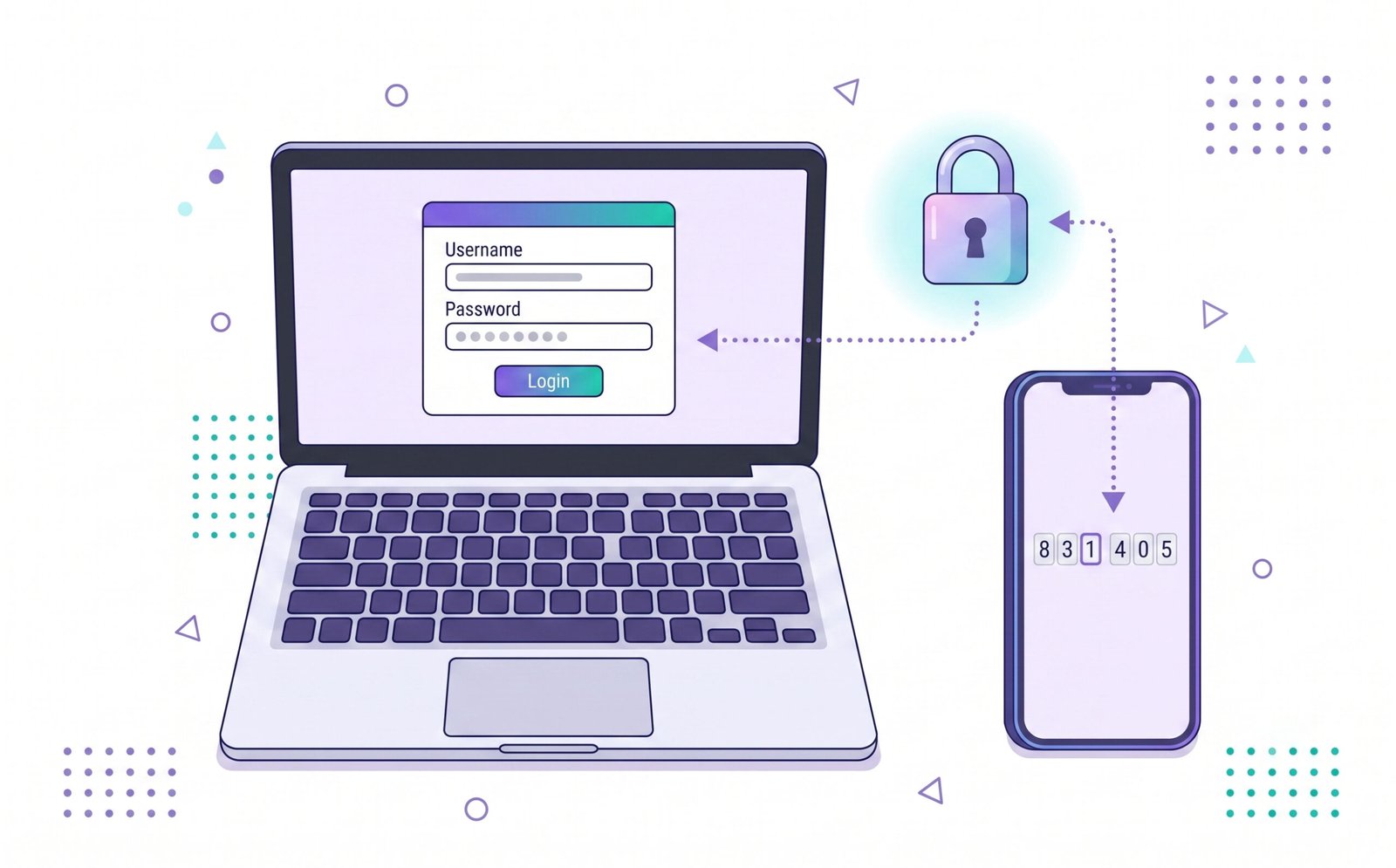
Then two-factor authentication, the single biggest upgrade on this page. With 2FA, a stolen or guessed password gets an attacker exactly nowhere. Free options include the Wordfence Login Security module, WP 2FA, and the 2FA built into Solid Security. Use an authenticator app rather than SMS where you can, and store the recovery codes somewhere that isn’t the site itself.
Round it out with:
- Login attempt limits. Three to five tries, then a cooldown. Built into most security plugins, or use Limit Login Attempts Reloaded on its own.
- Application passwords. When an external service needs to talk to your site, create an application password for it (Users → Profile) instead of sharing your real one. You can revoke each service separately later.
- XML-RPC off, if nothing uses it. It’s an older remote-access door that bots love because it can multiply login guesses. Jetpack and the classic WordPress mobile app still need it; most sites don’t. A security plugin can switch it off, or your host can.
- A custom login URL, if you like. Moving
wp-login.phpsomewhere private stops none of the serious attacks, but it does quiet the log noise a lot. I treat it as a nicety, not a defense.
One more, and it’s the one teams skip: least privilege. Authors don’t need administrator. Your
SEO consultant doesn’t need administrator. Every admin account is a full copy of the master key, so
hand out as few as possible and review the list monthly. If you run WordPress inside a company, with
staff logging in from cafés and home networks,
NordLayer’s WordPress security best practices guide
is worth a read: it approaches the same problem from the network side, restricting who can even reach
wp-admin in the first place.
Pick hosting that pulls its weight
You can do everything right inside WordPress and still get burned by a bad host. The server is the foundation under all of it. What good hosting looks like in 2026:
- Account isolation, so a compromised neighbor on shared hosting can’t reach your files
- A server-level firewall and malware scanning that runs without you asking for it
- Current PHP (8.2 / 8.3) on offer and easy to switch per site
- Automatic daily backups you can restore yourself, stored away from the server
- Free SSL, plus a staging feature for testing updates before they go live
- Support that has seen a hacked WordPress site before and won’t just shrug
Fair warning on that firewall item: Patchstack ran penetration tests against common hosting firewall stacks in 2025 using real WordPress exploits, and the generic setups blocked somewhere between 12% and 26% of them. Host-level protection is a real layer. It is not a complete one, which is why the next section exists.
We’ve dug into the security stacks of the big consumer hosts before; our SiteGround review and Hostinger review both cover exactly this. Most hosts also publish their own checklists worth skimming, and Namecheap’s guide to improving WordPress security is one of the better account-level rundowns.
Running your own VPS instead? Then the server side is your job too: system updates, a firewall like UFW, fail2ban, SSH keys, the lot. Contabo’s WordPress security guide covers that server layer well and pairs neatly with the application-level steps in this article.
HTTPS: table stakes
An SSL/TLS certificate encrypts traffic between your visitors and your server, so nobody sitting on
the network can read passwords or card numbers in transit. Since Let’s Encrypt made certificates free,
there’s no excuse for plain http. Browsers flag it, Google discounts it, and every host
mentioned in this article issues a certificate in a click or two.
Two follow-ups people miss: force HTTPS site-wide with a redirect (a toggle in most hosting panels, or
the Really Simple SSL plugin), and change your WordPress Address and Site Address to the
https:// versions under Settings → General.
Just keep the padlock in perspective. HTTPS protects data in motion. It does nothing about a vulnerable plugin, and a phishing site can carry a perfectly valid certificate. Plenty do.
Firewalls and malware scanning
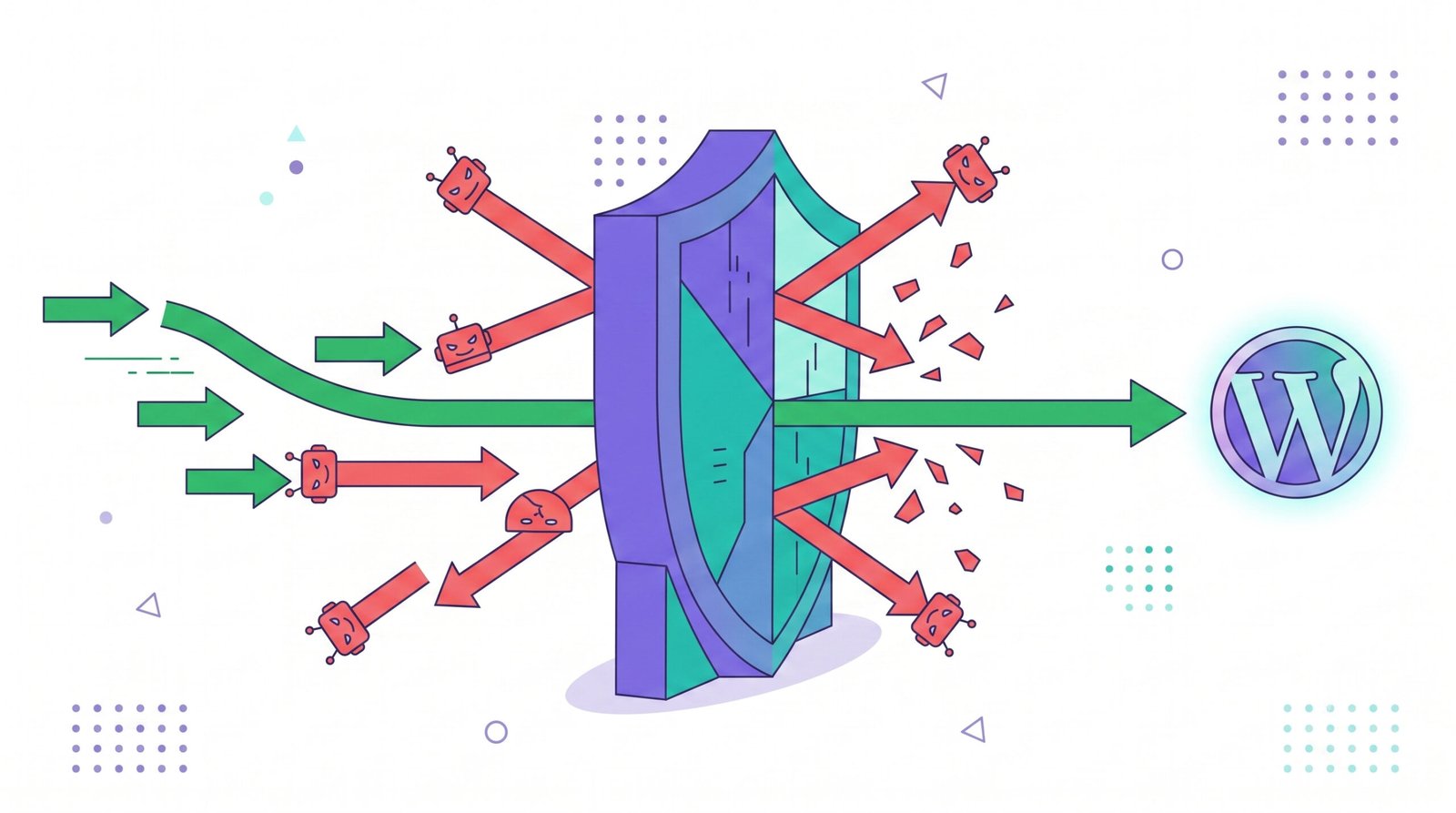
A web application firewall (WAF) inspects traffic before it reaches WordPress and drops the obviously hostile requests: exploit attempts, brute force floods, known bad bots. Remember the five-hour exploitation window from earlier? This is the layer that protects you during the gap when a patch doesn’t exist yet.
You’ll meet three flavors:
- DNS-level (Cloudflare and similar). Traffic passes through their network before touching your server. Great against volume: DDoS, scrapers, brute force floods. Weaker on WordPress-specific logic, because it can’t see which plugins you run.
- Plugin-level (Wordfence, Solid Security). Runs inside WordPress, sees far more context, blocks exploit patterns and handles the login protection covered above. One catch worth knowing: the free Wordfence tier receives new firewall rules 30 days after paying customers, which in a five-hour world is a meaningful delay.
- Vulnerability-aware virtual patching (Patchstack, plus some managed hosts). Instead of generic rules, it ships a targeted block for each newly disclosed flaw, only to sites running the affected plugin. This approach exists because generic rules miss things like broken access control, which looks exactly like normal logged-in traffic.
My honest setup for a normal site: Cloudflare’s free tier out front for the noise, one security plugin inside for scanning and login control, and virtual patching once the site earns real money. Skip anything that markets itself with the phrase “military-grade”.
On scanning: your security plugin’s malware scanner compares your core files against the official copies and flags anything modified or out of place. Put it on a weekly schedule rather than running it only when you’re worried. For a second opinion from outside, Sucuri’s free SiteCheck scans what a visitor sees and catches injected spam and blacklist status.
Backups: your undo button
Every protection in this article can fail on a bad enough day. Backups are what make failure survivable instead of fatal, and they’re the honest answer to “my site got hacked, now what”.
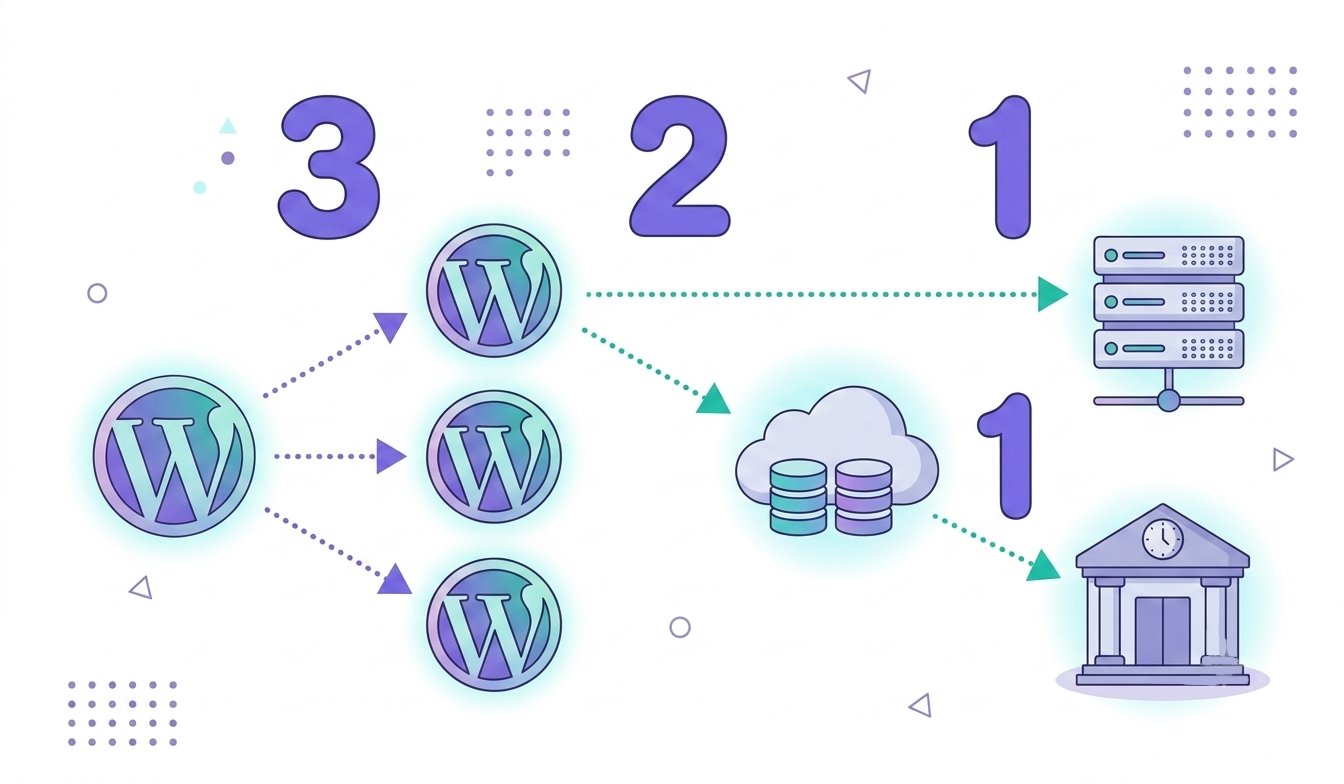
The standard worth copying is 3-2-1: three copies of your data, on two kinds of storage, one of them off-site. For WordPress, that translates to your live site, a backup at your host, and a backup pushed somewhere your host can’t touch: Google Drive, Dropbox, Amazon S3, whichever you’ll keep using. The off-site copy is the whole point. When attackers get into a server, backups stored on that same server are the first thing they delete.
- Frequency: daily for most sites. Real-time (every order, every post) for WooCommerce, since restoring yesterday’s database means losing today’s orders.
- Tools: the free UpdraftPlus tier handles scheduled cloud backups well. Jetpack VaultPress and BlogVault do real-time off-site copies with one-click restores. Your host’s backups count as copy number two, never as your only copy.
- Retention: keep at least 30 days of history. Malware often sits quietly for weeks before anyone notices, so last night’s backup may already be infected.
And test a restore. Twice a year, restore a backup to a staging site and click around. A backup you’ve never restored is a hope, not a plan. I learned this the way everyone does.
Hardening tweaks (copy and paste)
None of these takes more than five minutes, and together they close several classic attack paths.
You’ll edit two files, wp-config.php and .htaccess, both in your site’s root
folder, using your host’s file manager or SFTP.
wp-config.php white-screens the site until you fix it. The .htaccess rules
below are for Apache and LiteSpeed servers, which is what most shared hosting runs; on Nginx, ask your
host to apply the equivalents.1. Turn off the built-in file editor
By default, admins can edit theme and plugin code straight from the dashboard, which means anyone who
hijacks an admin session can plant a backdoor in two clicks. Add this line to
wp-config.php, above the “That’s all, stop editing!” comment:
define( 'DISALLOW_FILE_EDIT', true );2. Refresh your security keys
The eight salts in wp-config.php encrypt login cookies. Generate a fresh set at
WordPress.org’s secret-key service (api.wordpress.org/secret-key/1.1/salt/), paste them
over the old ones, and every session gets logged out, including any attacker riding a stolen cookie.
Do it now, and again any time something feels off.
3. Block PHP from running in your uploads folder
The uploads directory is for images and documents. If an attacker sneaks a .php file in
there through a buggy form or importer, this stops it from ever executing. Create a file called
.htaccess inside /wp-content/uploads/ containing:
<Files *.php>
deny from all
</Files>
4. Switch off directory browsing
Without this, some servers happily list your folder contents to anyone who asks, filenames, plugin
versions and all. Add one line to the .htaccess in your site root:
Options -Indexes5. Shield wp-config.php itself
This file holds your database password. Most modern servers already block direct access to it; the
snippet below makes sure. Add to your main .htaccess:
<files wp-config.php>
order allow,deny
deny from all
</files>
6. Check file permissions
Folders should be 755, files 644, and wp-config.php tightened
to 640 (or 600 where your host allows it). Most file managers show these
under a right-click “Permissions” option. Never leave anything at 777, which means
“everyone may write here”.
Two tweaks I’d skip
Changing the wp_ database table prefix gets recommended everywhere and buys almost
nothing: injection attacks read the prefix from the database itself, and changing it on an established
site breaks things often enough that the trade isn’t worth it. Hiding your WordPress version number is
similar. Exploit bots don’t check versions before firing; they just fire. Spend the time on the six
tweaks above instead.
Monitoring: notice problems early
The average compromise isn’t loud. Malware wants to stay hidden and use your site quietly, so how fast you notice matters as much as how well you prevent. Cheap ways to shrink that gap:
- An activity log. Simple History (free) or WP Activity Log records logins, plugin installs, user changes and settings edits. When something looks wrong, this is how you answer “what happened, and when”.
- File change alerts. Wordfence and Solid Security can email you when core files change
outside of an update. A modified
wp-load.phpat 3am is worth waking up for. - Google Search Console. Free, and it emails you when Google detects hacked content or malware on your domain, which is how many owners find out at all. Verify your site today if you haven’t.
- Uptime monitoring. UptimeRobot’s free plan pings your site every five minutes. Defacements and crashed sites surface here first.
Signs worth acting on the same day: an administrator you didn’t create, search results for your site showing pharmacy spam, visitors reporting redirects (check on a phone, since a lot of malware only triggers on mobile), a sudden flood of outgoing mail, or a scan flagging modified core files.
Hacked anyway? A calm recovery plan
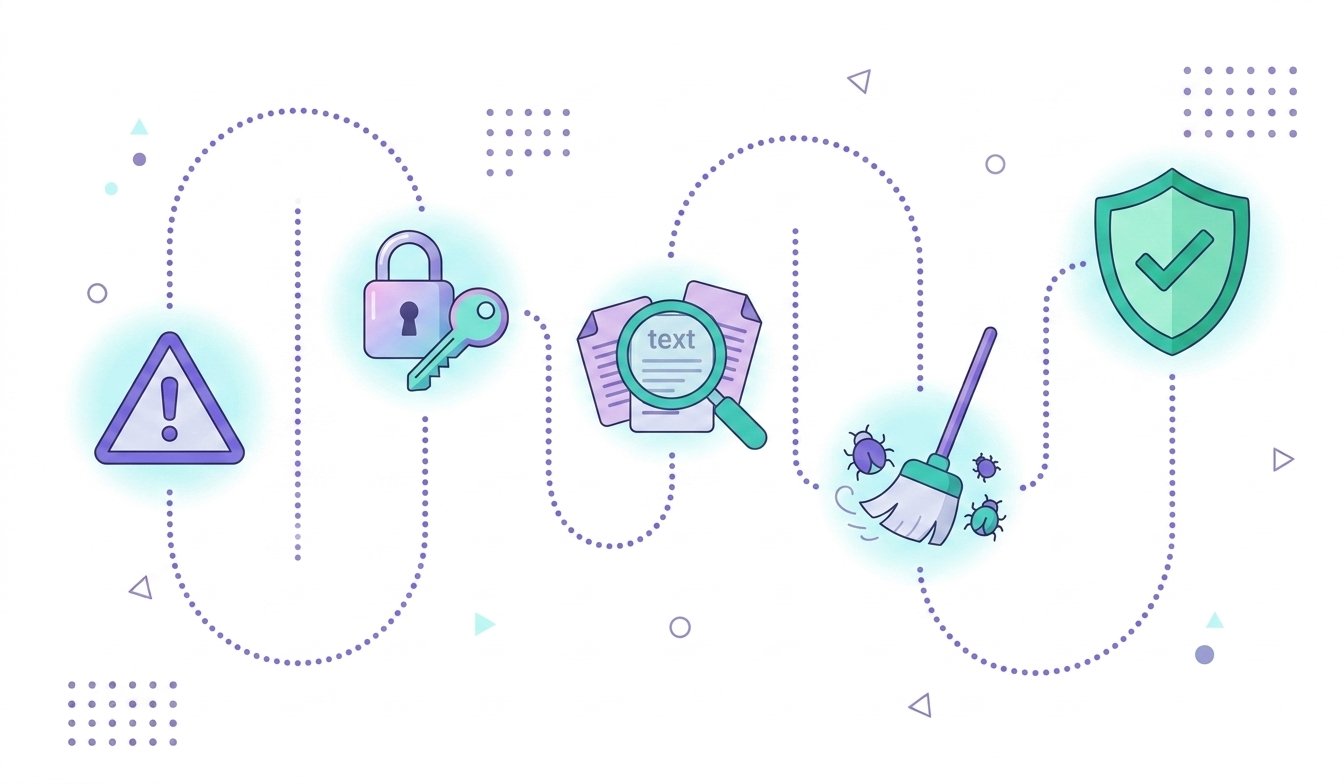
It happens to careful people too. Work this list top to bottom and resist the urge to start deleting things at random.
- Contain. If the site is actively harming visitors (redirects, malware downloads), put it in maintenance mode or ask your host to pause public access. Don’t wipe anything yet; you’ll want the evidence.
- Rotate every credential. All WordPress users, the database password in
wp-config.php, hosting panel, SFTP, and the email account tied to your admin login. Refresh the security salts (tweak #2 above) to kill live sessions. - Scan your own computer. If the leak was your laptop, cleaning the site fixes nothing. Run a proper antivirus pass before you type a single new password.
- Restore or clean. The fast road: restore the most recent backup you’re confident
predates the hack, then update everything immediately. The slow road: manual cleanup. Reinstall
core via Dashboard → Updates → Re-install, replace every plugin and theme with fresh copies from
the source, then hunt leftovers: extra admin users, PHP files inside
/uploads/, odd scheduled tasks (the free WP Crontrol plugin shows them), and unfamiliar code at the top ofwp-config.phpor your theme’sfunctions.php. - Find the door they used. Check the activity log and your host’s access logs around the first sign of trouble. Nine times out of ten it’s an outdated plugin or a leaked credential. If you can’t find it, assume both and act on both.
- Prove it’s clean. Full scan from your security plugin plus an external Sucuri SiteCheck. If Google flagged the site, request a review in Search Console once the scans come back clean; the warning usually lifts within a day or two.
- Close the gap. Whatever was missing (2FA, off-site backups, a firewall, updates), add it now, while the motivation is fresh.
No time or nerve for the manual road? Sucuri and the paid Wordfence team both do professional cleanups, and many managed hosts include hack fixes in their plans. There’s no shame in hiring it out. There is some shame in restoring an infected backup three times in a row.
A maintenance schedule you’ll keep
Security is a habit with a calendar, not a product with a receipt. This is the routine I’d expect a busy owner to keep, and it holds up:
| When | What | Time |
|---|---|---|
| Daily (automated) | Off-site backup, malware scan, uptime checks | 0 min |
| Weekly | Run updates, skim the activity log, glance at the users list | 15 min |
| Monthly | Remove unused plugins, check Search Console, review file-change alerts, confirm backups are landing off-site | 20 min |
| Twice a year | Restore a backup to staging, rotate shared passwords, re-check PHP version and file permissions | 45 min |
That’s the whole ask: a boring quarter hour most weeks. It costs less than one weekend spent cleaning malware out of a database, and I say that as someone who has spent that weekend.
Five myths that get sites hacked
“My site is too small to bother with.” The bots that hit you have no idea what your site is. They see a WordPress install and a list of known holes. Small sites get hit constantly precisely because their owners believe this one.
“I only use paid plugins, so I’m covered.” Patchstack’s researchers took a focused look at premium marketplaces and logged close to 2,000 valid vulnerabilities in paid and freemium products in a single year, with roughly three quarters of them usable in real attacks. Paid means the developer got paid. It doesn’t mean the code got audited.
“I installed a security plugin, so I’m done.” A security plugin can’t fix a reused password, an abandoned page builder, or a hosting account with no isolation. It’s one layer of several, and it protects a site, not a habit.
“My host takes care of security.” Your host secures the building. The apartment, meaning WordPress, its plugins and its users, is yours, unless you pay for genuinely managed WordPress hosting. Even then, passwords and user accounts stay your job.
“There’s a padlock, so the site is secure.” The padlock means traffic is encrypted on its way to the server. What’s waiting on the server is a separate question entirely.
FAQ
How do I know if my WordPress site has been hacked?
Common tells: admin users you didn’t create, your pages showing spam or gibberish in Google results, visitors getting redirected to other sites (check on a phone, since a lot of malware only triggers on mobile), file-change warnings from your security plugin, or a hacked-site notice in Google Search Console. Any one of these justifies a full scan the same day.
What is the single most effective thing I can do?
Two-factor authentication on every admin account, with weekly updates a close second. 2FA shuts down the entire stolen-and-guessed-password category of attacks in one move, and it costs nothing.
Is a free security plugin like Wordfence enough?
For most personal and small-business sites, a free security plugin plus 2FA, weekly updates and off-site backups is a genuinely decent setup. Sites with revenue on the line should add a firewall or virtual-patching layer, because free firewall rules typically arrive on a delay while attacks now begin within hours of a disclosure.
How often should I update WordPress and my plugins?
Let minor core security releases install themselves (the default behavior), enable auto-updates for your low-risk plugins, and do a manual pass weekly for the rest. When a plugin announces a security fix, update the same day; most mass exploitation starts within the first hours after disclosure.
Should I hide my WordPress version or rename the wp_ table prefix?
Honestly, no. Both are famous tips with tiny benefits: exploit bots fire at every site without checking versions first, and injection attacks learn your prefix from the database itself. Spend the time on 2FA, updates and backups instead.
Does an SSL certificate protect my site from hackers?
It protects your visitors’ data in transit, and you absolutely need one. It does nothing against vulnerable plugins, stolen passwords or malware. One required layer, not a shield.
My site was hacked and I have no backup. Now what?
You’ll clean in place: reinstall core, replace all plugins and themes with fresh copies, remove unknown admin users and stray PHP files in uploads, rotate every password, and scan until clean (the recovery section walks through it). If that’s out of reach, a professional cleanup from Sucuri or Wordfence usually costs less than one lost customer. Then set up off-site backups the same day.
Stuck on a step? Ask us
A hardening rule behaving strangely, a scan result you can’t read, or a security topic you want covered next: send it over. This guide gets updated from real questions.