Every file in your Grist table, in one place
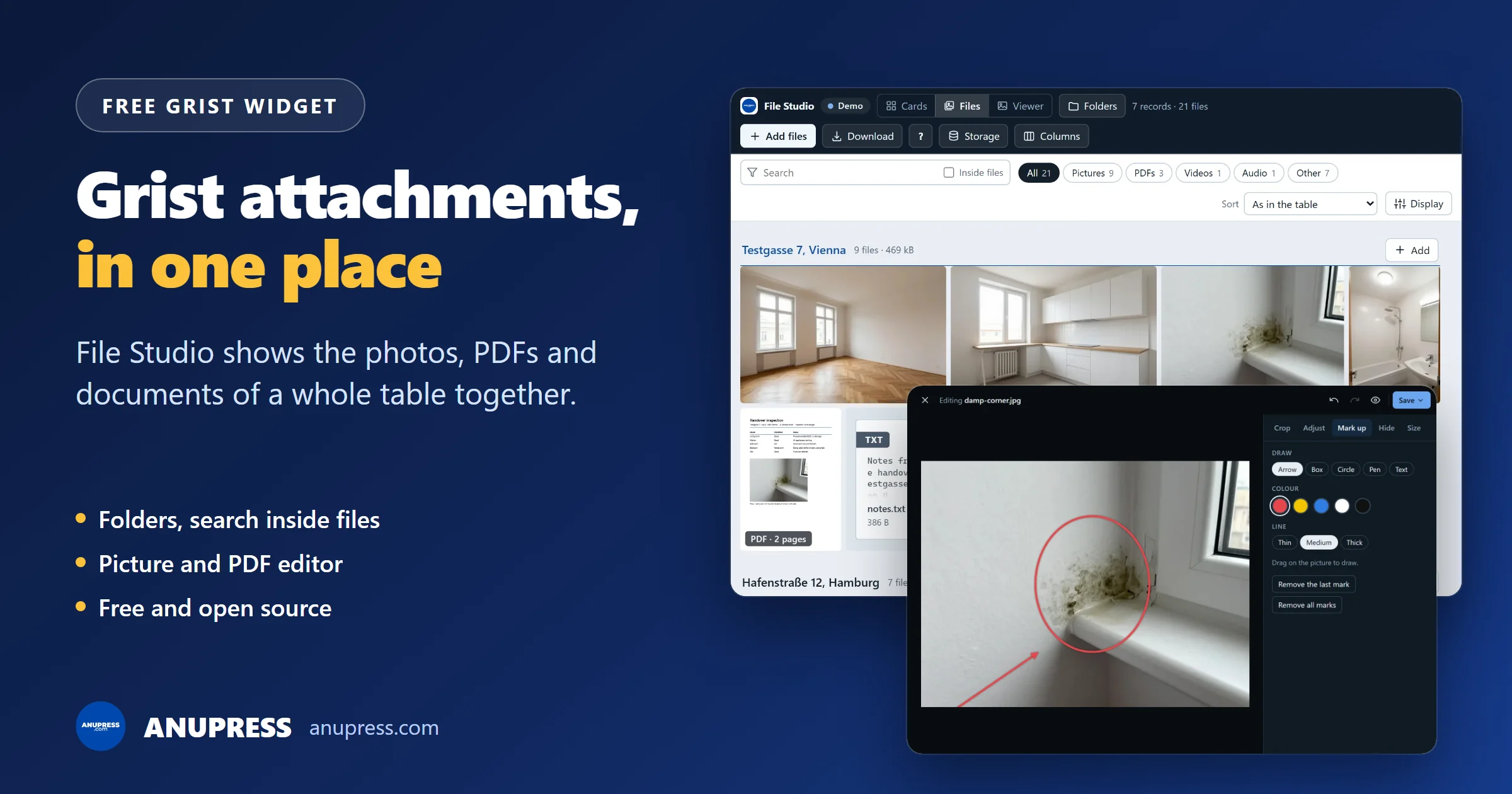
Grist keeps photos, PDFs and documents in Attachments columns, a few thumbnails to a cell. File Studio opens them all at once: as cards, as one wall, or one record at a time. It makes folders, reads the words inside files, edits pictures and PDFs, and turns a visit’s photos into a report. It runs in your browser, and your files travel only between that browser and your own Grist.
This guide is about Grist attachments: the photos, PDFs, scans and spreadsheets in a table’s Attachments columns, and File Studio, the free widget we built to work with them. It shows what Grist’s own cell already does, how to add the widget in two minutes, every part of it with a screenshot, and what it cannot do.
What Grist attachments look like without a widget
An Attachments column holds files in a cell, and Grist’s own cell covers the basics well. A picture shows as a thumbnail, and the column’s Size bar makes the thumbnails larger. The paperclip opens a file picker, and you can paste files straight into a cell. Double-click a picture and Grist opens a larger view of all that cell’s attachments, where each one can be renamed, downloaded or removed. Other attachments show as a tile with their type. Grist’s column types page describes it.
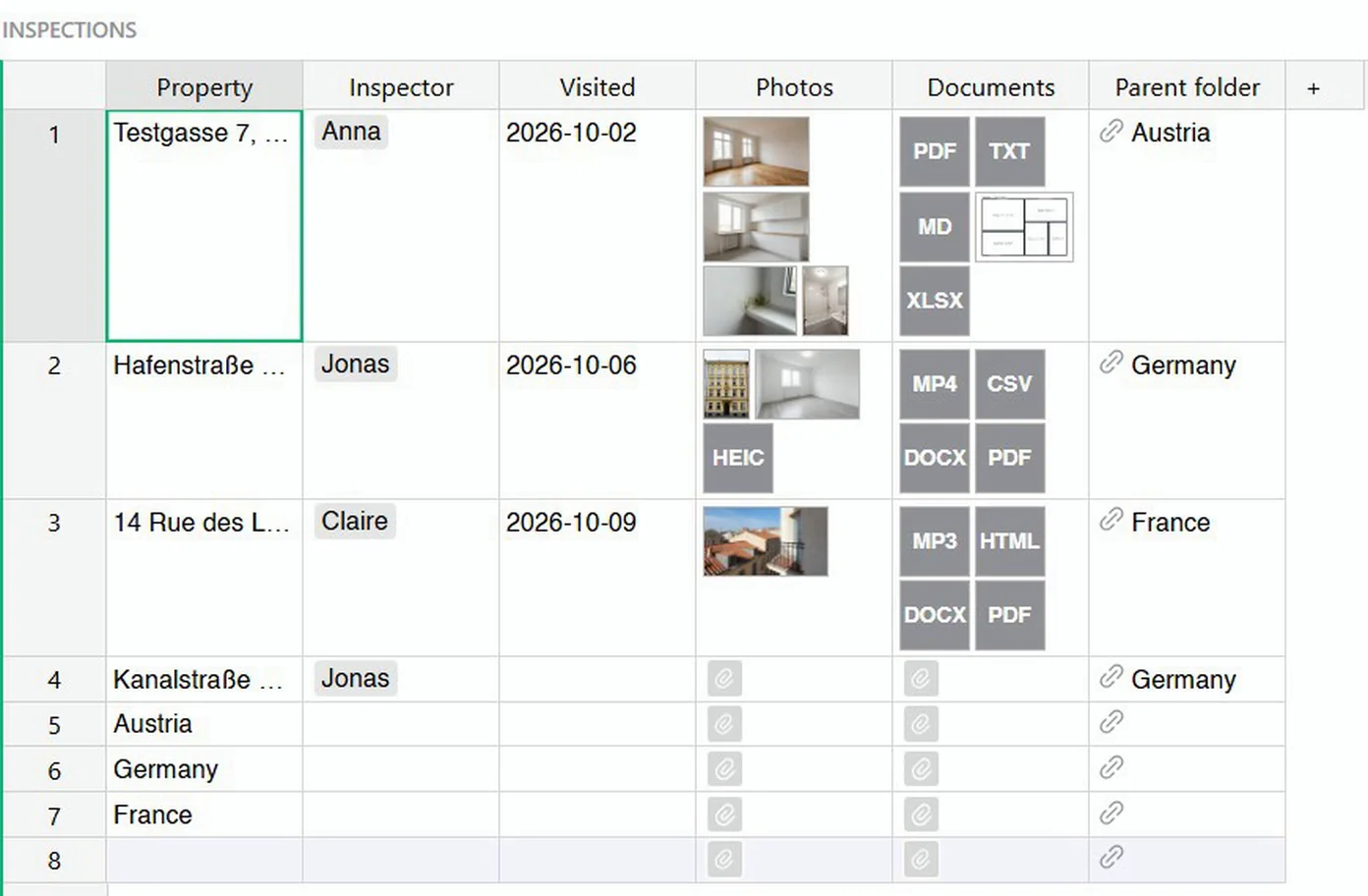
For a few files in a few rows, that is all you need. File Studio is for tables where the attachments are the point: forty photos from one inspection, a contract you remember by a clause in it, a report that has to go out as a PDF this afternoon. Grist’s larger view shows one cell’s attachments at a time. File Studio shows all the attachments of the table together, keeps them in folders, searches the words inside them, and edits them without a trip through a download and an upload.
Live, interactive demo
This is the real widget, the same page you paste into Grist, running on made-up property inspections in Vienna,
Hamburg, Lyon and Berlin. It opens on the Files layout. Click anything: switch to Cards or Viewer at the top,
open the Excel file or a PDF, tick Inside files and search for meter, press E on a photo
to mark it up, or open Storage. It runs on sample files in your browser, so nothing you change is kept.
Watch the overview (4 minutes)
The overview shows each part of File Studio once, on the same sample inspections as the screenshots in this guide. A tutorial for each part follows on our channel.
Chapters: jump to any part
Add File Studio to your Grist document
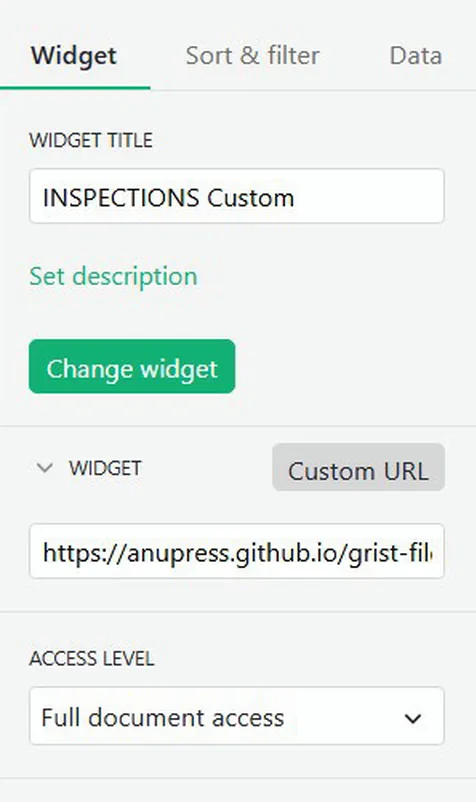
- Add a custom widget. In your document, press Add New, then Add widget to page. Choose Custom as the widget and the table that holds your files under Select data, then Add to page.
- Paste the address into the Custom URL card of Choose custom widget, and press Add widget:The first time, Grist warns about custom widgets from outside its gallery. Tick the box and confirm. The code is public on GitHub, so you can read it before you trust it.
https://anupress.github.io/grist-file-studio/ - Accept full document access. The creator panel on the right asks for it. Access level then reads Full document access.
- Point it at your files. If the table has no Attachments column, press Add an Attachments column. Otherwise it shows the attachments that are there. Columns says which column names a record and what a card shows.
https://anupress.github.io/grist-file-studio/On self-hosted Grist it works the same way. Thumbnails, video and zips fetch the files from Grist’s API, which answers a widget by default. A server behind a firewall that refuses the upload check gets a message saying so, and the Grist cell still takes files.
Three layouts: Cards, Files and Viewer
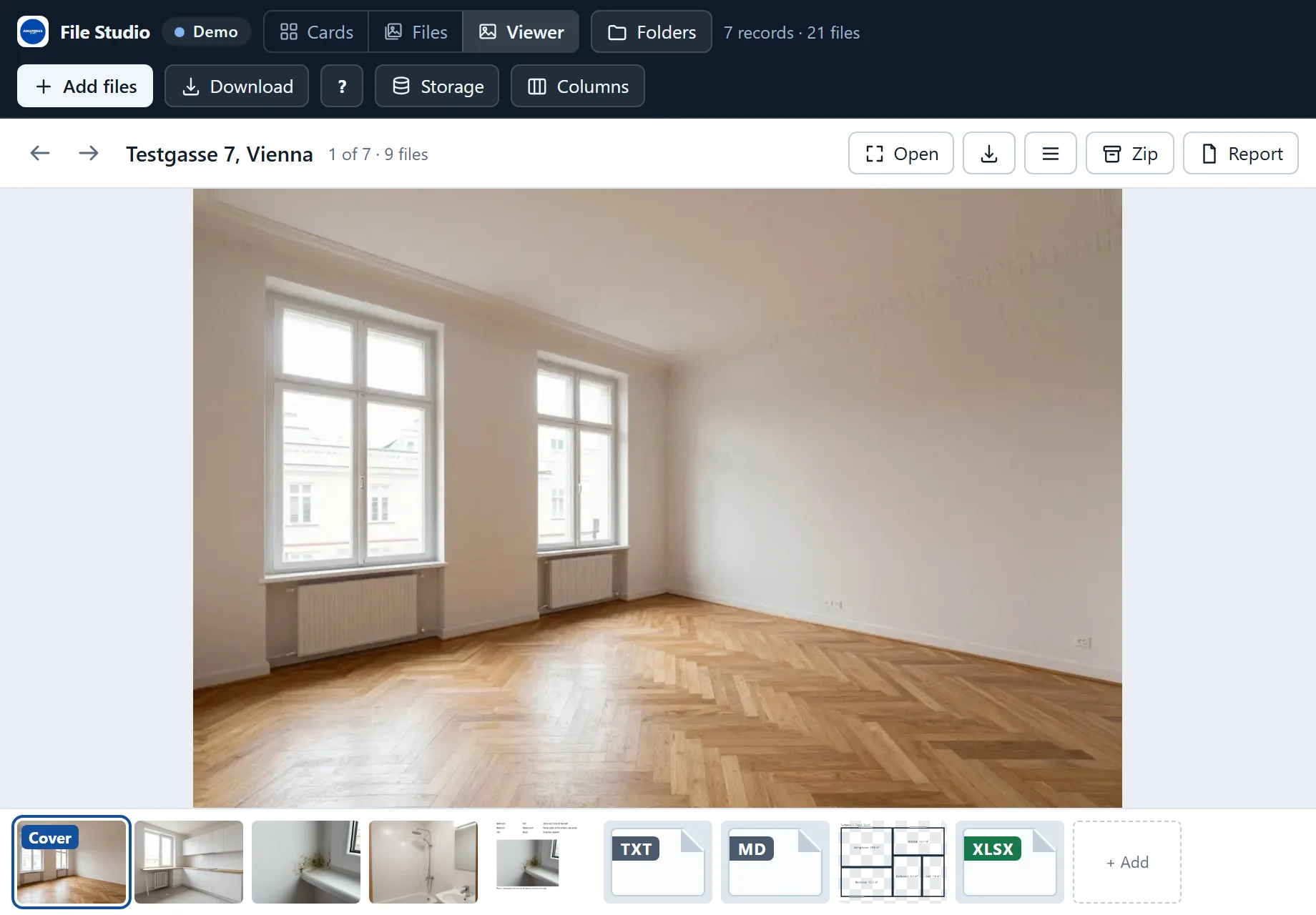
The buttons at the top switch between three ways of seeing the same attachments. Clicking a card or a file moves Grist’s cursor to its record, so a table or card linked to the widget follows along.
| Layout | Shows | What you do in it |
|---|---|---|
| Cards | One card per record: the cover picture, the title, up to four fields | Hover the cover to flip through its pictures, drop files on a card, click to select the record |
| Files | Every file of the records shown, with a heading per record | Search, filter by type, sort, mark several files and zip, rename or remove them |
| Viewer | The selected record’s files, large, with a filmstrip | Follow a table next to it, drag the filmstrip to reorder, make a cover, add files |
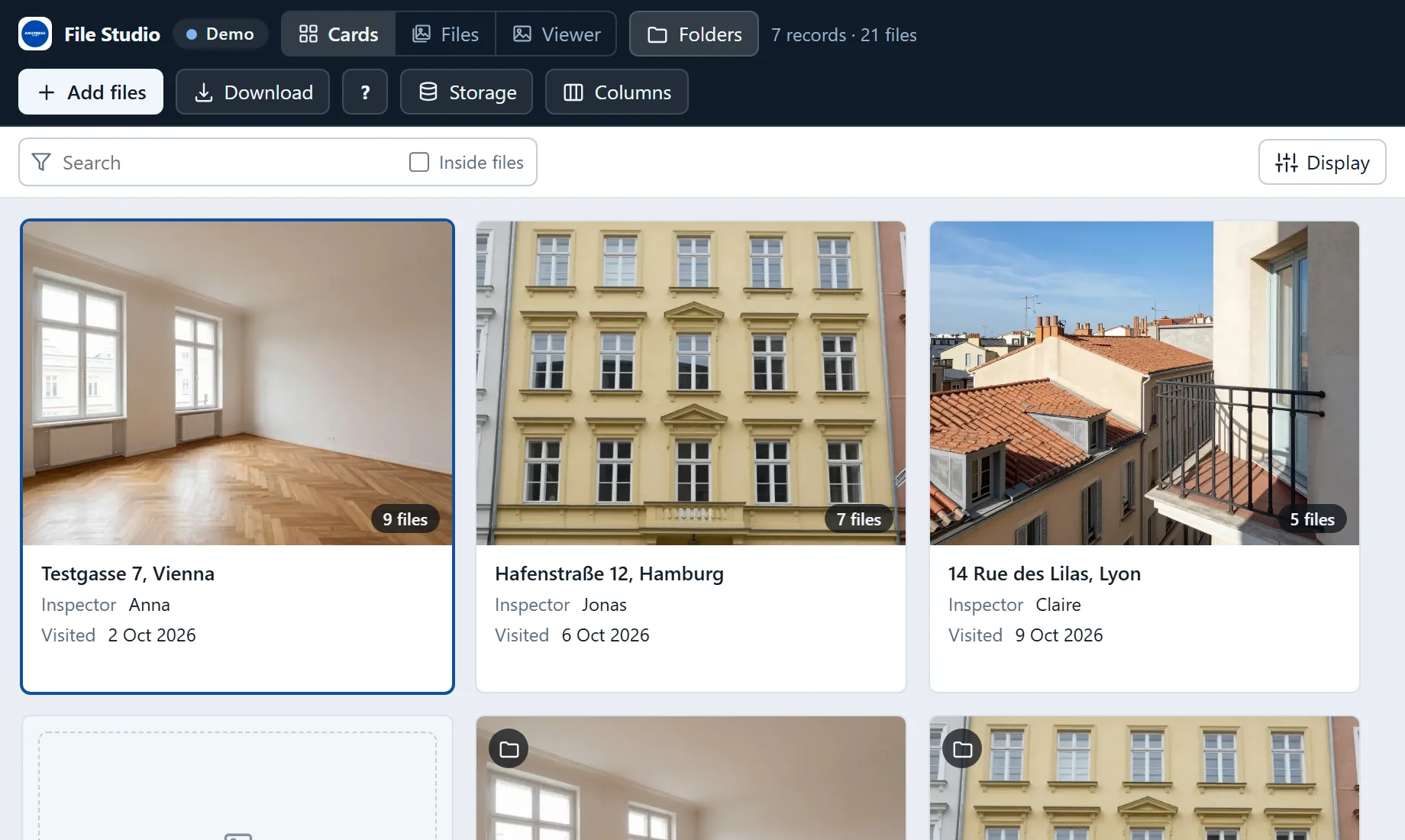
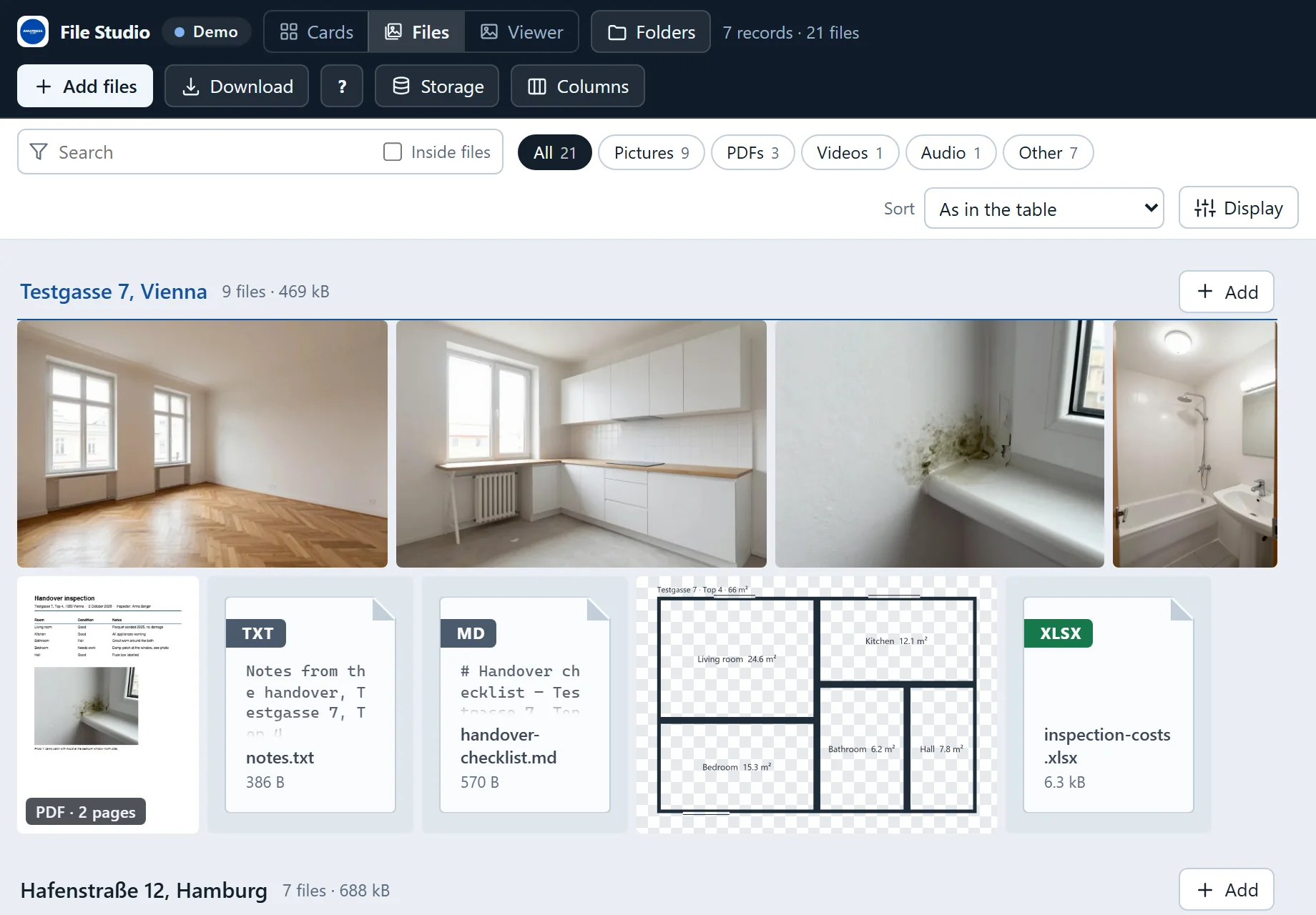
In the Files layout, Display → Show as → List turns the tiles into rows with the name, type, size, date added and tags, and a click on a heading sorts by it. The Viewer is the layout to put next to a Grist table: set Select by on the widget and it shows the attachments of whichever row you click.
Folders in Grist, made from records
Grist has no folders. A file sits in an Attachments cell, and a cell belongs to a record. So in File Studio a folder is a record: New folder adds a row with the name you type, and a file is in the folder when it is in that row’s Attachments cell. The table’s other columns, formulas and links work on a folder as on any row.
Folders inside folders need one more column: a Reference column to the same table that says which record a record sits in. File Studio finds one called Parent, Folder, Ordner or Dossier, and Let folders nest in the folder list adds a Parent column for you. Then the Folders button opens the list on the left, with the number of files in each. Choose a folder to see its files and those of the folders below it, in every layout.
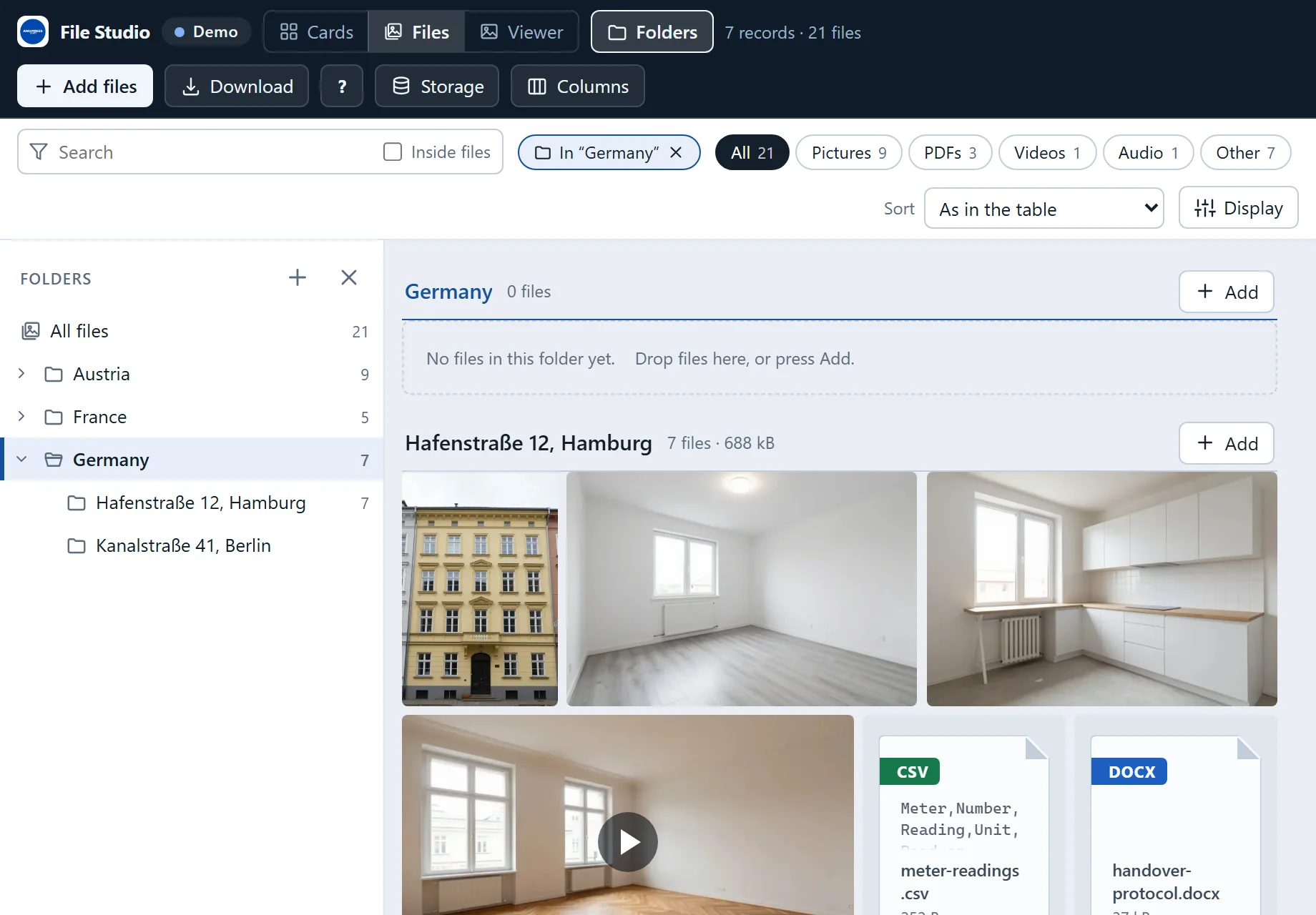
Drag a folder onto another to move it, or files onto a folder to put them in it. You can also drop a whole folder from your computer: each folder on the disk becomes a record inside its parent, with its files in the Attachments cell, up to 3,000 files at a time. A question comes first with the count and the size, and one Undo takes the new records back (the uploaded files stay in the document until Free up space).
Upload files to Grist: drop, paste or pick
Drop files on a card, on a record’s heading or on the Viewer, and they go into that record’s attachments. Press Add files to choose between the selected record and one new record per file, named after the file. Ctrl+V pastes a screenshot. On a phone, Add files offers the camera, and photos from an iPhone work as they are. The option Shrink large photos before uploading in Columns keeps the document small and drops the location and camera data that photos carry.
Search the words inside your attachments
The search box looks at file names, the record’s title and its fields. Tick Inside files and it also looks at the words in the attachments themselves: PDFs page by page, Word, Excel, PowerPoint and OpenDocument files, and text, Markdown, CSV and HTML files.
Reading is asked for. The first time, File Studio says how many files it will read and how much that downloads, and waits for your answer. It reads two at a time and says how far it is, with Stop beside it. The words are kept in this browser under each file’s content hash, never written to the document and never sent anywhere, so the same file in two records is read once.
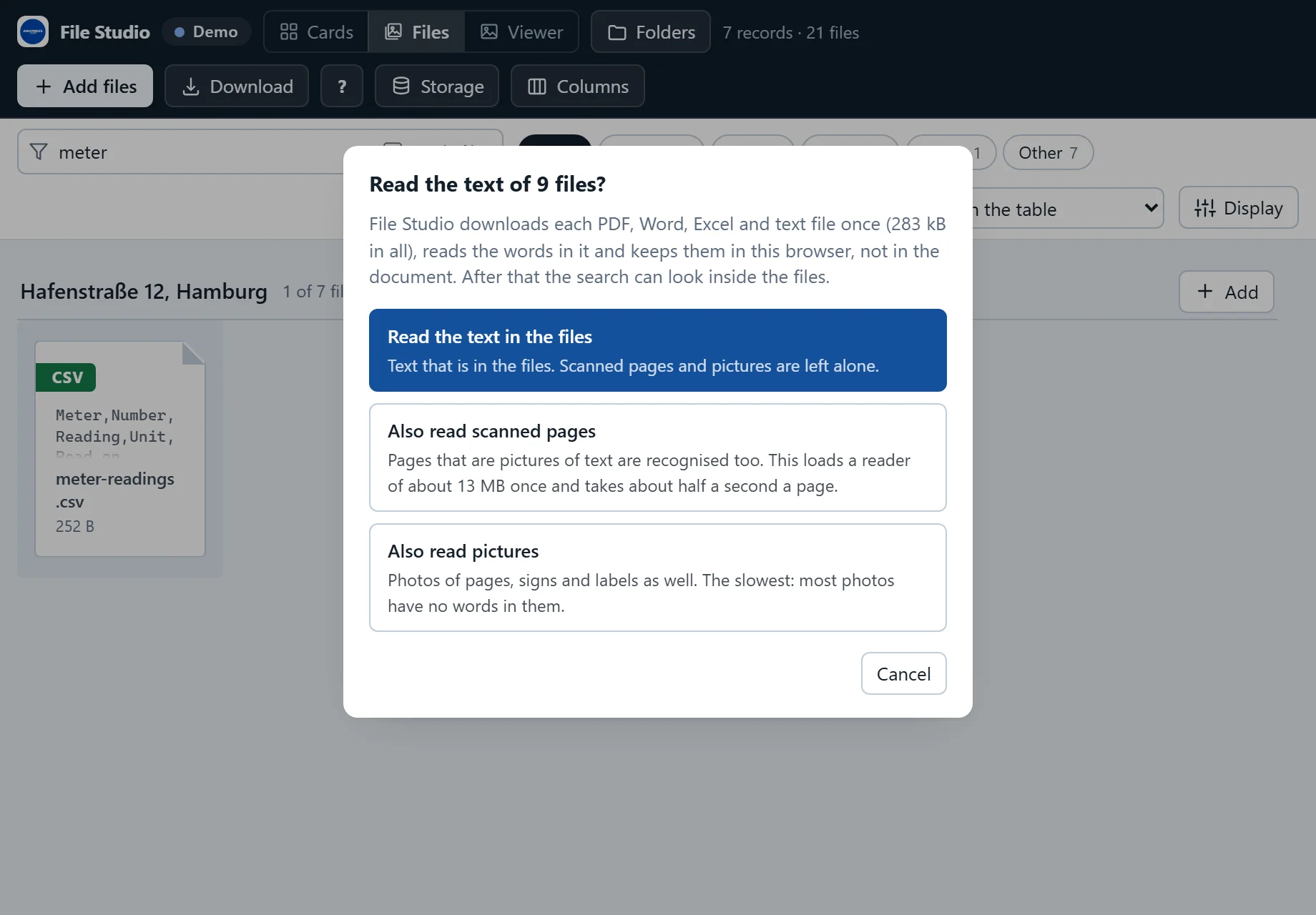
A match shows on the tile: the page (Page 2) or In the text, with the words around it. In Cards, a
record shows when one of its files matches. Accents and capitals do not matter, so muller finds
Müller.
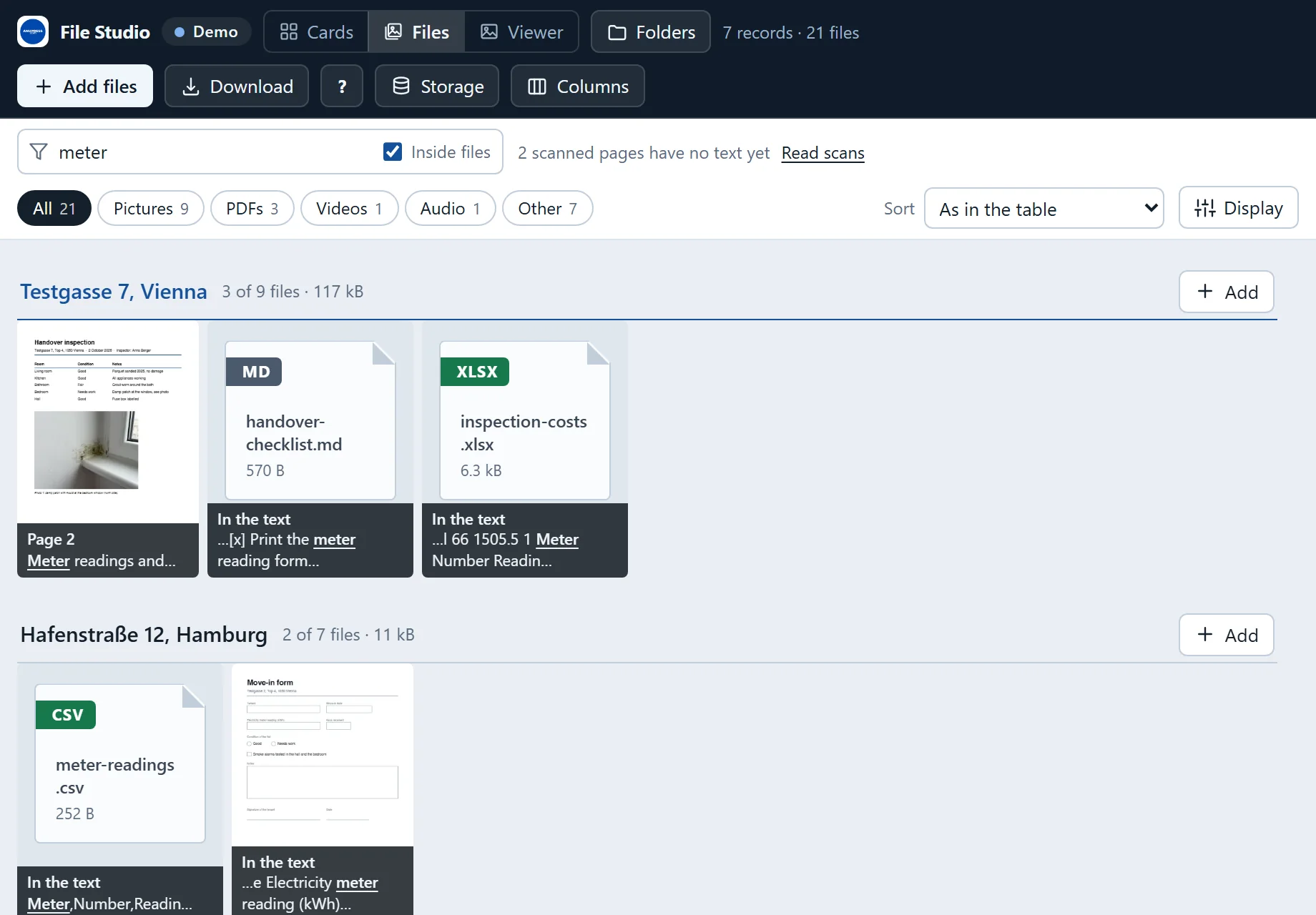
A scanned page is a picture of text with no words of its own. Also read scanned pages recognises them with Tesseract running in your browser: about 13 MB that load once, then about half a second a page, in the interface language and English. Also read pictures does the same for photos of signs and labels. Handwriting and very poor scans read badly.
A PDF viewer for Grist, and Word and Excel previews
Click any file and it opens as large as the widget allows. The arrow keys, a swipe or the filmstrip step through everything on show, and I shows the details: size, picture size, pages, upload date, record and column.
- Photos zoom with the wheel or a pinch and pan by dragging. Phone photos stand the right way up, and an iPhone’s HEIC pictures are drawn by the widget itself, in the browser.
- PDFs show every page, drawn by pdf.js, with zoom. Open in a new tab gives the browser’s own viewer for printing.
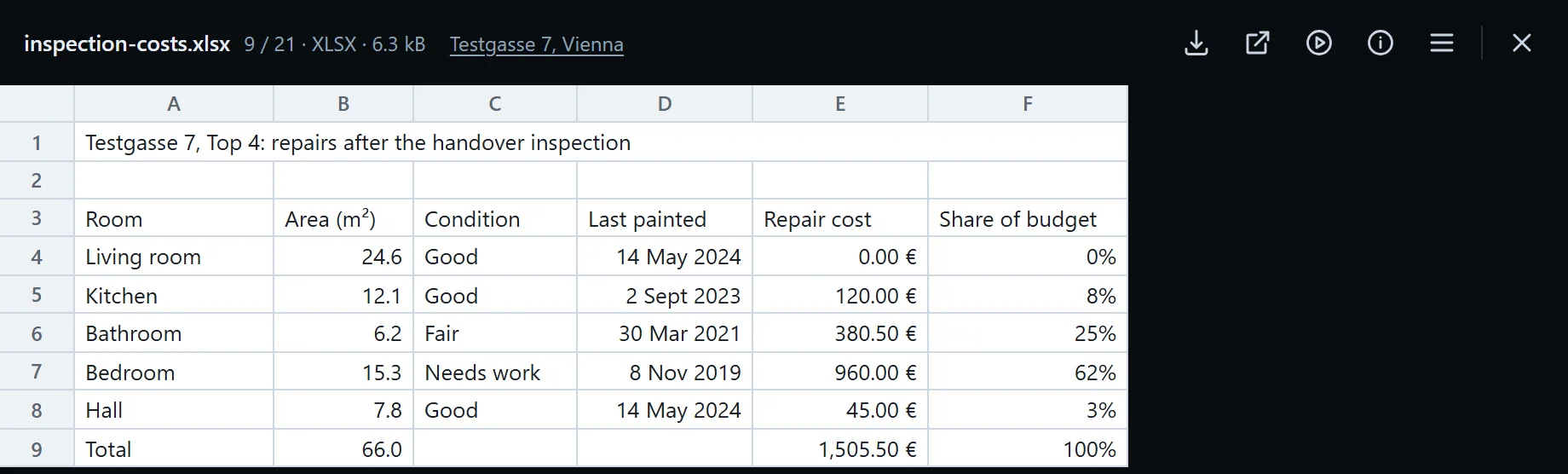
- Word, Excel and PowerPoint files are drawn on white sheets: the text with its headings, lists and tables; each Excel sheet as a grid with its number formats; each slide’s title and text. It is the content, not the program’s page, so there are no page breaks, fonts or charts. Up to 30 MB.
- Video and audio play in the browser. Text, CSV, JSON, Markdown and HTML show as text, CSV as a table, and are never run as a web page.
Three more ways to look: a slideshow (S) that moves on by itself; Compare, which lays two pictures on top of each other with a divider to drag, before and after; and Sort → Date taken, which orders photos by when the camera took them. Where it is lists every cell in the document that holds a file, in any table, and opens Grist at that cell.
Edit pictures: crop, mark up, hide
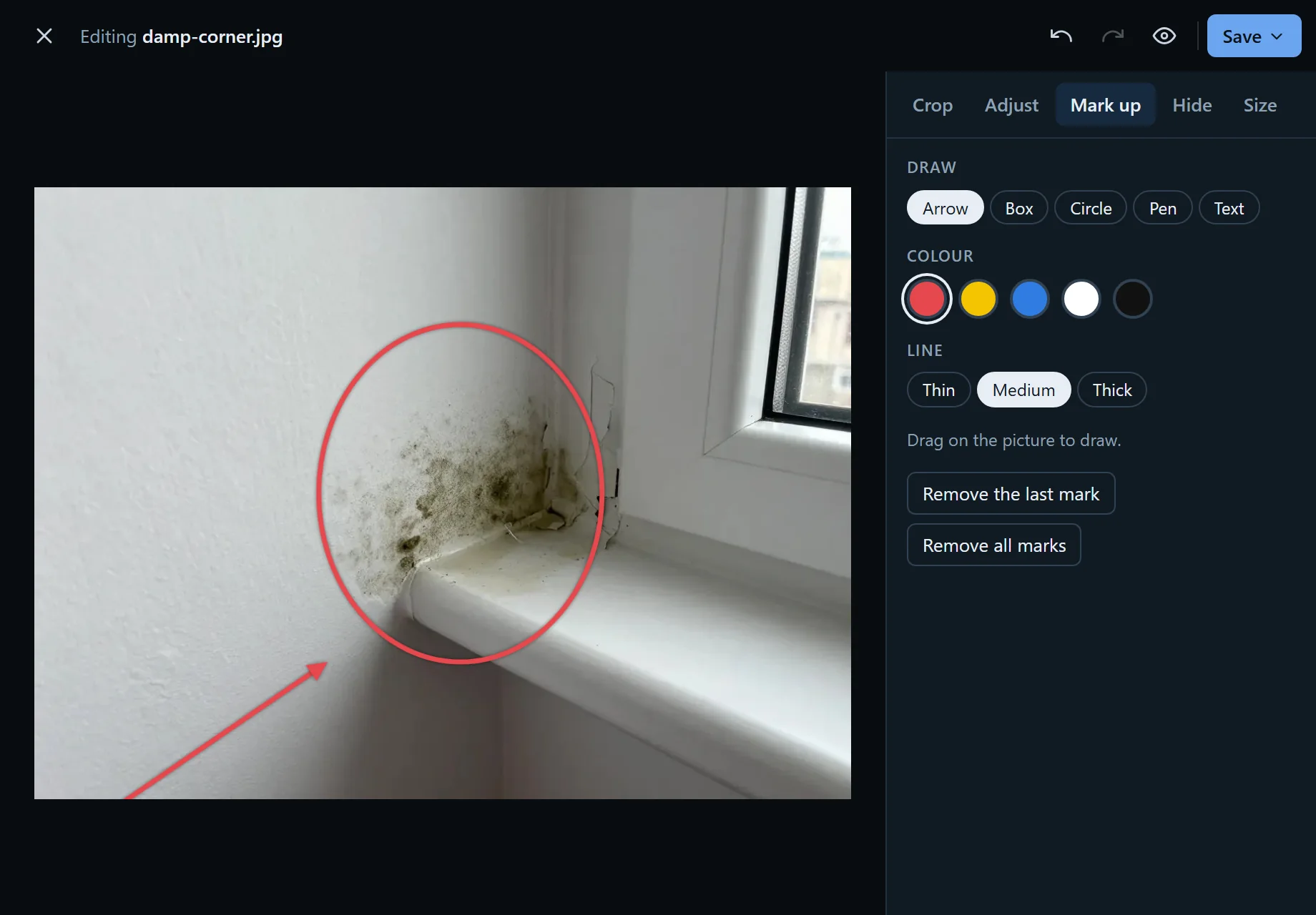
Press E on a picture, or Edit… in its menu, and it opens at full size in five tabs. Crop takes free or fixed shapes, turns, flips and straightens. Adjust sets exposure, contrast, colour and sharpness, or Auto does it for you. Mark up draws arrows, boxes, circles, a pen and text. Hide covers faces, number plates or names with blur, pixels or a black box. Size sets the width, the format and the quality.
The Document look is for a photo of a page: it makes the paper white and even and the print dark, like a scan, and a colour version keeps a blue pen blue. Save puts the edited picture where the original was, and asks first when the same file is in other cells. Save as copy adds it next to the original, and Download leaves the document alone. A saved picture carries no camera data.
Fill, sign and merge PDFs
A PDF opens in an editor with up to five tabs, and every page is read and written in your browser.
- Pages: drag to reorder, turn, remove or duplicate a page; add pages from other PDFs and photos; save
some pages as a new file, or split the file by ranges such as
1-3, 5, 8-. - Fill and sign: text, today’s date, a tick, a cross, a cover box, a highlighter, a pen, a picture such as a stamp, and a signature drawn with the mouse, a finger or a pen.
- Form: when the PDF has form fields, they are filled in on the page. By default what you typed becomes part of the page.
- Numbers: page numbers and a watermark such as DRAFT on every page.
- Finish: turn pages into pictures, and set a password to open the file.
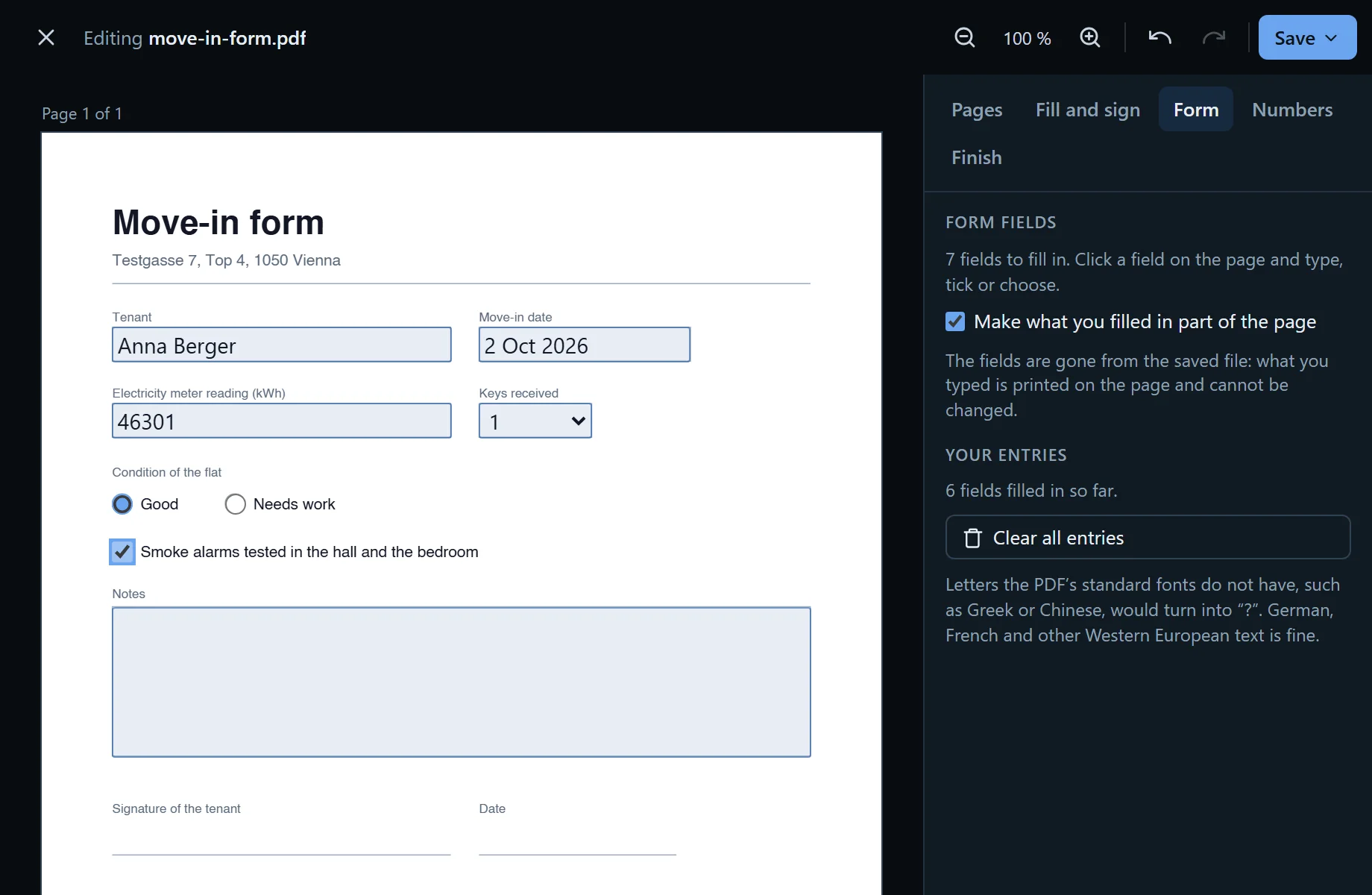
To merge, mark PDFs and photos in the Files layout and press Merge into PDF…. The editor opens with all their pages in order, and the new file is saved next to the first one. Changing a digitally signed PDF removes its signature. The editor says so, and Save as copy is the safer choice there.
Photo reports as PDF
A record’s photos on pages, with the title, the record’s details, the file names under the photos and a list of the other attachments. Open it from the Viewer’s Report button, or mark photos from several records and make one report of those.
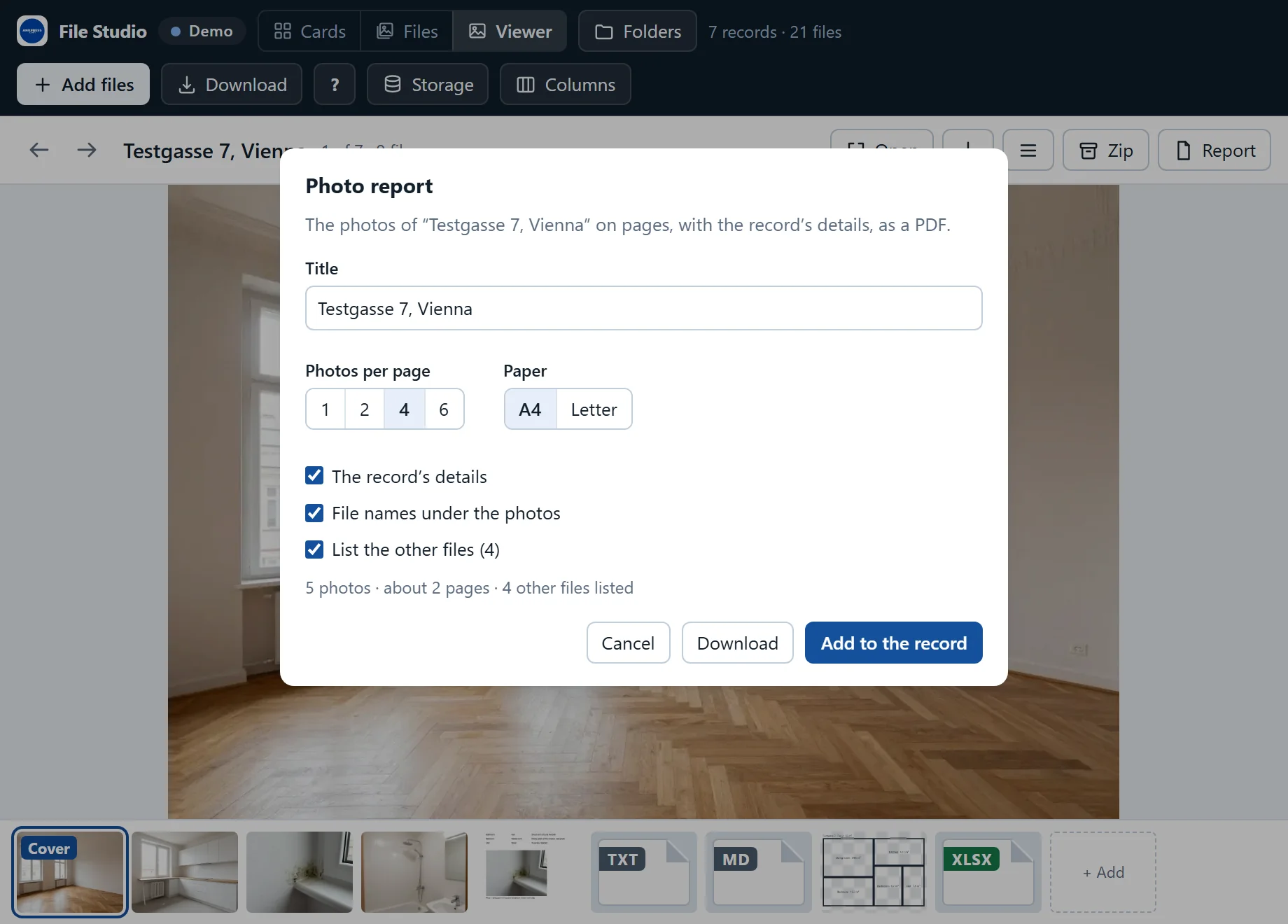
One, two, four or six photos per page, on A4 or Letter. Add to the record uploads the PDF next to the photos, and Download keeps it out of the document. The photos are stored as JPEG of at most 1,500 pixels (2,000 at one or two per page), so a report of forty phone photos is a few MB.
Storage: where the space goes
Grist’s hosted plans limit the attachments of each document: 1 GB on the free plan when we checked in October 2026, more on the paid plans. Storage shows the total, split into pictures, videos, PDFs, audio and the rest, with the attachments no cell uses any more shown apart. Grist stores a file once, however many cells hold it, so the same photo in two records counts once.
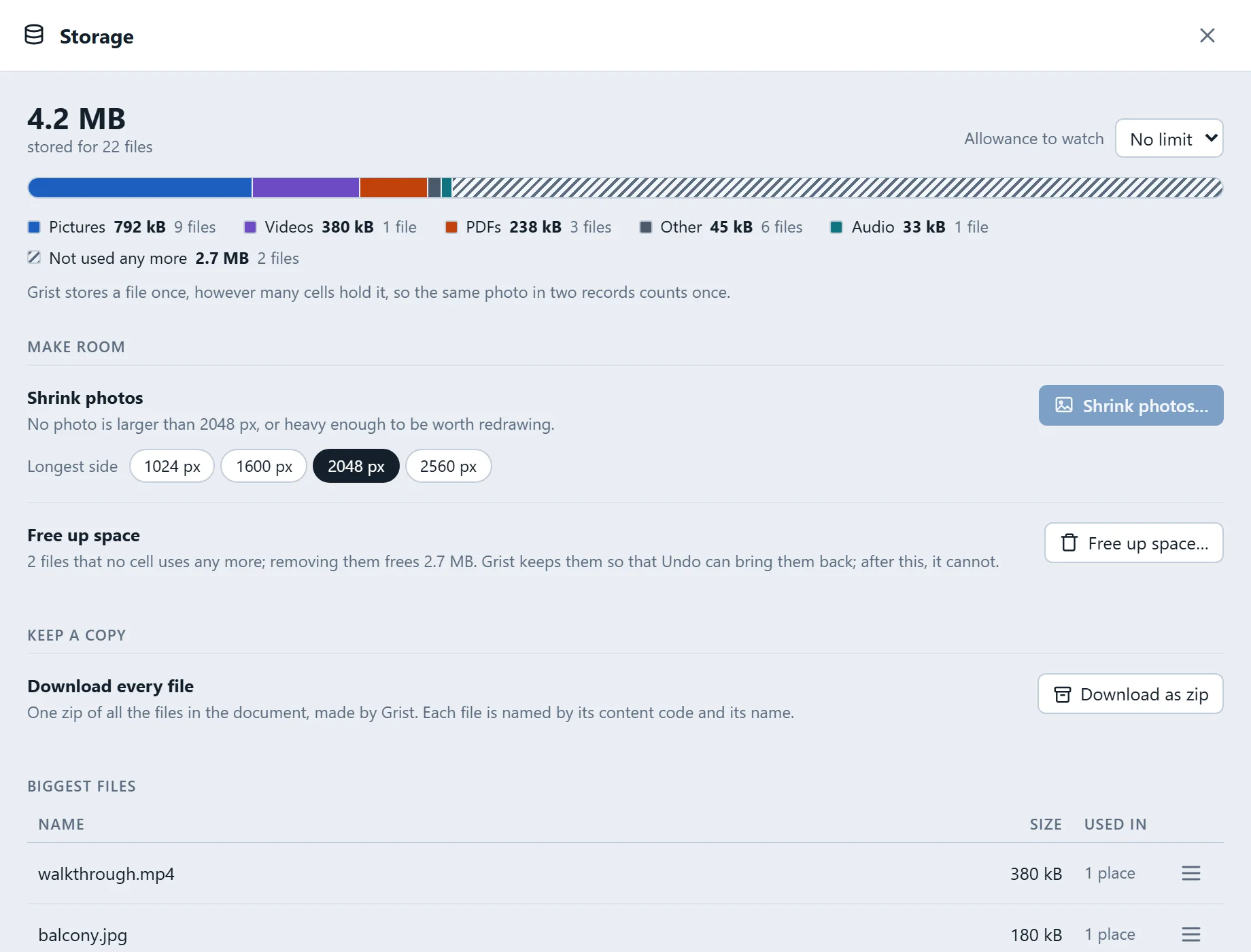
Shrink photos redraws every photo larger than the side you pick (1024 to 2560 pixels) and puts the new file in every cell that held the old one, in one step that Undo takes back. Free up space asks Grist to delete the files no cell uses; after that, Undo cannot bring them back, and only an owner of the document can do it. Download as zip asks Grist for all the attachments in the document in one zip, the quickest backup of the files.
Tags, notes, zips and Ctrl+K
Tags and notes belong to a file, not a cell, so a photo in two records has the same tags. They live in an
ordinary Grist table, File_Studio_notes, which File Studio adds after asking, the first time someone
tags a file. Grist’s Undo, history and access rules cover it like any other table.
Zips take their file names from your columns. In Columns, a pattern such as
{Invoice} {Client} {nn} turns into R-2026-014 Müller GmbH 01.jpg, and a zip can hold a
folder per record and a files.csv that says which file came from which record. Rename… on
marked files uses the same patterns inside Grist, with a preview first.
Ctrl+K opens one box for commands, folders and files. Right-click works on files, folders and empty space, and a long press does the same on a phone. The widget speaks English, German and French, following Grist’s language.
Where your files go
File Studio is a static page on GitHub Pages that runs in your browser. It reads your Grist attachments through Grist’s own widget API and writes changes back the same way. There is no ANUPRESS server in between, no account and nothing that collects your attachments. Thumbnails and the words read for the search are kept in your browser’s storage; the widget’s settings are saved in the document; tags and notes sit in their own table. The code is MIT licensed and public, so anyone can check this.
What File Studio cannot do
- It does not rewrite the text in a PDF. Marks sit on top of the page, which is how filling in and signing work.
- Text it adds uses the PDF’s standard fonts. German, French and other Western European text is fine. Greek, Chinese and other scripts would turn into “?”, and the editor warns you as you type.
- Word, Excel and PowerPoint files are shown, not edited, and without their page layout. The old
.docand.xlsshow their type, size and a Download button. - Handwriting reads badly with text recognition, and so do very poor scans.
- Browsers: we test in Chrome and Firefox, and Edge uses Chrome’s engine. Safari has not been tested yet.
Grist attachments: FAQ
Is File Studio free?
Yes. File Studio is open source under the MIT licence and hosted on GitHub Pages. There is no account, no tier and no usage limit. Grist itself has a free plan and can be self-hosted.
Does it change the attachments in my table?
Only when you do something: add, rename, move, edit or remove a file, or make a folder. Each change is one Grist action that one Undo takes back. Grist never changes an uploaded file, so an edited picture or PDF is uploaded as a new file and the cell points to it. Formula columns are shown, never written.
Do my attachments leave my Grist document?
No. The widget is a static page that runs in your browser. It reads your attachments through Grist’s widget API and writes changes back the same way. ANUPRESS has no server and receives nothing. Thumbnails and the words read for the search are kept in your browser.
Can it open iPhone photos (HEIC)?
Yes. File Studio draws HEIC pictures itself, in the browser, for the thumbnail, the lightbox, the editor and the photo report. Convert to JPEG in a picture’s menu replaces a HEIC by a JPEG in every cell that holds it.
Can it search scanned PDFs?
Yes. Also read scanned pages recognises the text with Tesseract running in your browser, in the interface language and English. Nothing is sent anywhere. Handwriting and very poor scans read badly.
How do folders work when Grist has no folders?
A folder is a record. New folder adds a row with the name you type, and a file is in the folder when it is in that row’s Attachments cell. A Reference column of the same table, such as Parent, puts folders inside folders, and File Studio can add that column for you.
Does it work with self-hosted Grist?
Yes. Add it with the same address. Thumbnails, video and zips fetch the files from Grist’s API, which answers a widget by default. If a firewall refuses the upload check, the widget says so and the Grist cell still takes files.
How many attachments can it handle?
Thumbnails are made once and kept in your browser, at most four files download at a time, and only what is on screen is drawn. In our test, 10,000 attachments opened in about 0.3 seconds. Add ?example=speed to the demo address to try 2,000 records with 10,000 files.
Keep going
The source, the changelog and the issue tracker are on GitHub. If you would rather have Grist set up for you, with your tables and the widgets in place, that is a service we offer.
File Studio is built and maintained by ANUPRESS. It is free, open source, and runs entirely in your browser. The inspections, addresses and people in the demo and the screenshots are invented.