Your Excel formulas, rewritten for Grist
Grist formulas are written in Python, and each one belongs to a whole column instead of a single cell. That one change breaks many Excel habits. This guide translates them one by one and shows the result Grist gave when I ran each formula.
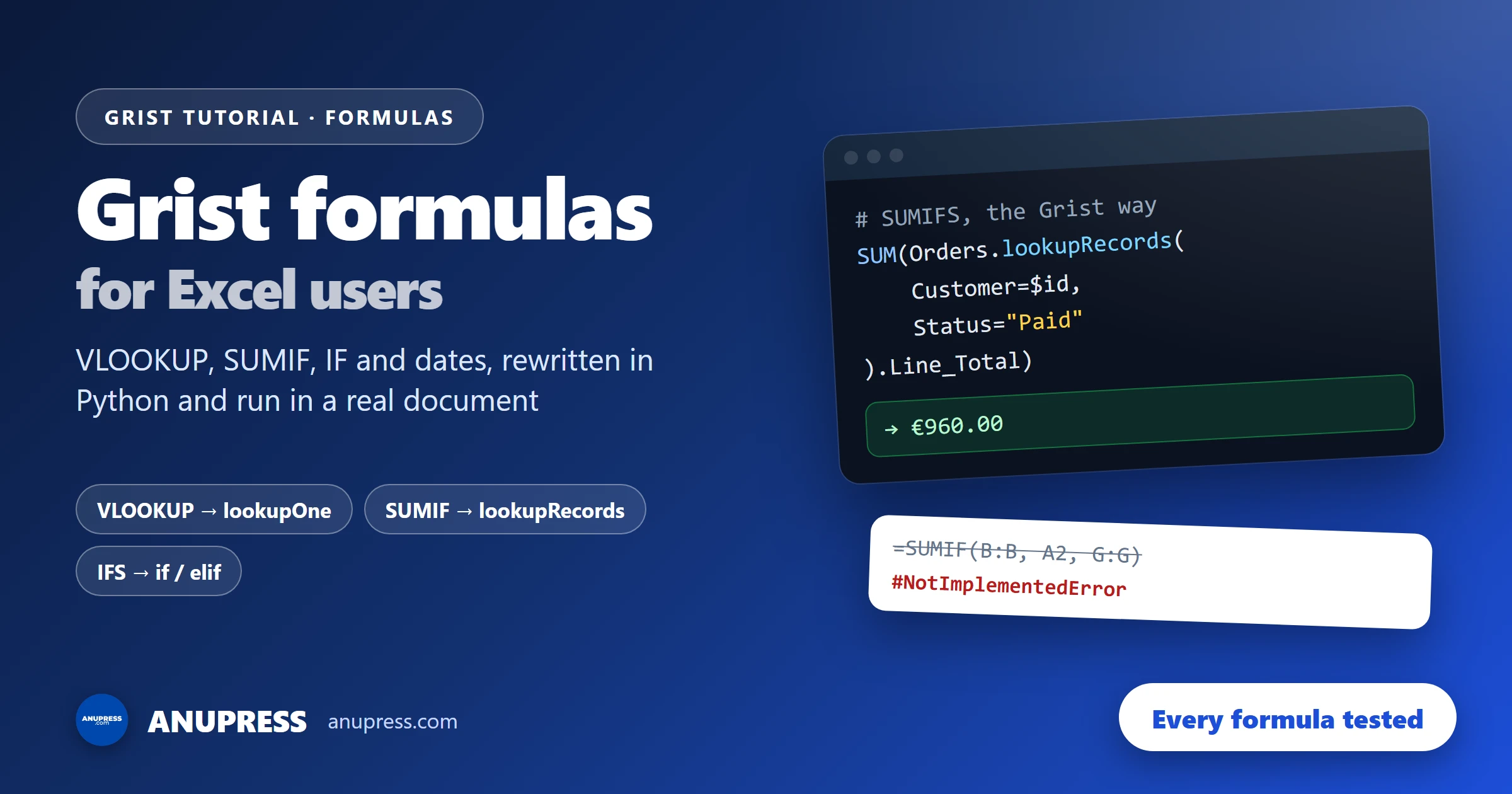
Type =SUMIF( into Grist and you get an error. This is not a bug.
Grist formulas work on a different idea from a spreadsheet: there are no cells to point at,
only columns and tables. Once that idea is clear, many Excel formulas take one short line in
Grist. A few things take more work, and a few traps give you a wrong number without
any warning. This guide covers all three.
The short version
Here are the common Excel habits next to the Grist formulas that replace them. The last column is what the example document returned, so you can check your own result against it.
| Excel habit | Grist formula | Tested |
|---|---|---|
=B2*C2, copied down | $Qty * $Product.Unit_Price, once | €510.00 |
| VLOOKUP | a reference column, or Products.lookupOne(...) | €85.00 |
| SUMIF | SUM(Orders.lookupRecords(Customer=$id).Line_Total) | €1,200.00 |
| SUMIFS | add Status="Paid" inside the brackets | €960.00 |
| COUNTIF | len(Orders.lookupRecords(Customer=$id)) | 3 |
| AVERAGEIFS | AVERAGE(...), with a guard for no rows | €480.00 |
| MAXIFS | MAX(Orders.lookupRecords(Customer=$id).Order_Date) | 2026-09-15 |
| IFS | if / elif / else | “Overdue” |
| IFERROR | IFERROR(x, "n/a"), the same | “n/a” |
| ISBLANK | not $Email | true |
& to join text | +, or "{} {}".format(...) | “Qty: 5” |
| TEXT | "{:,.2f}".format(x) | “1,234.50” |
Running total =G2+H1 | PREVIOUS(rec, order_by=...) | €1,200.00 |
| RANK.EQ | RANK(rec, order_by="Line_Total", order="desc") | ties differ |
| Pivot table | a summary table | €2,350.00 |
If you remember only four things, remember these:
- Write the formula once, for the whole column. There is no copying down, and no row can end up with a different formula from its neighbours.
$Namemeans “this row’s value in the column Name”. Use the column ID, where a space becomes_.- To reach another table, call it by name.
Orders.lookupRecords(Customer=$id)finds every order of the current customer. - A lookup that finds nothing gives 0, not an error. Check it, or a wrong number will look like a real one.
How Grist formulas work
Grist formulas follow four rules that differ from Excel. Each rule explains one of the errors you will meet later.
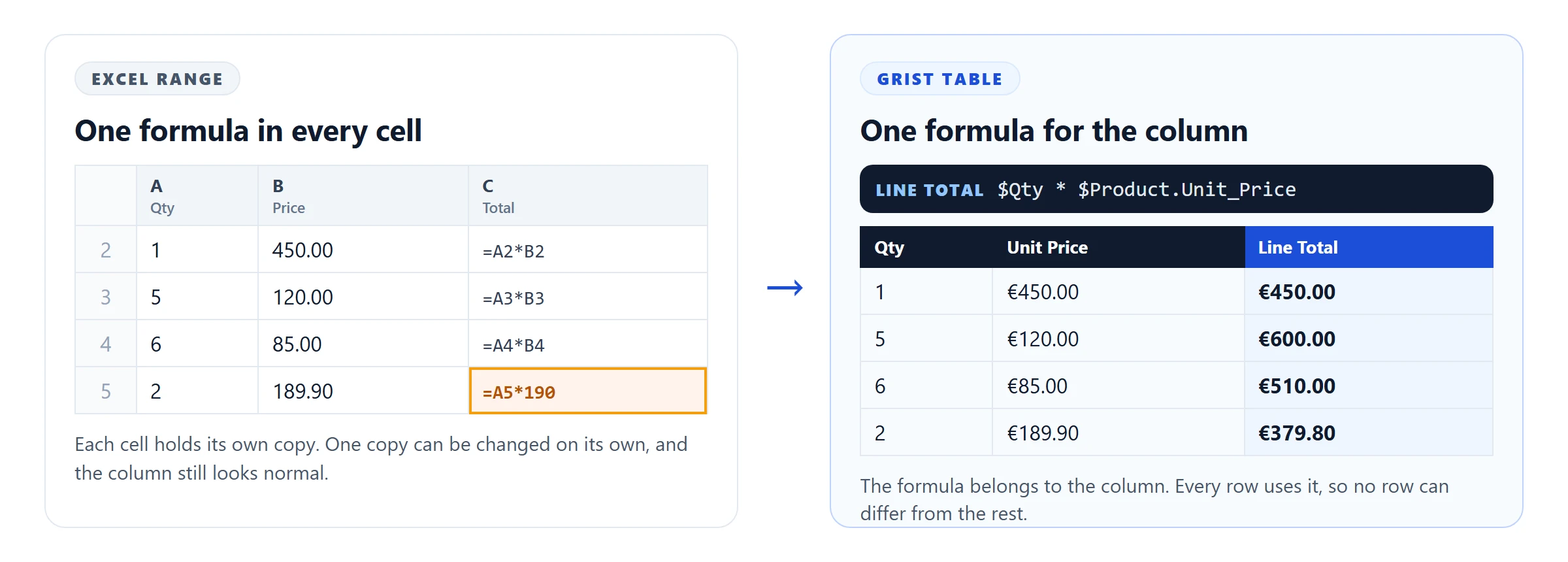
A formula belongs to a column. In an ordinary Excel range you write
=B2*C2 in one cell and copy it down. In Grist you write
$Qty * $Product.Unit_Price once, and every row in the table uses it. Grist’s own
help says there is no need to specify row numbers. This means a single row cannot
drift away from the rest. If you change the formula, every row changes with it.
Excel tables have something close to this. Microsoft calls them calculated columns: you enter a single formula in one cell, and it expands to the rest of the column by itself. If you already work that way, much of this guide will feel familiar. The difference is that in Grist this is the only way formulas work, and a column formula can reach any other table by its name.
$ means “this row”. $Qty is the value of the Qty
column in the row being calculated. It is shorthand for rec.Qty, where
rec is the current record. Grist uses the column’s ID, not its label. If the label
is “Unit Price”, the ID is usually Unit_Price, because Grist replaces spaces and
other awkward characters with the _ character.
Tables are objects you can search. Every table in the document is available to
every formula by its name. Orders.all is every order, and
Orders.lookupRecords(Customer=$id) is the orders that belong to this customer.
This replaces ranges like Orders!B:B.
Grist formulas are Python, and they are case-sensitive. Grist’s documentation says the whole
Python standard library is available. When I asked a formula for its version on Grist’s hosted
service, it returned Python 3.11.2. The Excel-style helpers have names in
capitals, so SUM works, and Sum gives a #NameError.
A formula with more than one line needs return on the line that gives the answer,
and Shift + Enter starts a new line in the formula editor.
Finally, Grist has three kinds of column. A data column holds what you type. A formula column always shows the result of its formula. A trigger formula runs once, when a row is added or changed, and then keeps its value. The third kind solves a problem that ordinary formulas cannot, keeping a value fixed, so it gets its own section.
Lookups: VLOOKUP and friends
In Excel, VLOOKUP is how one sheet reads from another. In Grist formulas you usually do not need it, because tables can be linked directly. Grist’s own reference says so: VLOOKUP is not commonly needed, since reference columns are the best way to link data between tables.
1. Reference column: the Grist way to pull a price
Make the order’s Product column a Reference to the Products table, and the price is one dot away.
Excel: =VLOOKUP(C2, Products!A:C, 3, FALSE) * D2
$Qty * $Product.Unit_PriceTested: 6 support hours at €85.00 gave €510.00.
The reference stores the product’s row, not its name. So if you rename “Support hour” later, every order still points at the right product. A VLOOKUP on a name would break.
2. lookupOne: VLOOKUP on a text key
Sometimes the key is plain text, for example after an import from Excel. Then search the other
table with lookupOne, which returns the first matching record.
Products.lookupOne(Product=$Product_Name).Unit_PriceTested: “Team licence” returned €120.00.
Grist also has a function called VLOOKUP, but it is not Excel’s. It takes a table
and column=value pairs, with no range, no column number and no TRUE or FALSE:
VLOOKUP(Products, Product=$Product_Name).Unit_Price. Grist documents it as exactly
equivalent to lookupOne, and in my test the two columns matched on every row.
3. The silent zero: what a failed lookup returns
This is the difference that can cost you money. In Excel, a VLOOKUP that finds no exact match
shows #N/A, so you notice. In Grist, a lookup that finds nothing returns an empty
record, and a number read from an empty record is 0.
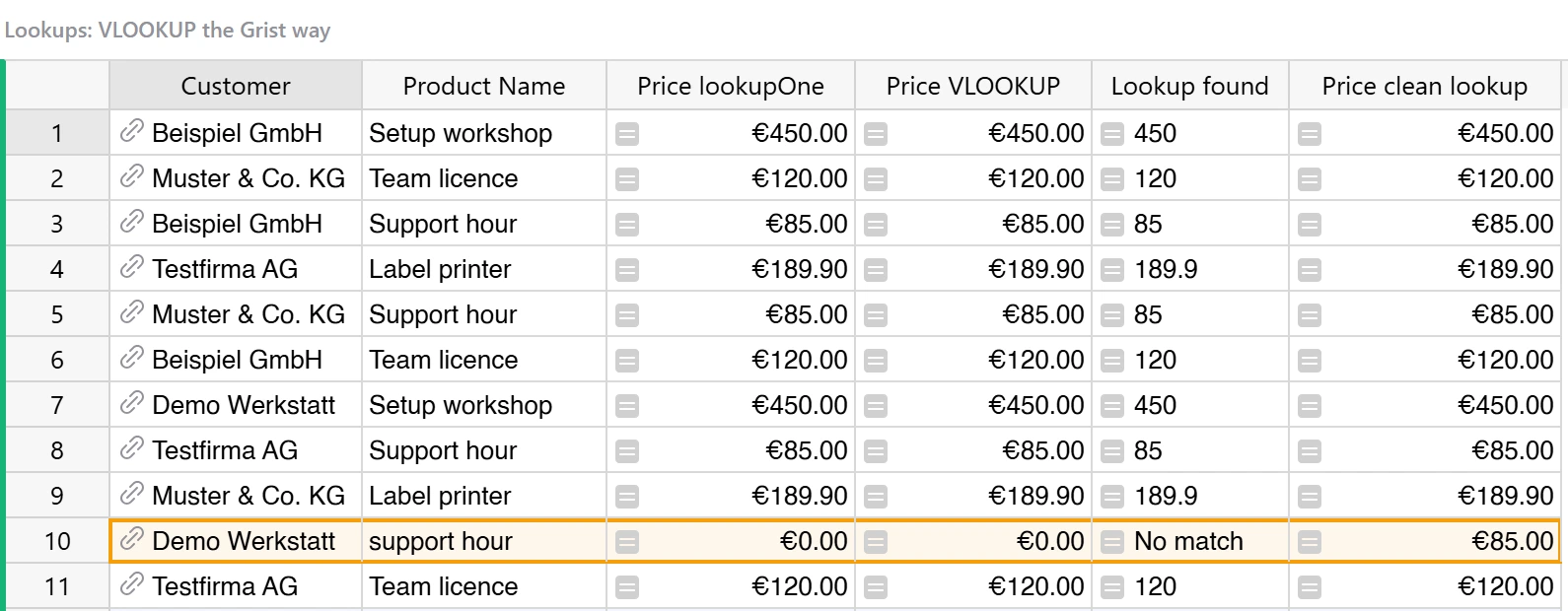
Tested: one order had its product typed as “support hour ” (lower case,
with a space at the end). Both lookupOne and VLOOKUP returned
0, with no error and no warning.
There are two fixes. The first checks whether anything was found:
p = Products.lookupOne(Product=$Product_Name)
return p.Unit_Price if p else "No match"
Tested: the broken row now shows “No match”, and the other rows keep their prices.
The second cleans the key before searching. .strip() removes the spaces at both
ends and .capitalize() turns “support hour” into “Support hour”, which is how the
product names are stored in this document:
Products.lookupOne(Product=$Product_Name.strip().capitalize()).Unit_PriceTested: the broken row returned €85.00.
4. lookupRecords: every matching row, not just one
Where lookupOne returns one record, lookupRecords returns all of them
as a set. On the Customers table, this finds every order of the current customer:
Excel 365: =FILTER(Orders!A:G, Orders!B:B=A2)
Orders.lookupRecords(Customer=$id)$id is the row ID of the current customer, which is what a reference column
stores. You can sort the result with order_by="Order_Date", or newest first with
order_by="-Order_Date". On its own the set is not very useful. Its value comes in
the next section, where you add it up and count it.
Conditional totals: SUMIF and COUNTIF
Grist’s function list includes SUMIF, SUMIFS and AVERAGEIF, but every one of them is marked
“not currently implemented”, and COUNTIF is not there at all. I typed them in to be sure. SUMIF
gave #NotImplementedError and COUNTIF gave #NameError. In Grist
formulas the replacement is the same pattern every time: find the rows with
lookupRecords, then sum, count or average them.
5. SUMIF: total of the matching rows
Excel: =SUMIF(Orders!B:B, A2, Orders!G:G)
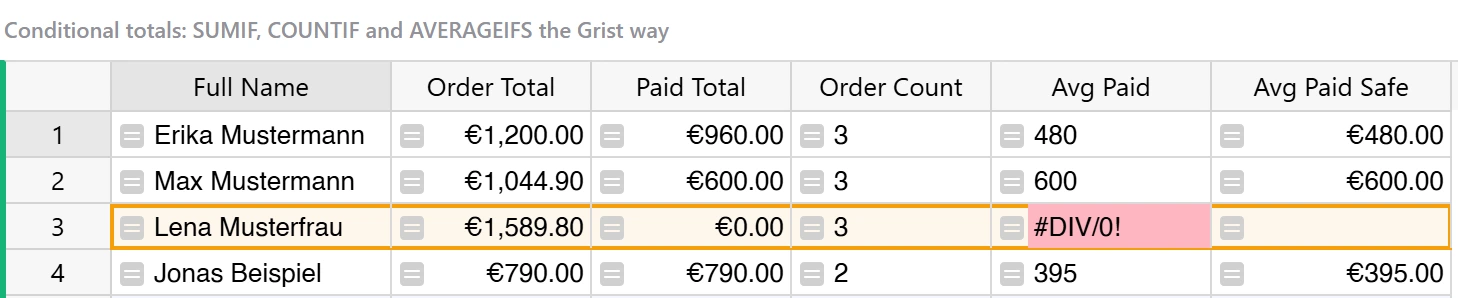
SUM(Orders.lookupRecords(Customer=$id).Line_Total)Tested: Erika Mustermann’s three orders of €450.00, €510.00 and €240.00 gave €1,200.00.
6. SUMIFS: several conditions at once
Add more column=value pairs inside the brackets. Each pair is one more condition, and all of them must be true.
Excel: =SUMIFS(Orders!G:G, Orders!B:B, A2, Orders!E:E, "Paid")
SUM(Orders.lookupRecords(Customer=$id, Status="Paid").Line_Total)Tested: €960.00. The open €240.00 order dropped out.
7. COUNTIF: how many rows match
Python’s len counts the records in the set.
Excel: =COUNTIF(Orders!B:B, A2)
len(Orders.lookupRecords(Customer=$id))Tested: 3 for Erika, 2 for Jonas Beispiel.
8. AVERAGEIFS: and the customer with no matching rows
Excel: =AVERAGEIFS(Orders!G:G, Orders!B:B, A2, Orders!E:E, "Paid")
AVERAGE(Orders.lookupRecords(Customer=$id, Status="Paid").Line_Total)Tested: €480.00 for Erika. For Lena Musterfrau, who has no paid orders,
the cell showed #DIV/0!.
This is one habit that carries over unchanged. Microsoft’s documentation says AVERAGEIF returns
#DIV/0! when no cells meet the criteria, and Grist shows the same text. Behind it,
Grist’s API reports the Python error, ZeroDivisionError. To show a blank instead, check that
the set is not empty first:
paid = Orders.lookupRecords(Customer=$id, Status="Paid")
return AVERAGE(paid.Line_Total) if paid else None
Tested: Lena’s cell is now empty, and Erika still shows €480.00.
9. COUNTIFS with “less than”: conditions that are not equal
lookupRecords only takes column=value pairs, so it can test “equals” but not
“before” or “greater than”. For those, filter the rows with a short Python list. Here the task
is to count each customer’s open orders that are past their due date.
Excel: =COUNTIFS(Orders!B:B, A2, Orders!E:E, "Open", Orders!F:F, "<"&TODAY())
open_orders = Orders.lookupRecords(Customer=$id, Status="Open")
return len([o for o in open_orders if o.Due_Date < TODAY()])
Tested: 1 for Erika and 1 for Lena on 3 October 2026.
The order matters here. The lookup first narrows the table to one customer’s open orders,
and only then does Python loop over that small set. Grist’s documentation recommends this:
on large tables, use lookups as much as you can instead of looping through every row. A
loop over Orders.all also works, for example
SUM(o.Qty for o in Orders.all if o.Qty > 2) returned 31, but it reads the whole
table each time.
10. MAXIFS: the latest date among the matches
Excel: =MAXIFS(Orders!A:A, Orders!B:B, A2)
MAX(Orders.lookupRecords(Customer=$id).Order_Date)Tested: Erika’s last order date, 2026-09-15. Set the column type to Date so it displays as a date.
11. Summary table: the Grist pivot table
When you want totals per group, such as revenue per status or per month, you do not need a formula for each group. A summary table groups the rows for you and adds new groups by itself when new values appear. Add one with Add New → Add widget to page and the summation icon next to the source table, then choose the columns to group by.
Inside a summary table, $group is the set of rows in that group, so the same
patterns work:
SUM($group.Line_Total)
len([o for o in $group if o.Line_Total >= 400])
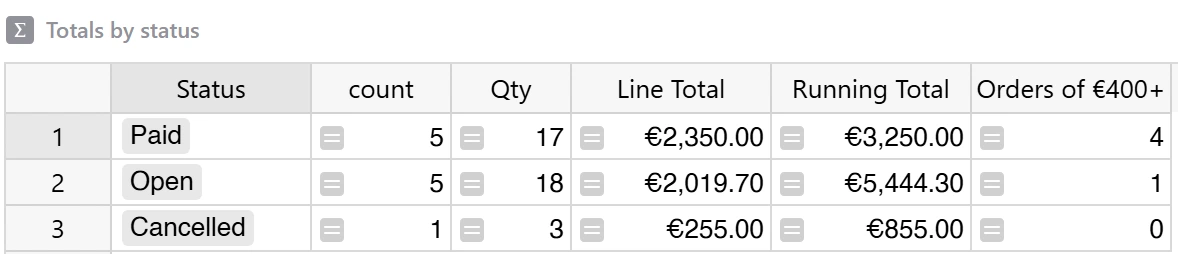
Tested (grouped by status): Paid, 5 orders, €2,350.00, 4 of them at €400.00 or more. Open, 5 orders, €2,019.70. Cancelled, 1 order, €255.00.
Grist creates a count column and a SUM column for every number column of the
source table on its own. Read those columns before you trust them. In my document it also
summed the Running Total column and showed €3,250.00 for Paid, a number that
means nothing, because adding up running totals counts the same orders several times. Grist’s
help says to delete columns you do not need.
IF, IFERROR and blanks
12. IF and IFS: Python’s if, elif and else
Grist has an IF() function that works like Excel’s: IF($A > 3, "big",
"small") returned “big”. For more than two outcomes, plain Python is easier to read than
nested IFs, and it replaces IFS.
Excel: =IFS(E2="Paid","Paid", E2="Cancelled","Cancelled", F2<TODAY(),"Overdue", TRUE,"Open")
if $Status == "Paid":
  return "Paid"
elif $Status == "Cancelled":
  return "Cancelled"
elif $Due_Date < TODAY():
  return "Overdue"
else:
  return "Open"
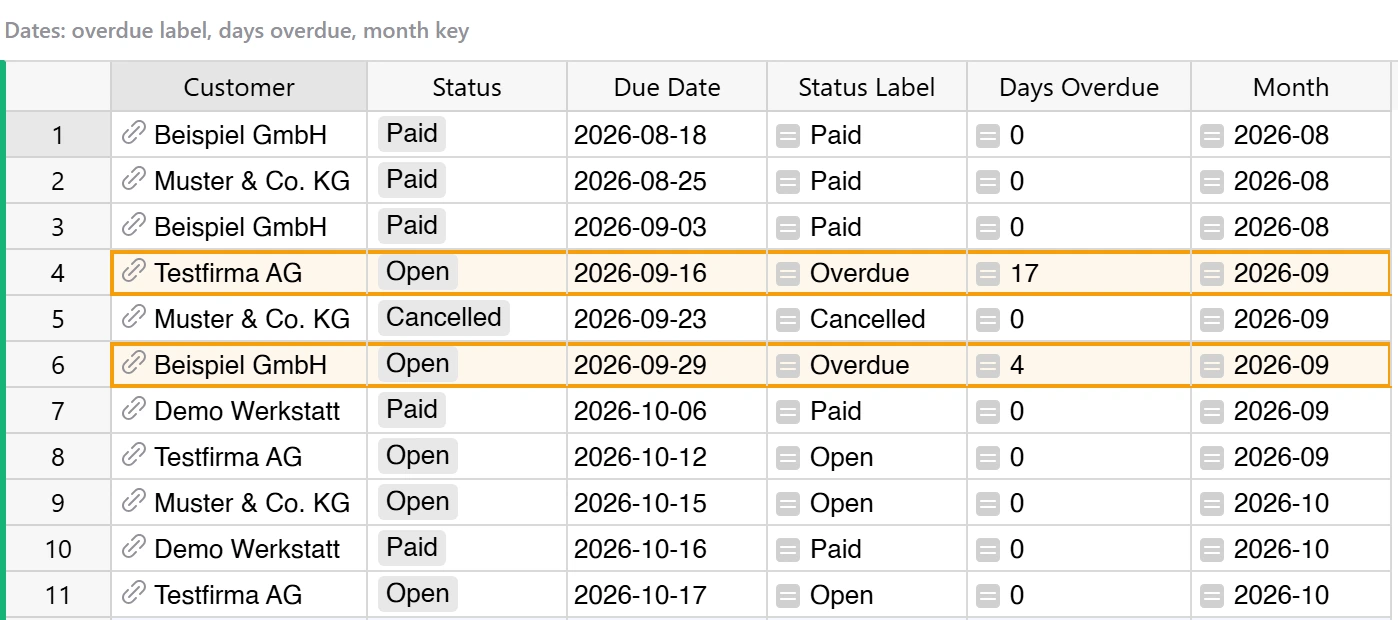
Tested: the two open orders due on 16 and 29 September showed “Overdue” on 3 October 2026. The other open orders showed “Open”.
Two details trip up Excel users. A comparison uses ==, not =, and text
comparisons are exact, so “paid” does not equal “Paid”. For a short either-or, Python also has
a one-line form: "Late" if $Due_Date < TODAY() else "OK".
13. IFERROR: the same as in Excel
This one translates directly.
IFERROR(1 / 0, "n/a")Tested: “n/a”. Use it with care, though. It hides every error, including the ones that tell you a column name is wrong.
14. ISBLANK: use “not”
ISBLANK is in Grist’s list but marked as not implemented, and in my test it gave
#NotImplementedError. Python’s not does the job. It is true for an
empty text and for an empty value.
Excel: =ISBLANK(D2)
not $EmailTested: true for Jonas Beispiel, whose email is empty, and false for the other three.
Be careful on number columns. In Python, not is also true for 0, so
not $Qty cannot tell an empty quantity from a quantity of zero.
Grist adds a check that is useful for imported contact lists:
ISEMAIL($Email). It returned false for “lena(at)testfirma” and for the empty
address, and true for the two real-looking ones.
Text
Text in Grist formulas is a Python string. Many of Excel’s text functions exist under the same names, such as LEFT, MID, SUBSTITUTE, PROPER and TRIM. However, joining and formatting follow Python’s rules, and that is where Excel habits fail.
15. The & operator: use + instead
In Excel, & joins two values into one text. In Python, & is a
different operator, so the Excel habit fails.
Excel: =A2 & " " & B2
$First_Name + " " + $Last_NameTested: the & version gave
#TypeError. The + version joined the names.
Python will not add a number to a text, so "Qty: " + $Qty also gives a
#TypeError. Convert the number first with str($Qty), or use
format, which handles it for you:
"{} x {}".format($Qty, $Product.Product)Tested: “5 x Team licence”.
16. PROPER and TRIM: cleaning names
Grist has both, under the same names as Excel. They are most useful right after an import.
PROPER(TRIM($First_Name)) + " " + PROPER(TRIM($Last_Name))Tested: “max” and ” MUSTERMANN ” became “Max Mustermann”.
17. TEXTJOIN: one cell listing many rows
To list everything a customer bought, take the product names from their orders, remove
duplicates with set, sort them, and join them with a comma.
Excel 365: =TEXTJOIN(", ", TRUE, SORT(UNIQUE(FILTER(Orders!C:C, Orders!B:B=A2))))
", ".join(sorted(set(Orders.lookupRecords(Customer=$id).Product.Product)))Tested: “Setup workshop, Support hour, Team licence”.
That line ends with .Product twice. The first is the reference column on each
order, and the second is the name column on the Products table. A set of records
lets you read one column from all of them at once like this.
18. TEXT: number formats and invoice numbers
TEXT is also marked as not implemented. Python’s format replaces
it. The same short codes also pad a number with zeros, which is useful for invoice numbers.
Excel: =TEXT(1234.5, "#,##0.00")
"{:,.2f}".format(1234.5)
"INV-{}-{:04d}".format($Order_Date.year, $id)
Tested: “1,234.50”, and an invoice number like “INV-2026-0003”.
For the German style with a dot for thousands and a comma for decimals, swap the two characters:
"{:,.2f}".format(1234.5).replace(",", "X").replace(".", ",").replace("X", ".")Tested: “1.234,50”.
Use this only when you need the number inside a text, such as an email line. For a column that just shows money, keep the type Numeric and set the currency in the column’s format options. The value stays a number, so sums and charts keep working.
19. Splitting text: the domain from an email
Excel: =MID(D2, FIND("@", D2) + 1, 100)
$Email.split("@")[-1] if "@" in $Email else ""Tested: “beispiel.example”, and an empty result for the two addresses without an @.
Grist also has REGEXEXTRACT and REGEXMATCH.
REGEXEXTRACT("INV-2026-0003", "[0-9]+$") returned “0003”. If you want to try a
pattern before you put it in a formula, our free
regex tester runs in your browser.
Dates
Dates in Grist formulas are Python date objects. Subtracting one from another gives a time span,
and .days turns that into a number. TODAY() gives today’s date, and
Grist’s documentation says it re-evaluates about once an hour while the document is open.
20. Days overdue: date arithmetic
Excel: =MAX(0, TODAY() - F2)
if $Status != "Open":
  return 0
return max(0, (TODAY() - $Due_Date).days)
Tested: the order due on 16 September showed 17 days on 3 October 2026, and the one due on 29 September showed 4.
21. DATEDIF: whole years, months or days
DATEDIF($Since, TODAY(), "Y")Tested: a customer since 15 March 2024 showed 2.
Grist’s DATEDIF takes the units “Y”, “M” and “D”, plus “MD”, “YM” and “YD” for the part that is left over.
22. NETWORKDAYS: working days
NETWORKDAYS(DATE(2026, 10, 1), DATE(2026, 10, 31))Tested: 22 working days in October 2026.
It counts Monday to Friday. A third argument takes a list of holiday dates to skip, so you can pass in your own state’s public holidays.
23. EDATE and DATEADD: the month-end trap
Adding a month sounds simple. In Grist, it is not simple at the end of a month.
EDATE(DATE(2026, 1, 31), 1)
DATEADD(DATE(2026, 1, 31), months=1)
Tested: both returned 3 March 2026, not a date in February. In the leap year 2024 the same formulas returned 2 March.
The results fit a simple explanation: 31 February does not exist, so the extra days run on into
March. For due
dates on the 15th this never matters. For a subscription that starts on 31 January, it skips
February completely. If you want the last day of the next month, use EOMONTH:
EOMONTH(DATE(2026, 1, 31), 1)Tested: 28 February 2026, and 29 February in 2024.
24. Month keys: grouping by month
A summary table groups by exact values, so a full date gives one group per day. Make a month column first and group by that.
$Order_Date.strftime("%Y-%m")Tested: “2026-08”. The year comes first, so the months also sort in the right order.
Running totals and ranks
In Excel, a running total points at the cell above it. Grist formulas have no cell above,
because there are no cells. Instead, PREVIOUS finds the previous record in an order
you choose.
25. Running total: PREVIOUS instead of the cell above
Excel: =G2 + H1
prev = PREVIOUS(rec, group_by="Customer", order_by="Order_Date")
return $Line_Total + (prev.Running_Total or 0)
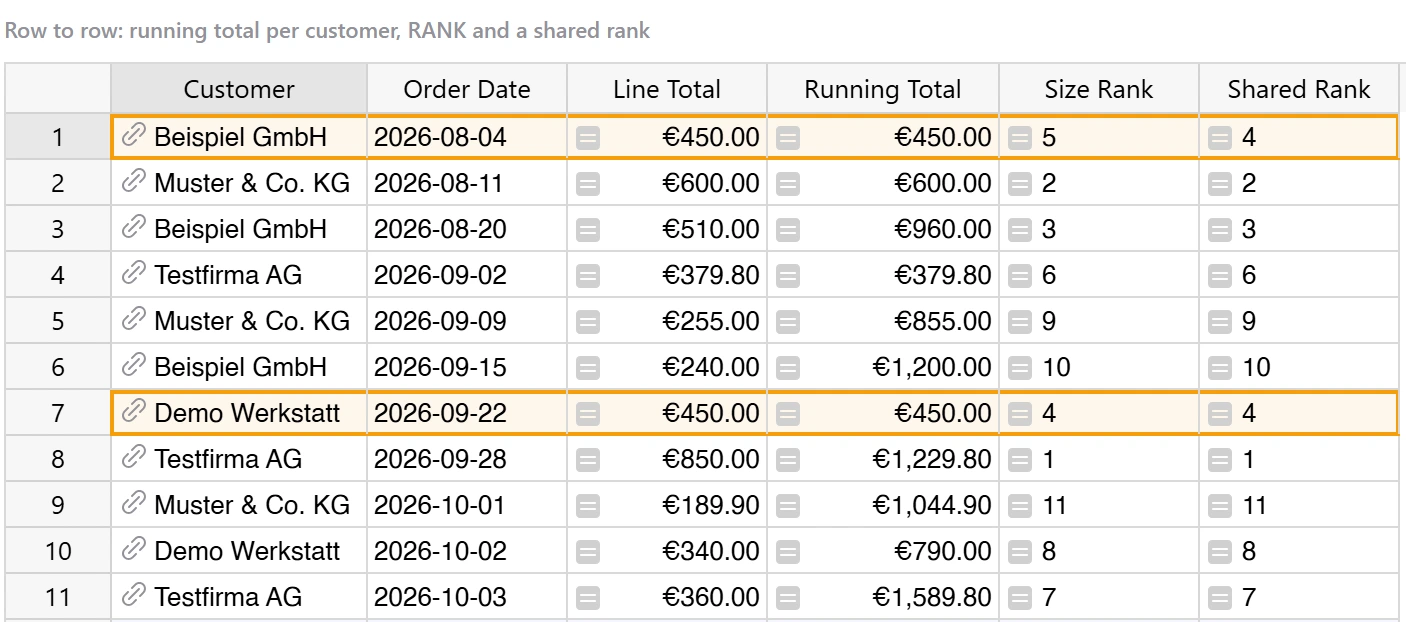
Tested: Erika’s orders built up as €450.00, €960.00, €1,200.00, and each other customer started again from their own first order.
group_by restarts the total for each customer, and order_by sets
the order. The or 0 keeps the first row safe, where there is no previous record.
When two rows have the same date, Grist’s documentation says it falls back to the rows’
position in the table and their row IDs.
26. RANK: ties do not share a place
Excel: =RANK.EQ(G2, G:G)
RANK(rec, order_by="Line_Total", order="desc")Tested: the €850.00 order ranked 1. The two orders of exactly €450.00 ranked 4 and 5.
This is a real difference. Microsoft’s documentation says RANK.EQ gives duplicate numbers the same rank, so Excel would show 4 twice. Grist’s RANK uses the same ordering rules as PREVIOUS, so a tie is broken by the rows’ position. If a league table or a sales ranking must show joint places, count how many rows are bigger and add one:
1 + len([o for o in Orders.all if o.Line_Total > $Line_Total])Tested: both €450.00 orders now share rank 4, and the next order is 6, the same pattern Microsoft describes for RANK.EQ. This formula loops over the whole table for every row, and Grist’s documentation advises lookups instead of loops on large tables, so keep it for tables of a modest size.
Formulas that run once: trigger formulas
Normal Grist formulas recalculate whenever their inputs change. Sometimes you want the opposite: a
value that is calculated once and then stays. The classic case is “when was this row created,
and by whom”. In Excel, NOW() does not help here, because Microsoft’s
documentation says its result changes whenever the worksheet is calculated. Grist solves this
with trigger formulas.
27. Created-at, created-by and an ID: stamps that never change
Open the column’s settings, choose Set trigger formula, and tick Apply to new records. The second option, Apply on record changes, recalculates the value when the row is edited, which gives you a “last changed” column instead.
NOW()
user.Name
UUID()
Tested: I added the three columns to a table that already had ten orders, then added an eleventh. Only the new row got a time stamp, the account name and an ID like e89b01da-c0cd-4793-b3e5-7a4a1d97b44a. The ten older rows stayed empty.
That last result is the practical lesson. A trigger formula does not go back and fill old rows,
so add stamp columns before you start entering data. Grist’s documentation also recommends a
trigger formula for UUID() specifically, because a normal formula may be
recalculated whenever the document is reloaded, and would then produce a different ID each
time.
28. Freezing a column: convert it to data
If a formula column has done its job, for example after a one-time clean-up of imported names, you can freeze it. In the column’s settings choose Convert column to data. Grist’s help says the cells then stop changing when the cells they depended on change, and the original formula is kept but inactive. This is the Grist version of Excel’s “paste as values”.
What does not translate
Grist’s function reference lists many Excel names, but not all of them work in Grist formulas. On 3 October 2026, it marked 82 of its entries as “not currently implemented”. These are the ones an Excel user is most likely to reach for, with what I got when I typed them in:
| Excel function | What Grist did | Use instead |
|---|---|---|
| SUMIF, SUMIFS | #NotImplementedError | SUM(Table.lookupRecords(...).Column) |
| AVERAGEIF, AVERAGEIFS | listed, not implemented | AVERAGE(...) with a guard |
| COUNTIF, COUNTIFS | #NameError, not in the list | len(Table.lookupRecords(...)) |
| XLOOKUP | #NameError, not in the list | a reference column, or lookupOne |
| MATCH, INDEX | #NotImplementedError (MATCH tested) | lookupOne, or RANK for a position |
| ISBLANK | #NotImplementedError | not $Column |
| TEXT | #NotImplementedError | "{:,.2f}".format(...) |
| A1-style references | #NameError | $Column, PREVIOUS, lookups |
The pattern is easy to see. Functions that work on a range of cells have no meaning when there are no cells, so Grist leaves them out and gives you lookups instead. Functions that work on a single value, like ROUND, PROPER or DATEDIF, mostly work in Grist formulas as you expect.
Where Excel is still the better tool
The list above is only half of the picture. The column rule that makes Grist safe also makes some jobs harder. Some people find the rule a relief: no copied formula can go out of step, and lookups stay correct when rows move. Others find it a cage, and for certain work they are right.
Excel is better when the sheet is a model rather than a list of records. A budget with assumptions in a few cells, a what-if calculation, or a one-off calculation in a corner of the sheet all depend on putting any formula in any cell. In Grist, a single special value needs its own table or a summary table, which is more work for a small job. Excel also has working versions of functions that Grist lists but has not implemented, such as SUMIFS, AVERAGEIFS and TEXT, and many more people already know it.
In the end, the choice depends on the shape of the data. For records that grow, such as orders, clients, stock or tasks, Grist’s way prevents the copied-formula mistakes described above. For a model you build once and play with, Excel’s freedom is worth more. If you are still choosing a tool, our Grist vs Airtable vs NocoDB comparison covers the wider decision, including where Grist loses.
Error messages, decoded
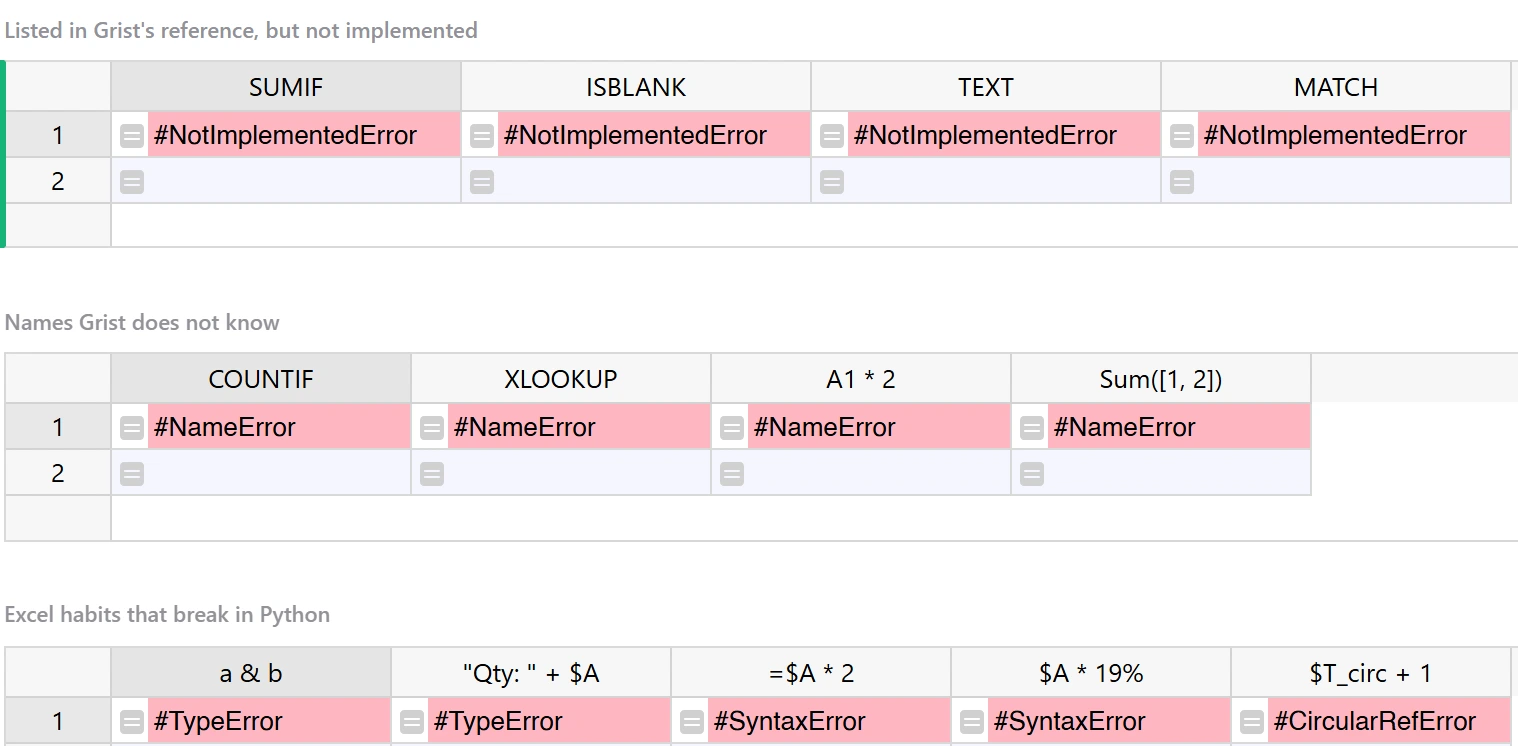
When Grist formulas fail, the cell usually shows the name of the Python error. Division by zero
is the exception: it shows #DIV/0!, as Excel does. Every row in this table is an
error I caused on purpose in the example document, and each label is what the cell showed.
| You see | Usual cause for an Excel user | Fix |
|---|---|---|
#NameError | A function that does not exist (COUNTIF, XLOOKUP), wrong capitals (Sum), or a cell reference (A1) | Use the translation above, check the capitals, use $Column |
#NotImplementedError | A listed but unimplemented function (SUMIF, ISBLANK, TEXT, MATCH) | See the table in the previous section |
#TypeError | Joining text with &, adding a number to a text, or a function with the wrong number of arguments | Use + between texts, str() or format |
#SyntaxError | A formula pasted with its leading =, or a percent like 19% | Drop the =, write 0.19 |
#AttributeError | A column name that does not exist, such as $Price for a column called Unit Price | Use the column ID, with _ for each space |
#DIV/0! | An average or division over no rows | Check the set first, as in item 8 |
#CircularRefError | A formula that uses its own column | Use PREVIOUS for the row before |
The = sign causes trouble for a simple reason. Microsoft’s documentation says an Excel formula always
begins with an equal sign, so copying formulas from Excel brings the sign along. In Grist, the
formula editor is already a formula, and the extra = is a syntax error.
One mistake gives no error at all, which makes it worse than all of these. Python has a
lower-case round, and Grist has the upper-case ROUND. Grist’s
reference says its ROUND rounds away from zero, so ROUND(0.125, 2) returned
0.13 and ROUND(2.5) returned 3. Python’s round uses
a different rule: round(0.125, 2) returned 0.12 and
round(2.5) returned 2. For money in Grist formulas, always use ROUND.
Letting the AI write it
Grist has an AI Assistant under the Tools menu that can write Grist formulas from a plain description. According to Grist’s help page, free plans include 200 Assistant credits, Pro plans 100 credits per month and Business plans 2,000, and each chat message costs one credit.
Know two things before you use it. First, Grist states that when you submit a question, your question, your document’s structure and the data itself are sent to OpenAI. For client or employee data, decide whether that is acceptable before you ask. Second, a formula that runs is not the same as a formula that is right. Test anything it writes on a row where you already know the answer, and test a lookup on a row that should not match. The silent 0 from item 3 looks like a normal number until you check.
Grist formulas FAQ
Can I use Excel formulas in Grist?
Some of them. Grist has many Excel-style functions with upper-case names, such as SUM, AVERAGE, IF, IFERROR, ROUND, DATEDIF and NETWORKDAYS, and they work as you expect. Others are listed in Grist’s function reference but marked as not implemented, including SUMIF, SUMIFS, AVERAGEIF, MATCH, INDEX, ISBLANK and TEXT. Some, like COUNTIF and XLOOKUP, are not there at all. For those you write a short Python formula instead, usually with lookupRecords.
What language are Grist formulas written in?
Python. Grist’s documentation says the whole Python standard library is available, and a formula that asked for the version on Grist’s hosted service returned Python 3.11.2 on 3 October 2026. Formulas are case-sensitive. The Excel-style helpers are in capitals, so SUM works and Sum gives a NameError.
How do I do a VLOOKUP in Grist?
Usually with a reference column. Make the column that names the product a Reference to the Products table, and then $Product.Unit_Price reads the price directly. If your key is plain text, use Products.lookupOne(Product=$Product_Name).Unit_Price. Grist also has a VLOOKUP function, but it takes a table and column=value pairs instead of a range and a column number, and Grist documents it as exactly equivalent to lookupOne.
How do I do SUMIF or COUNTIF in Grist?
Find the matching rows with lookupRecords, then sum or count them. SUM(Orders.lookupRecords(Customer=$id).Line_Total) is a SUMIF, and len(Orders.lookupRecords(Customer=$id)) is a COUNTIF. Add more column=value pairs inside the brackets for SUMIFS or COUNTIFS. For a condition that is not an equality, such as an overdue date, filter the rows with a short Python list comprehension.
Why does my Grist lookup show 0 instead of an error?
Because a lookup that finds nothing returns an empty record, and a number column read from an empty record gives 0. Excel’s VLOOKUP would show #N/A instead. In my test, a product typed in lower case with a space at the end returned 0 without any warning. Check the result of lookupOne before you use it, or clean the key with strip() first.
Can I refer to a cell like A1 in Grist?
No. Grist formulas work on columns, not cells, so there are no A1 references and no ranges, and A1 in a formula gives a NameError. Use $Column for a value in the same row, PREVIOUS for the row before it in a sorted order, and lookupOne or lookupRecords for rows somewhere else.
How do I add a created-at timestamp in Grist?
Use a trigger formula. Put NOW() in a DateTime column, choose Set trigger formula, and tick Apply to new records. The formula runs once when a row is added, and the value then stays fixed. In my test the new row was stamped and the ten rows that already existed stayed empty, so add the column before you start entering data.
Should I use ROUND or round in Grist?
Use the upper-case ROUND for money. Grist’s ROUND rounds halves away from zero, so ROUND(0.125, 2) gives 0.13. Python’s lower-case round uses a different rule and gave 0.12 for the same number in my test, and round(2.5) gave 2. On an invoice, that is a cent you cannot explain.
Bottom line
Do not try to make Grist formulas behave like Excel. Learn three things instead, and most of
your old formulas rewrite themselves. First, $Column is this row’s value, and the formula is
written once for the whole column. Second, lookupRecords plus SUM,
len or AVERAGE replaces SUMIF, COUNTIF and the rest of that family.
Third, a
lookup that finds nothing gives 0, so guard it before it reaches an invoice.
Then add two habits that Excel never needed: use the upper-case ROUND for money,
and add trigger columns before the data arrives. With those five points you can move a real
spreadsheet into Grist without the silent errors described above.
If your next step is a dashboard on top of these formulas, the Grist tutorial on dashboard blocks shows every block, and the Grist dashboard templates give you a working start in one click. And if you would rather have someone build the document for you, that is what our Grist setup service does.
Written by the ANUPRESS team. Every formula in a code block was run in a public example document on Grist’s hosted service on 3 October 2026, and the function details were read in Grist’s function reference and its guide to formulas the same day. For a quick list of example formulas, Grist’s own formula cheat sheet is a good companion to this guide. Excel behaviour was checked in Microsoft’s documentation. Grist changes, so if a result here no longer matches what you see, tell us and we will test it again.