Grist dashboard example: five Monday questions, one page each
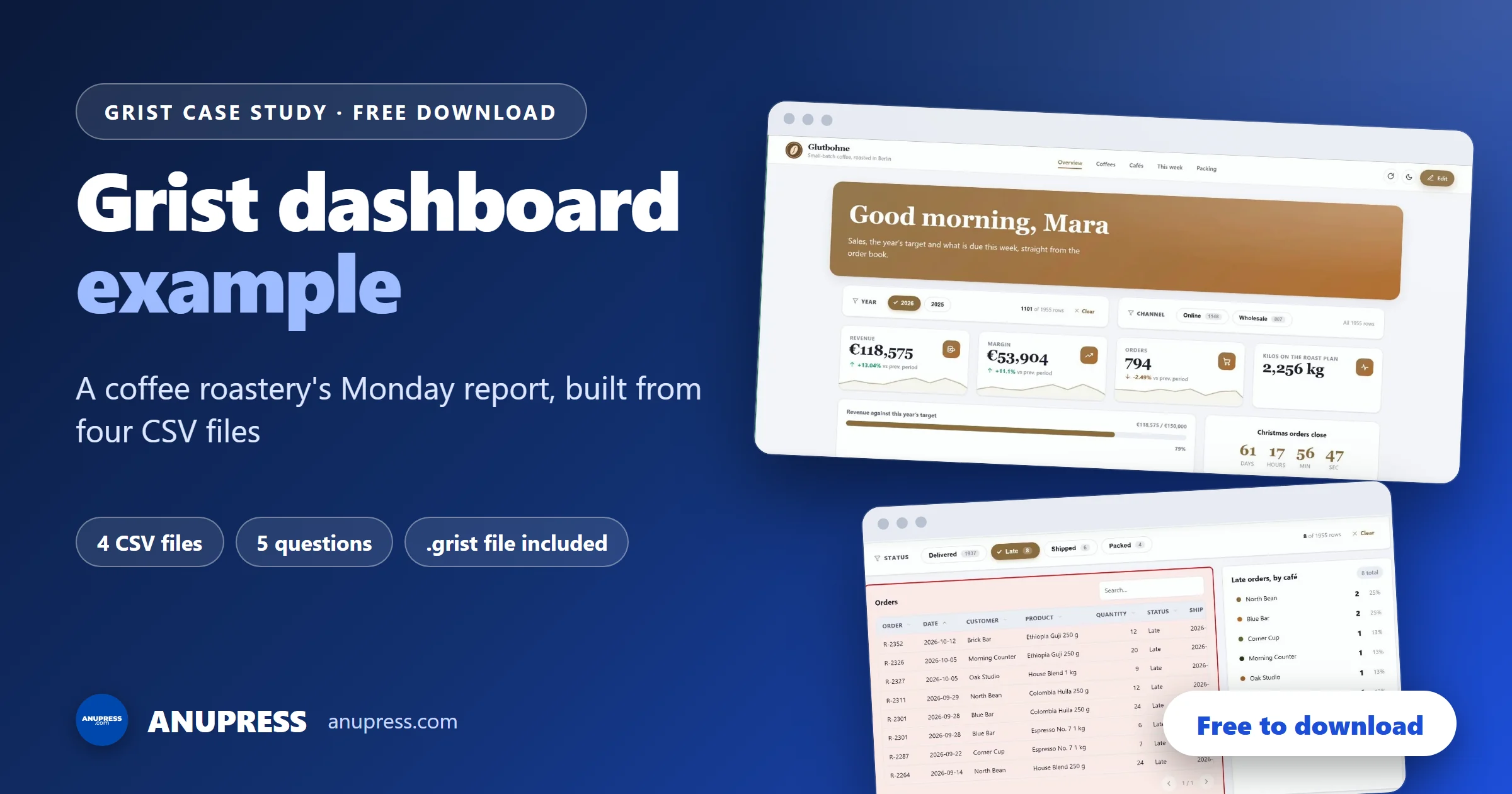
This Grist dashboard example answers the five questions a small coffee roastery asks every Monday. We built it in Grist from four CSV files with the free Advanced Charts widget, and you can download the finished document to open, change and reuse.
The roastery in this Grist dashboard example is made up. Its problem is not. The orders sit in exports that nobody quite trusts, and one person spends Monday morning adding them up by hand. This post follows the build page by page, with the data model, the real formulas and the settings, so you can copy the method for your own business.
What this Grist dashboard example answers
Glutbohne is a coffee roastery in Berlin. Glut is German for embers. Mara roasts, Jonas roasts on the busy days, and a few more people pack, deliver and run the web shop. The roastery sells in two ways. 32 cafés across Germany buy by the kilo at a wholesale price, and online customers in 15 cities order a few bags at a time.
Its numbers live in four exports from the web shop and the order book, and nobody quite trusts the totals. So every Monday, Mara answers the same five questions by hand. The table shows each question, the dashboard page that answers it and what that page found in the data. Glutbohne and all the numbers on its dashboard are made up. The questions are not, so swap the coffee for your own products and see whether they fit.
| The question | Dashboard page | Blocks that answer it | What it found |
|---|---|---|---|
| Are we selling more, and are we on track for the year? | Overview | Two slicers, four number cards, a progress bar, a countdown, a line chart | €118,575 of revenue in 2026 so far, 79 % of a €150,000 target |
| Which coffees bring in the money, and which ones earn it? | Overview and Coffees | A doughnut chart, a revenue-and-margin bar chart, the range table | Blends are 61 % of 2026 revenue. Ethiopia Guji is third by revenue and eighth by margin |
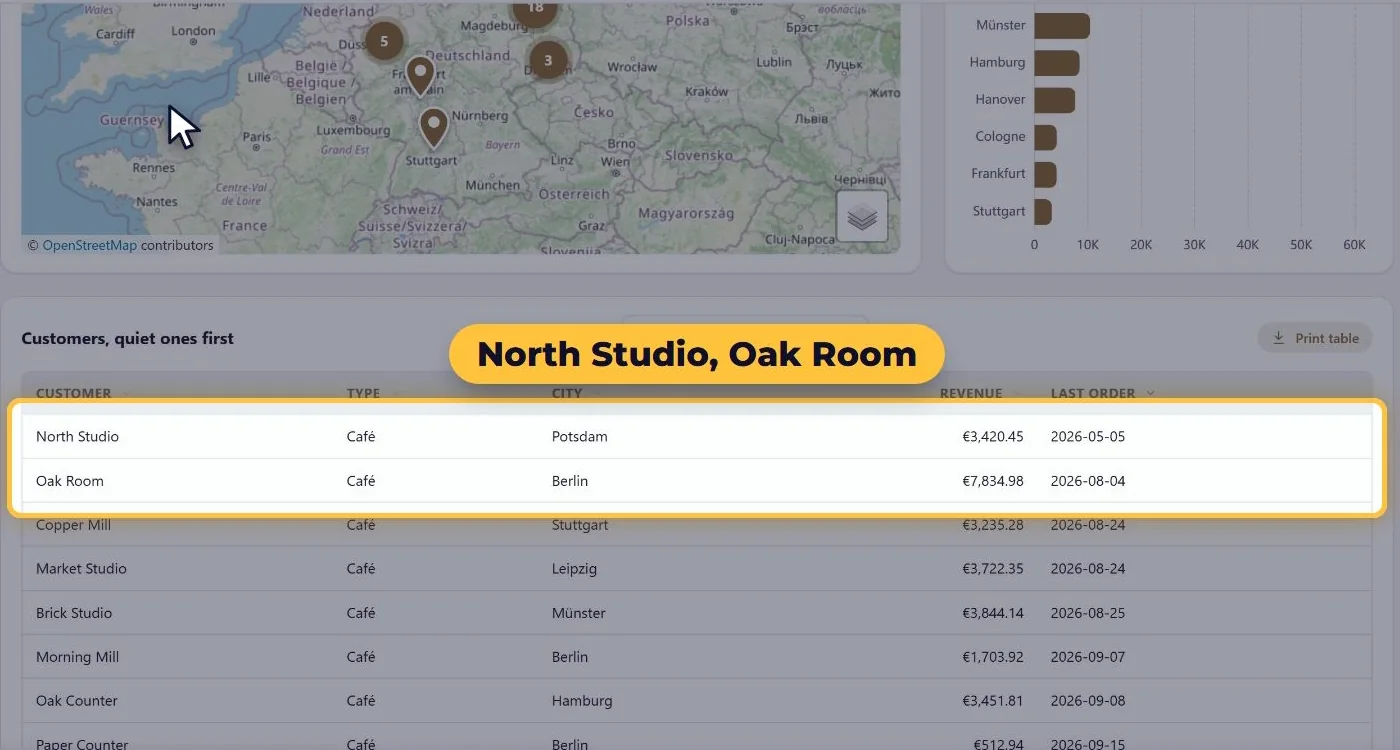
| Who are our cafés, where are they, and which have gone quiet? | Cafés | A map, a bar chart by city, a table sorted by last order | Two cafés have gone quiet: North Studio and Oak Room |
| What has to be roasted and shipped this week, and what is already late? | This week | A roast calendar, a weekday chart, a Late slicer, two late-order blocks | 8 late order lines from 6 cafés |
| Can the packing table print its labels and the cafés’ invoices without asking Mara? | Packing | A packing list, a barcode, a QR code, an invoice block, printouts | 4 labels, and 25 invoices for September 2026 |
If you remember only four things from the build, remember these:
- One question, one block. A block that answers none of the five stays off the page.
- Set the data up once. Column types, references and formulas do the adding up, so nobody types a total.
- Tell each slicer what it reaches. A slicer filters the blocks you tick, and the others keep their own view.
- Print from the page. Labels and invoices are printouts that follow the slicers.
Start from the questions, not the charts
Some analysts start with the charts, and that is a fair way to explore data. Plotting a column is often how you find out what is in it. A weekly report is a different job. The reader opens it with a task in mind, and a chart that answers no question gives them nothing to act on. So we wrote the five questions first and gave each one its own dashboard page.
That gave five dashboard pages: Overview, Coffees, Cafés, This week and Packing. Every block we added had to answer the question of its page, and a block that did not stayed off. The rest of this post follows the same plan: first the data, then the shell, then one page at a time.
Watch this part of the film: 1:41, the plan
Step 1: four CSV files become four linked tables
The web shop and the order book export four CSV files. In a new Grist document, choose Add new, then Import from file, and pick all four at once. Grist shows every file before it imports anything. After the import there are four tables, and the orders table holds 1,955 order lines from 1,373 orders: one row for each product in an order, so an order of three coffees is three rows.
| File | Rows | What it holds |
|---|---|---|
| Orders | 1,955 | One line per product in an order, from January 2025 to October 2026 |
| Customers | 47 | 32 cafés and 15 online customers, with street, postcode and map position |
| Products | 10 | Price, cost, kind, origin, process and tasting notes for each coffee |
| RoastPlan | 90 | Each finished or planned roast: date, coffee, batches, kilos, roaster, status |
Fix the column types
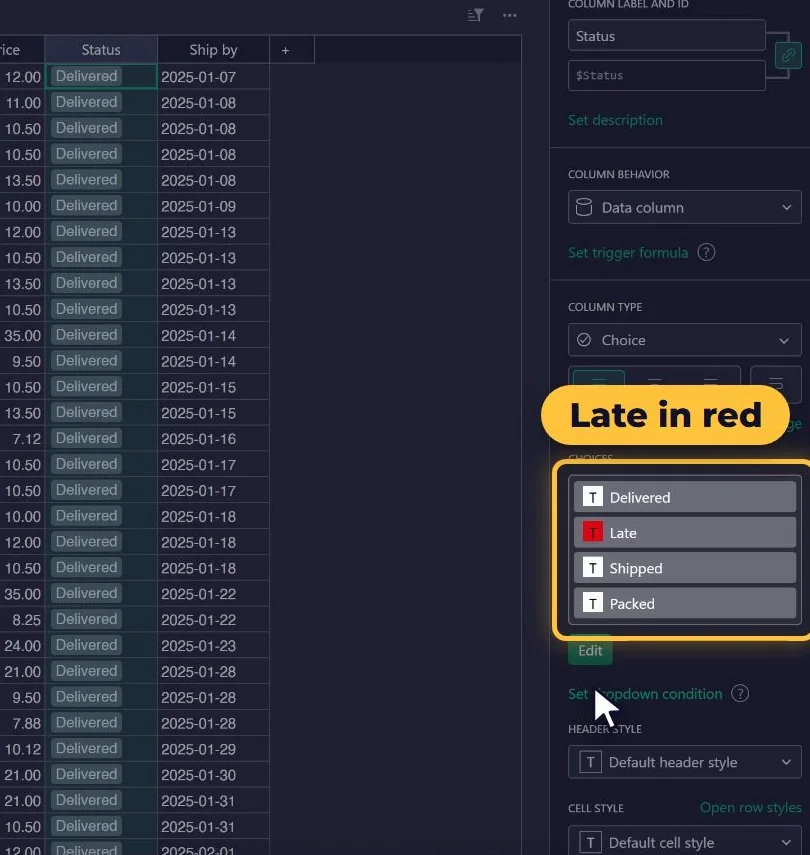
Grist guesses most column types, and the guess is worth a look because everything later builds on it. Channel takes only two values, Online and Wholesale, so it becomes a Choice column. Status has four values, Packed, Shipped, Delivered and Late, so it becomes a Choice column too, and Late gets a red fill. A late order then stands out on every page of the dashboard where it appears.
Link the tables with references
Customer in the orders table is only a name. The city and the address live in the Customers table, and copying them into every order would go wrong the first time a café moves. So Customer becomes a Reference column that points at Customers, and Product points at Products in the same way. Grist shows the matches before it changes anything, and it matched the names by itself.
Now an order knows its customer’s city and its product’s cost without storing either one twice. If a café moves, its city changes in one row, and every order follows.
Write the formulas once
Formulas in Grist are Python, and one formula fills the whole column. Revenue and Margin are set to Numeric, shown in euros, because the widget only adds up number columns. These are the formulas the dashboard needs, quoted from the finished document:
| Column | Formula | What it does |
|---|---|---|
| Orders · Revenue | $Quantity * $Unit_price | Quantity times unit price, so nobody types a revenue figure |
| Orders · Margin | $Revenue - $Quantity * $Product.Cost | Revenue minus the product’s cost, read through the reference |
| Orders · Month | $Date.strftime("%Y-%m") if $Date else None | Keeps the year with the month, so January 2025 and January 2026 stay apart |
| Orders · Year | YEAR($Date) if $Date else None | Feeds the Year slicer |
| Orders · City | $Customer.City | Reads the city through the reference |
| Orders · Kind | $Product.Kind | Blend, single origin, decaf, subscription or gift |
| Orders · Weekday | $Date.strftime("%A") if $Date else None | Writes the day out in full, for the This week page |
| Customers · Revenue | SUM(Orders.lookupRecords(Customer=$id).Revenue) | Each customer’s total, found through the reference we made a minute ago |
The cost of a coffee lives in the Products table, so a new cost is one edit in one place. The Customers table also gets the date of each customer’s last order. That one column finds the quiet cafés later:
ref = Orders.lookupRecords(Customer=$id)
MAX(ref.Date) if ref else None
That is the whole model: four tables, linked. Every number the dashboard shows is one formula away, and
none of it is typed by hand. If $ and lookupRecords look new, our
Grist formulas guide translates the common Excel
habits, and Grist’s own
function reference
lists everything that is available.
Watch this part of the film: 2:48, the data
Step 2: one widget, a theme and five empty dashboard pages
Now the dashboard Mara will actually open. From here on the data stays as it is. Every block we add reads these tables live, so a new order shows up on the dashboard without anyone touching it.
- Add the widget. Choose Add new, then Add page, and pick a Custom widget on the Orders table. Paste the Advanced Charts address from the setup guide. Grist warns that a custom widget is code from somewhere else, and it is right to. This one is open source, so you can read every line. Accept the risk, then give it full access: the widget needs that to save the dashboard’s design into this document.
- Start from scratch. Click Edit, then Settings, then Templates. If a ready-made dashboard is close to your business, start from it. A roastery thinks in kilos, cafés and roast days, so we chose Start from scratch. It clears the design, not your data: the four tables stay exactly as they are.
- Name the dashboard. Under Settings, then Header, set the roastery’s name, a line under it and a logo. We do this first because the page should look like the business before it has any numbers.
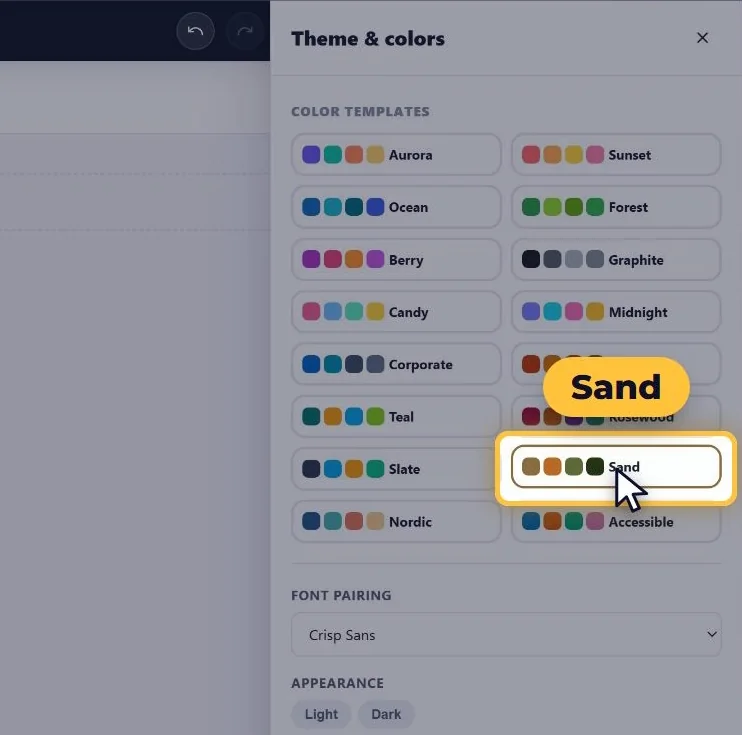
- Pick a theme. Sand is the colour template in coffee colours: a warm cream page with an ember accent. The Editorial font pairing puts a serif on the headings, like a café’s menu card, and keeps a clean sans for the numbers, where a six should never look like an eight.
- Add one dashboard page per question. Overview, Coffees, Cafés, This week and Packing. The menu at the top follows in the same order. Give each page a hero, a big headline that says what the page is for, and add a footer with links to the two pages used most.
The result is an empty shell, but already a page somebody would open. Save & Publish keeps it.
Watch this part of the film: 6:33, the shell
Page 1, Overview: are we selling more, and are we on track?
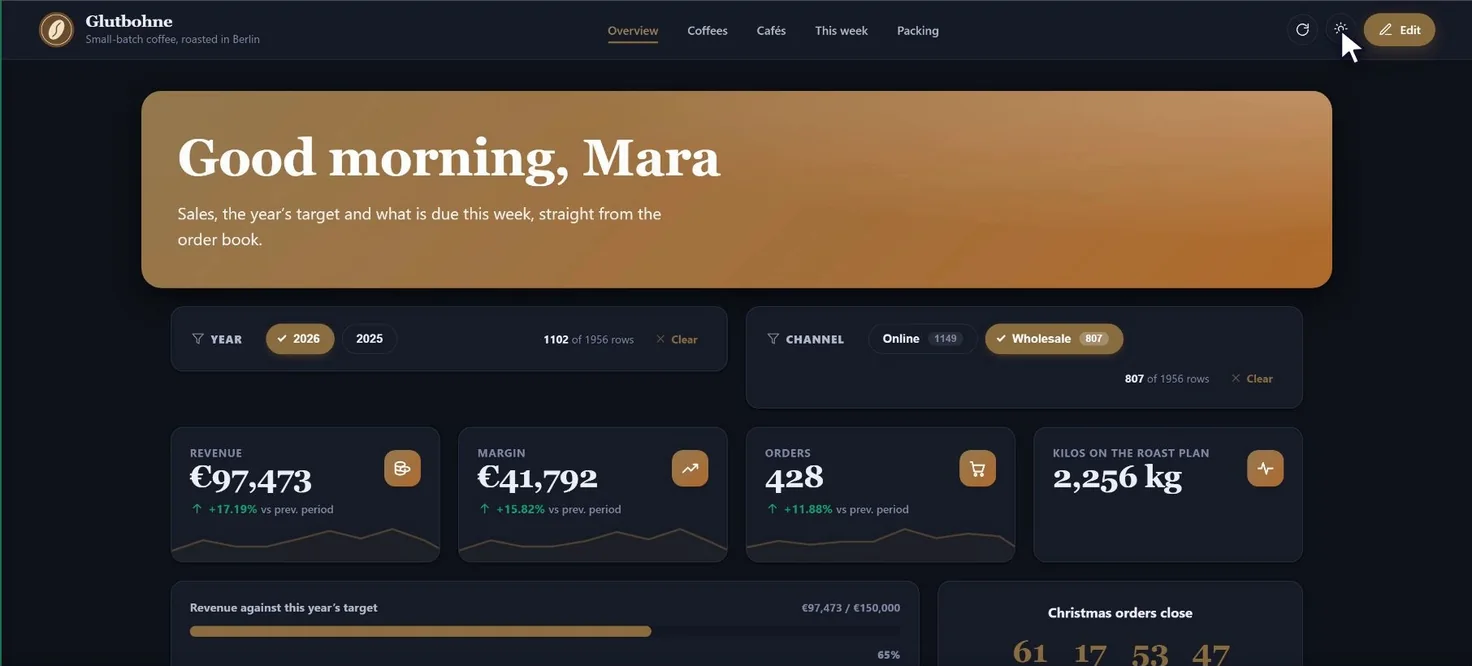
This is Mara’s first question every Monday, and the first page of the dashboard answers it at a glance: two slicers, four numbers, a target, a countdown and three charts.
Slicers first
Slicers go in first, at the top, so that every block added below them can follow them. The first is a slicer on the Orders table, by Year. It allows one year at a time and opens on 2026, so the dashboard opens on this year every Monday. The second is by Channel: Wholesale is the cafés, Online is the web shop, and both can be picked at once. The small number on each chip is how many order lines it has.
Four numbers and a target
A stat card shows one number. Revenue sums the Revenue column, with an icon and the figure in full, in euros. Margin works the same way and is what is left after the coffee itself is paid for. Orders is different. One order can have several lines, so counting rows would count too many. A distinct count of the order number counts each order once. The fourth card reads another table, the kilos on the roast plan, and has no trend, because weeks that are only planned are not a trend.
The other cards show a trend and a sparkline by month. The percentage under the figure sets the later half of the months in view against the earlier half, here June to October against January to May. A progress bar compares the sum of Revenue with the target Mara set in January, €150,000. A countdown runs to 18:00 on 15 December, when Christmas orders close.
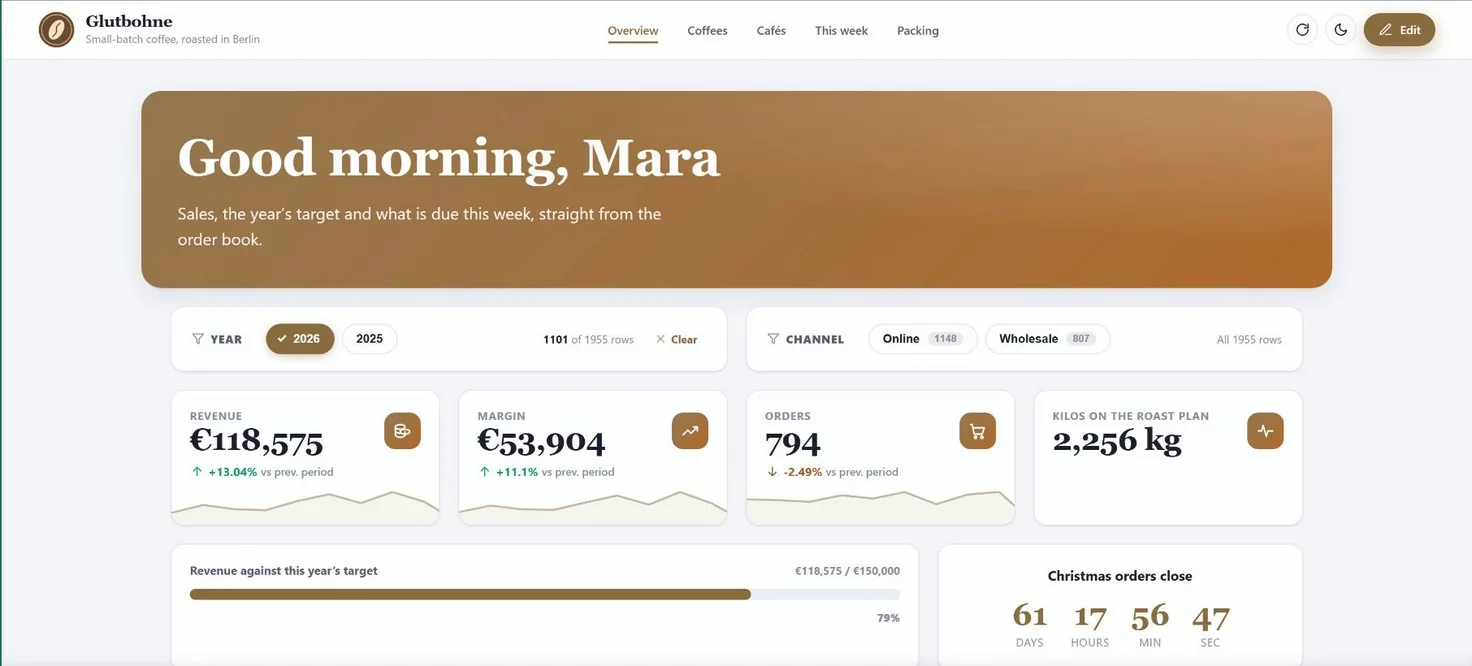
For 2026, the cards read like this. Revenue was €118,575 and margin was €53,904. Revenue from June to October was 13.04 % above January to May, and margin was 11.1 % higher. Orders were the one card that moved the other way. There were 794 orders in 2026, and the trend was −2.49 %, because 392 orders came in from June to October against 402 from January to May. So the extra revenue did not come from more orders. The target bar stood at 79 %, and the Christmas orders are still to come.
Where the money comes from
The cards say where we are. A chart says how we got here. Revenue by month, with Month as the first category and Channel as the second, gives each channel a line of its own.
One thing needs fixing. The Year slicer would cut this chart to a single year, but we want both years side by side. So the slicer gets its own list of blocks: under What it filters, choose Choose, and untick Revenue by month.
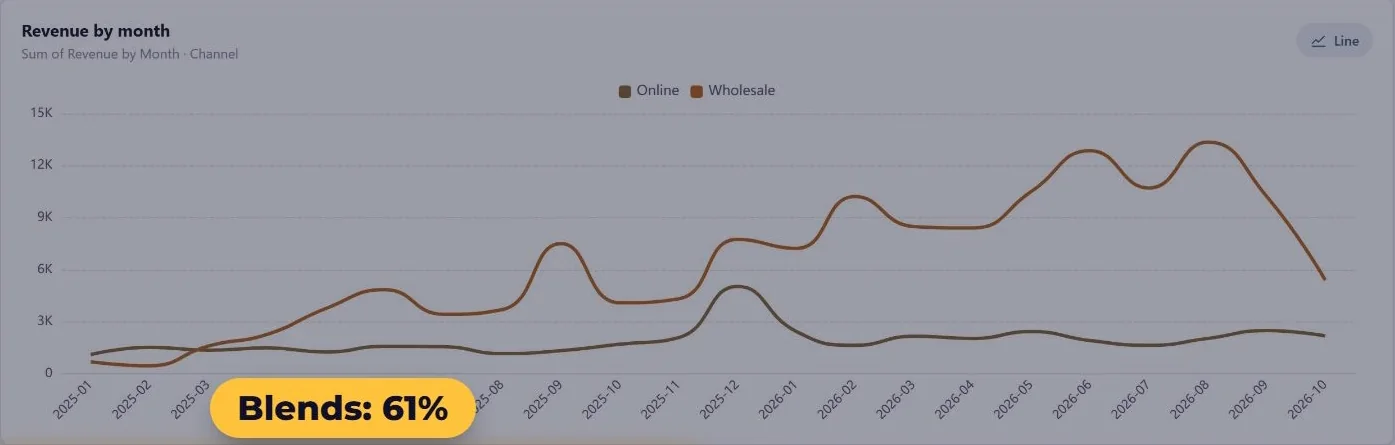
The two lines make it plain who carries the business: the cafés. Wholesale was 82 % of the revenue in 2026.
What sells and what earns
Revenue by kind of coffee is a doughnut chart, half the page wide. A doughnut suits a few parts of one whole. With ten slices it would be a bar chart. It follows the Year slicer too, because a block added after the list was made joins it by itself whenever the slicer can reach it. Blends bring in 61 % of this year’s revenue.
Revenue next to margin, by product, uses bars, because product names are long and bars have room for them. It has two values, Revenue and Margin, and the groups are ordered largest first. The gap between a product’s two bars is what that coffee costs. Ethiopia Guji is third of ten by revenue (€13,184) but eighth by margin (€3,715). A bag costs €7.60, more than twice the €3.70 of a 250 g House Blend, and it sells for only €4 more (€13.50 against €9.50). That is worth raising when the price list is next reviewed.
Watch this part of the film: 11:17, the Overview
Page 2, Coffees: what do we actually sell?
The Coffees page of the dashboard is what the team shows a café that asks what Glutbohne roasts, so it has to read well. That is why it uses blocks that show content instead of totals.
- Text and counters. A heading, two plain sentences and three counters: 10 coffees on the list, 3 roast days a week (Monday, Tuesday and Thursday) and 12 kg in a batch. Counters are typed in, not read from a table, so they suit numbers that rarely change.
- The range. A data table that reads the Products table: product, origin, process, tasting notes and price, in the order you tick them. Readers can search it or sort it by any column. A new coffee in the price list appears the next time the dashboard opens.
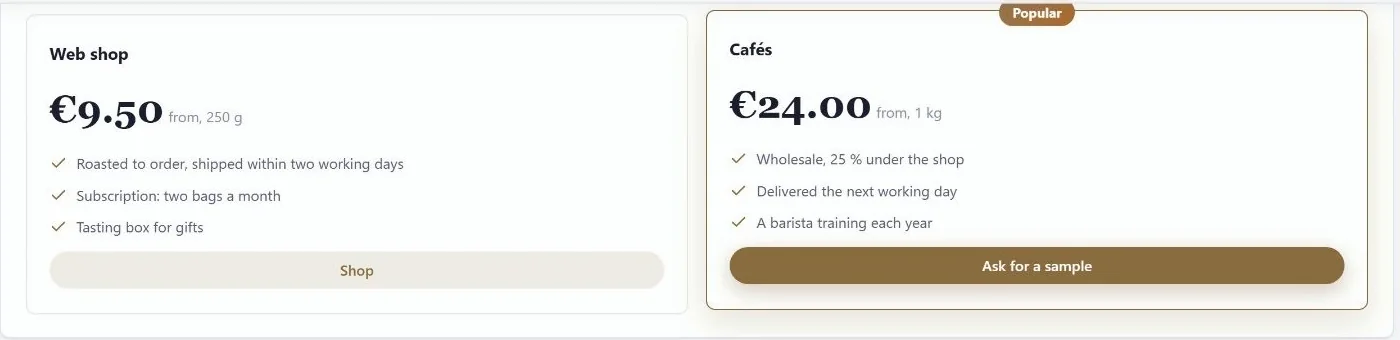
- Two price lists. A pricing table. The web shop starts at €9.50 for a 250 g bag. The cafés’ wholesale list starts at €24 for a kilo, which is 25 % under the shop. It is highlighted because it is the plan Glutbohne wants cafés to pick, and its button asks for a sample.
- Brew guides and a timeline. An accordion keeps the page short, with filter, espresso and French press, and a timeline shows the way from the farm to the cup in four steps.
- A photo. An Image block shows a picture from the Photo column of the Products table, an Attachments column. Its row list names every product. Next month Mara picks another row, and a new photo dropped into Grist appears the next time the page opens.
One limit to remember: the range table reads the price list, but the pricing table is typed in, so someone has to edit it when the prices change.
Watch this part of the film: 16:11, the coffees
Page 3, Cafés: which ones have gone quiet?
A café that stops ordering does not always say so. It just stops, and the year’s numbers are the first place anyone notices. This part of the dashboard is built to catch it early.
It starts with a slicer on the Customers table, by Type, so the cafés can be looked at on their own. A slicer on Customers still narrows the orders, because every order points at its customer through the reference. Three blocks sit under it:
- A map. It finds the Latitude and Longitude columns by itself, and each point is named after its customer. Points are coloured by Type, close points group into a circle with a count, and the tooltip shows the city, the revenue and the last order. 16 of the 32 cafés are in Berlin or Potsdam.
- Revenue by city. Bars, largest first. This chart reads the orders, not the customers, and it still follows the Type slicer.
- The table that answers the question. Every customer, with revenue and the date of the last order. It opens sorted by Last order, oldest first, so the quiet ones are at the top. Eight rows a page is plenty.
Three short quotes from cafés, typed in, finish the page. On a sales call they do more than a chart.
Pick Café in the slicer, and the map, the chart and the table all follow. The top of the table is the answer. North Studio in Potsdam has not ordered since 5 May 2026. Oak Room in Berlin, the third-biggest of the 32 cafés by revenue, has not ordered since 4 August 2026. That means two phone calls on Monday morning.
Watch this part of the film: 20:14, the cafés
Page 4, This week: what do we roast, and what is late?
This part of the dashboard is for whoever is at the roaster on Monday morning. It has three parts.
The roast calendar
A calendar block reads the RoastPlan table. The Date column places each roast, and the coffee is the event’s title. Four detail fields show when you click a roast: the kilos, the batches, who roasts it and its status. Events are coloured by Status, so planned roasts look different from roasted ones, and a roast dragged to another day writes its new date back to the table. The week of 19 October holds the blends on Monday, 84 kg of them, two single origins on Tuesday, and Brazil and the decaf on Thursday. Everything is still planned.
Why Monday? A weekday chart
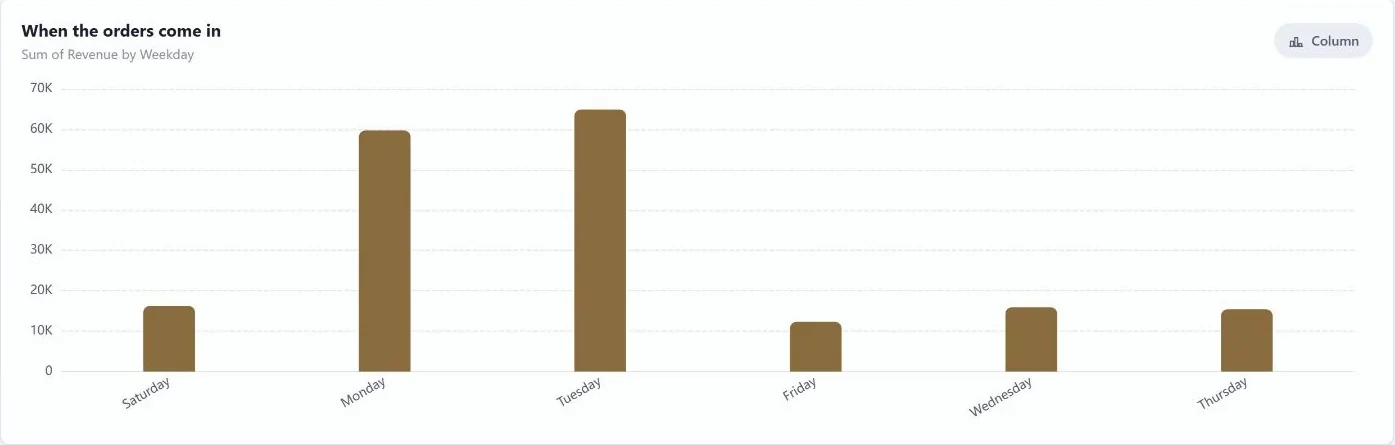
Why the blends on Monday? A chart answers that: revenue by the weekday an order came in, as columns. As the rows arrive, the days are in no useful order, and A to Z would start the week on a Friday. The block has a custom order setting for exactly this, and the finished document uses it to run the days from Monday to Saturday. Monday and Tuesday bring in €124,572 of the €184,506 in the data, which is 67 %. The cafés order at the start of the week, so the blends are roasted first.
What is late
A Status slicer on the Orders table opens on Late. The roast plan has a Status column too, with Roasted and Planned, so the slicer would reach the roast calendar and the weekday chart as well. Under What it filters, choose Choose and untick both. The two late-order blocks that come next join it by themselves. Late orders by café is a breakdown grouped by customer. Beside it, an orders table shows the order, date, customer, product, quantity, status and the date it should have shipped by.
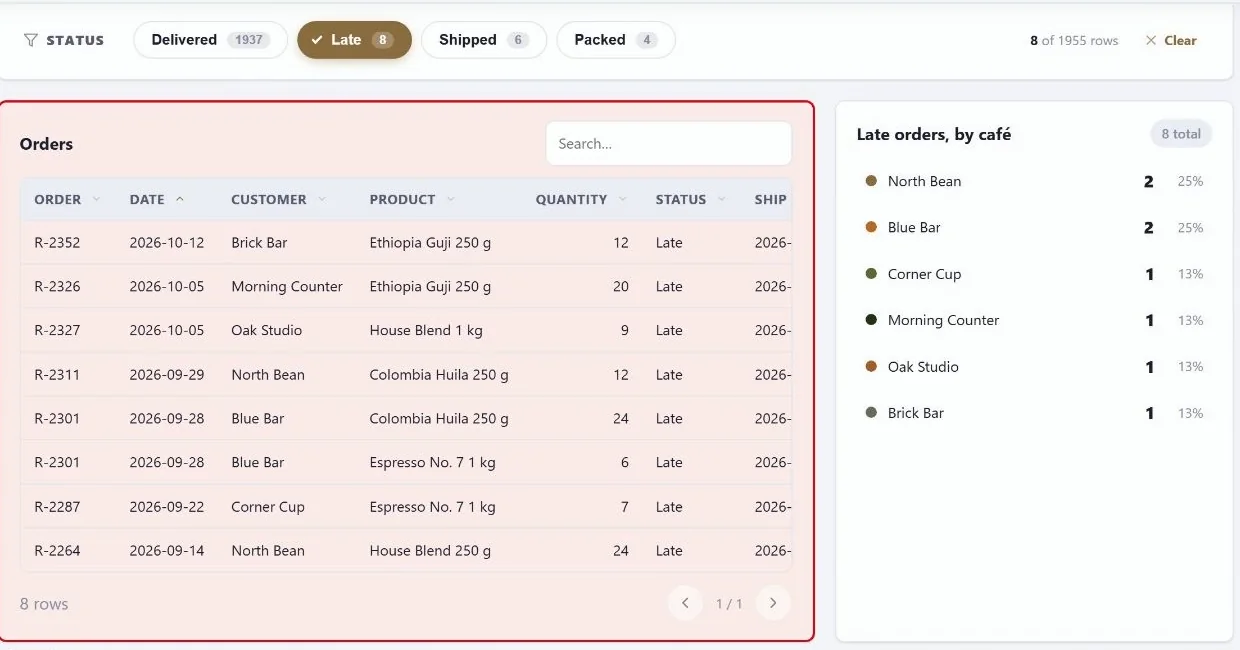
Eight order lines are late, from six cafés. Each one missed its ship-by date, and each is a call to make before the café makes it. The page ends with quick links in a Grid block, three columns with an icon and a button in each. Two buttons open outside pages, and one jumps to the Packing page. On Monday morning this page is the to-do list, and it writes itself.
Watch this part of the film: 22:35, this week
Page 5, Packing: a label for every bag and an invoice for every café
The fifth question is a chore. The packing table needs a label for every bag, and the cafés need an invoice each month. Today both mean asking Mara.
Labels that follow a slicer
A Status slicer on the Orders table opens on Packed, the orders waiting at the packing table for the courier. Below it sits the packing list, a data table of the order number, customer, product, quantity and the date it has to ship by. It shows four lines in three orders, from Friday and Saturday. This is Monday morning’s packing.
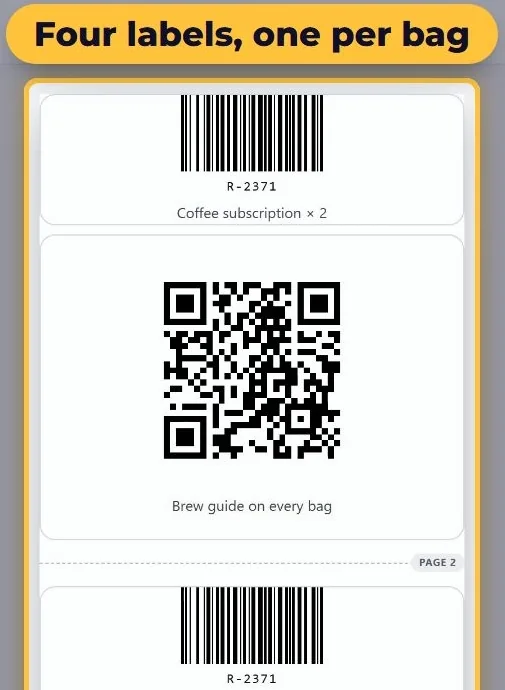
The label comes next. A barcode in Code 128 reads any text, and its value is a template made of a percent sign and the column name, so on paper every label shows its own order number. The caption is a template too: the product and how many bags. A QR code beside it points to the brew guide, so whoever opens the bag knows how to brew what is in it. One setting is left. The label has no table of its own, so the slicer has to be told to reach it: under What it filters, choose Choose and tick the label.
Printing happens in view mode. Every block has a small plus button. Add the label and the QR code to a printout, then choose Arrange and print. Pick the paper, a 100 by 150 mm shipping label, and set Repeat once per record to Orders. The run follows the slicer, so it prints four labels, one for each bag on the packing table, and not one for every line in the order book.
Twenty-five invoices in one print run
The other half of the chore is the cafés’ invoices. They go out once a month, one for each café, with every order line of that month on it. In September 2026 that meant 25 invoices. An invoice needs a row of its own, one row for each café and each month, and Grist makes those rows as a summary table. Choose Add new, then Add page, pick the Orders table, click the sum sign and group by Customer and Month. The result has 606 rows, and a new order lands in its row by itself. Four columns turn each row into an invoice header:
| Column | Formula | What it does |
|---|---|---|
| Number | "GB-" + $Month.replace("-", "") + "-" + str($Customer.id).zfill(3) | GB, the month without its dash and the customer’s row number in three digits, for example GB-202609-007 |
| Issued | EOMONTH(MAX($group.Date), 0) | The last day of the month of the latest order, set to the Date type |
| Due | DATEADD($Issued, days=14) | Fourteen days after the issue date |
| Channel | $group[0].Channel | The channel of the group’s first line, so the invoices can be kept to the cafés. Every customer buys one way |
These are Grist’s own functions, much like a spreadsheet’s, and they follow the data. When the October
orders come in, their invoices get their own dates, and nobody types them. Two small formulas finish the
model. In Orders, an Invoice column holds the same number formula, so a line and its invoice share a
number, and that is how the invoice finds its lines. In Customers, a Place column,
($Postcode + " " + $City).strip(), writes the second address line the German way, postcode
first.
On the Packing page, two slicers on the summary table each reach only the invoice. Invoices for is the channel, one at a time, opening on Wholesale. Month opens on September. Then comes the Invoice block. Its table is the summary, and the widget guesses the rest from the column names: the number, the customer, the dates and the amount. The lines come from Orders, and the address comes from Customers. Under From go the roastery’s name, address and email, the currency is the euro, and VAT is set to 7 %. That is only the setting the example uses, so check the rate for your own goods before you copy it.
One slicer needs a second look. The Status slicer at the top of the Packing page reaches the new invoice too, through the order lines behind each invoice. It would leave only the invoices that have a packed order in them, and in September there are none. So the invoice is unticked in that slicer’s list of blocks.
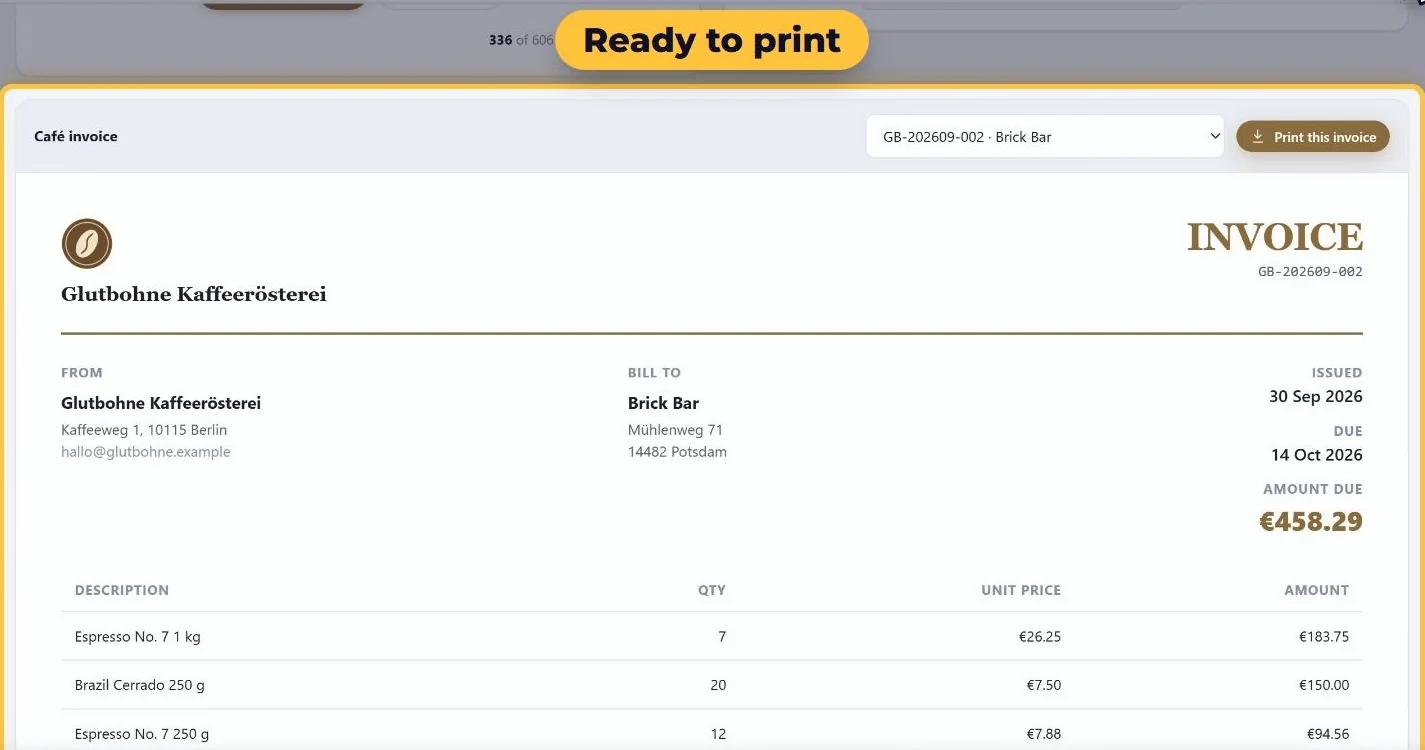
So far that is one invoice. Add it to a printout, choose Arrange and print, and repeat it once per record of the summary table. The run follows the two slicers, so it prints 25 invoices, one for each café, each on a page of its own. Save it as a PDF, and September’s invoicing takes a minute.
Watch this part of the film: 26:06, labels and 28:06, invoices
Two extras: a block of your own, and somebody else’s widget
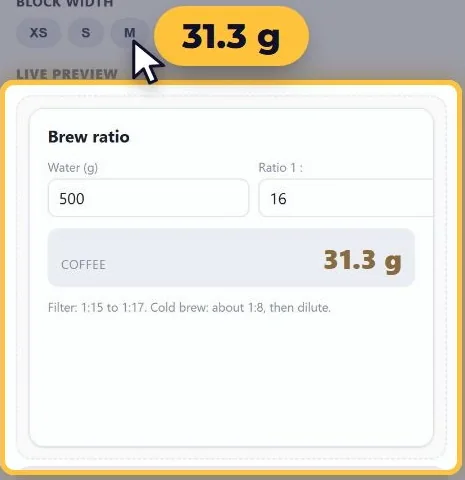
Sometimes the block you need does not exist. The baristas at the cafés keep asking how much coffee they need for a given amount of water, and no block does that. So we wrote one. Under Add Section, the Advanced group has an HTML, CSS and JavaScript block. The markup is two boxes, water and ratio, and a line for the answer. The style uses the theme’s own colours, and a few lines of JavaScript divide the water by the ratio again on every key. With 500 g of water at 1 to 16, it returns 31.3 g of coffee.
The block runs in a sandboxed frame of its own that cannot read the document, so code pasted from somewhere else can never see your data.
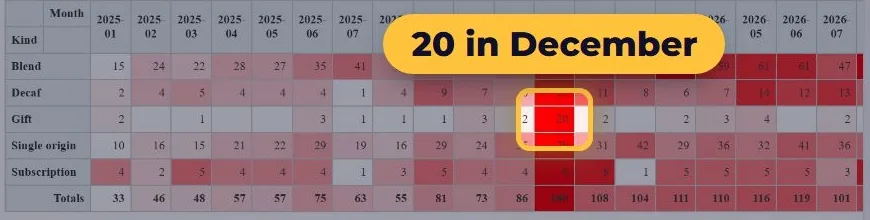
Sometimes the block already exists, as somebody else’s custom widget. The Widget block puts one inside the dashboard, by its address. We used Grist’s own Pivot table. With no table picked, it reads the table the dashboard is linked to, the orders. It also gets the dashboard’s access to the document, so add only widgets you trust. Drag Kind to the rows and Month to the columns, and the pivot counts the order lines of each kind, month by month. As a row heatmap, one cell stands out: gifts in December 2025, 20 order lines against no more than 4 in any other month. So next year the tasting boxes need to be ready before December.
Watch this part of the film: 32:05, a block of your own
A second dashboard for the packing team
Jonas runs the packing table on a tablet beside the scale, and the Packing page covers most of what he needs, but not all of it. The main dashboard also leads to revenue, margins, coffees and cafés. For a packing team that is noise, and a page that shows the money invites questions that are not the packing table’s to answer. So the packing team gets a dashboard of its own. Advanced Charts keeps several dashboards in one document, one for each widget.
- Add a second widget. Add a page with a Custom widget on the Orders table, with the same address and the same full access as the first. Both widgets now read the same tables. A new widget shows the main dashboard until it is told otherwise.
- Make it a new dashboard. Click Edit. Because the document already has a dashboard, the widget asks which one to show. Showing the main one would mean that every change made on the tablet changes Mara’s dashboard too. So choose a new one, called Packing table, as a copy, because the packing pages already work.
- Remove what the team does not need. Under Settings, then Pages, remove Overview, Coffees and Cafés. This week stays, for the roast plan and the late orders. Removing a page here removes it from this dashboard only. Drag Packing to the top, because a dashboard opens on its first page.
- Add what only this team needs. A menu link, Courier pickup, opens the courier’s site in a new tab. The hero on the Packing page becomes a slider with two slides, “Labels before ten, because the courier comes at two” and “Late comes first”. With two slides it plays by itself, six seconds each.
- Trim and restyle. On This week, delete the revenue-by-weekday chart, which is a sales question. If you delete the wrong block, Undo brings it back, and so does Ctrl + Z. History lists every change since the editor opened. Drag the late table to the left by its handle, and give it a soft red background and a two-pixel red border, in the colour Late has in the Orders table. Both settings are under Layout and style in the block’s settings.
- Give it a header and colours of its own. The header says Glutbohne Packing, with a line that says what it is for. The theme is Forest, a green, so the packing dashboard is told apart from Mara’s at a glance, from across the room.
- Let the slicer remember. On a shared tablet, the Status slicer can keep each reader’s last choice on their own device. The evening shift that looks at Late finds Late again in the morning, instead of the page’s default.
The packing team’s dashboard has two pages, its own header and its own colours. Mara’s dashboard is just as it was, with all five pages. Both designs are kept in the document’s ANUPRESS_Config table, and both read the same tables, so an order packed on one is packed on the other.
Watch this part of the film: 34:09, the packing team’s dashboard
Monday, after: five questions in about a minute
Monday morning, again. Mara opens the dashboard with her first coffee, and the questions that used to take the morning take one page each. The first answers are already on screen: revenue is up 13 % in the last five months, the target bar stands at 79 %, two cafés need a phone call, and packing means four labels and 25 invoices. Then the data starts to move, and the dashboard keeps up:
- While she reads, a web-shop order comes in: two bags of the Guji, to Hamburg. The Orders card goes from 794 to 795, and the revenue moves with it, without a reload. The dashboard follows the table it is linked to.
- Picking Wholesale in the Channel slicer makes every block that reads the orders follow. The cafés are 82 % of the 2026 revenue.
- Morning Counter is still waiting for 20 bags of the Guji, so its roast moves up a day. Mara drags it from Tuesday to Monday, and the calendar writes the new date straight back to the RoastPlan table, where Jonas, who roasts it, will see it.
- Brick Bar’s order R-2352 went out with Saturday’s courier, but its status still says Late. Mara fixes it without leaving the dashboard. She clicks Edit, selects the late orders table, chooses Edit the data in Orders, finds the row by its order number and sets the status to Shipped. Save to Orders writes one change to the Grist table, and it can be undone there like any other. The late list drops to seven lines from five cafés. Nobody pressed refresh.
For the evening shift, the moon in the header turns the whole dashboard dark, and each reader’s choice is kept on their own device. Sharing is Grist’s own Share button, and someone who can only view still uses every slicer and changes nothing.
Watch this part of the film: 39:06, Monday, after
What this Grist dashboard example teaches, and where it stops
The dashboard is useful because of choices made before the first chart. Each block answers one question, and each kind of thing has one table. Formulas replace typing, references replace copying, and one slicer replaces ten copies of the same chart.
It also has limits, and you should know them before you copy the dashboard:
- The data is small and made up. The orders table has 1,955 lines. We have not tested this design on much larger tables, so treat it as a pattern and not as a promise about size.
- Some blocks are typed in. The counters, the pricing table and the café quotes do not read a table, so someone has to edit them by hand when the facts change.
- Pages are not permissions. A second dashboard hides pages. Only Grist’s access rules hide data.
- The photos are placeholders. The film shows stock pictures that are not ours to hand out, so the download has plain placeholders. Put your own in their place.
Download the files and watch the build
The ZIP is 311 KB and holds four things:
- The finished dashboard as a Grist document (a
.gristfile): the four tables, the monthly invoices, the main dashboard and the packing team’s dashboard on its own page. - The four CSV files the build starts from, so you can import them and follow along.
- Ten placeholder pictures for the products, as SVG files, to put in the dashboard’s Photo column.
- A README with these steps in short.
To open the dashboard, choose Add New in Grist, then Import document, and pick the
.grist file. If Grist asks whether the widget may have full document access, accept. That is
what lets it read the tables and save the design.
Download the ZIP (311 KB) Watch it on YouTube
Prefer to watch the whole build? The film is 42 minutes long, and its chapters are listed in the setup guide.
Grist dashboard example: FAQ
Can I download this Grist dashboard example?
Yes. The ZIP holds the finished Grist document, the four CSV files and placeholder product pictures. In Grist, choose Add New, then Import document, and pick the .grist file. The Advanced Charts widget it uses is free and open source, and every figure in the files is made up.
Can I use my own data instead of the coffee data?
Yes. Import your own CSV files, then open each block’s settings and point it at your own table and columns. A block can only read columns that exist, so check every block after you change a table.
Does the dashboard update when the data changes?
Yes. It reads the Grist tables live. In the build, a new web-shop order moved the Orders card from 794 to 795 without a reload.
Can people who only view the document change anything?
No. Someone who can only view the document still uses every slicer and changes nothing. If sales figures must stay hidden from some people, use Grist’s access rules, which work per table and per person. A second dashboard only hides pages.
How do I print the labels and invoices?
Switch to view mode, use the small plus button on a block to add it to a printout, then choose Arrange and print. Pick the paper, such as a 100 by 150 mm shipping label, and set Repeat once per record so every row gets its own copy. The run follows the slicers, so four packed order lines give four labels.
Is the roastery real?
No. Glutbohne, its people, its customers and every number are made up for the build. The five questions are ordinary ones, so swap the coffee for your own products and see whether they fit.
Bottom line
Copy the method of this dashboard, not the coffee. Write your own five questions first. Then set up one table for each kind of thing, with formulas instead of typing and references instead of copying, and add one block for each question. If you want to see how the pieces fit before you start, open the dashboard from the download and click through it. If you already know your questions, start from an empty Grist document and import your own CSV files.
We are not neutral here, because Advanced Charts is our widget. If another tool suits your data better, our Grist vs Airtable vs NocoDB comparison covers the wider decision, including where Grist loses.